> ## Documentation Index
> Fetch the complete documentation index at: https://help.ezyiah.com.au/llms.txt
> Use this file to discover all available pages before exploring further.
# Cancel Your Subscription
> Cancel your Ezyiah plan from Manage Subscription and tell us why
You can cancel your plan yourself from **Manage Subscription**. Cancelling takes three steps: open Manage Subscription, use the three dot menu on your current plan card, then choose a reason and confirm.
Before you cancel, check the **Transaction Credits Remaining** card so you know how many reconciled transactions you have left on your current plan.
## Open Manage Subscription
Click **Manage Subscription** in the left sidebar, or click the **Manage Subscription** button on the Your Subscription card.
The Your Subscription card at the top shows your plan name, your price, and your **Next Billing** date. Make a note of the Next Billing date before you go any further.
Scroll to **Find the Perfect Plan for Your Needs**. Your current plan is the highlighted card, and its button reads **Current Plan** instead of Upgrade.
The plan cards follow the **Yearly** and **Monthly** toggle above them. Your current plan stays highlighted either way.
## Cancel from your current plan card
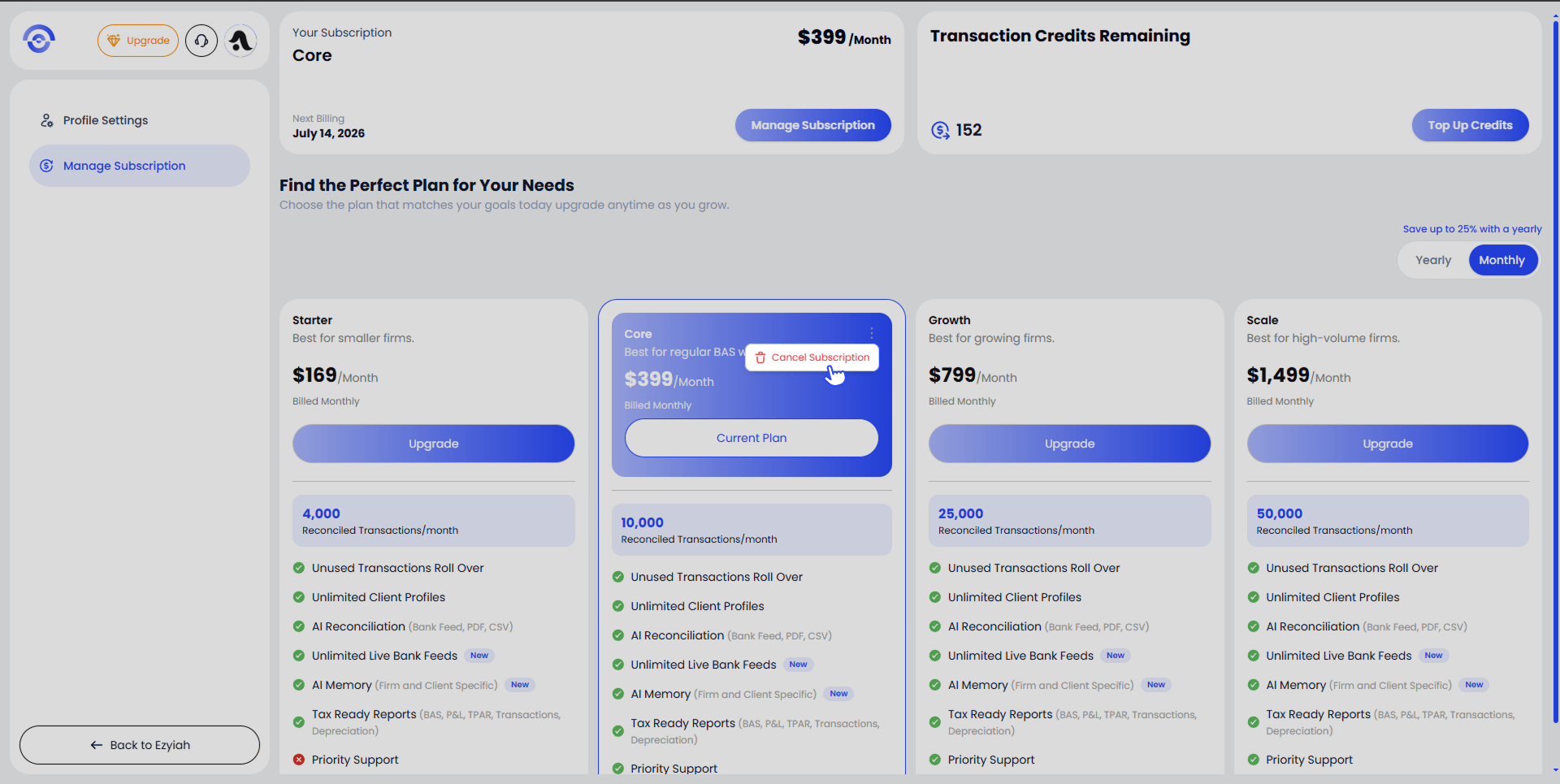 On your current plan card, look at the top right corner. Hover over the three dots to open the menu.
Click **Cancel Subscription** in the menu. Nothing is cancelled yet, and a confirmation window opens next.
The three dot menu only appears on your current plan card, so if you cannot see it, check that you are looking at the highlighted card marked **Current Plan**.
## Choose a reason and confirm
On your current plan card, look at the top right corner. Hover over the three dots to open the menu.
Click **Cancel Subscription** in the menu. Nothing is cancelled yet, and a confirmation window opens next.
The three dot menu only appears on your current plan card, so if you cannot see it, check that you are looking at the highlighted card marked **Current Plan**.
## Choose a reason and confirm
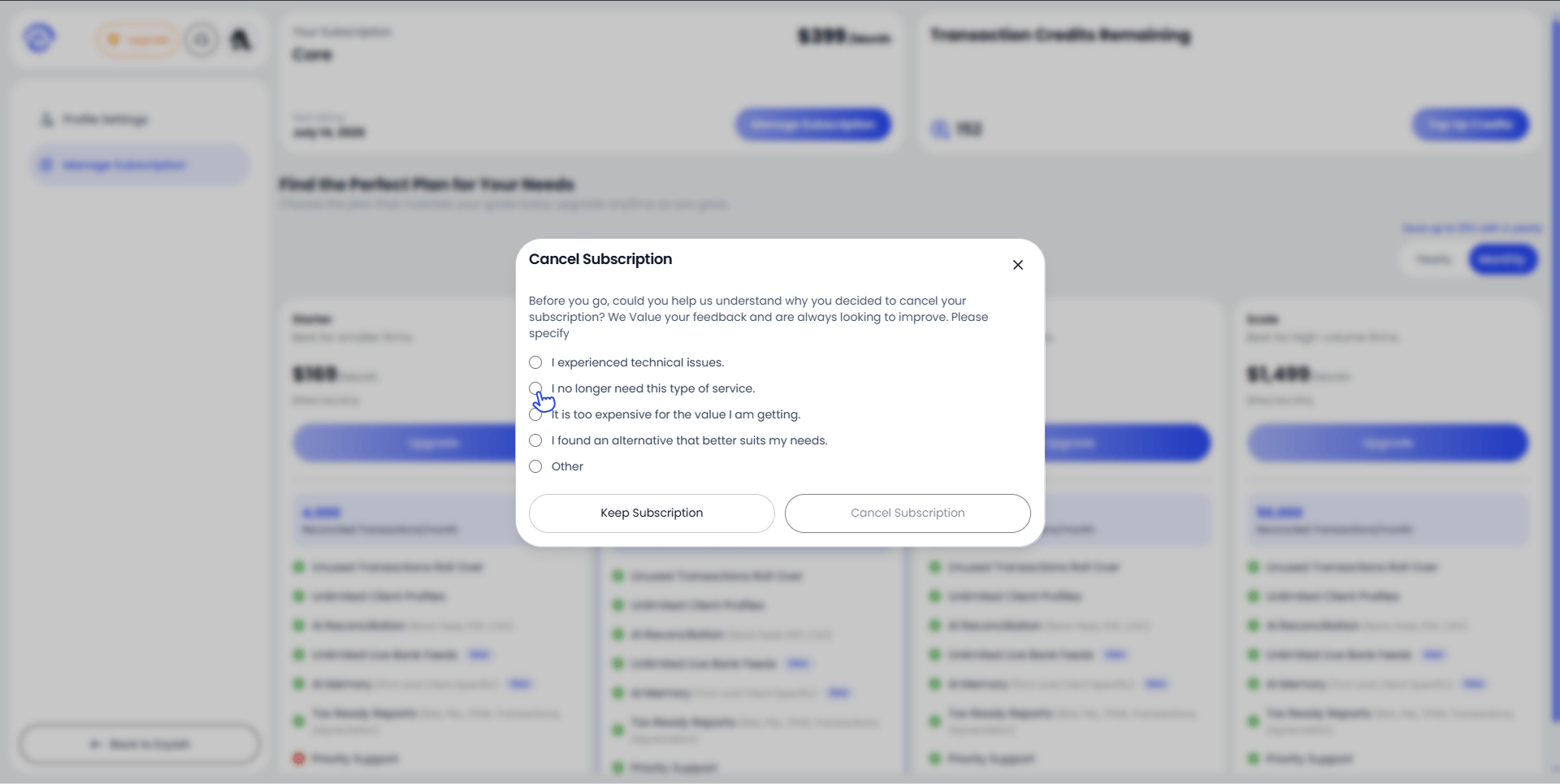 The Cancel Subscription window asks why you decided to cancel. Choose the option closest to your situation:
* **I experienced technical issues.**
* **I no longer need this type of service.**
* **It is too expensive for the value I am getting.**
* **I found an alternative that better suits my needs.**
* **Other**
Your answer goes to the Ezyiah team as feedback and does not change how the cancellation is processed.
Click **Cancel Subscription** to confirm, or click **Keep Subscription** to close the window and stay on your current plan. You can also close the window with the X in the top right corner.
## What happens next
Your **Next Billing** date is shown on the Your Subscription card, so check it before you cancel to see what you have already paid for. If you are unsure how cancelling affects your remaining transaction credits or your client data, contact the Ezyiah team before confirming.
## Changing your plan instead
If cost or transaction volume is the reason you are cancelling, you may not need to cancel at all.
Set the toggle above the plan cards to **Yearly** to see the yearly prices, which save up to 25% compared with monthly billing.
Ezyiah is a business expense and 100% tax deductible for Australian accounting professionals.
Every plan includes unlimited client profiles, unlimited live bank feeds, AI reconciliation, AI Memory, and tax ready reports. The plans differ in how many reconciled transactions they include each month, and unused transactions roll over. Pick the plan that matches your volume and click its button to switch.
If you only need more transactions this month, click **Top Up Credits** on the Transaction Credits Remaining card rather than changing plan.
## Reactivating after you cancel
To start again, go back to **Manage Subscription** and choose a plan from **Find the Perfect Plan for Your Needs**. Your firm profile, clients, and chart of accounts are tied to your account rather than to your plan.
The Cancel Subscription window asks why you decided to cancel. Choose the option closest to your situation:
* **I experienced technical issues.**
* **I no longer need this type of service.**
* **It is too expensive for the value I am getting.**
* **I found an alternative that better suits my needs.**
* **Other**
Your answer goes to the Ezyiah team as feedback and does not change how the cancellation is processed.
Click **Cancel Subscription** to confirm, or click **Keep Subscription** to close the window and stay on your current plan. You can also close the window with the X in the top right corner.
## What happens next
Your **Next Billing** date is shown on the Your Subscription card, so check it before you cancel to see what you have already paid for. If you are unsure how cancelling affects your remaining transaction credits or your client data, contact the Ezyiah team before confirming.
## Changing your plan instead
If cost or transaction volume is the reason you are cancelling, you may not need to cancel at all.
Set the toggle above the plan cards to **Yearly** to see the yearly prices, which save up to 25% compared with monthly billing.
Ezyiah is a business expense and 100% tax deductible for Australian accounting professionals.
Every plan includes unlimited client profiles, unlimited live bank feeds, AI reconciliation, AI Memory, and tax ready reports. The plans differ in how many reconciled transactions they include each month, and unused transactions roll over. Pick the plan that matches your volume and click its button to switch.
If you only need more transactions this month, click **Top Up Credits** on the Transaction Credits Remaining card rather than changing plan.
## Reactivating after you cancel
To start again, go back to **Manage Subscription** and choose a plan from **Find the Perfect Plan for Your Needs**. Your firm profile, clients, and chart of accounts are tied to your account rather than to your plan.