

Open Manage Subscription
Any of these work:- Click Upgrade at the top of the sidebar.
- Click Manage on the free trial card at the bottom of the sidebar.
- Click your avatar, then Settings, then Manage Subscription.
Pick a plan
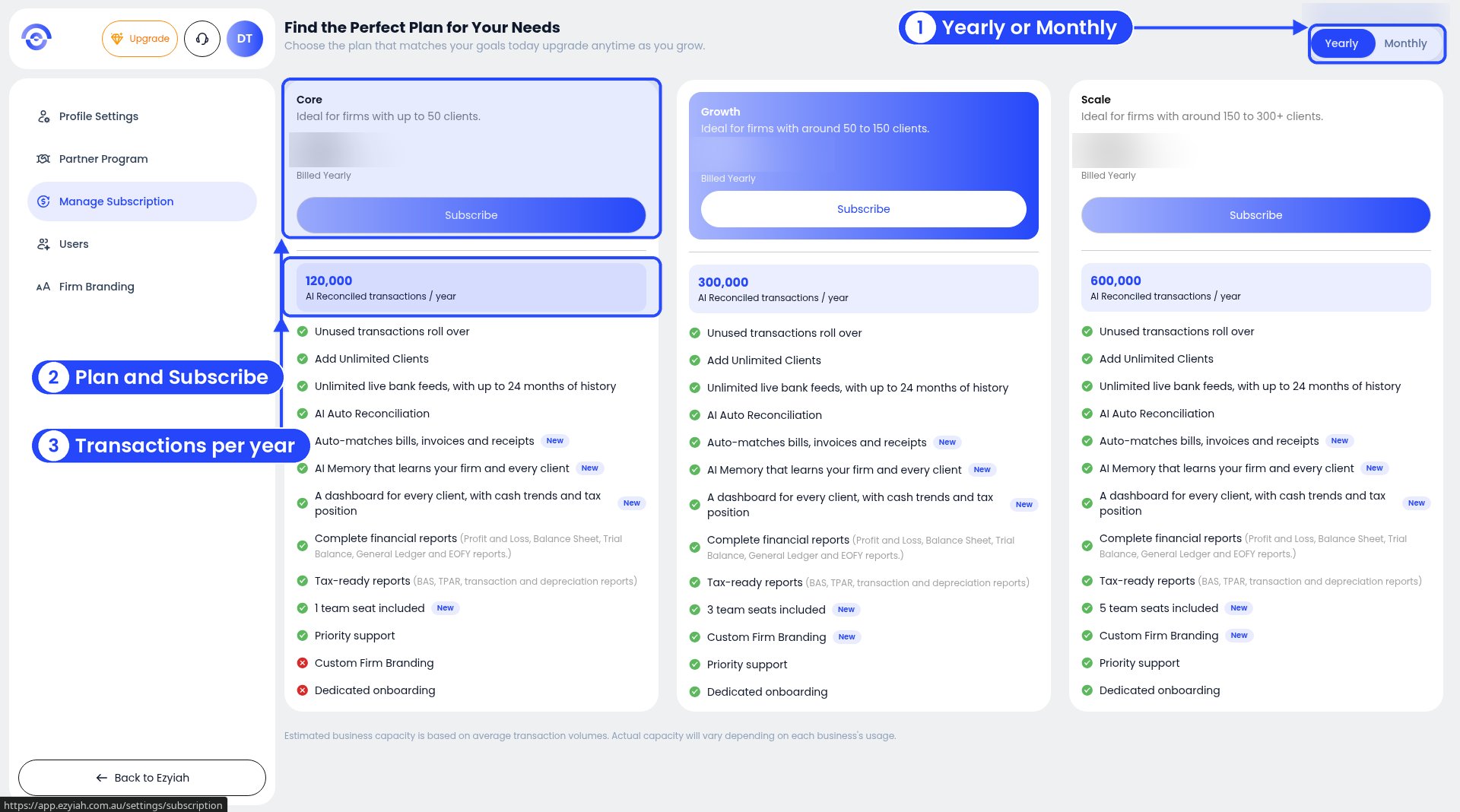
Plans for accounting firms
1
Choose Yearly or Monthly
Use the toggle in the top right.
2
Compare the plans
Each card shows who the plan suits and what’s included.
3
Check the transactions
The blue box shows how many transactions Ezyiah reconciles for you each year (or each month on monthly billing).
4
Click Subscribe
Click Subscribe on the plan you want, then follow the steps to enter your payment details.
Plans for accounting firms
For prices, see ezyiah.com.au/pricing.
Every plan includes:
- Unused transactions roll over.
- Unlimited clients.
- Unlimited live bank feeds, with up to 24 months of history.
- AI auto reconciliation.
- Automatic matching of bills, invoices and receipts.
- AI Memory that learns your firm and every client.
- A dashboard for every client, with cash trends and tax position.
- All the financial reports: Profit and Loss, Balance Sheet, Trial Balance, General Ledger and EOFY.
- Tax-ready reports: BAS, TPAR, transaction and depreciation reports.
- Priority support.
How many businesses a plan suits is a guide only. It’s based on average transaction numbers, and every business is different.
For business owners
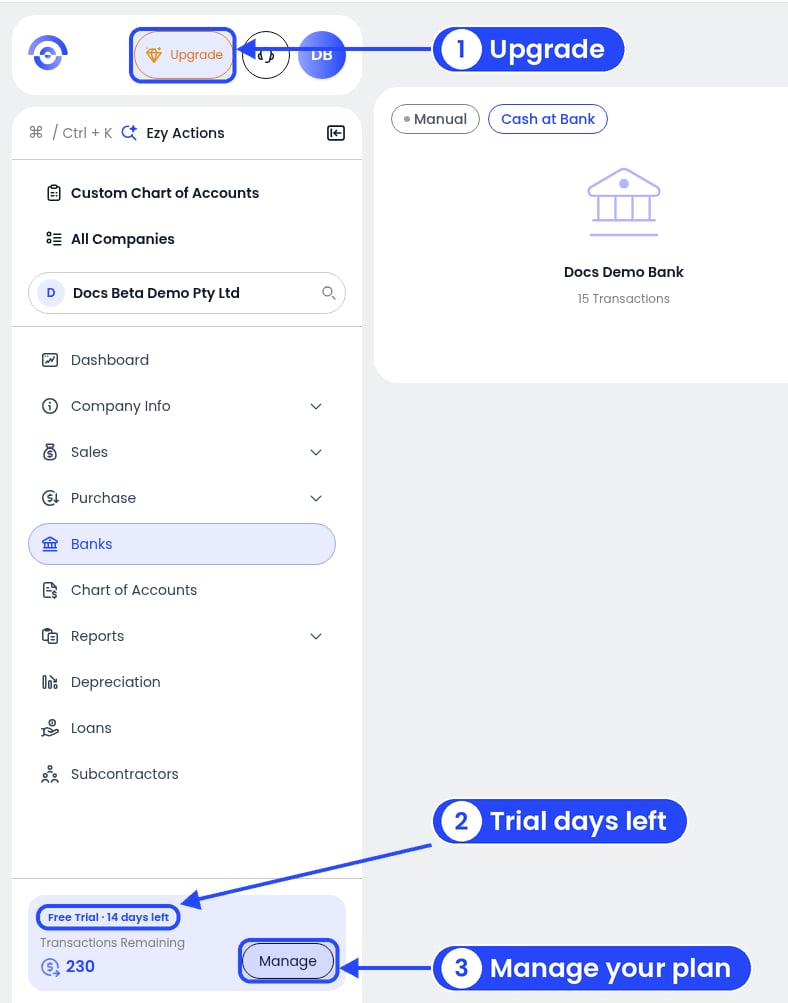
Upgrade and the free trial card in the sidebar
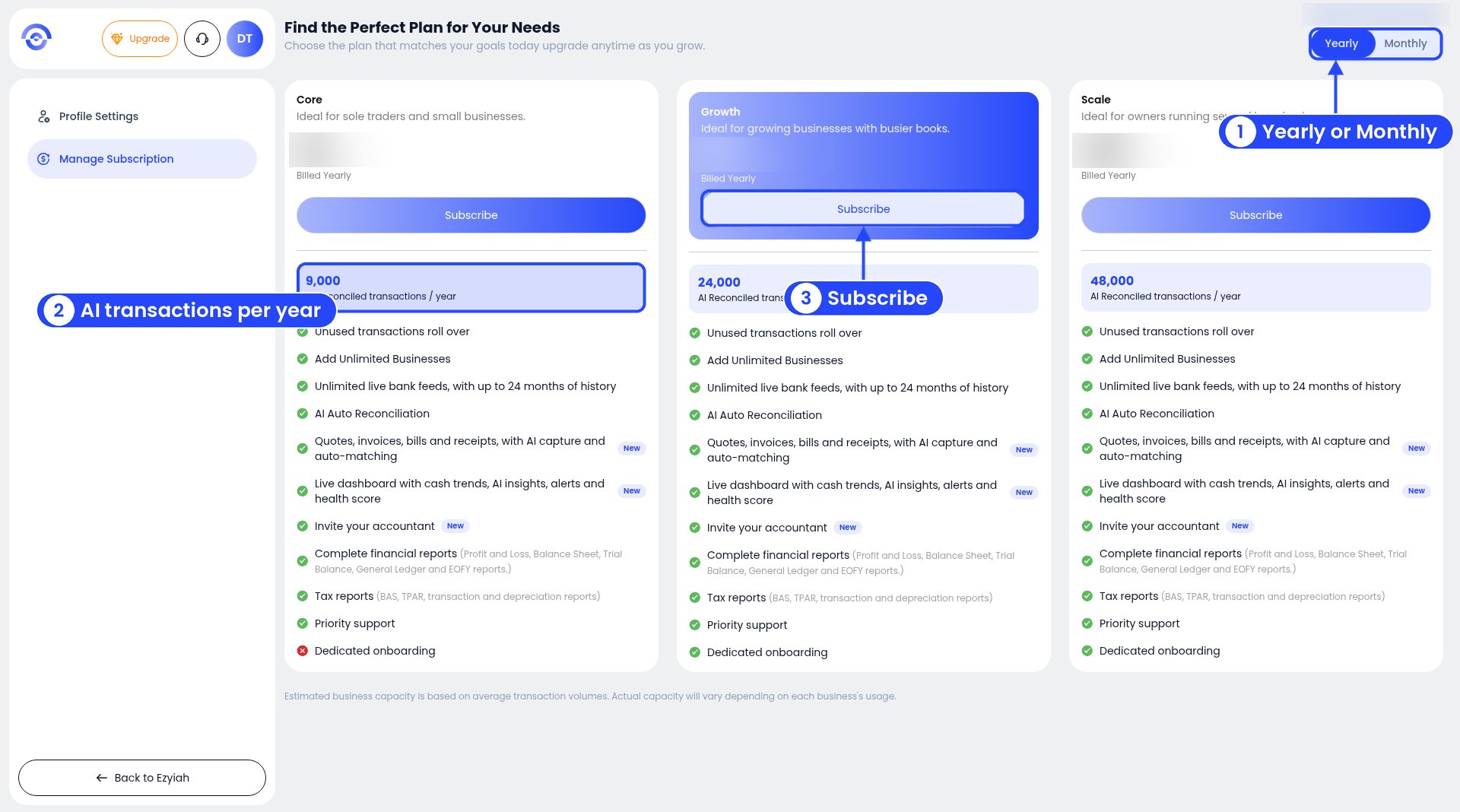
Business plans
Click Subscribe under the plan you want.
How many businesses a plan suits is a guide only. It’s based on average transaction numbers, and every business is different.
What you’ll see on a paid plan
Once you’re on a paid plan, Manage Subscription has a few more parts.- Your Subscription shows your plan and your Next Billing date.
- Manage Subscription opens your billing portal (see below).
- Transaction Credits Remaining shows how many credits you have left. Need more? Click Top Up Credits and pick a pack. For pack sizes and prices, see ezyiah.com.au/pricing.
- The plan cards are below. Your plan’s card says Current Plan. Use the Yearly and Monthly toggle to compare.
- Add ons, further down, has Organisation User Seats and a Buy more Seats button. See Users.
Your billing portal
Click Manage Subscription to open your billing portal. It has four parts:- Current Subscription: your plan and your next billing date.
- Payment Method: your card. Click Add payment method to add another one.
- Billing and Shipping Information: your name, email, billing address and phone number. Click Update information to change them.
- Invoice History: your past invoices.