

Add a note
1
Open the client
Search for the client in the sidebar, or pick them from All Clients.
2
Go to Basic Info
Under Client Info, click Basic Info. The Notes panel is on the right. If there aren’t any notes yet, it says No notes yet.
3
Write the note
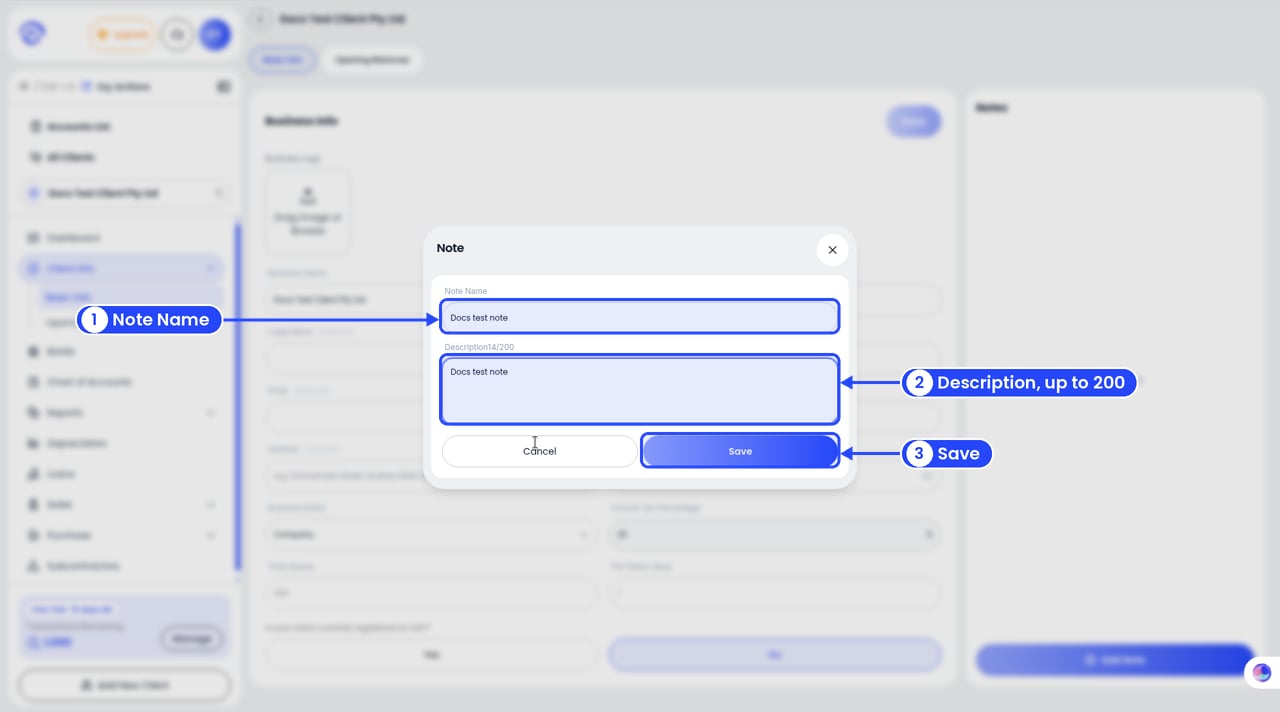
Write the note
4
Save
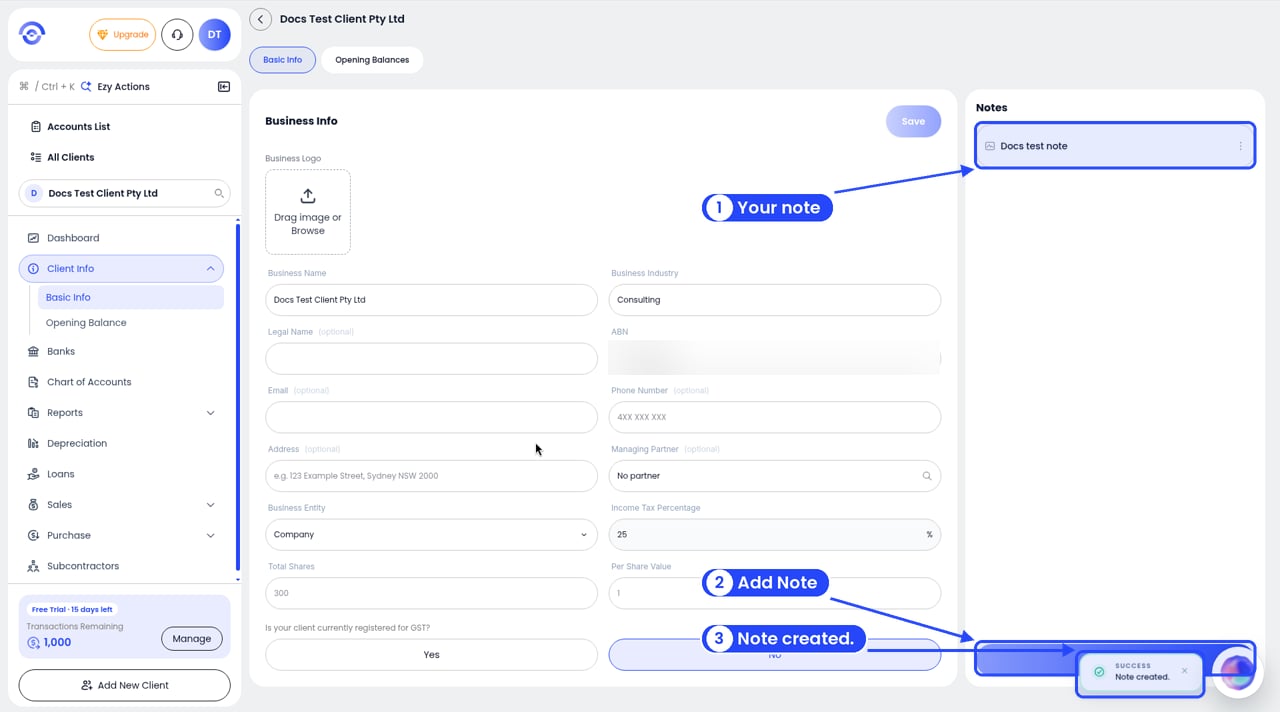
Your note in the Notes panel
Change or delete a note
1
Open the note's menu
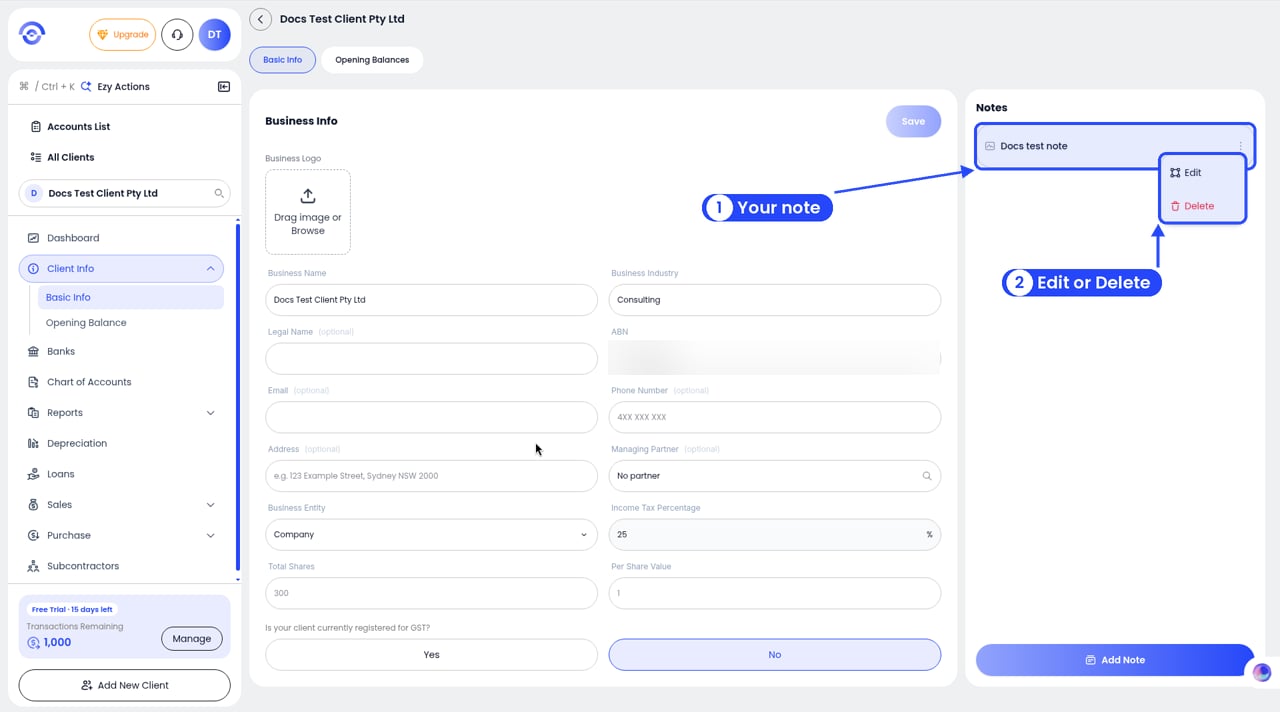
Edit or delete a note
2
Pick Edit or Delete
Edit opens the Edit Note window with the note filled in. Make your changes and click Save. Delete asks “Delete note?” first. Confirm to delete it, or click Cancel.
Good notes are short and clear
Write it so anyone in your team can act on it. For example:- “Pays business fuel on a personal card. Code to Motor Vehicle Expenses.”
- “Quarterly BAS. Three bank accounts on live feeds.”
- “Car is 60% business use. Only claim 60%.”
- “Often forgets toll receipts. Chase before finishing TPAR.”