

The first time you log in
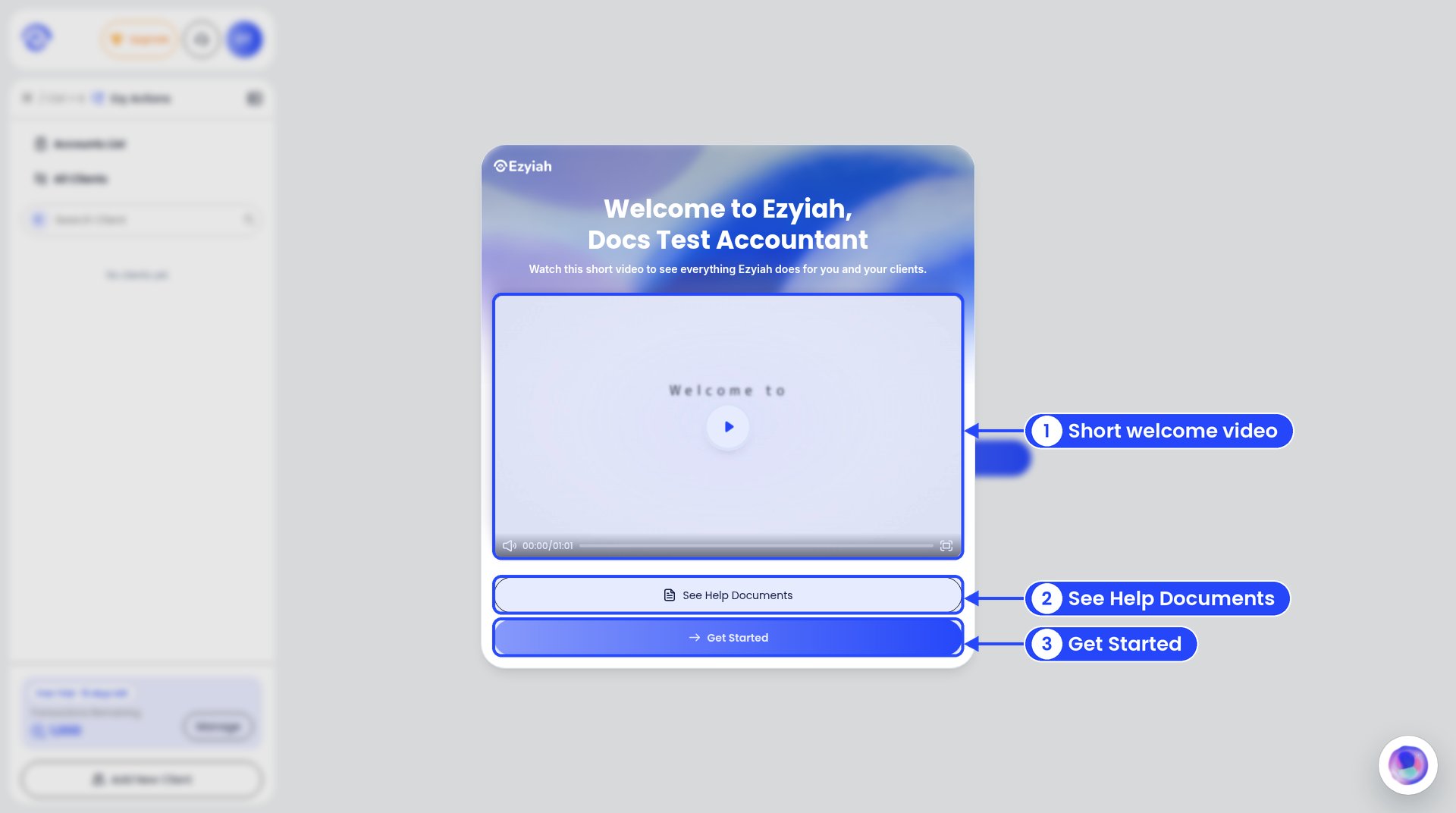
The welcome window
The main screen
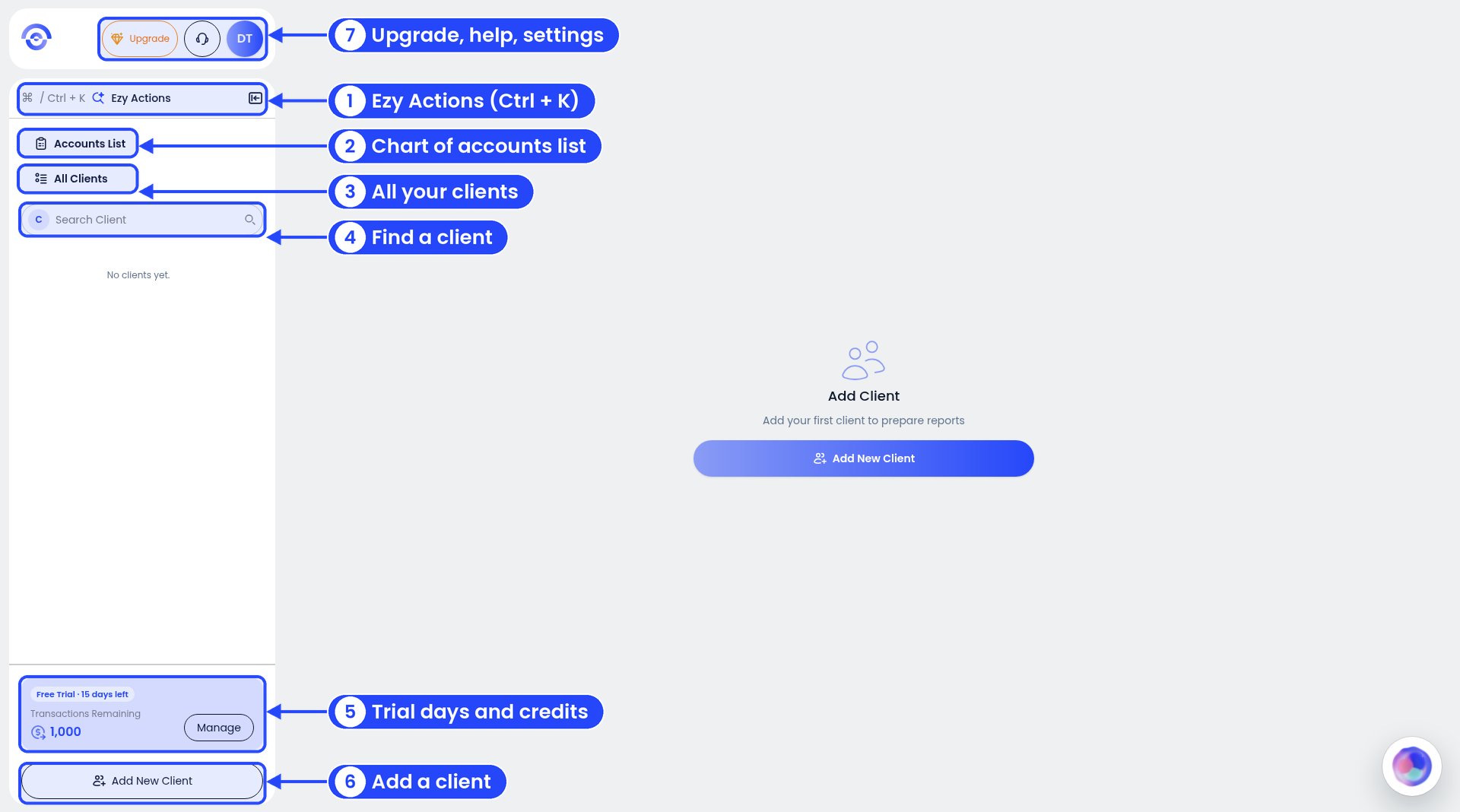
The sidebar on a new firm account
- Ezy Actions. Search for anything and jump straight to it. Press Ctrl + K (Windows) or Cmd + K (Mac). See Ezy Actions.
- Accounts List. Your firm’s chart of accounts. You can add your own accounts here. See Custom chart of accounts.
- All Clients. Every client, plus connection requests and archived clients. See Your client list.
- Search Client. Type a client’s name to open their file.
- Trial card. On a free trial, this shows the days and transactions you have left. Click Manage to see plans.
- Add New Client. Always at the bottom of the sidebar. See Adding a new client.
- Top buttons. Upgrade opens the plans page. The headset opens Help. Your initials open a menu with Settings and Logout.
Inside a client’s file
Click a client to open their file. The sidebar then shows their pages: Dashboard, Client Info (Basic Info and Opening Balance), Banks, Chart of Accounts, Reports, Depreciation, Loans, Sales (Quotes, Invoices, Customers, Products & Services), Purchase (Receipts, Bills), Subcontractors and Ezy Actions (Ctrl + K). To switch client, use the client box near the top of the sidebar. The client’s Dashboard gives you a quick picture of the business: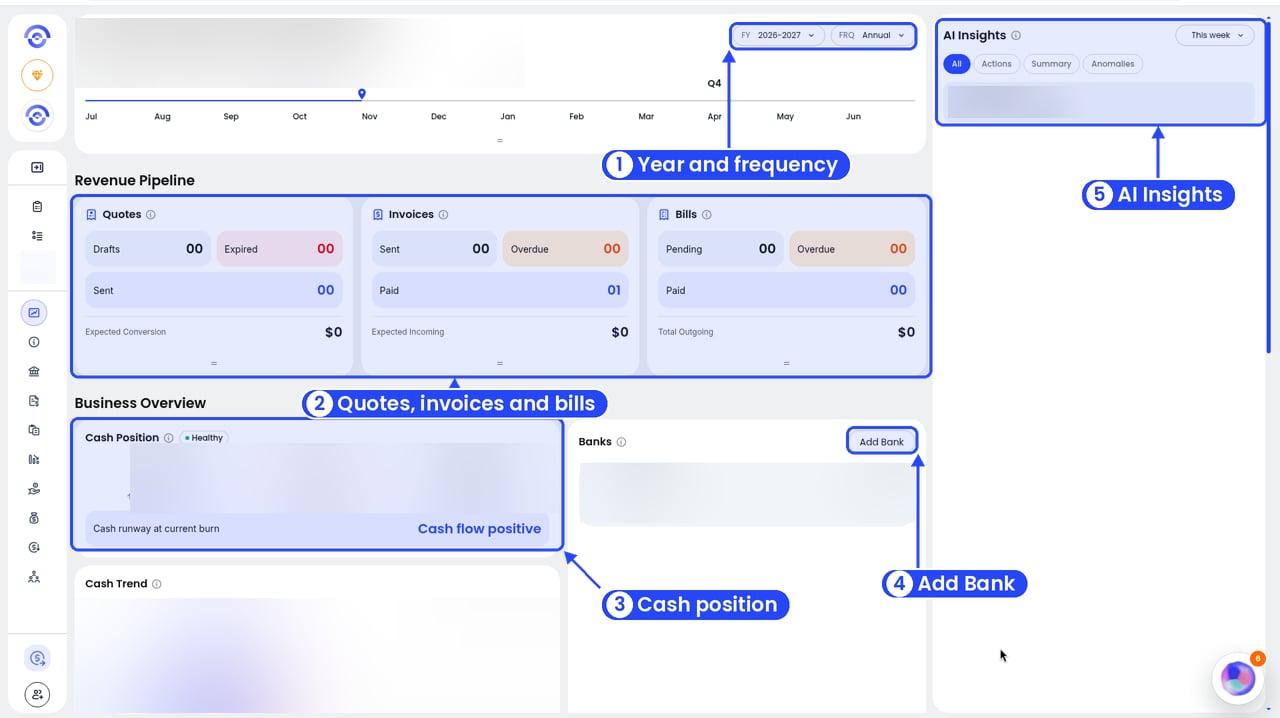
A client's dashboard
- FY and FRQ. Pick the financial year, and whether to see it by year, quarter or month. The timeline underneath shows the quarters, Q1 to Q4, from July to June.
- Revenue Pipeline. Quotes (Drafts, Expired, Sent), Invoices (Sent, Overdue, Paid) and Bills (Pending, Overdue, Paid), with the totals expected in and out.
- Business Overview. Cash Position shows the total bank balance, GST payable and expected balance. Cash Trend charts money in and out.
- Banks. The client’s bank accounts and balances. Click Add Bank to add one.
- AI Insights. Things Ezyiah has noticed, sorted into All, Actions, Summary and Anomalies.
Opening your settings
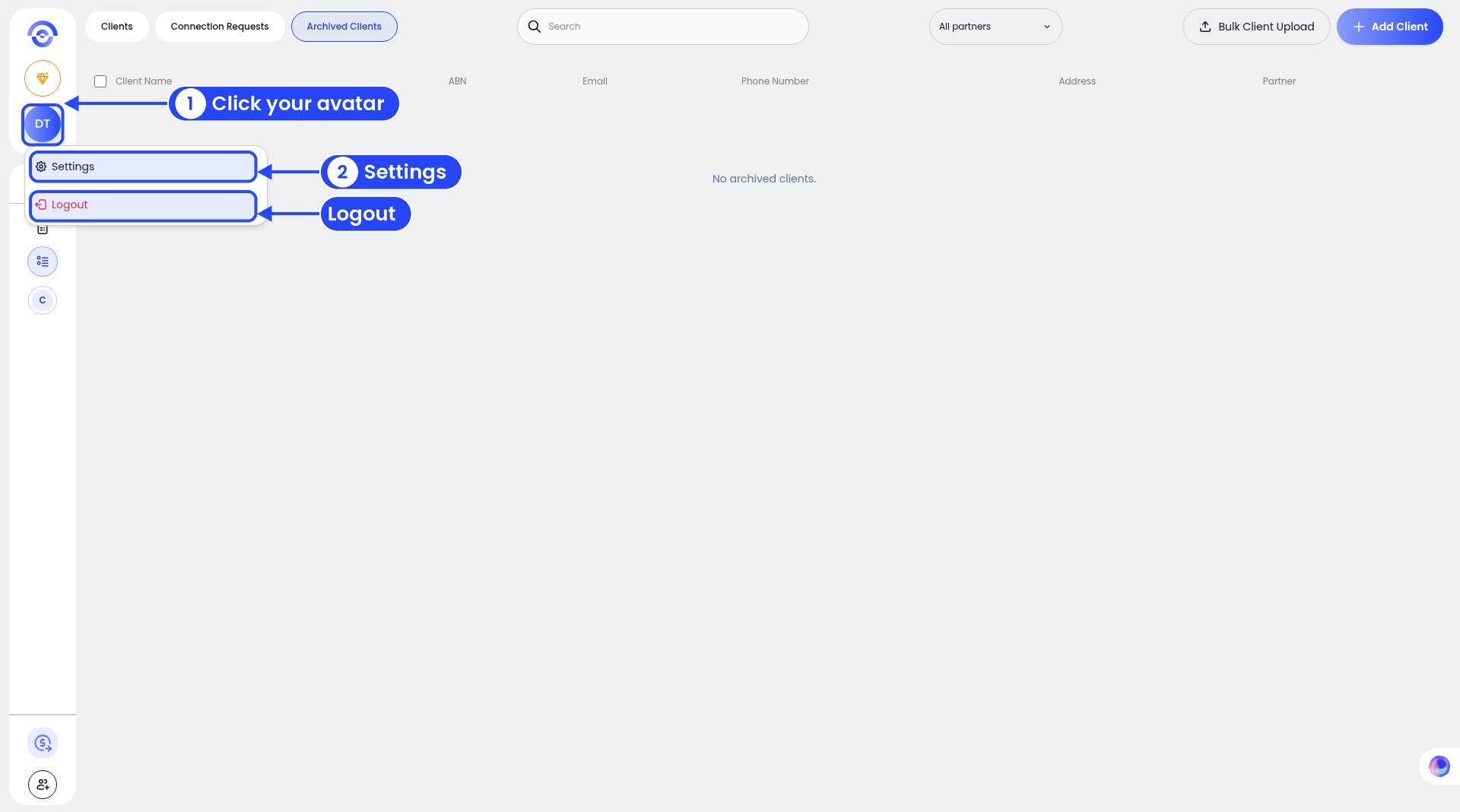
The account menu
- Click your initials (your avatar).
- Click Settings.