

Before you start
You’ll need the client’s business name and ABN. It also helps to know their industry, their entity type and whether they’re registered for GST.Step by step
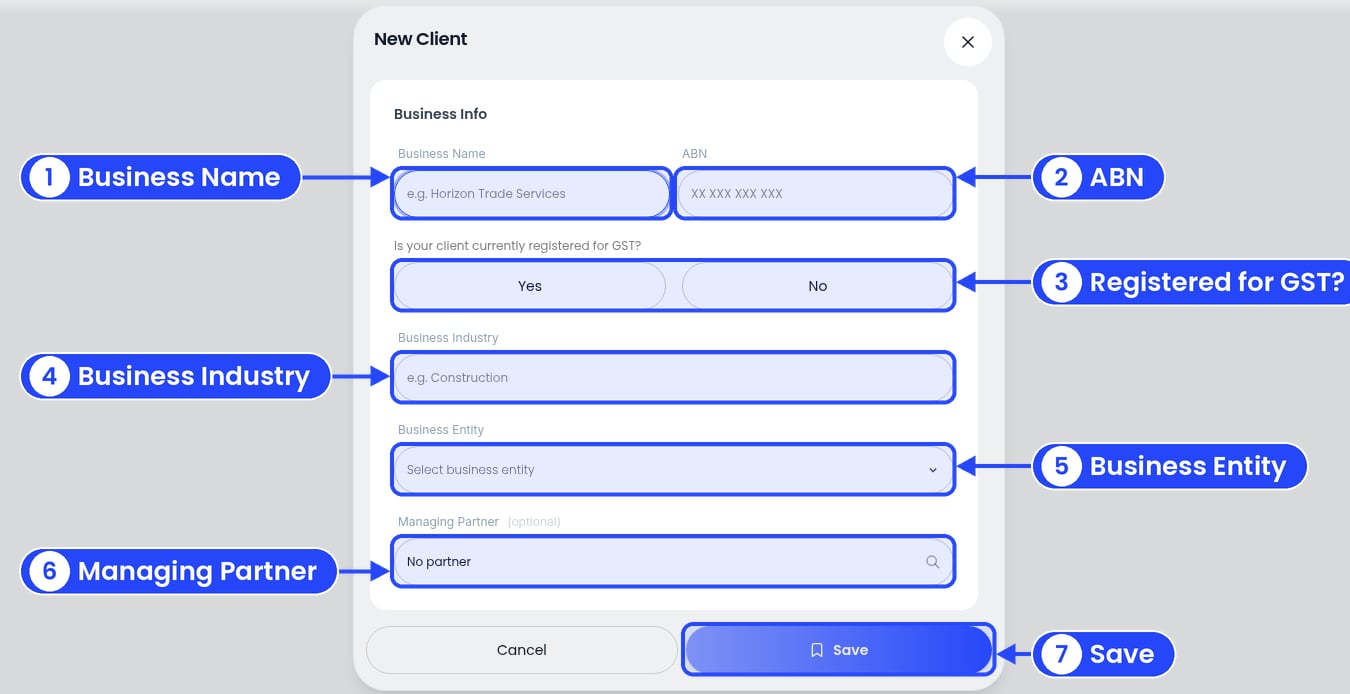
The New Client form
1
Business Name
Type the client’s business name, for example Harbourside Plumbing Pty Ltd. It shows on every report. You must fill this in.
2
ABN
Type the client’s Australian Business Number (11 digits). You must fill this in. If it’s empty, you’ll see ABN is required.
3
Registered for GST?
Under Is your client currently registered for GST?, click Yes or No. You must pick one: if you don’t, you’ll see Please select a GST status. This tells Ezyiah whether to work out GST on the client’s transactions.
4
Business Industry
Type the client’s industry, for example Construction. It helps Ezyiah code transactions the right way.
5
Business Entity
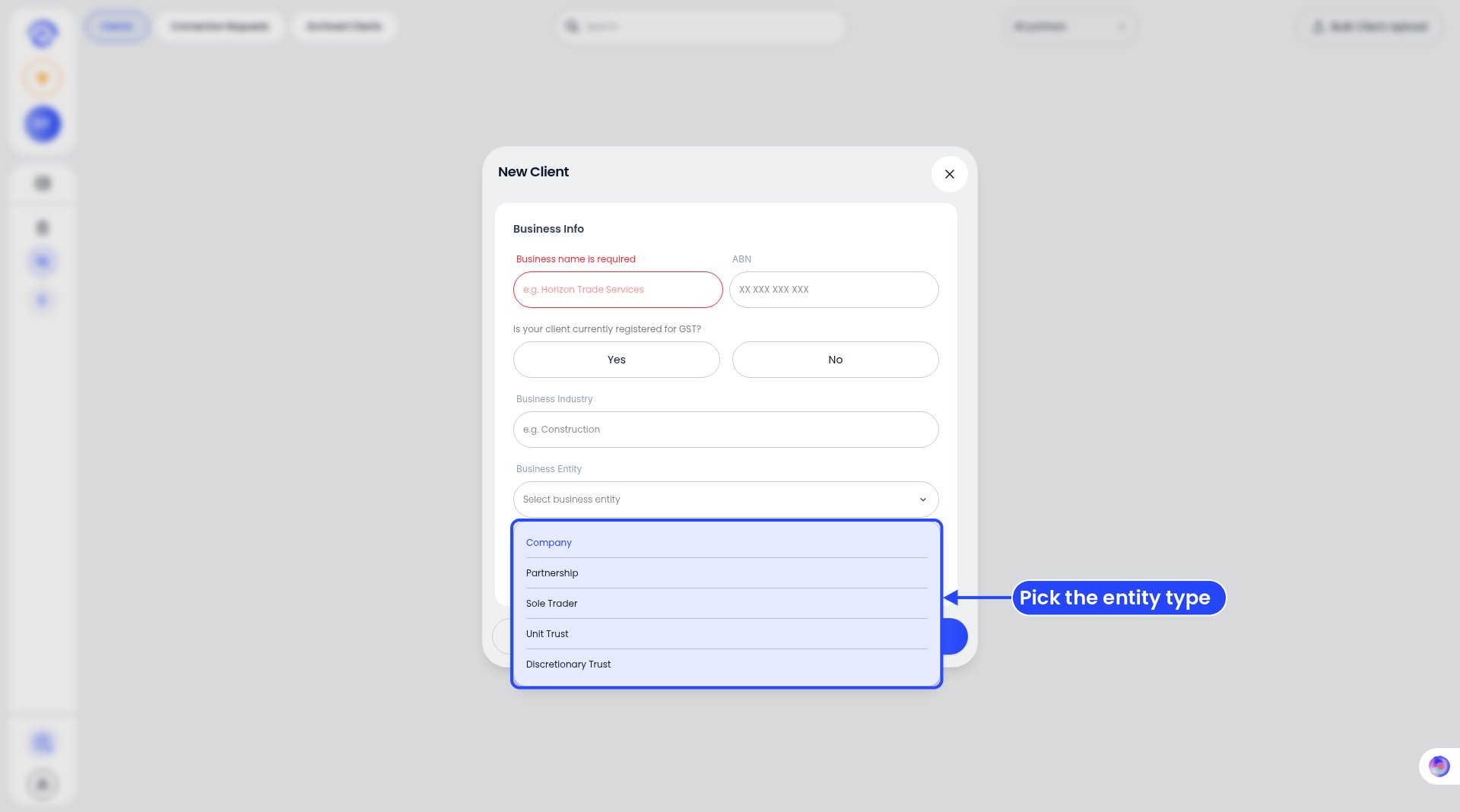
Business Entity choices
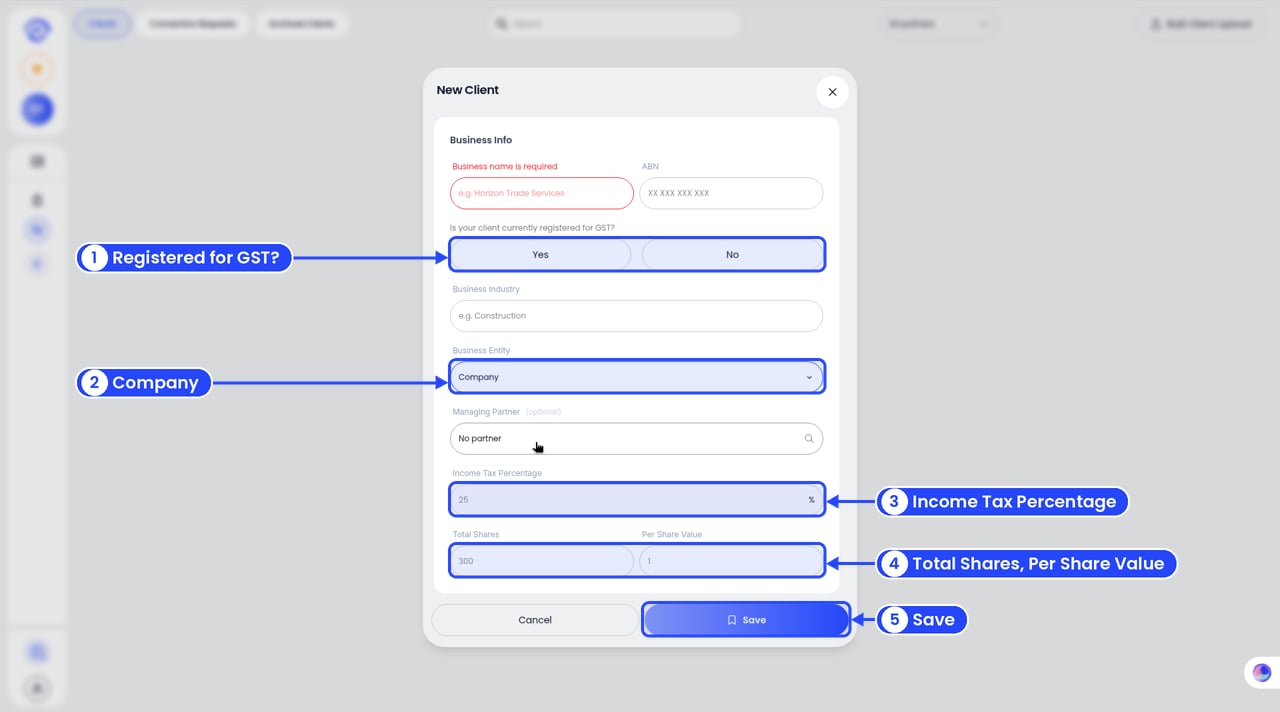
A Company adds its tax rate and share details
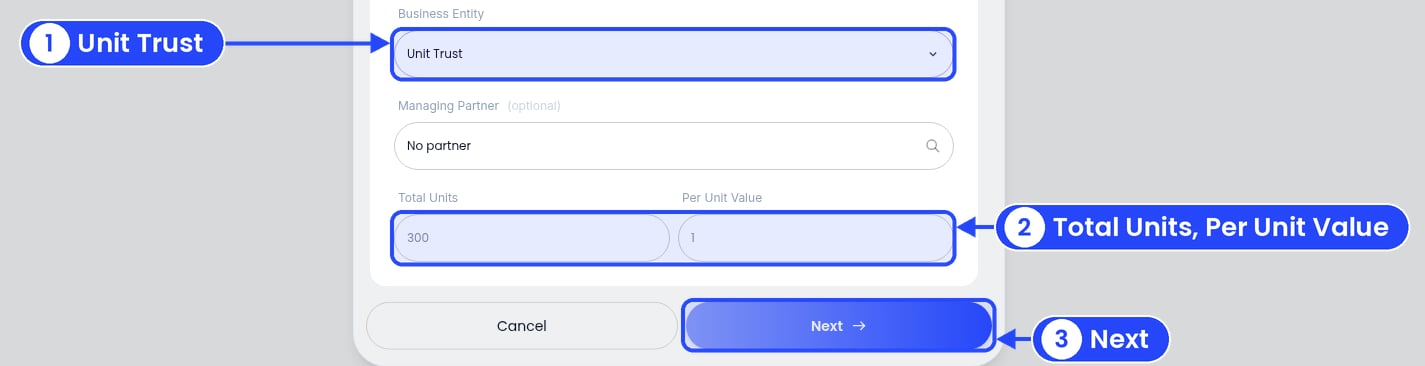
A Unit Trust adds its units, and the button changes to Next
- Company: three more boxes appear: Income Tax Percentage, Total Shares and Per Share Value.
- Sole Trader: no extra boxes.
- Unit Trust: two more boxes appear, Total Units and Per Unit Value, and a second step, Unit Holders.
- Partnership: a second step, Partners.
- Discretionary Trust: a second step, Beneficiary.
6
Managing Partner (optional)
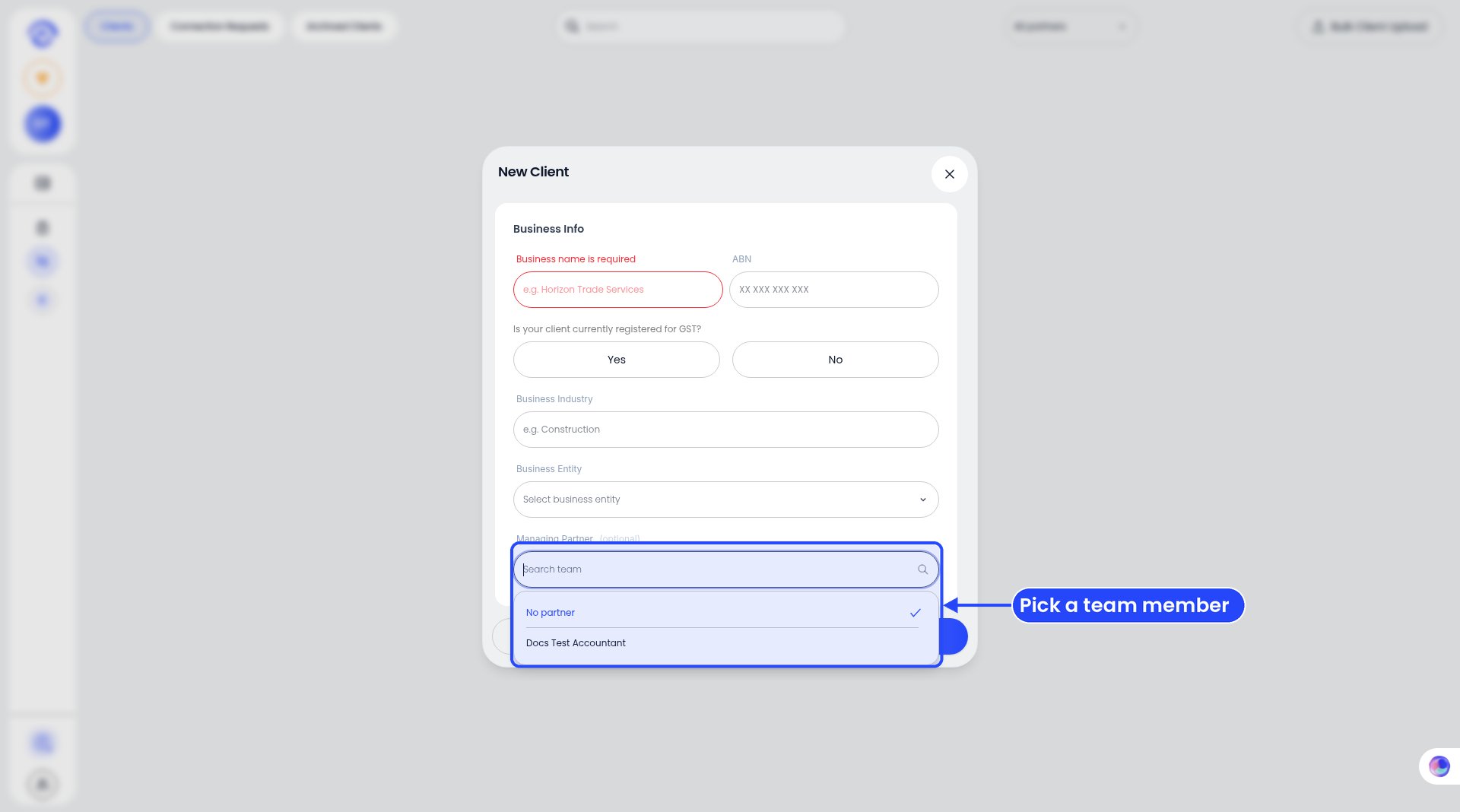
Managing Partner choices
7
Save (or Next)
For a Partnership, Unit Trust or Discretionary Trust, click Next → and fill in the second step (Partners, Unit Holders or Beneficiary). See The second step. Then click Save. The client is added and their Banks page opens, ready for you to connect a bank feed. There’s no email or invite step. To give the business owner their own login, see Inviting a business client.
The second step
A Partnership, Unit Trust or Discretionary Trust has a second step after Next →. The bar at the top shows where you are, for example Client Info then Partners. Add each person or company in turn. Save each one with the row’s Save, then click Save at the bottom.- Save at the bottom stays greyed out until you’ve saved at least one row.
- Add Partner, Add Unit Holder or Add Beneficiary stays greyed out until you’ve saved the current row. Click it to add another.
- Click Back to return to the first step. For a Unit Trust, your Total Units and Per Unit Value are kept.
Partners (Partnership)
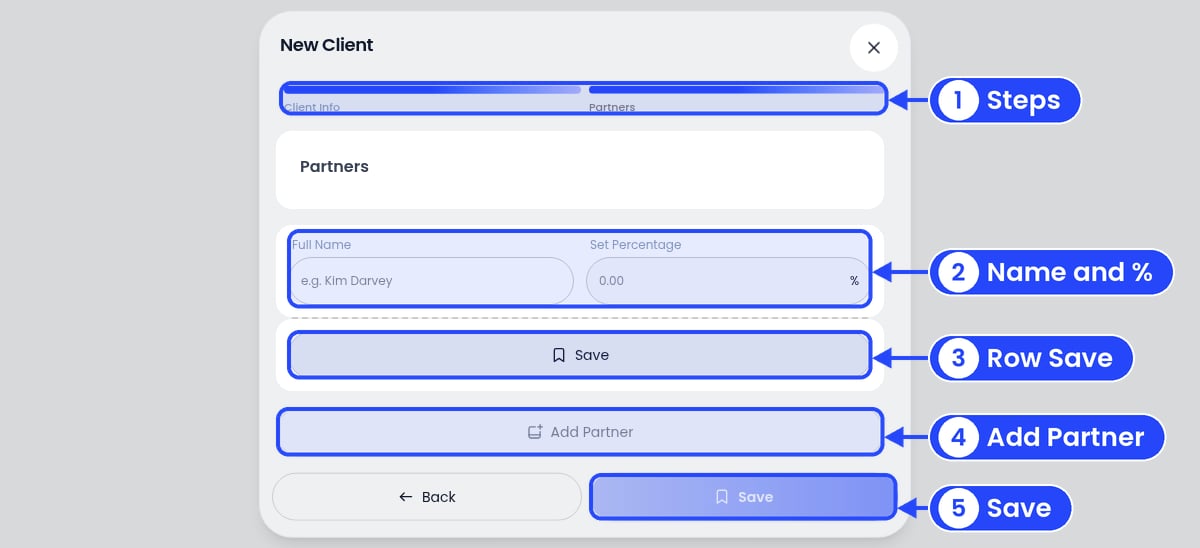
The Partners step
Unit Holders (Unit Trust)
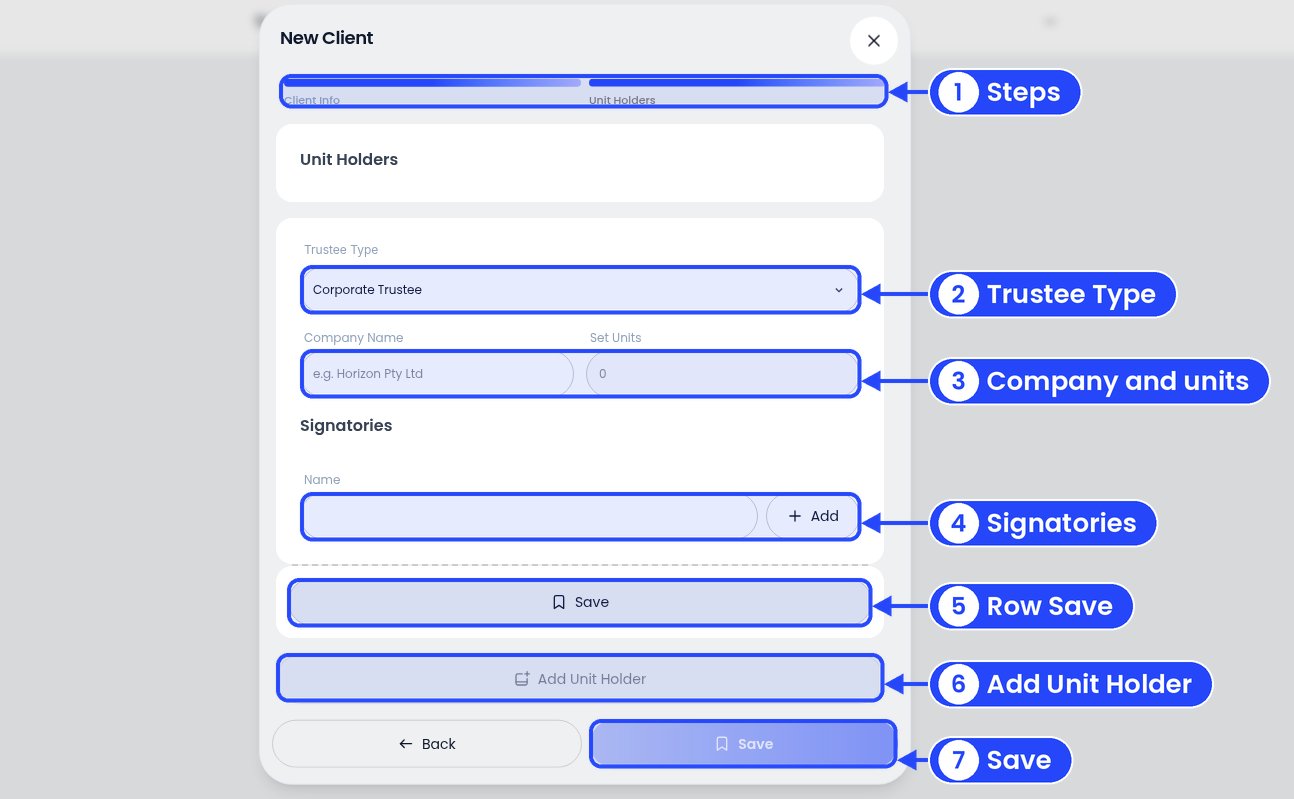
The Unit Holders step
- Trustee Type: starts as Corporate Trustee.
- Company Name: the unit holder’s name.
- Set Units: how many units they hold.
- Signatories: type a Name and click Add. Add as many as you need.
Beneficiary (Discretionary Trust)
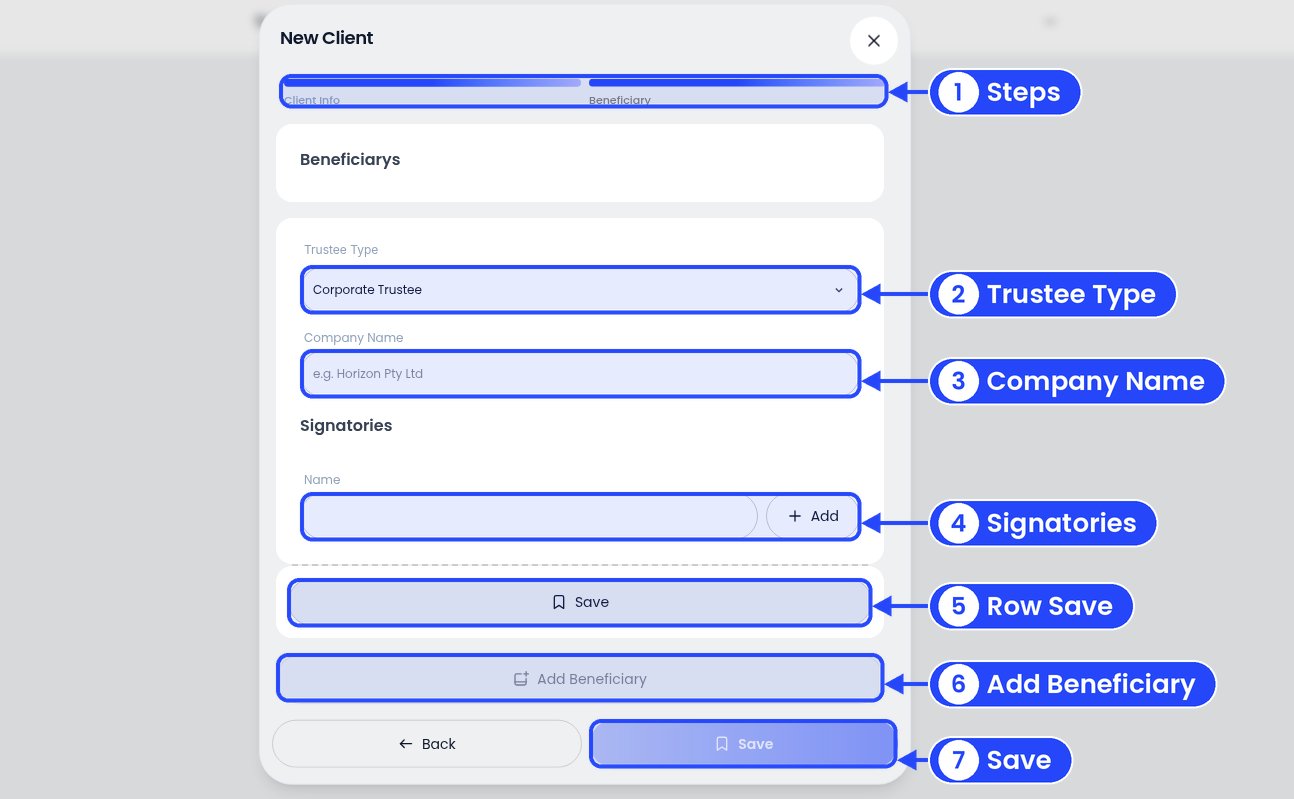
The Beneficiary step
- Trustee Type: starts as Corporate Trustee.
- Company Name: the beneficiary’s name.
- Signatories: type a Name and click Add.
If you see Business name is required, the name box is empty. Fill it in and click Save again.
Adding clients counts toward your Partner Program tier
When a client you bring to Ezyiah pays for their own business plan, they count toward your Partner Program status after their first successful payment. When you reach the next level, your status and its perks unlock straight away, and the bigger discount applies to your firm’s subscription bills from then on.What’s next
Add opening balances
Start the client’s books from the right numbers.
Connect a bank feed
Bring in their transactions every day.