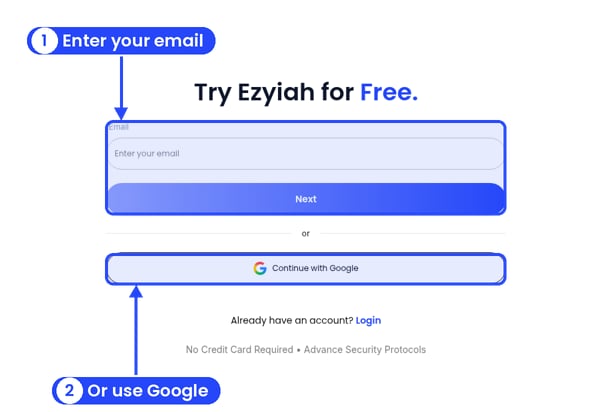
Go to app.ezyiah.com.au/signup. Enter your work email and click Next, or click Continue with Google. If you use email, type the 6-digit code we send you on the Verify OTP screen.See Create your account for more on this part.
2
Choose Accountant
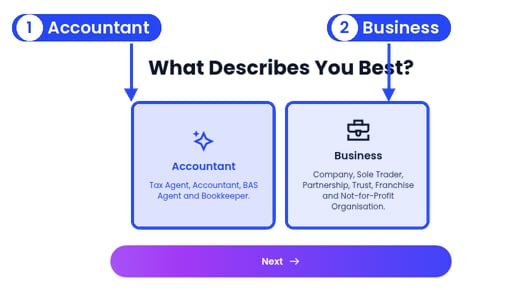
Step 2: Pick Accountant
On What Describes You Best?, pick Accountant (“Tax Agent, Accountant, BAS Agent and Bookkeeper.”), then click Next.
3
Add your personal info
Personal Info
On Personal Info, enter your Full Name, your Company Name (your firm), your Phone Number (starting +61) and your Date of Birth (DD/MM/YYYY). Click Next.
4
Add your professional details
Professional Details
On Professional Details:
Where are you Located?: pick your state.
What is Your Professional Title?: pick Tax Agent, Accountant, BAS Agent, Bookkeeper or Other.
Are You a Registered Tax Agent or a Member of a Professional Accounting Body?: click Yes or No. If you click Yes, pick your body under Select an accounting body: CA ANZ, CPA Australia, IPA, ATMA, TPB, NTAA or Other.
You don’t need an ABN to sign up. Click Next.
5
Tell us how you heard about us
On How Did You Hear About Us ?, pick Social Media, Blog or Article, Community Events, Friends and Colleagues or Other. Click Next.
6
Set your password
Set your password
On Setup Your Account, type a Password and type it again under Confirm Password. It needs at least 8 characters, with an uppercase letter, a lowercase letter and a special character. Each rule gets a tick when it’s met. Click Continue to Ezyiah.
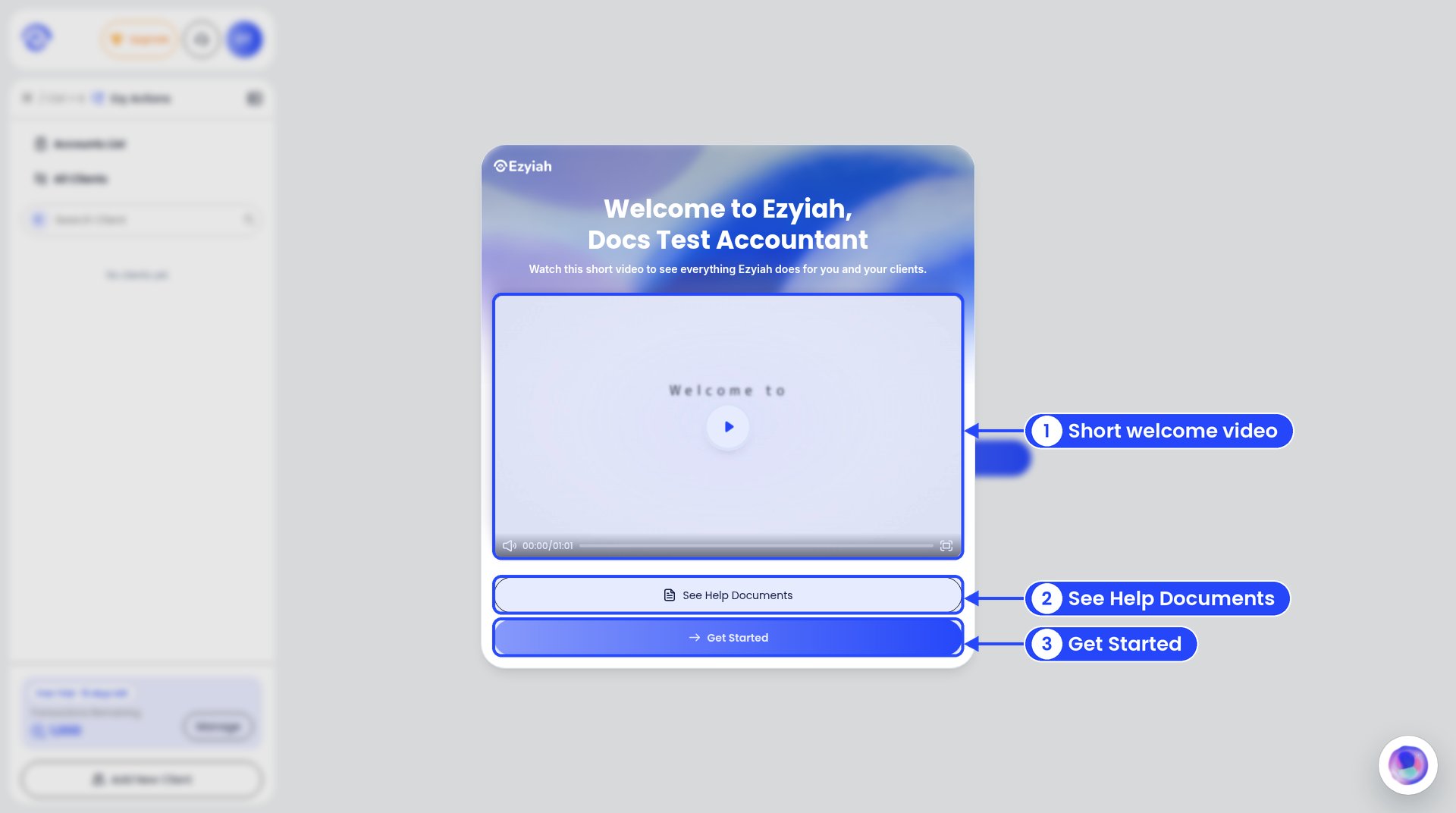
A Welcome to Ezyiah window opens with a short video. Click See Help Documents to come here, or Get Started to begin.Your dashboard is empty until you add your first client. It says “Add your first client to prepare reports”. Click Add New Client to start. The card at the bottom of the sidebar shows your trial, for example Free Trial · 15 days left and Transactions Remaining 1,000. Click Manage to see plans.
Your dashboard before you add a client
Add your first client
Takes about a minute.
Find your way around
A quick tour of the screen.
{"docsConfig":{"theme":"mint","$schema":"https://mintlify.com/docs.json","name":"Ezyiah","description":"Help docs for Ezyiah, AI accounting software built for the Australian market","colors":{"primary":"#2547F9","light":"#9298F9","dark":"#2547F9"},"logo":{"light":"https://mintcdn.com/ezyiah-3f16b61b/Ve47CujuGgN4pyqd/images/light.svg?fit=max\u0026auto=format\u0026n=Ve47CujuGgN4pyqd\u0026q=85\u0026s=a93f09364beedb00d71c1ee4b10f4954","dark":"https://mintcdn.com/ezyiah-3f16b61b/Ve47CujuGgN4pyqd/images/dark.svg?fit=max\u0026auto=format\u0026n=Ve47CujuGgN4pyqd\u0026q=85\u0026s=683424342d364154020a02a73e811824","href":"https://ezyiah.com.au"},"favicon":"https://mintcdn.com/ezyiah-3f16b61b/Ve47CujuGgN4pyqd/images/favicon.svg?fit=max\u0026auto=format\u0026n=Ve47CujuGgN4pyqd\u0026q=85\u0026s=11a9119ebc819180d54cd3d82ce71478","appearance":{"default":"light"},"background":{"color":{"light":"#F8F7F7","dark":"#000000"}},"navbar":{"links":[{"href":"https://ezyiah.com.au","label":"Main site"},{"href":"https://app.ezyiah.com.au/login","label":"Sign in"}],"primary":{"type":"button","label":"Get Started for Free","href":"https://app.ezyiah.com.au/signup"}},"footer":{"socials":{"linkedin":"https://www.linkedin.com/company/ezyiah","instagram":"https://www.instagram.com/ezyiah.com.au","youtube":"https://www.youtube.com/@EzyiahAI"}},"fonts":{"family":"Poppins"},"contextual":{"options":["copy","view","chatgpt","claude","perplexity","mcp","cursor","vscode"],"display":"header"},"styling":{"latex":true},"navigation":{"pages":[]}},"deployment":{"deploymentMetadataValue":{"subdomain":"ezyiah-3f16b61b","hasAudioNarration":false,"actualSubdomain":"ezyiah-3f16b61b","customDomains":["help.ezyiah.com.au"],"gitSource":{"type":"github","owner":"mintlify-community","repo":"docs-ezyiah-3f16b61b-bba5fbb8","deployBranch":"main","contentDirectory":"","isPrivate":true,"mountPath":"","label":""},"entitlements":{"AI_CHAT":{"status":"DISABLED"}},"buildId":"6af11329c9f3bc5ba266f33c","clientVersion":"0.0.4094","searchFilterCounts":[{"language":"default","tag":"Banks \u0026 Reports","count":28},{"language":"default","tag":"Businesses","count":17},{"language":"default","tag":"Accountants","count":14},{"language":"default","tag":"Get Started","count":12},{"language":"default","tag":"Reports","count":9},{"language":"default","tag":"Getting started","count":8},{"language":"default","tag":"Clients","count":6},{"language":"default","tag":"Banks","count":6},{"language":"default","tag":"Your business","count":5},{"language":"default","tag":"Settings","count":4}]},"assistantConfig":{"enableAskAiButton":false,"enableStarterQuestions":false,"enableContextualStarterQuestions":false,"enableAskAiSearchBar":true,"deflection":{"enabled":true,"email":"support@ezyiah.com.au"}},"basePath":"","hasChatPermissions":false,"hasWebMcpPermissions":false,"toggles":[],"googleFontsInlined":true},"customCss":[],"page":{"pagePath":"accountants/getting-started/signing-up","slug":"/accountants/getting-started/signing-up","pageMetadata":{"title":"Signing up as an accountant","description":"Create your firm's Ezyiah account in a few minutes","href":"/accountants/getting-started/signing-up"},"description":{"compiledSource":"\"use strict\";\nconst {jsx: _jsx} = arguments[0];\nconst {useMDXComponents: _provideComponents} = arguments[0];\nfunction _createMdxContent(props) {\n const _components = {\n p: \"p\",\n ..._provideComponents(),\n ...props.components\n };\n return _jsx(_components.p, {\n children: \"Create your firm’s Ezyiah account in a few minutes\"\n });\n}\nfunction MDXContent(props = {}) {\n const {wrapper: MDXLayout} = {\n ..._provideComponents(),\n ...props.components\n };\n return MDXLayout ? _jsx(MDXLayout, {\n ...props,\n children: _jsx(_createMdxContent, {\n ...props\n })\n }) : _createMdxContent(props);\n}\nreturn {\n default: MDXContent\n};\n","frontmatter":{},"scope":{}},"pageType":"default","mdx":{"mdxSource":{"compiledSource":"\"use strict\";const{Fragment:_Fragment,jsx:_jsx,jsxs:_jsxs}=arguments[0];const{useMDXComponents:_provideComponents}=arguments[0];function _createMdxContent(props){const _components={a:`a`,li:`li`,p:`p`,strong:`strong`,ul:`ul`,..._provideComponents(),...props.components},{Card,CardGroup,Frame,Heading,OptimizedImage,Step,Steps,Tip}=_components;if(!Card)_missingMdxReference(`Card`,true);if(!CardGroup)_missingMdxReference(`CardGroup`,true);if(!Frame)_missingMdxReference(`Frame`,true);if(!Heading)_missingMdxReference(`Heading`,true);if(!OptimizedImage)_missingMdxReference(`OptimizedImage`,true);if(!Step)_missingMdxReference(`Step`,true);if(!Steps)_missingMdxReference(`Steps`,true);if(!Tip)_missingMdxReference(`Tip`,true);return _jsxs(_Fragment,{children:[_jsxs(_components.p,{children:[`Signing up takes about five minutes. You get a 15-day free trial with `,_jsx(_components.strong,{children:`1,000 transactions`}),`. You don’t need a credit card.`]}),`\n`,_jsx(Tip,{children:_jsx(_components.p,{children:`Have these ready: your phone number, your date of birth and, if you belong to one, the name of your professional accounting body.`})}),`\n`,_jsx(Heading,{level:`2`,id:`step-by-step`,children:`Step by step`}),`\n`,_jsxs(Steps,{children:[_jsxs(Step,{title:`Create your login`,children:[_jsx(Frame,{caption:`Step 1: Try Ezyiah for Free.`,children:_jsx(OptimizedImage,{src:`https://mintcdn.com/ezyiah-3f16b61b/bzGxY0VUPySnanhv/images/annotated/business/g-sign-1a.png?fit=max\u0026auto=format\u0026n=bzGxY0VUPySnanhv\u0026q=85\u0026s=43e9ce90c28eb0716b0bc39390100ed5`,alt:`The Try Ezyiah for Free screen with callouts on the email field and Next, and on Continue with Google`,\"data-og-width\":`612`,width:`612`,\"data-og-height\":`412`,height:`412`,\"data-path\":`images/annotated/business/g-sign-1a.png`,\"data-optimize\":`true`,\"data-opv\":`3`,srcset:`https://mintcdn.com/ezyiah-3f16b61b/bzGxY0VUPySnanhv/images/annotated/business/g-sign-1a.png?w=280\u0026fit=max\u0026auto=format\u0026n=bzGxY0VUPySnanhv\u0026q=85\u0026s=94314af1118fdba6050290faf54bc514 280w, https://mintcdn.com/ezyiah-3f16b61b/bzGxY0VUPySnanhv/images/annotated/business/g-sign-1a.png?w=560\u0026fit=max\u0026auto=format\u0026n=bzGxY0VUPySnanhv\u0026q=85\u0026s=ff9ddb52f907675025c9a024903d30f3 560w, https://mintcdn.com/ezyiah-3f16b61b/bzGxY0VUPySnanhv/images/annotated/business/g-sign-1a.png?w=840\u0026fit=max\u0026auto=format\u0026n=bzGxY0VUPySnanhv\u0026q=85\u0026s=f44bff434846511a59f31bb38e871704 840w, https://mintcdn.com/ezyiah-3f16b61b/bzGxY0VUPySnanhv/images/annotated/business/g-sign-1a.png?w=1100\u0026fit=max\u0026auto=format\u0026n=bzGxY0VUPySnanhv\u0026q=85\u0026s=931bc14882d01acdb572754d0299f246 1100w, https://mintcdn.com/ezyiah-3f16b61b/bzGxY0VUPySnanhv/images/annotated/business/g-sign-1a.png?w=1650\u0026fit=max\u0026auto=format\u0026n=bzGxY0VUPySnanhv\u0026q=85\u0026s=59241d9acb4baf5e7d3a59c1ff0caf44 1650w, https://mintcdn.com/ezyiah-3f16b61b/bzGxY0VUPySnanhv/images/annotated/business/g-sign-1a.png?w=2500\u0026fit=max\u0026auto=format\u0026n=bzGxY0VUPySnanhv\u0026q=85\u0026s=b6681f23c98f8bdc9d2590390876af09 2500w`})}),_jsxs(_components.p,{children:[`Go to `,_jsx(_components.a,{href:`https://app.ezyiah.com.au/signup`,children:`app.ezyiah.com.au/signup`}),`. Enter your work email and click `,_jsx(_components.strong,{children:`Next`}),`, or click `,_jsx(_components.strong,{children:`Continue with Google`}),`. If you use email, type the 6-digit code we send you on the `,_jsx(_components.strong,{children:`Verify OTP`}),` screen.`]}),_jsxs(_components.p,{children:[`See `,_jsx(_components.a,{href:`/get-started/creating-your-account`,children:`Create your account`}),` for more on this part.`]})]}),_jsxs(Step,{title:`Choose Accountant`,children:[_jsx(Frame,{caption:`Step 2: Pick Accountant`,children:_jsx(OptimizedImage,{src:`https://mintcdn.com/ezyiah-3f16b61b/bzGxY0VUPySnanhv/images/annotated/business/g-sign-2.png?fit=max\u0026auto=format\u0026n=bzGxY0VUPySnanhv\u0026q=85\u0026s=3eaa45bfb08ea1731b605a9eb1b47571`,alt:`The What Describes You Best? screen with callouts on the Accountant card and the Business card`,\"data-og-width\":`525`,width:`525`,\"data-og-height\":`290`,height:`290`,\"data-path\":`images/annotated/business/g-sign-2.png`,\"data-optimize\":`true`,\"data-opv\":`3`,srcset:`https://mintcdn.com/ezyiah-3f16b61b/bzGxY0VUPySnanhv/images/annotated/business/g-sign-2.png?w=280\u0026fit=max\u0026auto=format\u0026n=bzGxY0VUPySnanhv\u0026q=85\u0026s=084a19643bcdb66a8d8a74e62d3b03c2 280w, https://mintcdn.com/ezyiah-3f16b61b/bzGxY0VUPySnanhv/images/annotated/business/g-sign-2.png?w=560\u0026fit=max\u0026auto=format\u0026n=bzGxY0VUPySnanhv\u0026q=85\u0026s=46b7636a57ed9da63f195751b56887e5 560w, https://mintcdn.com/ezyiah-3f16b61b/bzGxY0VUPySnanhv/images/annotated/business/g-sign-2.png?w=840\u0026fit=max\u0026auto=format\u0026n=bzGxY0VUPySnanhv\u0026q=85\u0026s=25289e8a2a94e47baf0682af3f090a60 840w, https://mintcdn.com/ezyiah-3f16b61b/bzGxY0VUPySnanhv/images/annotated/business/g-sign-2.png?w=1100\u0026fit=max\u0026auto=format\u0026n=bzGxY0VUPySnanhv\u0026q=85\u0026s=a5b65366e0c8682a05c0f4b2337009e8 1100w, https://mintcdn.com/ezyiah-3f16b61b/bzGxY0VUPySnanhv/images/annotated/business/g-sign-2.png?w=1650\u0026fit=max\u0026auto=format\u0026n=bzGxY0VUPySnanhv\u0026q=85\u0026s=207128540f733f1b706180c35b7600de 1650w, https://mintcdn.com/ezyiah-3f16b61b/bzGxY0VUPySnanhv/images/annotated/business/g-sign-2.png?w=2500\u0026fit=max\u0026auto=format\u0026n=bzGxY0VUPySnanhv\u0026q=85\u0026s=4ca4d5432d372721acc3dd6d929c89c6 2500w`})}),_jsxs(_components.p,{children:[`On `,_jsx(_components.strong,{children:`What Describes You Best?`}),`, pick `,_jsx(_components.strong,{children:`Accountant`}),` (“Tax Agent, Accountant, BAS Agent and Bookkeeper.”), then click `,_jsx(_components.strong,{children:`Next`}),`.`]})]}),_jsxs(Step,{title:`Add your personal info`,children:[_jsx(Frame,{caption:`Personal Info`,children:_jsx(OptimizedImage,{src:`https://mintcdn.com/ezyiah-3f16b61b/lUeajoy-xcTLiMi2/images/annotated/accountant/a-sign-1.png?fit=max\u0026auto=format\u0026n=lUeajoy-xcTLiMi2\u0026q=85\u0026s=1a49994d670a4d86b53eea77fa6eacc8`,alt:`The Personal Info step with callouts on Full Name, Company Name, Phone Number and Date of Birth`,\"data-og-width\":`618`,width:`618`,\"data-og-height\":`300`,height:`300`,\"data-path\":`images/annotated/accountant/a-sign-1.png`,\"data-optimize\":`true`,\"data-opv\":`3`,srcset:`https://mintcdn.com/ezyiah-3f16b61b/lUeajoy-xcTLiMi2/images/annotated/accountant/a-sign-1.png?w=280\u0026fit=max\u0026auto=format\u0026n=lUeajoy-xcTLiMi2\u0026q=85\u0026s=10eb9012adcb69c6fd6175babdc20de4 280w, https://mintcdn.com/ezyiah-3f16b61b/lUeajoy-xcTLiMi2/images/annotated/accountant/a-sign-1.png?w=560\u0026fit=max\u0026auto=format\u0026n=lUeajoy-xcTLiMi2\u0026q=85\u0026s=a2b89fe5cfbe76f7041e33221c254cde 560w, https://mintcdn.com/ezyiah-3f16b61b/lUeajoy-xcTLiMi2/images/annotated/accountant/a-sign-1.png?w=840\u0026fit=max\u0026auto=format\u0026n=lUeajoy-xcTLiMi2\u0026q=85\u0026s=03659fbd1cf0cfc6d5439fca13ed98df 840w, https://mintcdn.com/ezyiah-3f16b61b/lUeajoy-xcTLiMi2/images/annotated/accountant/a-sign-1.png?w=1100\u0026fit=max\u0026auto=format\u0026n=lUeajoy-xcTLiMi2\u0026q=85\u0026s=1c39b3cd40685cae42abc54a4539621e 1100w, https://mintcdn.com/ezyiah-3f16b61b/lUeajoy-xcTLiMi2/images/annotated/accountant/a-sign-1.png?w=1650\u0026fit=max\u0026auto=format\u0026n=lUeajoy-xcTLiMi2\u0026q=85\u0026s=4c917b37274812d7bfdd68b218ed18a3 1650w, https://mintcdn.com/ezyiah-3f16b61b/lUeajoy-xcTLiMi2/images/annotated/accountant/a-sign-1.png?w=2500\u0026fit=max\u0026auto=format\u0026n=lUeajoy-xcTLiMi2\u0026q=85\u0026s=d944328b07623e87b37fa81b1bab5b47 2500w`})}),_jsxs(_components.p,{children:[`On `,_jsx(_components.strong,{children:`Personal Info`}),`, enter your `,_jsx(_components.strong,{children:`Full Name`}),`, your `,_jsx(_components.strong,{children:`Company Name`}),` (your firm), your `,_jsx(_components.strong,{children:`Phone Number`}),` (starting +61) and your `,_jsx(_components.strong,{children:`Date of Birth`}),` (DD/MM/YYYY). Click `,_jsx(_components.strong,{children:`Next`}),`.`]})]}),_jsxs(Step,{title:`Add your professional details`,children:[_jsx(Frame,{caption:`Professional Details`,children:_jsx(OptimizedImage,{src:`https://mintcdn.com/ezyiah-3f16b61b/lUeajoy-xcTLiMi2/images/annotated/accountant/a-sign-2.png?fit=max\u0026auto=format\u0026n=lUeajoy-xcTLiMi2\u0026q=85\u0026s=7a228d6c97036b7d79e0b172d67fca21`,alt:`The Professional Details step with callouts on the state, professional title, the Yes and No buttons and the accounting body list`,\"data-og-width\":`618`,width:`618`,\"data-og-height\":`462`,height:`462`,\"data-path\":`images/annotated/accountant/a-sign-2.png`,\"data-optimize\":`true`,\"data-opv\":`3`,srcset:`https://mintcdn.com/ezyiah-3f16b61b/lUeajoy-xcTLiMi2/images/annotated/accountant/a-sign-2.png?w=280\u0026fit=max\u0026auto=format\u0026n=lUeajoy-xcTLiMi2\u0026q=85\u0026s=3f019421fb5ecb3867beba71535a2daa 280w, https://mintcdn.com/ezyiah-3f16b61b/lUeajoy-xcTLiMi2/images/annotated/accountant/a-sign-2.png?w=560\u0026fit=max\u0026auto=format\u0026n=lUeajoy-xcTLiMi2\u0026q=85\u0026s=0e5919d6eab71010b4e8c2995d20808c 560w, https://mintcdn.com/ezyiah-3f16b61b/lUeajoy-xcTLiMi2/images/annotated/accountant/a-sign-2.png?w=840\u0026fit=max\u0026auto=format\u0026n=lUeajoy-xcTLiMi2\u0026q=85\u0026s=a135d3d7c744281c50931e8046d3dc66 840w, https://mintcdn.com/ezyiah-3f16b61b/lUeajoy-xcTLiMi2/images/annotated/accountant/a-sign-2.png?w=1100\u0026fit=max\u0026auto=format\u0026n=lUeajoy-xcTLiMi2\u0026q=85\u0026s=300d0bc9139b8646baa7e4cfa608139b 1100w, https://mintcdn.com/ezyiah-3f16b61b/lUeajoy-xcTLiMi2/images/annotated/accountant/a-sign-2.png?w=1650\u0026fit=max\u0026auto=format\u0026n=lUeajoy-xcTLiMi2\u0026q=85\u0026s=dc165725288be26c2cbbd06dc31a5ed6 1650w, https://mintcdn.com/ezyiah-3f16b61b/lUeajoy-xcTLiMi2/images/annotated/accountant/a-sign-2.png?w=2500\u0026fit=max\u0026auto=format\u0026n=lUeajoy-xcTLiMi2\u0026q=85\u0026s=27b72a10b586264c61f75af0d0ff0e69 2500w`})}),_jsxs(_components.p,{children:[`On `,_jsx(_components.strong,{children:`Professional Details`}),`:`]}),_jsxs(_components.ul,{children:[`\n`,_jsxs(_components.li,{children:[_jsx(_components.strong,{children:`Where are you Located?`}),`: pick your state.`]}),`\n`,_jsxs(_components.li,{children:[_jsx(_components.strong,{children:`What is Your Professional Title?`}),`: pick `,_jsx(_components.strong,{children:`Tax Agent`}),`, `,_jsx(_components.strong,{children:`Accountant`}),`, `,_jsx(_components.strong,{children:`BAS Agent`}),`, `,_jsx(_components.strong,{children:`Bookkeeper`}),` or `,_jsx(_components.strong,{children:`Other`}),`.`]}),`\n`,_jsxs(_components.li,{children:[_jsx(_components.strong,{children:`Are You a Registered Tax Agent or a Member of a Professional Accounting Body?`}),`: click `,_jsx(_components.strong,{children:`Yes`}),` or `,_jsx(_components.strong,{children:`No`}),`. If you click `,_jsx(_components.strong,{children:`Yes`}),`, pick your body under `,_jsx(_components.strong,{children:`Select an accounting body`}),`: `,_jsx(_components.strong,{children:`CA ANZ`}),`, `,_jsx(_components.strong,{children:`CPA Australia`}),`, `,_jsx(_components.strong,{children:`IPA`}),`, `,_jsx(_components.strong,{children:`ATMA`}),`, `,_jsx(_components.strong,{children:`TPB`}),`, `,_jsx(_components.strong,{children:`NTAA`}),` or `,_jsx(_components.strong,{children:`Other`}),`.`]}),`\n`]}),_jsxs(_components.p,{children:[`You don’t need an ABN to sign up. Click `,_jsx(_components.strong,{children:`Next`}),`.`]})]}),_jsx(Step,{title:`Tell us how you heard about us`,children:_jsxs(_components.p,{children:[`On `,_jsx(_components.strong,{children:`How Did You Hear About Us ?`}),`, pick `,_jsx(_components.strong,{children:`Social Media`}),`, `,_jsx(_components.strong,{children:`Blog or Article`}),`, `,_jsx(_components.strong,{children:`Community Events`}),`, `,_jsx(_components.strong,{children:`Friends and Colleagues`}),` or `,_jsx(_components.strong,{children:`Other`}),`. Click `,_jsx(_components.strong,{children:`Next`}),`.`]})}),_jsxs(Step,{title:`Set your password`,children:[_jsx(Frame,{caption:`Set your password`,children:_jsx(OptimizedImage,{src:`https://mintcdn.com/ezyiah-3f16b61b/lUeajoy-xcTLiMi2/images/annotated/accountant/a-sign-3.png?fit=max\u0026auto=format\u0026n=lUeajoy-xcTLiMi2\u0026q=85\u0026s=1f4f97c445df4555be83708f75df29d3`,alt:`The Setup Your Account step with callouts on Password, Confirm Password, the four password rules and Continue to Ezyiah`,\"data-og-width\":`926`,width:`926`,\"data-og-height\":`469`,height:`469`,\"data-path\":`images/annotated/accountant/a-sign-3.png`,\"data-optimize\":`true`,\"data-opv\":`3`,srcset:`https://mintcdn.com/ezyiah-3f16b61b/lUeajoy-xcTLiMi2/images/annotated/accountant/a-sign-3.png?w=280\u0026fit=max\u0026auto=format\u0026n=lUeajoy-xcTLiMi2\u0026q=85\u0026s=524bfef58045bb870358284d52208329 280w, https://mintcdn.com/ezyiah-3f16b61b/lUeajoy-xcTLiMi2/images/annotated/accountant/a-sign-3.png?w=560\u0026fit=max\u0026auto=format\u0026n=lUeajoy-xcTLiMi2\u0026q=85\u0026s=03fb717e0ddbce2c0590c8cb1074c2f4 560w, https://mintcdn.com/ezyiah-3f16b61b/lUeajoy-xcTLiMi2/images/annotated/accountant/a-sign-3.png?w=840\u0026fit=max\u0026auto=format\u0026n=lUeajoy-xcTLiMi2\u0026q=85\u0026s=d06579b2ad5e99aa79c29953f1f350af 840w, https://mintcdn.com/ezyiah-3f16b61b/lUeajoy-xcTLiMi2/images/annotated/accountant/a-sign-3.png?w=1100\u0026fit=max\u0026auto=format\u0026n=lUeajoy-xcTLiMi2\u0026q=85\u0026s=b8031394a83781c6b824b9ea337b202a 1100w, https://mintcdn.com/ezyiah-3f16b61b/lUeajoy-xcTLiMi2/images/annotated/accountant/a-sign-3.png?w=1650\u0026fit=max\u0026auto=format\u0026n=lUeajoy-xcTLiMi2\u0026q=85\u0026s=6fee34270a158f38abd3c0c621602c1c 1650w, https://mintcdn.com/ezyiah-3f16b61b/lUeajoy-xcTLiMi2/images/annotated/accountant/a-sign-3.png?w=2500\u0026fit=max\u0026auto=format\u0026n=lUeajoy-xcTLiMi2\u0026q=85\u0026s=86e080ae59087e3bd67ed7da8252af83 2500w`})}),_jsxs(_components.p,{children:[`On `,_jsx(_components.strong,{children:`Setup Your Account`}),`, type a `,_jsx(_components.strong,{children:`Password`}),` and type it again under `,_jsx(_components.strong,{children:`Confirm Password`}),`. It needs at least 8 characters, with an uppercase letter, a lowercase letter and a special character. Each rule gets a tick when it’s met. Click `,_jsx(_components.strong,{children:`Continue to Ezyiah`}),`.`]})]})]}),`\n`,_jsx(Heading,{level:`2`,id:`what-you’ll-see-next`,children:`What you’ll see next`}),`\n`,_jsx(Frame,{caption:`The Welcome to Ezyiah window`,children:_jsx(OptimizedImage,{src:`https://mintcdn.com/ezyiah-3f16b61b/mEqdHLyQPbZI3Zxy/images/annotated/accountant/a-welcome-1.png?fit=max\u0026auto=format\u0026n=mEqdHLyQPbZI3Zxy\u0026q=85\u0026s=5099f049e749b1cfc5d3ba7a50c9a7f1`,alt:`The Welcome to Ezyiah window with callouts on the short video, See Help Documents and Get Started`,\"data-og-width\":`1920`,width:`1920`,\"data-og-height\":`1072`,height:`1072`,\"data-path\":`images/annotated/accountant/a-welcome-1.png`,\"data-optimize\":`true`,\"data-opv\":`3`,srcset:`https://mintcdn.com/ezyiah-3f16b61b/mEqdHLyQPbZI3Zxy/images/annotated/accountant/a-welcome-1.png?w=280\u0026fit=max\u0026auto=format\u0026n=mEqdHLyQPbZI3Zxy\u0026q=85\u0026s=9fedece79db12b1861d551d74ab13466 280w, https://mintcdn.com/ezyiah-3f16b61b/mEqdHLyQPbZI3Zxy/images/annotated/accountant/a-welcome-1.png?w=560\u0026fit=max\u0026auto=format\u0026n=mEqdHLyQPbZI3Zxy\u0026q=85\u0026s=2c744a38a7f662f4dd68bbe6b845e462 560w, https://mintcdn.com/ezyiah-3f16b61b/mEqdHLyQPbZI3Zxy/images/annotated/accountant/a-welcome-1.png?w=840\u0026fit=max\u0026auto=format\u0026n=mEqdHLyQPbZI3Zxy\u0026q=85\u0026s=e2b5c739a8e760d173c97ccf57836bb1 840w, https://mintcdn.com/ezyiah-3f16b61b/mEqdHLyQPbZI3Zxy/images/annotated/accountant/a-welcome-1.png?w=1100\u0026fit=max\u0026auto=format\u0026n=mEqdHLyQPbZI3Zxy\u0026q=85\u0026s=08253af10ccf2959c5fa0ea1975a9a12 1100w, https://mintcdn.com/ezyiah-3f16b61b/mEqdHLyQPbZI3Zxy/images/annotated/accountant/a-welcome-1.png?w=1650\u0026fit=max\u0026auto=format\u0026n=mEqdHLyQPbZI3Zxy\u0026q=85\u0026s=10ededc8f4719b4e3edfef64f27e7f76 1650w, https://mintcdn.com/ezyiah-3f16b61b/mEqdHLyQPbZI3Zxy/images/annotated/accountant/a-welcome-1.png?w=2500\u0026fit=max\u0026auto=format\u0026n=mEqdHLyQPbZI3Zxy\u0026q=85\u0026s=e8007ea5633fa1265474fa37c452dc5c 2500w`})}),`\n`,_jsxs(_components.p,{children:[`A `,_jsx(_components.strong,{children:`Welcome to Ezyiah`}),` window opens with a short video. Click `,_jsx(_components.strong,{children:`See Help Documents`}),` to come here, or `,_jsx(_components.strong,{children:`Get Started`}),` to begin.`]}),`\n`,_jsxs(_components.p,{children:[`Your dashboard is empty until you add your first client. It says “Add your first client to prepare reports”. Click `,_jsx(_components.strong,{children:`Add New Client`}),` to start. The card at the bottom of the sidebar shows your trial, for example `,_jsx(_components.strong,{children:`Free Trial · 15 days left`}),` and `,_jsx(_components.strong,{children:`Transactions Remaining 1,000`}),`. Click `,_jsx(_components.strong,{children:`Manage`}),` to see plans.`]}),`\n`,_jsx(Frame,{caption:`Your dashboard before you add a client`,children:_jsx(OptimizedImage,{src:`https://mintcdn.com/ezyiah-3f16b61b/lUeajoy-xcTLiMi2/images/annotated/accountant/a-sign-4.png?fit=max\u0026auto=format\u0026n=lUeajoy-xcTLiMi2\u0026q=85\u0026s=c94ee57313c430420cfdc5171901a25c`,alt:`The empty accountant dashboard with callouts on Add New Client and the Free Trial card in the sidebar`,\"data-og-width\":`1425`,width:`1425`,\"data-og-height\":`1072`,height:`1072`,\"data-path\":`images/annotated/accountant/a-sign-4.png`,\"data-optimize\":`true`,\"data-opv\":`3`,srcset:`https://mintcdn.com/ezyiah-3f16b61b/lUeajoy-xcTLiMi2/images/annotated/accountant/a-sign-4.png?w=280\u0026fit=max\u0026auto=format\u0026n=lUeajoy-xcTLiMi2\u0026q=85\u0026s=203cbc6e6d2b9dc5d4038fed23ccd276 280w, https://mintcdn.com/ezyiah-3f16b61b/lUeajoy-xcTLiMi2/images/annotated/accountant/a-sign-4.png?w=560\u0026fit=max\u0026auto=format\u0026n=lUeajoy-xcTLiMi2\u0026q=85\u0026s=2fa72bda721b8e489ed2f2b5d64d3288 560w, https://mintcdn.com/ezyiah-3f16b61b/lUeajoy-xcTLiMi2/images/annotated/accountant/a-sign-4.png?w=840\u0026fit=max\u0026auto=format\u0026n=lUeajoy-xcTLiMi2\u0026q=85\u0026s=c378c478ea7998910961e445a3dcbf65 840w, https://mintcdn.com/ezyiah-3f16b61b/lUeajoy-xcTLiMi2/images/annotated/accountant/a-sign-4.png?w=1100\u0026fit=max\u0026auto=format\u0026n=lUeajoy-xcTLiMi2\u0026q=85\u0026s=a697e3c8a43d90ef1533ab185b26d1e6 1100w, https://mintcdn.com/ezyiah-3f16b61b/lUeajoy-xcTLiMi2/images/annotated/accountant/a-sign-4.png?w=1650\u0026fit=max\u0026auto=format\u0026n=lUeajoy-xcTLiMi2\u0026q=85\u0026s=8919db7bf46c6306351bac5f78c79082 1650w, https://mintcdn.com/ezyiah-3f16b61b/lUeajoy-xcTLiMi2/images/annotated/accountant/a-sign-4.png?w=2500\u0026fit=max\u0026auto=format\u0026n=lUeajoy-xcTLiMi2\u0026q=85\u0026s=837618acda78d56dd03c0a64f84baabf 2500w`})}),`\n`,_jsxs(CardGroup,{cols:2,children:[_jsx(Card,{title:`Add your first client`,icon:`user-plus`,href:`/accountants/clients/adding-new-clients`,children:_jsx(_components.p,{children:`Takes about a minute.`})}),_jsx(Card,{title:`Find your way around`,icon:`compass`,href:`/accountants/getting-started/finding-your-way-around`,children:_jsx(_components.p,{children:`A quick tour of the screen.`})})]})]})}function MDXContent(props={}){const{wrapper:MDXLayout}={..._provideComponents(),...props.components};return MDXLayout?_jsx(MDXLayout,{...props,children:_jsx(_createMdxContent,{...props})}):_createMdxContent(props)}return{default:MDXContent};function _missingMdxReference(id,component){throw new Error(`Expected `+(component?`component`:`object`)+\" `\"+id+\"` to be defined: you likely forgot to import, pass, or provide it.\")}","frontmatter":{},"scope":{"config":{},"pageMetadata":{"title":"Signing up as an accountant","description":"Create your firm's Ezyiah account in a few minutes","href":"/accountants/getting-started/signing-up"}}},"mdxSourceWithNoJs":null},"mdxExtracts":{"tableOfContents":[{"title":"Step by step","slug":"step-by-step","depth":2,"children":[]},{"title":"What you’ll see next","slug":"what-you’ll-see-next","depth":2,"children":[]}],"codeExamples":{}},"jsLinks":[],"subdomain":"ezyiah-3f16b61b","siteName":"Ezyiah","title":"Signing up as an accountant - Ezyiah","navMaps":{"firstHrefInVersion":{},"firstHrefInLanguage":{}},"lastModified":"2026-11-01T08:50:36.010Z","originalFileLocation":"accountants/getting-started/signing-up.mdx"},"headHtml":"\u003cscript data-mint-head>(function(){var d=document.documentElement,p=null;if(!p){try{p=localStorage.getItem(\"isDarkMode\")}catch(e){}if(p==='true')p='dark';else if(p==='false')p='light';if(p!=='light'\u0026\u0026p!=='dark'\u0026\u0026p!=='system')p=\"light\"}var r=p==='system'?(matchMedia(\"(prefers-color-scheme: dark)\").matches?'dark':'light'):p;d.classList.remove(r==='dark'?'light':'dark');d.classList.add(r);d.setAttribute(\"data-theme-preference\",p)})();\u003c/script>\u003cmeta data-mint-head name=\"description\" content=\"Create your firm\u0026#x27;s Ezyiah account in a few minutes\">\u003cmeta data-mint-head name=\"application-name\" content=\"Ezyiah\">\u003cmeta data-mint-head name=\"generator\" content=\"Mintlify\">\u003clink data-mint-head rel=\"icon\" type=\"image/png\" sizes=\"192x192\" href=\"/mintlify-assets/_mintlify/favicons/ezyiah-3f16b61b/EtmDKKQMcC9s0pB0/_generated/favicon/android-chrome-192x192.png\" media=\"(prefers-color-scheme: light)\">\u003clink data-mint-head rel=\"apple-touch-icon\" type=\"image/png\" sizes=\"180x180\" href=\"/mintlify-assets/_mintlify/favicons/ezyiah-3f16b61b/EtmDKKQMcC9s0pB0/_generated/favicon/apple-touch-icon.png\">\u003clink data-mint-head rel=\"icon\" type=\"image/png\" sizes=\"16x16\" href=\"/mintlify-assets/_mintlify/favicons/ezyiah-3f16b61b/EtmDKKQMcC9s0pB0/_generated/favicon/favicon-16x16.png\" media=\"(prefers-color-scheme: light)\">\u003clink data-mint-head rel=\"icon\" type=\"image/png\" sizes=\"32x32\" href=\"/mintlify-assets/_mintlify/favicons/ezyiah-3f16b61b/EtmDKKQMcC9s0pB0/_generated/favicon/favicon-32x32.png\" media=\"(prefers-color-scheme: light)\">\u003clink data-mint-head rel=\"shortcut icon\" type=\"image/x-icon\" href=\"/mintlify-assets/_mintlify/favicons/ezyiah-3f16b61b/EtmDKKQMcC9s0pB0/_generated/favicon/favicon.ico\" media=\"(prefers-color-scheme: light)\">\u003clink data-mint-head rel=\"icon\" type=\"image/png\" sizes=\"192x192\" href=\"/mintlify-assets/_mintlify/favicons/ezyiah-3f16b61b/EtmDKKQMcC9s0pB0/_generated/favicon-dark/android-chrome-192x192.png\" media=\"(prefers-color-scheme: dark)\">\u003clink data-mint-head rel=\"icon\" type=\"image/png\" sizes=\"16x16\" href=\"/mintlify-assets/_mintlify/favicons/ezyiah-3f16b61b/EtmDKKQMcC9s0pB0/_generated/favicon-dark/favicon-16x16.png\" media=\"(prefers-color-scheme: dark)\">\u003clink data-mint-head rel=\"icon\" type=\"image/png\" sizes=\"32x32\" href=\"/mintlify-assets/_mintlify/favicons/ezyiah-3f16b61b/EtmDKKQMcC9s0pB0/_generated/favicon-dark/favicon-32x32.png\" media=\"(prefers-color-scheme: dark)\">\u003clink data-mint-head rel=\"shortcut icon\" type=\"image/x-icon\" href=\"/mintlify-assets/_mintlify/favicons/ezyiah-3f16b61b/EtmDKKQMcC9s0pB0/_generated/favicon-dark/favicon.ico\" media=\"(prefers-color-scheme: dark)\">\u003cmeta data-mint-head property=\"og:title\" content=\"Signing up as an accountant - Ezyiah\">\u003cmeta data-mint-head property=\"og:description\" content=\"Create your firm\u0026#x27;s Ezyiah account in a few minutes\">\u003cmeta data-mint-head property=\"og:site_name\" content=\"Ezyiah\">\u003cmeta data-mint-head property=\"og:url\" content=\"https://help.ezyiah.com.au/accountants/getting-started/signing-up\">\u003cmeta data-mint-head property=\"og:type\" content=\"website\">\u003cmeta data-mint-head property=\"og:image\" content=\"https://ezyiah-3f16b61b.mintlify.site/_mintlify/api/og/v2?division=Getting+started\u0026amp;title=Signing+up+as+an+accountant\u0026amp;description=Create+your+firm%27s+Ezyiah+account+in+a+few+minutes\u0026amp;theme=1974a0ab219212bc3df95941\u0026amp;signature=5240b5cf65bec0172026bb48fea1f06b503c13399618d2c110e098a73cdcbfba\">\u003cmeta data-mint-head property=\"og:image:width\" content=\"1200\">\u003cmeta data-mint-head property=\"og:image:height\" content=\"630\">\u003cmeta data-mint-head name=\"twitter:card\" content=\"summary_large_image\">\u003cmeta data-mint-head name=\"twitter:title\" content=\"Signing up as an accountant - Ezyiah\">\u003cmeta data-mint-head name=\"twitter:description\" content=\"Create your firm\u0026#x27;s Ezyiah account in a few minutes\">\u003cmeta data-mint-head name=\"twitter:image\" content=\"https://ezyiah-3f16b61b.mintlify.site/_mintlify/api/og/v2?division=Getting+started\u0026amp;title=Signing+up+as+an+accountant\u0026amp;description=Create+your+firm%27s+Ezyiah+account+in+a+few+minutes\u0026amp;theme=1974a0ab219212bc3df95941\u0026amp;signature=5240b5cf65bec0172026bb48fea1f06b503c13399618d2c110e098a73cdcbfba\">\u003cmeta data-mint-head name=\"twitter:image:width\" content=\"1200\">\u003cmeta data-mint-head name=\"twitter:image:height\" content=\"630\">\u003cmeta data-mint-head name=\"msapplication-config\" content=\"/mintlify-assets/_mintlify/favicons/ezyiah-3f16b61b/EtmDKKQMcC9s0pB0/_generated/favicon/browserconfig.xml\">\u003cmeta data-mint-head name=\"apple-mobile-web-app-title\" content=\"Ezyiah\">\u003cmeta data-mint-head name=\"msapplication-TileColor\" content=\"#2547F9\">\u003clink data-mint-head rel=\"canonical\" href=\"https://help.ezyiah.com.au/accountants/getting-started/signing-up\">\u003clink data-mint-head rel=\"alternate\" type=\"application/xml\" href=\"/sitemap.xml\">\u003clink data-mint-head rel=\"alternate\" type=\"text/markdown\" href=\"/accountants/getting-started/signing-up.md\">\u003cscript data-mint-head type=\"application/ld+json\">{\"@context\":\"https://schema.org\",\"@graph\":[{\"@type\":\"Organization\",\"@id\":\"https://help.ezyiah.com.au/#organization\",\"name\":\"Ezyiah\",\"url\":\"https://help.ezyiah.com.au\",\"logo\":{\"@type\":\"ImageObject\",\"url\":\"https://mintcdn.com/ezyiah-3f16b61b/Ve47CujuGgN4pyqd/images/light.svg?fit=max\u0026auto=format\u0026n=Ve47CujuGgN4pyqd\u0026q=85\u0026s=a93f09364beedb00d71c1ee4b10f4954\"}},{\"@type\":\"WebSite\",\"@id\":\"https://help.ezyiah.com.au#website\",\"name\":\"Ezyiah\",\"url\":\"https://help.ezyiah.com.au\",\"publisher\":{\"@id\":\"https://help.ezyiah.com.au/#organization\"}},{\"@type\":\"WebPage\",\"@id\":\"https://help.ezyiah.com.au/accountants/getting-started/signing-up#webpage\",\"url\":\"https://help.ezyiah.com.au/accountants/getting-started/signing-up\",\"name\":\"Signing up as an accountant\",\"description\":\"Create your firm's Ezyiah account in a few minutes\",\"dateModified\":\"2026-11-01T08:50:36.010Z\",\"isPartOf\":{\"@id\":\"https://help.ezyiah.com.au#website\"},\"breadcrumb\":{\"@id\":\"https://help.ezyiah.com.au/accountants/getting-started/signing-up#breadcrumb\"}},{\"@type\":\"BreadcrumbList\",\"@id\":\"https://help.ezyiah.com.au/accountants/getting-started/signing-up#breadcrumb\",\"itemListElement\":[{\"@type\":\"ListItem\",\"position\":1,\"name\":\"Getting started\",\"item\":\"https://help.ezyiah.com.au/accountants/getting-started/ezyiah-for-accounting-firms\"},{\"@type\":\"ListItem\",\"position\":2,\"name\":\"Signing up as an accountant\",\"item\":\"https://help.ezyiah.com.au/accountants/getting-started/signing-up\"}]},{\"@type\":[\"Article\",\"TechArticle\"],\"@id\":\"https://help.ezyiah.com.au/accountants/getting-started/signing-up#article\",\"headline\":\"Signing up as an accountant\",\"name\":\"Signing up as an accountant\",\"description\":\"Create your firm's Ezyiah account in a few minutes\",\"url\":\"https://help.ezyiah.com.au/accountants/getting-started/signing-up\",\"mainEntityOfPage\":{\"@id\":\"https://help.ezyiah.com.au/accountants/getting-started/signing-up#webpage\"},\"dateModified\":\"2026-11-01T08:50:36.010Z\",\"publisher\":{\"@id\":\"https://help.ezyiah.com.au/#organization\"},\"isPartOf\":{\"@id\":\"https://help.ezyiah.com.au#website\"}}]}\u003c/script>\u003cscript data-mint-head type=\"application/ld+json\">{\"@context\":\"https://schema.org\",\"@type\":\"WebSite\",\"name\":\"Ezyiah\",\"creator\":{\"@type\":\"Organization\",\"name\":\"Mintlify\",\"url\":\"https://mintlify.com\"}}\u003c/script>","siteName":"Ezyiah","nav":{"global":null,"tabs":[{"tab":"Get Started","pages":[{"title":"Get Started","href":""}]},{"tab":"Accountants","groups":[{"group":"Getting started","pages":[{"title":"Ezyiah for accounting firms","description":"What Ezyiah does for your firm, and how you stay in charge of every file","href":"/accountants/getting-started/ezyiah-for-accounting-firms"},{"title":"Signing up as an accountant","href":"/accountants/getting-started/signing-up"},{"title":"Finding your way around","description":"A quick tour of the Ezyiah screen for accounting firms","href":"/accountants/getting-started/finding-your-way-around"}]},{"group":"Clients","pages":[{"title":"Your client list","href":"/accountants/clients/overview"},{"title":"Adding a new client","href":"/accountants/clients/adding-new-clients"},{"title":"Editing a client's details","href":"/accountants/clients/editing-an-existing-client"},{"title":"Client notes","href":"/accountants/clients/client-notes"},{"title":"Inviting a business client","href":"/accountants/clients/inviting-a-business-client"},{"title":"Adding clients in bulk","href":"/accountants/clients/bulk-client-upload"}]},{"group":"Partner Program","pages":[{"title":"Partner Program","href":"/accountants/partner-program/overview"}]},{"group":"Settings","pages":[{"title":"Settings","href":"/accountants/settings/overview"},{"title":"Profile Settings","href":"/accountants/settings/profile-settings"},{"title":"Users","href":"/accountants/settings/users"},{"title":"Firm Branding","href":"/accountants/settings/firm-branding"}]}]},{"tab":"Businesses","pages":[{"title":"Businesses","href":"/businesses/getting-started/ezyiah-for-business-owners"}]},{"tab":"Banks \u0026 Reports","pages":[{"title":"Banks \u0026 Reports","href":"/features/banks/overview"}]},{"tab":"Billing","pages":[{"title":"Billing","href":"/features/billing/managing-your-subscription"}]}]},"basePath":"","title":"Signing up as an accountant - Ezyiah","buildId":"dpl_42LwxxU1kGN114H4XzwGYXa9ZDah","deploymentId":"dpl_42LwxxU1kGN114H4XzwGYXa9ZDah","dynamics":["07c022d89b","a74be98ba7"],"chunks":["Frame-5Xwp92K7.js","DynamicMarkdown-BoyYAA8K.js","zoom-image-lightbox-DkE6VzSN.js","lightbox-handle-r17bVUz3.js"]}