Invite your accountant into Ezyiah. You both work from the same books, so there’s no more emailing spreadsheets and statements. Your accountant reviews the transactions, the coding and the GST, and approves them. Then they finish your reports, like your BAS and EOFY Statement.

Before you invite

  • Have your accountant’s work email ready.
  • A good time to invite them is once your bank is connected and your bills and receipts are in.

Send the invite

1

Click Invite Accountant

It’s at the bottom of the sidebar, below your trial card. You’ll also find an Invite Accountant button next to each business in All Companies.
2

Enter their email
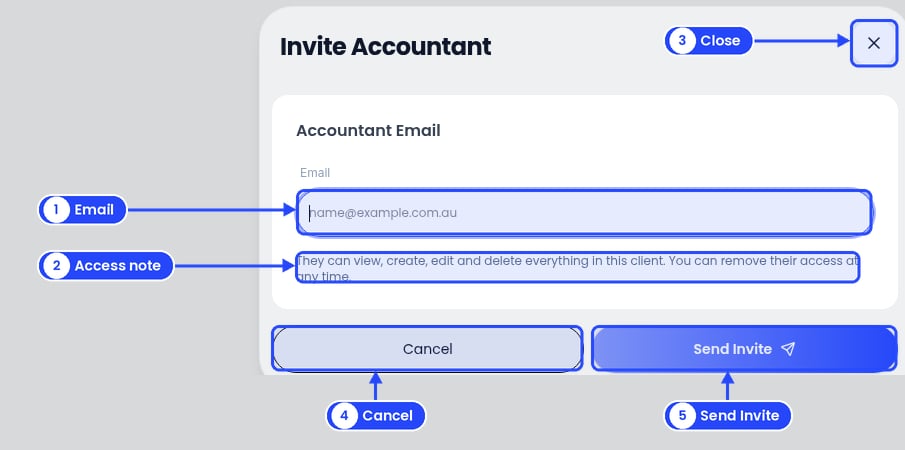
The Invite Accountant window with callouts on the Email field, the note about what they can do, the X, Cancel and Send Invite

The Invite Accountant window

Under Accountant Email, type your accountant’s email in the Email box, for example name@example.com.au. You only need their email, not their name. Read the note under it. It tells you what they’ll be able to do.
3

Click Send Invite

You’ll see “Invitation sent successfully”. Your accountant gets the invite, and your request shows on their Connection Requests list in Ezyiah. If they’re not on Ezyiah yet, they can work on your business on a free trial, then choose a paid plan for their firm later.
To close the window without sending, click Cancel or the X.

After you send it

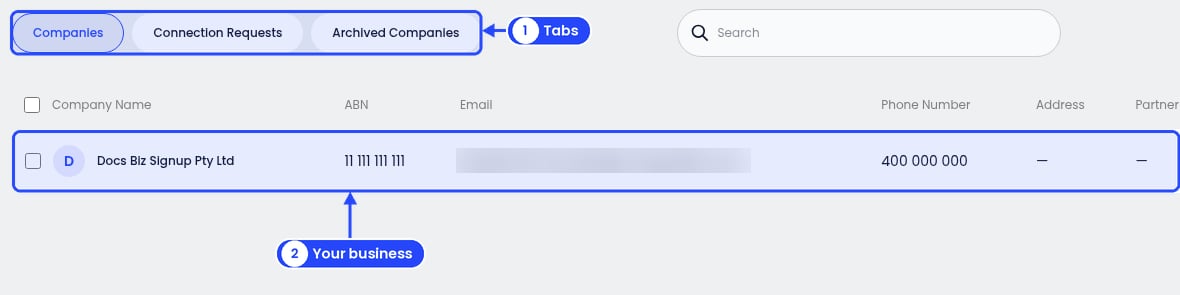
All Companies with callouts on the Companies, Connection Requests and Archived Companies tabs and the business row. The email is blurred

All Companies: your business row. The Accountant Invited status, Resend and Cancel Invite are at the right end of the row.

The Invite Accountant button goes away from the bottom of your sidebar. To see the invite, click All Companies in the sidebar. It has three tabs: Companies, Connection Requests and Archived Companies. On Companies, your business shows an Accountant Invited pill until your accountant accepts. Next to it:
  • Resend sends the invite again, for example if your accountant can’t find the email.
  • Cancel Invite withdraws it. Use this if you typed the wrong email, then invite again.

What your accountant can do

The window tells you: “They can view, create, edit and delete everything in this client. You can remove their access at any time.” So your accountant can fix coding, add journals and finish reports. Ezyiah does the day-to-day bookkeeping, and your accountant reviews and approves it before anything is lodged.

Remove your accountant

Before your accountant accepts, click Cancel Invite on All Companies. After they’ve accepted, to remove their access, contact us at support@ezyiah.com.au. Run more than one business? Invite your accountant from each one. See Running more than one business.