Create your account and add your business in a few minutes
Signing up takes about five minutes. You get a 15-day free trial with 250 transactions. You don’t pay anything to start, and you don’t need a card.
Have your ABN ready. You’ll need it when you add your business.
Step by step
1
Enter your email
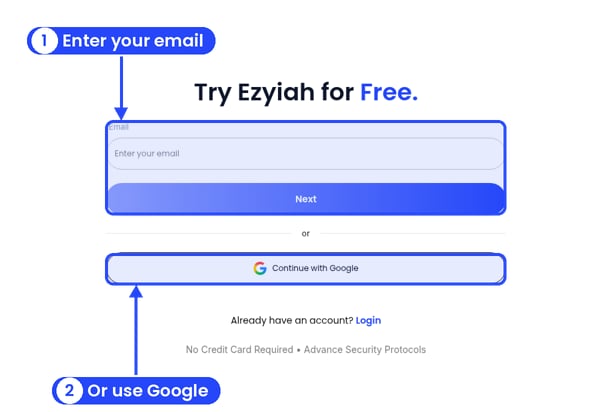
Step 1: Try Ezyiah for Free.
Go to app.ezyiah.com.au/signup. On Try Ezyiah for Free., enter your email and click Next. Or click Continue with Google.
2
Type the code
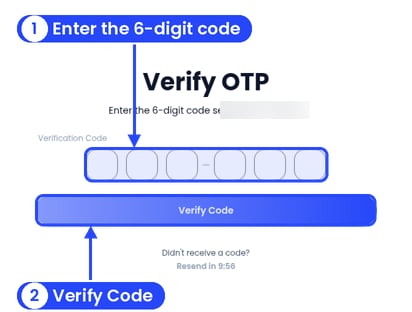
Step 2: Verify OTP
On Verify OTP, type the 6-digit code we emailed you, then click Verify Code. No email? Wait for the timer, then ask for a new code. See Create your account.
3
Choose Business
Step 3: choose Business
On What Describes You Best?, click Business (“Company, Sole Trader, Partnership, Trust, Franchise and Not-for-Profit Organisation.”). Then click Next.
4
Add your personal info
Step 4: your personal info
On Personal Info, enter your Full Name, your Phone Number (it starts with +61) and your Date of Birth (DD/MM/YYYY). Click Next. You add your business name later, after your password.
5
Tell us how you heard about us
Step 5: how you heard about us
On How Did You Hear About Us ?, pick Social Media, Blog or Article, Community Events, Friends and Colleagues or Other. Click Next.
6
Set your password
Step 6: set your password
On Setup Your Account, type your Password and type it again under Confirm Password. It needs at least 8 characters, an uppercase letter, a lowercase letter and a special character. Each rule gets a tick when it’s met. Then click Continue to Ezyiah.
7
Add your business
Step 7: add your business
The five business types
On Business Info, enter your Business Name, ABN and Industry (for example Plumbing, Café or Construction). Then pick your Business Type: Company, Partnership, Sole Trader, Unit Trust or Discretionary Trust. Click Next.Not sure which type? See Entity types.
Sign-up doesn’t ask about GST, your address or your bank. You add those later in Company Info and Banks.
What you’ll see next
The Welcome to Ezyiah window
You’ll see Welcome to Ezyiah with a short video (“Watch this short video to see how your AI bookkeeper looks after your books.”). Click See Help Documents to open these guides, or Get Started to go to your books.Your books are empty until you bring in your transactions. You’ll see No Data Found, with Connect Live Bank Feeds and Upload Bank File. You can also click Add Journal Entry at the top right to start a financial year with a journal.The bottom of the sidebar shows your free trial: Free Trial · 15 days left and Transactions Remaining 250. Click Manage to see plans, or Upgrade at the top of the sidebar. Below the trial card, Invite Accountant brings your accountant in. See Inviting your accountant.
Where you land: No Data Found until you add transactions
Connect your bank
The best way to keep your books up to date.
Catch up on old transactions
Behind on your books? Start here.
{"docsConfig":{"theme":"mint","$schema":"https://mintlify.com/docs.json","name":"Ezyiah","description":"Help docs for Ezyiah, AI accounting software built for the Australian market","colors":{"primary":"#2547F9","light":"#9298F9","dark":"#2547F9"},"logo":{"light":"https://mintcdn.com/ezyiah-3f16b61b/Ve47CujuGgN4pyqd/images/light.svg?fit=max\u0026auto=format\u0026n=Ve47CujuGgN4pyqd\u0026q=85\u0026s=a93f09364beedb00d71c1ee4b10f4954","dark":"https://mintcdn.com/ezyiah-3f16b61b/Ve47CujuGgN4pyqd/images/dark.svg?fit=max\u0026auto=format\u0026n=Ve47CujuGgN4pyqd\u0026q=85\u0026s=683424342d364154020a02a73e811824","href":"https://ezyiah.com.au"},"favicon":"https://mintcdn.com/ezyiah-3f16b61b/Ve47CujuGgN4pyqd/images/favicon.svg?fit=max\u0026auto=format\u0026n=Ve47CujuGgN4pyqd\u0026q=85\u0026s=11a9119ebc819180d54cd3d82ce71478","appearance":{"default":"light"},"background":{"color":{"light":"#F8F7F7","dark":"#000000"}},"navbar":{"links":[{"href":"https://ezyiah.com.au","label":"Main site"},{"href":"https://app.ezyiah.com.au/login","label":"Sign in"}],"primary":{"type":"button","label":"Get Started for Free","href":"https://app.ezyiah.com.au/signup"}},"footer":{"socials":{"linkedin":"https://www.linkedin.com/company/ezyiah","instagram":"https://www.instagram.com/ezyiah.com.au","youtube":"https://www.youtube.com/@EzyiahAI"}},"fonts":{"family":"Poppins"},"contextual":{"options":["copy","view","chatgpt","claude","perplexity","mcp","cursor","vscode"],"display":"header"},"styling":{"latex":true},"navigation":{"pages":[]}},"deployment":{"deploymentMetadataValue":{"subdomain":"ezyiah-3f16b61b","hasAudioNarration":false,"actualSubdomain":"ezyiah-3f16b61b","customDomains":["help.ezyiah.com.au"],"gitSource":{"type":"github","owner":"mintlify-community","repo":"docs-ezyiah-3f16b61b-bba5fbb8","deployBranch":"main","contentDirectory":"","isPrivate":true,"mountPath":"","label":""},"entitlements":{"AI_CHAT":{"status":"DISABLED"}},"buildId":"6b01a01dbee042a6adbe5f0d","clientVersion":"0.0.4270","searchFilterCounts":[{"language":"default","tag":"Banks \u0026 Reports","count":28},{"language":"default","tag":"Businesses","count":17},{"language":"default","tag":"Accountants","count":14},{"language":"default","tag":"Get Started","count":12},{"language":"default","tag":"Reports","count":9},{"language":"default","tag":"Getting started","count":8},{"language":"default","tag":"Clients","count":6},{"language":"default","tag":"Banks","count":6},{"language":"default","tag":"Your business","count":5},{"language":"default","tag":"Settings","count":4}]},"assistantConfig":{"enableAskAiButton":false,"enableStarterQuestions":false,"enableContextualStarterQuestions":false,"enableAskAiSearchBar":true,"deflection":{"enabled":true,"email":"support@ezyiah.com.au"}},"basePath":"","hasChatPermissions":false,"hasWebMcpPermissions":false,"toggles":[{"name":"kill-isr","enabled":true,"variant":{"name":"disabled","enabled":false,"feature_enabled":true},"impressionData":false},{"name":"custom-rbac-roles","enabled":true,"variant":{"name":"disabled","enabled":false,"feature_enabled":true},"impressionData":false},{"name":"agent-mintlify-slack","enabled":true,"variant":{"name":"disabled","enabled":false,"feature_enabled":true},"impressionData":false},{"name":"agent-integrations-settings","enabled":true,"variant":{"name":"disabled","enabled":false,"feature_enabled":true},"impressionData":false},{"name":"rbac-expansion","enabled":true,"variant":{"name":"disabled","enabled":false,"feature_enabled":true},"impressionData":false},{"name":"automations-pr-grouping","enabled":true,"variant":{"name":"disabled","enabled":false,"feature_enabled":true},"impressionData":false},{"name":"custom-prefix","enabled":true,"variant":{"name":"disabled","enabled":false,"feature_enabled":true},"impressionData":false},{"name":"analytics-v7","enabled":true,"variant":{"name":"disabled","enabled":false,"feature_enabled":true},"impressionData":false},{"name":"user-flows-analytics","enabled":true,"variant":{"name":"disabled","enabled":false,"feature_enabled":true},"impressionData":false},{"name":"no-publish-flow","enabled":true,"variant":{"name":"disabled","enabled":false,"feature_enabled":true},"impressionData":false},{"name":"workos-onboarding","enabled":true,"variant":{"name":"disabled","enabled":false,"feature_enabled":true},"impressionData":false},{"name":"snapshot-serving-live","enabled":true,"variant":{"name":"disabled","enabled":false,"feature_enabled":true},"impressionData":false},{"name":"stripTemperatureMiddleware","enabled":true,"variant":{"name":"disabled","enabled":false,"feature_enabled":true},"impressionData":false},{"name":"support-platform-pylon-zendesk","enabled":true,"variant":{"name":"disabled","enabled":false,"feature_enabled":true},"impressionData":false},{"name":"snapshot-serving","enabled":true,"variant":{"name":"disabled","enabled":false,"feature_enabled":true},"impressionData":false},{"name":"instant-rollback","enabled":true,"variant":{"name":"disabled","enabled":false,"feature_enabled":true},"impressionData":false},{"name":"granular-notifications-server","enabled":true,"variant":{"name":"disabled","enabled":false,"feature_enabled":true},"impressionData":false},{"name":"granular-notifications","enabled":true,"variant":{"name":"disabled","enabled":false,"feature_enabled":true},"impressionData":false},{"name":"automations-fable","enabled":true,"variant":{"name":"disabled","enabled":false,"feature_enabled":true},"impressionData":false},{"name":"fixed-ai-action-pricing","enabled":true,"variant":{"name":"disabled","enabled":false,"feature_enabled":true},"impressionData":false},{"name":"site-roles","enabled":true,"variant":{"name":"disabled","enabled":false,"feature_enabled":true},"impressionData":false},{"name":"automation-resolve-merge-conflict","enabled":true,"variant":{"name":"disabled","enabled":false,"feature_enabled":true},"impressionData":false},{"name":"scoped-publishing","enabled":true,"variant":{"name":"disabled","enabled":false,"feature_enabled":true},"impressionData":false},{"name":"mintql","enabled":true,"variant":{"name":"disabled","enabled":false,"feature_enabled":true},"impressionData":false},{"name":"page-level-analytics","enabled":true,"variant":{"name":"disabled","enabled":false,"feature_enabled":true},"impressionData":false},{"name":"editor-version-history-v2","enabled":true,"variant":{"name":"disabled","enabled":false,"feature_enabled":true},"impressionData":false},{"name":"billing-page-v2","enabled":true,"variant":{"name":"disabled","enabled":false,"feature_enabled":true},"impressionData":false},{"name":"full-page-search","enabled":true,"variant":{"name":"disabled","enabled":false,"feature_enabled":true},"impressionData":false},{"name":"workspace-projects","enabled":true,"variant":{"name":"disabled","enabled":false,"feature_enabled":true},"impressionData":false},{"name":"assistant-v5","enabled":true,"variant":{"name":"disabled","enabled":false,"feature_enabled":true},"impressionData":false},{"name":"fork-pr-previews","enabled":true,"variant":{"name":"disabled","enabled":false,"feature_enabled":true},"impressionData":false},{"name":"revalidation-jwt","enabled":true,"variant":{"name":"disabled","enabled":false,"feature_enabled":true},"impressionData":false},{"name":"workos-sso-scim","enabled":true,"variant":{"name":"disabled","enabled":false,"feature_enabled":true},"impressionData":false},{"name":"hobby-abuse-scan","enabled":true,"variant":{"name":"disabled","enabled":false,"feature_enabled":true},"impressionData":false},{"name":"dashboard-inbox","enabled":true,"variant":{"name":"disabled","enabled":false,"feature_enabled":true},"impressionData":false},{"name":"workos-signup","enabled":true,"variant":{"name":"disabled","enabled":false,"feature_enabled":true},"impressionData":false},{"name":"turbopuffer-dual-write","enabled":true,"variant":{"name":"disabled","enabled":false,"feature_enabled":true},"impressionData":false},{"name":"workos-enabled","enabled":true,"variant":{"name":"disabled","enabled":false,"feature_enabled":true},"impressionData":false},{"name":"approve-review-flow","enabled":true,"variant":{"name":"disabled","enabled":false,"feature_enabled":true},"impressionData":false},{"name":"editor-metadata","enabled":true,"variant":{"name":"disabled","enabled":false,"feature_enabled":true},"impressionData":false},{"name":"sso-setup-deadline-banner","enabled":true,"variant":{"name":"disabled","enabled":false,"feature_enabled":true},"impressionData":false},{"name":"turbopuffer-serve","enabled":true,"variant":{"name":"disabled","enabled":false,"feature_enabled":true},"impressionData":false},{"name":"live-agents","enabled":true,"variant":{"name":"disabled","enabled":false,"feature_enabled":true},"impressionData":false},{"name":"starter-pricing","enabled":true,"variant":{"name":"treatment","enabled":true,"payload":{"type":"string","value":"treatment"},"feature_enabled":true},"impressionData":false},{"name":"llms-txt-v2","enabled":true,"variant":{"name":"disabled","enabled":false,"feature_enabled":true},"impressionData":false},{"name":"wildcard-email-auth","enabled":true,"variant":{"name":"disabled","enabled":false,"feature_enabled":true},"impressionData":false}],"googleFontsInlined":true},"customCss":[]}
{"page":{"pagePath":"businesses/getting-started/signing-up","slug":"/businesses/getting-started/signing-up","pageMetadata":{"title":"Signing up as a business owner","description":"Create your account and add your business in a few minutes","href":"/businesses/getting-started/signing-up"},"description":{"compiledSource":"\"use strict\";\nconst {jsx: _jsx} = arguments[0];\nconst {useMDXComponents: _provideComponents} = arguments[0];\nfunction _createMdxContent(props) {\n const _components = {\n p: \"p\",\n ..._provideComponents(),\n ...props.components\n };\n return _jsx(_components.p, {\n children: \"Create your account and add your business in a few minutes\"\n });\n}\nfunction MDXContent(props = {}) {\n const {wrapper: MDXLayout} = {\n ..._provideComponents(),\n ...props.components\n };\n return MDXLayout ? _jsx(MDXLayout, {\n ...props,\n children: _jsx(_createMdxContent, {\n ...props\n })\n }) : _createMdxContent(props);\n}\nreturn {\n default: MDXContent\n};\n","frontmatter":{},"scope":{}},"pageType":"default","mdx":{"mdxSource":{"compiledSource":"\"use strict\";const{Fragment:_Fragment,jsx:_jsx,jsxs:_jsxs}=arguments[0];const{useMDXComponents:_provideComponents}=arguments[0];function _createMdxContent(props){const _components={a:`a`,p:`p`,strong:`strong`,..._provideComponents(),...props.components},{Card,CardGroup,Frame,Heading,Note,OptimizedImage,Step,Steps,Tip}=_components;if(!Card)_missingMdxReference(`Card`,true);if(!CardGroup)_missingMdxReference(`CardGroup`,true);if(!Frame)_missingMdxReference(`Frame`,true);if(!Heading)_missingMdxReference(`Heading`,true);if(!Note)_missingMdxReference(`Note`,true);if(!OptimizedImage)_missingMdxReference(`OptimizedImage`,true);if(!Step)_missingMdxReference(`Step`,true);if(!Steps)_missingMdxReference(`Steps`,true);if(!Tip)_missingMdxReference(`Tip`,true);return _jsxs(_Fragment,{children:[_jsxs(_components.p,{children:[`Signing up takes about five minutes. You get a 15-day free trial with `,_jsx(_components.strong,{children:`250 transactions`}),`. You don’t pay anything to start, and you don’t need a card.`]}),`\n`,_jsx(Tip,{children:_jsx(_components.p,{children:`Have your ABN ready. You’ll need it when you add your business.`})}),`\n`,_jsx(Heading,{level:`2`,id:`step-by-step`,children:`Step by step`}),`\n`,_jsxs(Steps,{children:[_jsxs(Step,{title:`Enter your email`,children:[_jsx(Frame,{caption:`Step 1: Try Ezyiah for Free.`,children:_jsx(OptimizedImage,{src:`https://mintcdn.com/ezyiah-3f16b61b/bzGxY0VUPySnanhv/images/annotated/business/g-sign-1a.png?fit=max\u0026auto=format\u0026n=bzGxY0VUPySnanhv\u0026q=85\u0026s=43e9ce90c28eb0716b0bc39390100ed5`,alt:`The Try Ezyiah for Free screen with callouts on the email field and Next, and on Continue with Google`,\"data-og-width\":`612`,width:`612`,\"data-og-height\":`412`,height:`412`,\"data-path\":`images/annotated/business/g-sign-1a.png`,\"data-optimize\":`true`,\"data-opv\":`3`,srcset:`https://mintcdn.com/ezyiah-3f16b61b/bzGxY0VUPySnanhv/images/annotated/business/g-sign-1a.png?w=280\u0026fit=max\u0026auto=format\u0026n=bzGxY0VUPySnanhv\u0026q=85\u0026s=94314af1118fdba6050290faf54bc514 280w, https://mintcdn.com/ezyiah-3f16b61b/bzGxY0VUPySnanhv/images/annotated/business/g-sign-1a.png?w=560\u0026fit=max\u0026auto=format\u0026n=bzGxY0VUPySnanhv\u0026q=85\u0026s=ff9ddb52f907675025c9a024903d30f3 560w, https://mintcdn.com/ezyiah-3f16b61b/bzGxY0VUPySnanhv/images/annotated/business/g-sign-1a.png?w=840\u0026fit=max\u0026auto=format\u0026n=bzGxY0VUPySnanhv\u0026q=85\u0026s=f44bff434846511a59f31bb38e871704 840w, https://mintcdn.com/ezyiah-3f16b61b/bzGxY0VUPySnanhv/images/annotated/business/g-sign-1a.png?w=1100\u0026fit=max\u0026auto=format\u0026n=bzGxY0VUPySnanhv\u0026q=85\u0026s=931bc14882d01acdb572754d0299f246 1100w, https://mintcdn.com/ezyiah-3f16b61b/bzGxY0VUPySnanhv/images/annotated/business/g-sign-1a.png?w=1650\u0026fit=max\u0026auto=format\u0026n=bzGxY0VUPySnanhv\u0026q=85\u0026s=59241d9acb4baf5e7d3a59c1ff0caf44 1650w, https://mintcdn.com/ezyiah-3f16b61b/bzGxY0VUPySnanhv/images/annotated/business/g-sign-1a.png?w=2500\u0026fit=max\u0026auto=format\u0026n=bzGxY0VUPySnanhv\u0026q=85\u0026s=b6681f23c98f8bdc9d2590390876af09 2500w`})}),_jsxs(_components.p,{children:[`Go to `,_jsx(_components.a,{href:`https://app.ezyiah.com.au/signup`,children:`app.ezyiah.com.au/signup`}),`. On `,_jsx(_components.strong,{children:`Try Ezyiah for Free.`}),`, enter your email and click `,_jsx(_components.strong,{children:`Next`}),`. Or click `,_jsx(_components.strong,{children:`Continue with Google`}),`.`]})]}),_jsxs(Step,{title:`Type the code`,children:[_jsx(Frame,{caption:`Step 2: Verify OTP`,children:_jsx(OptimizedImage,{src:`https://mintcdn.com/ezyiah-3f16b61b/bzGxY0VUPySnanhv/images/annotated/business/g-sign-1b.png?fit=max\u0026auto=format\u0026n=bzGxY0VUPySnanhv\u0026q=85\u0026s=4ff7a9f6fe390605824b41e6f39bebb2`,alt:`The Verify OTP screen with callouts on the six code boxes and the Verify Code button. The email address is blurred`,\"data-og-width\":`412`,width:`412`,\"data-og-height\":`312`,height:`312`,\"data-path\":`images/annotated/business/g-sign-1b.png`,\"data-optimize\":`true`,\"data-opv\":`3`,srcset:`https://mintcdn.com/ezyiah-3f16b61b/bzGxY0VUPySnanhv/images/annotated/business/g-sign-1b.png?w=280\u0026fit=max\u0026auto=format\u0026n=bzGxY0VUPySnanhv\u0026q=85\u0026s=2d3b26a40ecb1547ee4d1d298b88d541 280w, https://mintcdn.com/ezyiah-3f16b61b/bzGxY0VUPySnanhv/images/annotated/business/g-sign-1b.png?w=560\u0026fit=max\u0026auto=format\u0026n=bzGxY0VUPySnanhv\u0026q=85\u0026s=6f1bd561721548cac187f9a97659a900 560w, https://mintcdn.com/ezyiah-3f16b61b/bzGxY0VUPySnanhv/images/annotated/business/g-sign-1b.png?w=840\u0026fit=max\u0026auto=format\u0026n=bzGxY0VUPySnanhv\u0026q=85\u0026s=7ef56fff8d2427babd01a17cfaca342c 840w, https://mintcdn.com/ezyiah-3f16b61b/bzGxY0VUPySnanhv/images/annotated/business/g-sign-1b.png?w=1100\u0026fit=max\u0026auto=format\u0026n=bzGxY0VUPySnanhv\u0026q=85\u0026s=b75c75f7e073370095d40ff84fa43e75 1100w, https://mintcdn.com/ezyiah-3f16b61b/bzGxY0VUPySnanhv/images/annotated/business/g-sign-1b.png?w=1650\u0026fit=max\u0026auto=format\u0026n=bzGxY0VUPySnanhv\u0026q=85\u0026s=e7a2c7eb7a7a308f9c469805a6fce8e1 1650w, https://mintcdn.com/ezyiah-3f16b61b/bzGxY0VUPySnanhv/images/annotated/business/g-sign-1b.png?w=2500\u0026fit=max\u0026auto=format\u0026n=bzGxY0VUPySnanhv\u0026q=85\u0026s=f65178bd6120a6b381f912e1e828ec4b 2500w`})}),_jsxs(_components.p,{children:[`On `,_jsx(_components.strong,{children:`Verify OTP`}),`, type the 6-digit code we emailed you, then click `,_jsx(_components.strong,{children:`Verify Code`}),`. No email? Wait for the timer, then ask for a new code. See `,_jsx(_components.a,{href:`/get-started/creating-your-account`,children:`Create your account`}),`.`]})]}),_jsxs(Step,{title:`Choose Business`,children:[_jsx(Frame,{caption:`Step 3: choose Business`,children:_jsx(OptimizedImage,{src:`https://mintcdn.com/ezyiah-3f16b61b/bzGxY0VUPySnanhv/images/annotated/business/b-sign-2.png?fit=max\u0026auto=format\u0026n=bzGxY0VUPySnanhv\u0026q=85\u0026s=a908a587c451f9b1a38488b20d1821e5`,alt:`The What Describes You Best? step with callouts on the Business card and Next`,\"data-og-width\":`618`,width:`618`,\"data-og-height\":`288`,height:`288`,\"data-path\":`images/annotated/business/b-sign-2.png`,\"data-optimize\":`true`,\"data-opv\":`3`,srcset:`https://mintcdn.com/ezyiah-3f16b61b/bzGxY0VUPySnanhv/images/annotated/business/b-sign-2.png?w=280\u0026fit=max\u0026auto=format\u0026n=bzGxY0VUPySnanhv\u0026q=85\u0026s=e5a99440e06527caed5e1c95a2500dea 280w, https://mintcdn.com/ezyiah-3f16b61b/bzGxY0VUPySnanhv/images/annotated/business/b-sign-2.png?w=560\u0026fit=max\u0026auto=format\u0026n=bzGxY0VUPySnanhv\u0026q=85\u0026s=95f7435a76c80c3c33ed7ac30dad1b5b 560w, https://mintcdn.com/ezyiah-3f16b61b/bzGxY0VUPySnanhv/images/annotated/business/b-sign-2.png?w=840\u0026fit=max\u0026auto=format\u0026n=bzGxY0VUPySnanhv\u0026q=85\u0026s=72df6efb189826f735a7f35505d029a1 840w, https://mintcdn.com/ezyiah-3f16b61b/bzGxY0VUPySnanhv/images/annotated/business/b-sign-2.png?w=1100\u0026fit=max\u0026auto=format\u0026n=bzGxY0VUPySnanhv\u0026q=85\u0026s=ae1a208ade98c844399ceb86a292360d 1100w, https://mintcdn.com/ezyiah-3f16b61b/bzGxY0VUPySnanhv/images/annotated/business/b-sign-2.png?w=1650\u0026fit=max\u0026auto=format\u0026n=bzGxY0VUPySnanhv\u0026q=85\u0026s=48eef356ba1bf06ba441bc9df6342639 1650w, https://mintcdn.com/ezyiah-3f16b61b/bzGxY0VUPySnanhv/images/annotated/business/b-sign-2.png?w=2500\u0026fit=max\u0026auto=format\u0026n=bzGxY0VUPySnanhv\u0026q=85\u0026s=8fe0a1ab135cb1c70d41bbf1d5d8ffb4 2500w`})}),_jsxs(_components.p,{children:[`On `,_jsx(_components.strong,{children:`What Describes You Best?`}),`, click `,_jsx(_components.strong,{children:`Business`}),` (“Company, Sole Trader, Partnership, Trust, Franchise and Not-for-Profit Organisation.”). Then click `,_jsx(_components.strong,{children:`Next`}),`.`]})]}),_jsxs(Step,{title:`Add your personal info`,children:[_jsx(Frame,{caption:`Step 4: your personal info`,children:_jsx(OptimizedImage,{src:`https://mintcdn.com/ezyiah-3f16b61b/bzGxY0VUPySnanhv/images/annotated/business/b-sign-4.png?fit=max\u0026auto=format\u0026n=bzGxY0VUPySnanhv\u0026q=85\u0026s=e184135c0ffa6db6566b6d2bac686f9a`,alt:`The Personal Info step with callouts on Full Name, Phone Number and Date of Birth`,\"data-og-width\":`618`,width:`618`,\"data-og-height\":`300`,height:`300`,\"data-path\":`images/annotated/business/b-sign-4.png`,\"data-optimize\":`true`,\"data-opv\":`3`,srcset:`https://mintcdn.com/ezyiah-3f16b61b/bzGxY0VUPySnanhv/images/annotated/business/b-sign-4.png?w=280\u0026fit=max\u0026auto=format\u0026n=bzGxY0VUPySnanhv\u0026q=85\u0026s=cf35755b7a5e04c5852a9a5183ea4135 280w, https://mintcdn.com/ezyiah-3f16b61b/bzGxY0VUPySnanhv/images/annotated/business/b-sign-4.png?w=560\u0026fit=max\u0026auto=format\u0026n=bzGxY0VUPySnanhv\u0026q=85\u0026s=9765d1613db42513a99f97e25edeecfe 560w, https://mintcdn.com/ezyiah-3f16b61b/bzGxY0VUPySnanhv/images/annotated/business/b-sign-4.png?w=840\u0026fit=max\u0026auto=format\u0026n=bzGxY0VUPySnanhv\u0026q=85\u0026s=2fb7b69d02f2667f3d7f545f713c1bff 840w, https://mintcdn.com/ezyiah-3f16b61b/bzGxY0VUPySnanhv/images/annotated/business/b-sign-4.png?w=1100\u0026fit=max\u0026auto=format\u0026n=bzGxY0VUPySnanhv\u0026q=85\u0026s=3ef39170174b5d55ec289f5eda064ec4 1100w, https://mintcdn.com/ezyiah-3f16b61b/bzGxY0VUPySnanhv/images/annotated/business/b-sign-4.png?w=1650\u0026fit=max\u0026auto=format\u0026n=bzGxY0VUPySnanhv\u0026q=85\u0026s=4d464cb8550d29109aae7fb507ce0914 1650w, https://mintcdn.com/ezyiah-3f16b61b/bzGxY0VUPySnanhv/images/annotated/business/b-sign-4.png?w=2500\u0026fit=max\u0026auto=format\u0026n=bzGxY0VUPySnanhv\u0026q=85\u0026s=587f71819e797e54fdb7e9719cb66e90 2500w`})}),_jsxs(_components.p,{children:[`On `,_jsx(_components.strong,{children:`Personal Info`}),`, enter your `,_jsx(_components.strong,{children:`Full Name`}),`, your `,_jsx(_components.strong,{children:`Phone Number`}),` (it starts with +61) and your `,_jsx(_components.strong,{children:`Date of Birth`}),` (DD/MM/YYYY). Click `,_jsx(_components.strong,{children:`Next`}),`. You add your business name later, after your password.`]})]}),_jsxs(Step,{title:`Tell us how you heard about us`,children:[_jsx(Frame,{caption:`Step 5: how you heard about us`,children:_jsx(OptimizedImage,{src:`https://mintcdn.com/ezyiah-3f16b61b/bzGxY0VUPySnanhv/images/annotated/business/b-sign-5.png?fit=max\u0026auto=format\u0026n=bzGxY0VUPySnanhv\u0026q=85\u0026s=8d483b71bd2e976d7955949bb623fa8e`,alt:`The How Did You Hear About Us list open, showing Social Media, Blog or Article, Community Events, Friends and Colleagues and Other`,\"data-og-width\":`618`,width:`618`,\"data-og-height\":`275`,height:`275`,\"data-path\":`images/annotated/business/b-sign-5.png`,\"data-optimize\":`true`,\"data-opv\":`3`,srcset:`https://mintcdn.com/ezyiah-3f16b61b/bzGxY0VUPySnanhv/images/annotated/business/b-sign-5.png?w=280\u0026fit=max\u0026auto=format\u0026n=bzGxY0VUPySnanhv\u0026q=85\u0026s=b6a60efef5cb3920147ae7c2946a5f29 280w, https://mintcdn.com/ezyiah-3f16b61b/bzGxY0VUPySnanhv/images/annotated/business/b-sign-5.png?w=560\u0026fit=max\u0026auto=format\u0026n=bzGxY0VUPySnanhv\u0026q=85\u0026s=afe9f0f62b93debb6fbfab9cd05ca4d8 560w, https://mintcdn.com/ezyiah-3f16b61b/bzGxY0VUPySnanhv/images/annotated/business/b-sign-5.png?w=840\u0026fit=max\u0026auto=format\u0026n=bzGxY0VUPySnanhv\u0026q=85\u0026s=1ba70edd9ddf48b220c3b06fc83f8506 840w, https://mintcdn.com/ezyiah-3f16b61b/bzGxY0VUPySnanhv/images/annotated/business/b-sign-5.png?w=1100\u0026fit=max\u0026auto=format\u0026n=bzGxY0VUPySnanhv\u0026q=85\u0026s=5c8c8830be5639a63cb2fc3356cfd19c 1100w, https://mintcdn.com/ezyiah-3f16b61b/bzGxY0VUPySnanhv/images/annotated/business/b-sign-5.png?w=1650\u0026fit=max\u0026auto=format\u0026n=bzGxY0VUPySnanhv\u0026q=85\u0026s=9c1ac49ddb4ca0313a9e43356a7140a2 1650w, https://mintcdn.com/ezyiah-3f16b61b/bzGxY0VUPySnanhv/images/annotated/business/b-sign-5.png?w=2500\u0026fit=max\u0026auto=format\u0026n=bzGxY0VUPySnanhv\u0026q=85\u0026s=93c876c3d790ce4fdfead8080799490d 2500w`})}),_jsxs(_components.p,{children:[`On `,_jsx(_components.strong,{children:`How Did You Hear About Us ?`}),`, pick `,_jsx(_components.strong,{children:`Social Media`}),`, `,_jsx(_components.strong,{children:`Blog or Article`}),`, `,_jsx(_components.strong,{children:`Community Events`}),`, `,_jsx(_components.strong,{children:`Friends and Colleagues`}),` or `,_jsx(_components.strong,{children:`Other`}),`. Click `,_jsx(_components.strong,{children:`Next`}),`.`]})]}),_jsxs(Step,{title:`Set your password`,children:[_jsx(Frame,{caption:`Step 6: set your password`,children:_jsx(OptimizedImage,{src:`https://mintcdn.com/ezyiah-3f16b61b/bzGxY0VUPySnanhv/images/annotated/business/b-sign-3.png?fit=max\u0026auto=format\u0026n=bzGxY0VUPySnanhv\u0026q=85\u0026s=9610466df912a0fb07641b0208720e46`,alt:`The Setup Your Account step with callouts on Password, Confirm Password, the four password rules and Continue to Ezyiah`,\"data-og-width\":`618`,width:`618`,\"data-og-height\":`306`,height:`306`,\"data-path\":`images/annotated/business/b-sign-3.png`,\"data-optimize\":`true`,\"data-opv\":`3`,srcset:`https://mintcdn.com/ezyiah-3f16b61b/bzGxY0VUPySnanhv/images/annotated/business/b-sign-3.png?w=280\u0026fit=max\u0026auto=format\u0026n=bzGxY0VUPySnanhv\u0026q=85\u0026s=b340b985c7eea6fa72de9bd0912afc17 280w, https://mintcdn.com/ezyiah-3f16b61b/bzGxY0VUPySnanhv/images/annotated/business/b-sign-3.png?w=560\u0026fit=max\u0026auto=format\u0026n=bzGxY0VUPySnanhv\u0026q=85\u0026s=8a60aca1a4ca648054f3c8cd4b800c5b 560w, https://mintcdn.com/ezyiah-3f16b61b/bzGxY0VUPySnanhv/images/annotated/business/b-sign-3.png?w=840\u0026fit=max\u0026auto=format\u0026n=bzGxY0VUPySnanhv\u0026q=85\u0026s=96a117a5ec43a3162b07a42a04ab86ee 840w, https://mintcdn.com/ezyiah-3f16b61b/bzGxY0VUPySnanhv/images/annotated/business/b-sign-3.png?w=1100\u0026fit=max\u0026auto=format\u0026n=bzGxY0VUPySnanhv\u0026q=85\u0026s=efde810cd5b35695b5617367d94baea9 1100w, https://mintcdn.com/ezyiah-3f16b61b/bzGxY0VUPySnanhv/images/annotated/business/b-sign-3.png?w=1650\u0026fit=max\u0026auto=format\u0026n=bzGxY0VUPySnanhv\u0026q=85\u0026s=e56e6c47b064b57bf117875a5c30c6d1 1650w, https://mintcdn.com/ezyiah-3f16b61b/bzGxY0VUPySnanhv/images/annotated/business/b-sign-3.png?w=2500\u0026fit=max\u0026auto=format\u0026n=bzGxY0VUPySnanhv\u0026q=85\u0026s=f0ac802d2c02350543fac40274abdd1f 2500w`})}),_jsxs(_components.p,{children:[`On `,_jsx(_components.strong,{children:`Setup Your Account`}),`, type your `,_jsx(_components.strong,{children:`Password`}),` and type it again under `,_jsx(_components.strong,{children:`Confirm Password`}),`. It needs at least 8 characters, an uppercase letter, a lowercase letter and a special character. Each rule gets a tick when it’s met. Then click `,_jsx(_components.strong,{children:`Continue to Ezyiah`}),`.`]})]}),_jsxs(Step,{title:`Add your business`,children:[_jsx(Frame,{caption:`Step 7: add your business`,children:_jsx(OptimizedImage,{src:`https://mintcdn.com/ezyiah-3f16b61b/bzGxY0VUPySnanhv/images/annotated/business/b-sign-1.png?fit=max\u0026auto=format\u0026n=bzGxY0VUPySnanhv\u0026q=85\u0026s=d06fe19ef4af3f1602566c041a1446f1`,alt:`The Business Info step with callouts on Business Name, ABN, Industry, Business Type and Next`,\"data-og-width\":`618`,width:`618`,\"data-og-height\":`350`,height:`350`,\"data-path\":`images/annotated/business/b-sign-1.png`,\"data-optimize\":`true`,\"data-opv\":`3`,srcset:`https://mintcdn.com/ezyiah-3f16b61b/bzGxY0VUPySnanhv/images/annotated/business/b-sign-1.png?w=280\u0026fit=max\u0026auto=format\u0026n=bzGxY0VUPySnanhv\u0026q=85\u0026s=eb4916f2bfa06d6efef127f2a28be79d 280w, https://mintcdn.com/ezyiah-3f16b61b/bzGxY0VUPySnanhv/images/annotated/business/b-sign-1.png?w=560\u0026fit=max\u0026auto=format\u0026n=bzGxY0VUPySnanhv\u0026q=85\u0026s=d359d66467098d5bc6662f2872fd398e 560w, https://mintcdn.com/ezyiah-3f16b61b/bzGxY0VUPySnanhv/images/annotated/business/b-sign-1.png?w=840\u0026fit=max\u0026auto=format\u0026n=bzGxY0VUPySnanhv\u0026q=85\u0026s=38a8a9edfa6fede0edb9c48332e85c70 840w, https://mintcdn.com/ezyiah-3f16b61b/bzGxY0VUPySnanhv/images/annotated/business/b-sign-1.png?w=1100\u0026fit=max\u0026auto=format\u0026n=bzGxY0VUPySnanhv\u0026q=85\u0026s=918d0327d2080a0cb3e92e943f5c6975 1100w, https://mintcdn.com/ezyiah-3f16b61b/bzGxY0VUPySnanhv/images/annotated/business/b-sign-1.png?w=1650\u0026fit=max\u0026auto=format\u0026n=bzGxY0VUPySnanhv\u0026q=85\u0026s=fecd50d89e69e4e063dd1e58ca201ddb 1650w, https://mintcdn.com/ezyiah-3f16b61b/bzGxY0VUPySnanhv/images/annotated/business/b-sign-1.png?w=2500\u0026fit=max\u0026auto=format\u0026n=bzGxY0VUPySnanhv\u0026q=85\u0026s=a7000ebab53cf57302bf68356ebde692 2500w`})}),_jsx(Frame,{caption:`The five business types`,children:_jsx(OptimizedImage,{src:`https://mintcdn.com/ezyiah-3f16b61b/bzGxY0VUPySnanhv/images/annotated/business/b-sign-6.png?fit=max\u0026auto=format\u0026n=bzGxY0VUPySnanhv\u0026q=85\u0026s=c22ae5760c948e6b6a68929cf5b5893b`,alt:`The Business Type list open, showing Company, Partnership, Sole Trader, Unit Trust and Discretionary Trust`,\"data-og-width\":`618`,width:`618`,\"data-og-height\":`212`,height:`212`,\"data-path\":`images/annotated/business/b-sign-6.png`,\"data-optimize\":`true`,\"data-opv\":`3`,srcset:`https://mintcdn.com/ezyiah-3f16b61b/bzGxY0VUPySnanhv/images/annotated/business/b-sign-6.png?w=280\u0026fit=max\u0026auto=format\u0026n=bzGxY0VUPySnanhv\u0026q=85\u0026s=731c66d6a7aa020f389eb6a596ed4719 280w, https://mintcdn.com/ezyiah-3f16b61b/bzGxY0VUPySnanhv/images/annotated/business/b-sign-6.png?w=560\u0026fit=max\u0026auto=format\u0026n=bzGxY0VUPySnanhv\u0026q=85\u0026s=12fb19750b7066b90dfa202b976fda88 560w, https://mintcdn.com/ezyiah-3f16b61b/bzGxY0VUPySnanhv/images/annotated/business/b-sign-6.png?w=840\u0026fit=max\u0026auto=format\u0026n=bzGxY0VUPySnanhv\u0026q=85\u0026s=ff303093bfe9a9ef8f24910a9efbb979 840w, https://mintcdn.com/ezyiah-3f16b61b/bzGxY0VUPySnanhv/images/annotated/business/b-sign-6.png?w=1100\u0026fit=max\u0026auto=format\u0026n=bzGxY0VUPySnanhv\u0026q=85\u0026s=8141a73ebb92dd98223a423c7e6dfa85 1100w, https://mintcdn.com/ezyiah-3f16b61b/bzGxY0VUPySnanhv/images/annotated/business/b-sign-6.png?w=1650\u0026fit=max\u0026auto=format\u0026n=bzGxY0VUPySnanhv\u0026q=85\u0026s=a62b200a8c13b60ba9b5ac47e3f6ad98 1650w, https://mintcdn.com/ezyiah-3f16b61b/bzGxY0VUPySnanhv/images/annotated/business/b-sign-6.png?w=2500\u0026fit=max\u0026auto=format\u0026n=bzGxY0VUPySnanhv\u0026q=85\u0026s=4a881db482df618298cca51860e5ab1f 2500w`})}),_jsxs(_components.p,{children:[`On `,_jsx(_components.strong,{children:`Business Info`}),`, enter your `,_jsx(_components.strong,{children:`Business Name`}),`, `,_jsx(_components.strong,{children:`ABN`}),` and `,_jsx(_components.strong,{children:`Industry`}),` (for example Plumbing, Café or Construction). Then pick your `,_jsx(_components.strong,{children:`Business Type`}),`: `,_jsx(_components.strong,{children:`Company`}),`, `,_jsx(_components.strong,{children:`Partnership`}),`, `,_jsx(_components.strong,{children:`Sole Trader`}),`, `,_jsx(_components.strong,{children:`Unit Trust`}),` or `,_jsx(_components.strong,{children:`Discretionary Trust`}),`. Click `,_jsx(_components.strong,{children:`Next`}),`.`]}),_jsxs(_components.p,{children:[`Not sure which type? See `,_jsx(_components.a,{href:`/features/ledger-setup/business-entity-selection`,children:`Entity types`}),`.`]})]})]}),`\n`,_jsx(Note,{children:_jsxs(_components.p,{children:[`Sign-up doesn’t ask about GST, your address or your bank. You add those later in `,_jsx(_components.a,{href:`/businesses/company-info`,children:`Company Info`}),` and `,_jsx(_components.a,{href:`/businesses/getting-started/connecting-your-bank`,children:`Banks`}),`.`]})}),`\n`,_jsx(Heading,{level:`2`,id:`what-you’ll-see-next`,children:`What you’ll see next`}),`\n`,_jsx(Frame,{caption:`The Welcome to Ezyiah window`,children:_jsx(OptimizedImage,{src:`https://mintcdn.com/ezyiah-3f16b61b/bzGxY0VUPySnanhv/images/annotated/business/b-sign-7.png?fit=max\u0026auto=format\u0026n=bzGxY0VUPySnanhv\u0026q=85\u0026s=d80b1b72a3a35d6e64c2539e59c2eb7a`,alt:`The Welcome to Ezyiah window with callouts on the short video, See Help Documents and Get Started`,\"data-og-width\":`875`,width:`875`,\"data-og-height\":`481`,height:`481`,\"data-path\":`images/annotated/business/b-sign-7.png`,\"data-optimize\":`true`,\"data-opv\":`3`,srcset:`https://mintcdn.com/ezyiah-3f16b61b/bzGxY0VUPySnanhv/images/annotated/business/b-sign-7.png?w=280\u0026fit=max\u0026auto=format\u0026n=bzGxY0VUPySnanhv\u0026q=85\u0026s=ce4d208afe28e3c6d2ad0a677c18656f 280w, https://mintcdn.com/ezyiah-3f16b61b/bzGxY0VUPySnanhv/images/annotated/business/b-sign-7.png?w=560\u0026fit=max\u0026auto=format\u0026n=bzGxY0VUPySnanhv\u0026q=85\u0026s=4d28a0073770fa57e3689079f02bf5dd 560w, https://mintcdn.com/ezyiah-3f16b61b/bzGxY0VUPySnanhv/images/annotated/business/b-sign-7.png?w=840\u0026fit=max\u0026auto=format\u0026n=bzGxY0VUPySnanhv\u0026q=85\u0026s=121ac1b5e7497b7db698b05ba5b4532c 840w, https://mintcdn.com/ezyiah-3f16b61b/bzGxY0VUPySnanhv/images/annotated/business/b-sign-7.png?w=1100\u0026fit=max\u0026auto=format\u0026n=bzGxY0VUPySnanhv\u0026q=85\u0026s=962755ad1e3e6b566e526495948c93b9 1100w, https://mintcdn.com/ezyiah-3f16b61b/bzGxY0VUPySnanhv/images/annotated/business/b-sign-7.png?w=1650\u0026fit=max\u0026auto=format\u0026n=bzGxY0VUPySnanhv\u0026q=85\u0026s=9a361777f71a751e6c524499fe646690 1650w, https://mintcdn.com/ezyiah-3f16b61b/bzGxY0VUPySnanhv/images/annotated/business/b-sign-7.png?w=2500\u0026fit=max\u0026auto=format\u0026n=bzGxY0VUPySnanhv\u0026q=85\u0026s=a1d2cdd648d942cc737a82267fa98657 2500w`})}),`\n`,_jsxs(_components.p,{children:[`You’ll see `,_jsx(_components.strong,{children:`Welcome to Ezyiah`}),` with a short video (“Watch this short video to see how your AI bookkeeper looks after your books.”). Click `,_jsx(_components.strong,{children:`See Help Documents`}),` to open these guides, or `,_jsx(_components.strong,{children:`Get Started`}),` to go to your books.`]}),`\n`,_jsxs(_components.p,{children:[`Your books are empty until you bring in your transactions. You’ll see `,_jsx(_components.strong,{children:`No Data Found`}),`, with `,_jsx(_components.strong,{children:`Connect Live Bank Feeds`}),` and `,_jsx(_components.strong,{children:`Upload Bank File`}),`. You can also click `,_jsx(_components.strong,{children:`Add Journal Entry`}),` at the top right to start a financial year with a journal.`]}),`\n`,_jsxs(_components.p,{children:[`The bottom of the sidebar shows your free trial: `,_jsx(_components.strong,{children:`Free Trial · 15 days left`}),` and `,_jsx(_components.strong,{children:`Transactions Remaining 250`}),`. Click `,_jsx(_components.strong,{children:`Manage`}),` to see plans, or `,_jsx(_components.strong,{children:`Upgrade`}),` at the top of the sidebar. Below the trial card, `,_jsx(_components.strong,{children:`Invite Accountant`}),` brings your accountant in. See `,_jsx(_components.a,{href:`/businesses/inviting-your-accountant`,children:`Inviting your accountant`}),`.`]}),`\n`,_jsx(Frame,{caption:`Where you land: No Data Found until you add transactions`,children:_jsx(OptimizedImage,{src:`https://mintcdn.com/ezyiah-3f16b61b/bzGxY0VUPySnanhv/images/annotated/business/b-sign-8.png?fit=max\u0026auto=format\u0026n=bzGxY0VUPySnanhv\u0026q=85\u0026s=c23388bcef5710afac4d5135bf839b32`,alt:`The new business screen showing No Data Found, with callouts on Connect Live Bank Feeds and Upload Bank File, Add Journal Entry, Upgrade, the Free Trial card and Invite Accountant`,\"data-og-width\":`1280`,width:`1280`,\"data-og-height\":`710`,height:`710`,\"data-path\":`images/annotated/business/b-sign-8.png`,\"data-optimize\":`true`,\"data-opv\":`3`,srcset:`https://mintcdn.com/ezyiah-3f16b61b/bzGxY0VUPySnanhv/images/annotated/business/b-sign-8.png?w=280\u0026fit=max\u0026auto=format\u0026n=bzGxY0VUPySnanhv\u0026q=85\u0026s=7c41e5070f41a1d9e1dbc7e0e2fbeeb5 280w, https://mintcdn.com/ezyiah-3f16b61b/bzGxY0VUPySnanhv/images/annotated/business/b-sign-8.png?w=560\u0026fit=max\u0026auto=format\u0026n=bzGxY0VUPySnanhv\u0026q=85\u0026s=6b55588cb56f36c39a0dcc2ef5a8a645 560w, https://mintcdn.com/ezyiah-3f16b61b/bzGxY0VUPySnanhv/images/annotated/business/b-sign-8.png?w=840\u0026fit=max\u0026auto=format\u0026n=bzGxY0VUPySnanhv\u0026q=85\u0026s=18cd8803977700f0c3b5a2be72ae36c3 840w, https://mintcdn.com/ezyiah-3f16b61b/bzGxY0VUPySnanhv/images/annotated/business/b-sign-8.png?w=1100\u0026fit=max\u0026auto=format\u0026n=bzGxY0VUPySnanhv\u0026q=85\u0026s=6cddd3bd05dc385a8aadf736212e7f7a 1100w, https://mintcdn.com/ezyiah-3f16b61b/bzGxY0VUPySnanhv/images/annotated/business/b-sign-8.png?w=1650\u0026fit=max\u0026auto=format\u0026n=bzGxY0VUPySnanhv\u0026q=85\u0026s=a67607a335f418aba660fb5cc8f2c637 1650w, https://mintcdn.com/ezyiah-3f16b61b/bzGxY0VUPySnanhv/images/annotated/business/b-sign-8.png?w=2500\u0026fit=max\u0026auto=format\u0026n=bzGxY0VUPySnanhv\u0026q=85\u0026s=b3eed63f881244f8cec618fbf11e996a 2500w`})}),`\n`,_jsxs(CardGroup,{cols:2,children:[_jsx(Card,{title:`Connect your bank`,icon:`building-columns`,href:`/businesses/getting-started/connecting-your-bank`,children:_jsx(_components.p,{children:`The best way to keep your books up to date.`})}),_jsx(Card,{title:`Catch up on old transactions`,icon:`clock-rotate-left`,href:`/features/banks/catching-up-on-old-transactions`,children:_jsx(_components.p,{children:`Behind on your books? Start here.`})})]})]})}function MDXContent(props={}){const{wrapper:MDXLayout}={..._provideComponents(),...props.components};return MDXLayout?_jsx(MDXLayout,{...props,children:_jsx(_createMdxContent,{...props})}):_createMdxContent(props)}return{default:MDXContent};function _missingMdxReference(id,component){throw new Error(`Expected `+(component?`component`:`object`)+\" `\"+id+\"` to be defined: you likely forgot to import, pass, or provide it.\")}","frontmatter":{},"scope":{"config":{},"pageMetadata":{"title":"Signing up as a business owner","description":"Create your account and add your business in a few minutes","href":"/businesses/getting-started/signing-up"}}},"mdxSourceWithNoJs":null},"mdxExtracts":{"tableOfContents":[{"title":"Step by step","slug":"step-by-step","depth":2,"children":[]},{"title":"What you’ll see next","slug":"what-you’ll-see-next","depth":2,"children":[]}],"codeExamples":{}},"jsLinks":[],"subdomain":"ezyiah-3f16b61b","siteName":"Ezyiah","title":"Signing up as a business owner - Ezyiah","navMaps":{"firstHrefInVersion":{},"firstHrefInLanguage":{}},"lastModified":"2026-11-01T08:50:34.367Z","originalFileLocation":"businesses/getting-started/signing-up.mdx"},"headHtml":"\u003cscript data-mint-head>(function(){var d=document.documentElement,p=null;if(!p){try{p=localStorage.getItem(\"isDarkMode\")}catch(e){}if(p==='true')p='dark';else if(p==='false')p='light';if(p!=='light'\u0026\u0026p!=='dark'\u0026\u0026p!=='system')p=\"light\"}var r=p==='system'?(matchMedia(\"(prefers-color-scheme: dark)\").matches?'dark':'light'):p;d.classList.remove(r==='dark'?'light':'dark');d.classList.add(r);d.setAttribute(\"data-theme-preference\",p)})();\u003c/script>\u003cmeta data-mint-head name=\"description\" content=\"Create your account and add your business in a few minutes\">\u003cmeta data-mint-head name=\"application-name\" content=\"Ezyiah\">\u003cmeta data-mint-head name=\"generator\" content=\"Mintlify\">\u003clink data-mint-head rel=\"icon\" type=\"image/png\" sizes=\"192x192\" href=\"/mintlify-assets/_mintlify/favicons/ezyiah-3f16b61b/EtmDKKQMcC9s0pB0/_generated/favicon/android-chrome-192x192.png\" media=\"(prefers-color-scheme: light)\">\u003clink data-mint-head rel=\"apple-touch-icon\" type=\"image/png\" sizes=\"180x180\" href=\"/mintlify-assets/_mintlify/favicons/ezyiah-3f16b61b/EtmDKKQMcC9s0pB0/_generated/favicon/apple-touch-icon.png\">\u003clink data-mint-head rel=\"icon\" type=\"image/png\" sizes=\"16x16\" href=\"/mintlify-assets/_mintlify/favicons/ezyiah-3f16b61b/EtmDKKQMcC9s0pB0/_generated/favicon/favicon-16x16.png\" media=\"(prefers-color-scheme: light)\">\u003clink data-mint-head rel=\"icon\" type=\"image/png\" sizes=\"32x32\" href=\"/mintlify-assets/_mintlify/favicons/ezyiah-3f16b61b/EtmDKKQMcC9s0pB0/_generated/favicon/favicon-32x32.png\" media=\"(prefers-color-scheme: light)\">\u003clink data-mint-head rel=\"shortcut icon\" type=\"image/x-icon\" href=\"/mintlify-assets/_mintlify/favicons/ezyiah-3f16b61b/EtmDKKQMcC9s0pB0/_generated/favicon/favicon.ico\" media=\"(prefers-color-scheme: light)\">\u003clink data-mint-head rel=\"icon\" type=\"image/png\" sizes=\"192x192\" href=\"/mintlify-assets/_mintlify/favicons/ezyiah-3f16b61b/EtmDKKQMcC9s0pB0/_generated/favicon-dark/android-chrome-192x192.png\" media=\"(prefers-color-scheme: dark)\">\u003clink data-mint-head rel=\"icon\" type=\"image/png\" sizes=\"16x16\" href=\"/mintlify-assets/_mintlify/favicons/ezyiah-3f16b61b/EtmDKKQMcC9s0pB0/_generated/favicon-dark/favicon-16x16.png\" media=\"(prefers-color-scheme: dark)\">\u003clink data-mint-head rel=\"icon\" type=\"image/png\" sizes=\"32x32\" href=\"/mintlify-assets/_mintlify/favicons/ezyiah-3f16b61b/EtmDKKQMcC9s0pB0/_generated/favicon-dark/favicon-32x32.png\" media=\"(prefers-color-scheme: dark)\">\u003clink data-mint-head rel=\"shortcut icon\" type=\"image/x-icon\" href=\"/mintlify-assets/_mintlify/favicons/ezyiah-3f16b61b/EtmDKKQMcC9s0pB0/_generated/favicon-dark/favicon.ico\" media=\"(prefers-color-scheme: dark)\">\u003cmeta data-mint-head property=\"og:title\" content=\"Signing up as a business owner - Ezyiah\">\u003cmeta data-mint-head property=\"og:description\" content=\"Create your account and add your business in a few minutes\">\u003cmeta data-mint-head property=\"og:site_name\" content=\"Ezyiah\">\u003cmeta data-mint-head property=\"og:url\" content=\"https://help.ezyiah.com.au/businesses/getting-started/signing-up\">\u003cmeta data-mint-head property=\"og:type\" content=\"website\">\u003cmeta data-mint-head property=\"og:image\" content=\"https://ezyiah-3f16b61b.mintlify.site/_mintlify/api/og/v2?division=Getting+started\u0026amp;title=Signing+up+as+a+business+owner\u0026amp;description=Create+your+account+and+add+your+business+in+a+few+minutes\u0026amp;theme=1974a0ab219212bc3df95941\u0026amp;signature=380a16e159b7b9266769a8b0fc53594500dbd99783423ca4c4dfd4e0c389c399\">\u003cmeta data-mint-head property=\"og:image:width\" content=\"1200\">\u003cmeta data-mint-head property=\"og:image:height\" content=\"630\">\u003cmeta data-mint-head name=\"twitter:card\" content=\"summary_large_image\">\u003cmeta data-mint-head name=\"twitter:title\" content=\"Signing up as a business owner - Ezyiah\">\u003cmeta data-mint-head name=\"twitter:description\" content=\"Create your account and add your business in a few minutes\">\u003cmeta data-mint-head name=\"twitter:image\" content=\"https://ezyiah-3f16b61b.mintlify.site/_mintlify/api/og/v2?division=Getting+started\u0026amp;title=Signing+up+as+a+business+owner\u0026amp;description=Create+your+account+and+add+your+business+in+a+few+minutes\u0026amp;theme=1974a0ab219212bc3df95941\u0026amp;signature=380a16e159b7b9266769a8b0fc53594500dbd99783423ca4c4dfd4e0c389c399\">\u003cmeta data-mint-head name=\"twitter:image:width\" content=\"1200\">\u003cmeta data-mint-head name=\"twitter:image:height\" content=\"630\">\u003cmeta data-mint-head name=\"msapplication-config\" content=\"/mintlify-assets/_mintlify/favicons/ezyiah-3f16b61b/EtmDKKQMcC9s0pB0/_generated/favicon/browserconfig.xml\">\u003cmeta data-mint-head name=\"apple-mobile-web-app-title\" content=\"Ezyiah\">\u003cmeta data-mint-head name=\"msapplication-TileColor\" content=\"#2547F9\">\u003clink data-mint-head rel=\"canonical\" href=\"https://help.ezyiah.com.au/businesses/getting-started/signing-up\">\u003clink data-mint-head rel=\"alternate\" type=\"application/xml\" href=\"/sitemap.xml\">\u003clink data-mint-head rel=\"alternate\" type=\"text/markdown\" href=\"/businesses/getting-started/signing-up.md\">\u003cscript data-mint-head type=\"application/ld+json\">{\"@context\":\"https://schema.org\",\"@graph\":[{\"@type\":\"Organization\",\"@id\":\"https://help.ezyiah.com.au/#organization\",\"name\":\"Ezyiah\",\"url\":\"https://help.ezyiah.com.au\",\"logo\":{\"@type\":\"ImageObject\",\"url\":\"https://mintcdn.com/ezyiah-3f16b61b/Ve47CujuGgN4pyqd/images/light.svg?fit=max\u0026auto=format\u0026n=Ve47CujuGgN4pyqd\u0026q=85\u0026s=a93f09364beedb00d71c1ee4b10f4954\"}},{\"@type\":\"WebSite\",\"@id\":\"https://help.ezyiah.com.au#website\",\"name\":\"Ezyiah\",\"url\":\"https://help.ezyiah.com.au\",\"publisher\":{\"@id\":\"https://help.ezyiah.com.au/#organization\"}},{\"@type\":\"WebPage\",\"@id\":\"https://help.ezyiah.com.au/businesses/getting-started/signing-up#webpage\",\"url\":\"https://help.ezyiah.com.au/businesses/getting-started/signing-up\",\"name\":\"Signing up as a business owner\",\"description\":\"Create your account and add your business in a few minutes\",\"dateModified\":\"2026-11-01T08:50:34.367Z\",\"isPartOf\":{\"@id\":\"https://help.ezyiah.com.au#website\"},\"breadcrumb\":{\"@id\":\"https://help.ezyiah.com.au/businesses/getting-started/signing-up#breadcrumb\"}},{\"@type\":\"BreadcrumbList\",\"@id\":\"https://help.ezyiah.com.au/businesses/getting-started/signing-up#breadcrumb\",\"itemListElement\":[{\"@type\":\"ListItem\",\"position\":1,\"name\":\"Getting started\",\"item\":\"https://help.ezyiah.com.au/businesses/getting-started/ezyiah-for-business-owners\"},{\"@type\":\"ListItem\",\"position\":2,\"name\":\"Signing up as a business owner\",\"item\":\"https://help.ezyiah.com.au/businesses/getting-started/signing-up\"}]},{\"@type\":[\"Article\",\"TechArticle\"],\"@id\":\"https://help.ezyiah.com.au/businesses/getting-started/signing-up#article\",\"headline\":\"Signing up as a business owner\",\"name\":\"Signing up as a business owner\",\"description\":\"Create your account and add your business in a few minutes\",\"url\":\"https://help.ezyiah.com.au/businesses/getting-started/signing-up\",\"mainEntityOfPage\":{\"@id\":\"https://help.ezyiah.com.au/businesses/getting-started/signing-up#webpage\"},\"dateModified\":\"2026-11-01T08:50:34.367Z\",\"publisher\":{\"@id\":\"https://help.ezyiah.com.au/#organization\"},\"isPartOf\":{\"@id\":\"https://help.ezyiah.com.au#website\"}}]}\u003c/script>\u003cscript data-mint-head type=\"application/ld+json\">{\"@context\":\"https://schema.org\",\"@type\":\"WebSite\",\"name\":\"Ezyiah\",\"publisher\":{\"@type\":\"Organization\",\"name\":\"Ezyiah\"},\"provider\":{\"@type\":\"Organization\",\"name\":\"Mintlify\",\"url\":\"https://mintlify.com\"}}\u003c/script>","agentPointerHref":"/businesses/getting-started/signing-up.md","siteName":"Ezyiah","nav":{"global":null,"tabs":[{"tab":"Get Started","pages":[{"title":"Get Started","href":""}]},{"tab":"Accountants","pages":[{"title":"Accountants","href":"/accountants/getting-started/ezyiah-for-accounting-firms"}]},{"tab":"Businesses","groups":[{"group":"Getting started","pages":[{"title":"Ezyiah for business owners","description":"Your AI bookkeeper: what it does, and how your accountant fits in","href":"/businesses/getting-started/ezyiah-for-business-owners"},{"title":"Signing up as a business owner","href":"/businesses/getting-started/signing-up"},{"title":"Finding your way around","description":"A quick tour of the sidebar for business owners","href":"/businesses/getting-started/finding-your-way-around"},{"title":"Connecting your bank","href":"/businesses/getting-started/connecting-your-bank"},{"title":"Running more than one business","href":"/businesses/getting-started/running-more-than-one-business"}]},{"group":"Your business","pages":[{"title":"Your dashboard","href":"/businesses/dashboard"},{"title":"Company Info","href":"/businesses/company-info"},{"title":"Opening balances","href":"/businesses/opening-balances"},{"title":"Inviting your accountant","href":"/businesses/inviting-your-accountant"},{"title":"Settings for business owners","href":"/businesses/settings"}]},{"group":"Sales","pages":[{"title":"Quotes","href":"/businesses/sales/creating-and-sending-quotes"},{"title":"Invoices","href":"/businesses/sales/creating-and-sending-invoices"},{"title":"Customers","href":"/businesses/sales/bulk-uploading-customers"},{"title":"Products \u0026 Services","href":"/businesses/sales/products-and-services"}]},{"group":"Purchases","pages":[{"title":"Bills","href":"/businesses/purchases/uploading-bills"},{"title":"Payment reminders","href":"/businesses/purchases/payment-reminders"},{"title":"Receipts","href":"/businesses/purchases/receipts-and-automatic-matching"}]}]},{"tab":"Banks \u0026 Reports","pages":[{"title":"Banks \u0026 Reports","href":"/features/banks/overview"}]},{"tab":"Billing","pages":[{"title":"Billing","href":"/features/billing/managing-your-subscription"}]}]},"basePath":"","title":"Signing up as a business owner - Ezyiah","deploymentId":"dpl_DyXGnKeCjZyA3sUdfMJ7FjkdBefg","buildId":"dpl_DyXGnKeCjZyA3sUdfMJ7FjkdBefg","dynamics":["07c022d89b","a74be98ba7"],"chunks":["Frame-D0FT0qQs.js","DynamicMarkdown-CQM9Bhbv.js","zoom-image-lightbox-BQ4tbj_9.js","lightbox-handle-r17bVUz3.js"]}