Payment reminders are emails to you, so you remember to pay a bill on time. They go to you, not your supplier.

Set reminders for a bill
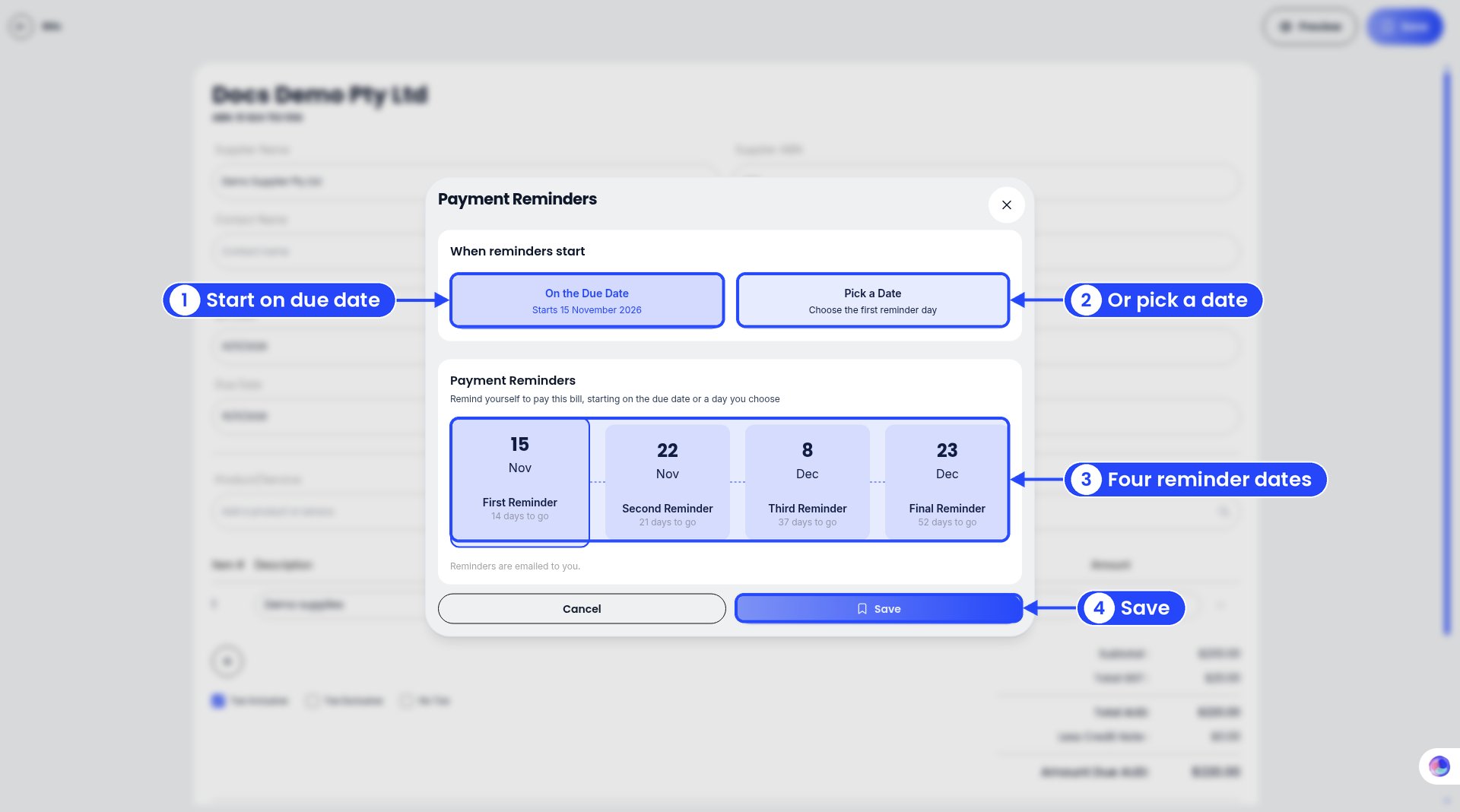
The Payment Reminders window with callouts on On the Due Date, Pick a Date, the four reminder cards and Save

The Payment Reminders window. The numbers follow the steps.

When you save a new bill, the Payment Reminders window opens.
1

Start on the due date

Under When reminders start, pick On the Due Date. It shows the start date, for example “Starts 15 November 2026”.
2

Or pick your own date

Pick Pick a Date to choose the day of the first reminder yourself. This is handy if you want a heads-up before the bill is due.
3

Check the four reminders

Ezyiah sets four reminders: First Reminder, Second Reminder, Third Reminder and Final Reminder. Each card shows its date and how many days to go.
4

Save

Click Save. The note at the bottom tells you “Reminders are emailed to you.”

Example

A $220 bill from Demo Supplier Pty Ltd is due on 15 November 2026. With On the Due Date, the reminders were:

If the bill is already overdue

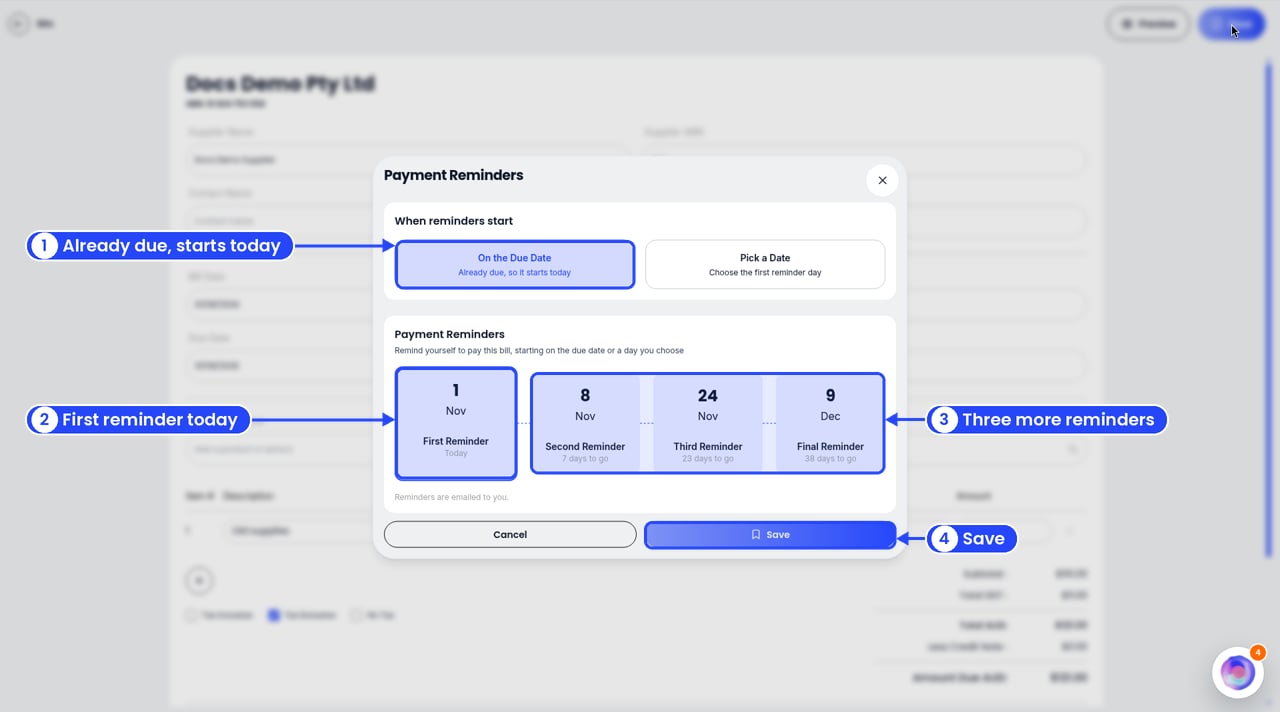
The Payment Reminders window for an overdue bill, with callouts on Already due so it starts today, the first reminder today, the three later reminders and Save

Reminders for a bill that's already overdue

Saving a bill that’s past its due date? On the Due Date says “Already due, so it starts today”. Example: Bill-002 from Docs Demo Supplier was due on 31 August. Saved on 1 November, its reminders were 1 Nov (First Reminder, today), 8 Nov, 24 Nov and 9 Dec.

See or change reminders later

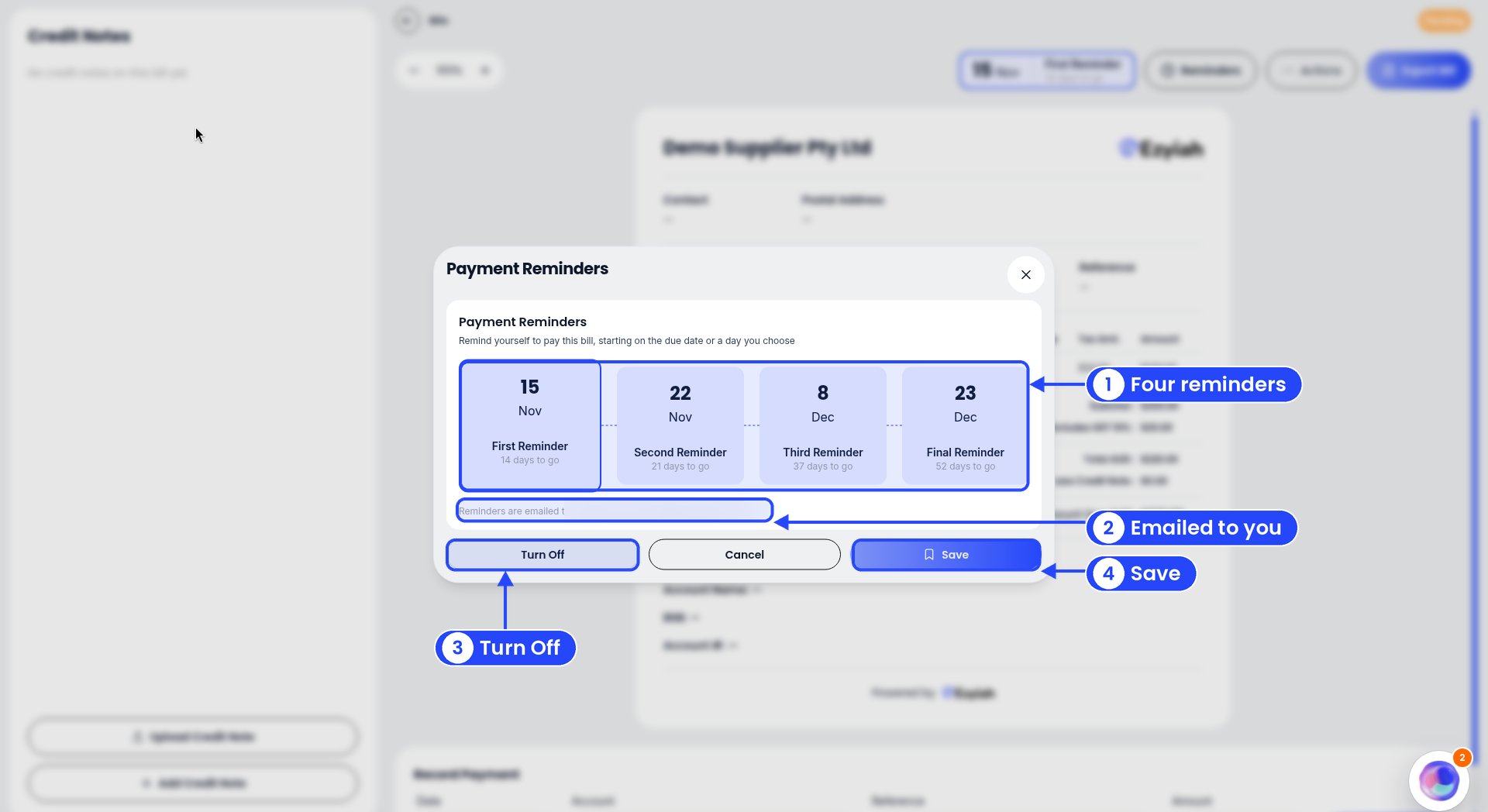
The Payment Reminders window on an open bill with callouts on the four reminders, the email note (address blurred), Turn Off and Save

Payment Reminders on an open bill

Open the bill from Purchase, then Bills. The next reminder shows at the top, for example 15 Nov, First Reminder, 14 days to go. Click Reminders to open the Payment Reminders window. It reminds you to pay the bill, starting on the due date or a day you choose. You’ll see your four reminders: First, Second, Third and Final. The note at the bottom shows the email address they’re sent to.
  • To change them, make your changes and click Save.
  • To stop reminders for this bill, click Turn Off. Do this if you’ve paid the bill some other way.
  • To leave things as they are, click Cancel.
Related: Bills.