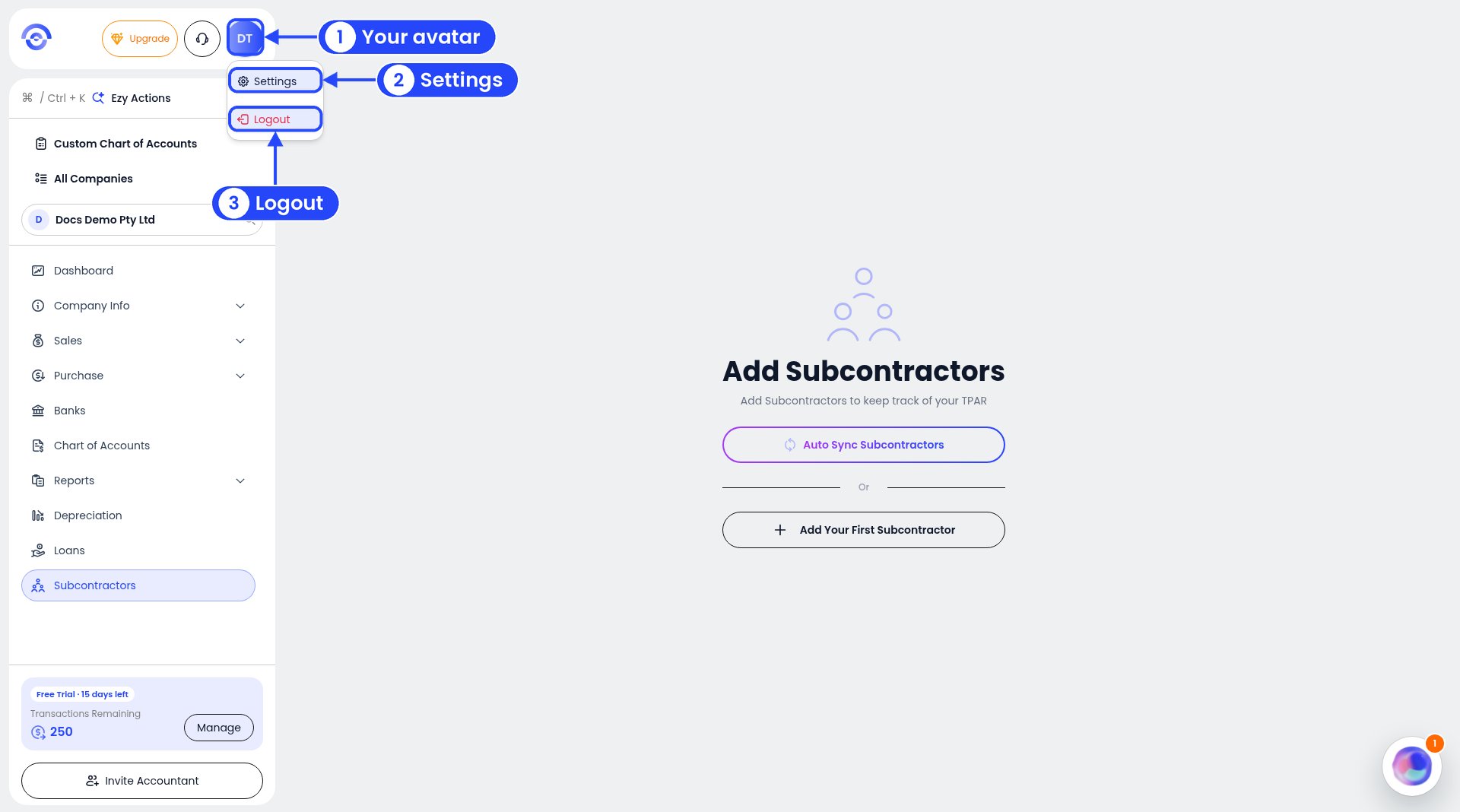
To open Settings, click your initials (your avatar) at the top of the sidebar, then click Settings. The same menu has Logout.
The avatar menu at the top of the sidebar, with callouts on the avatar, Settings and Logout

The avatar menu

Business owners have two pages in Settings: Click Back to Ezyiah at the bottom left to go back to your books.

Profile Settings
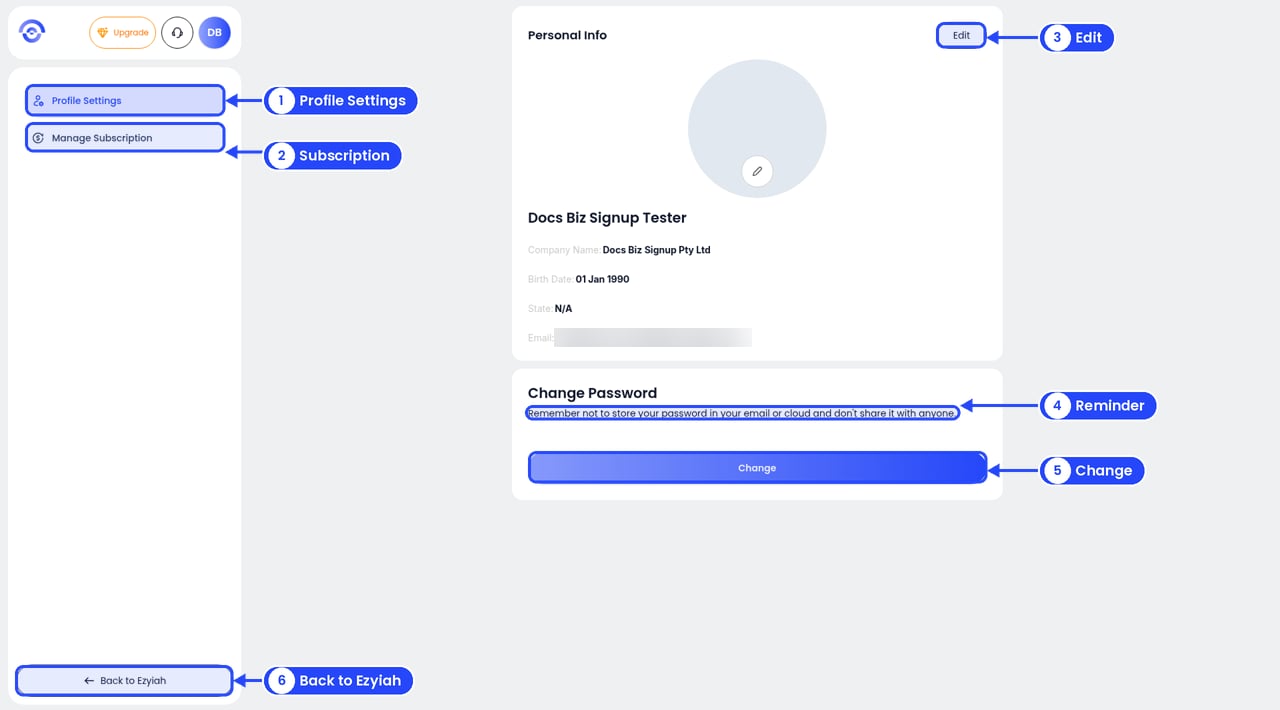
Profile Settings with callouts on Profile Settings, Manage Subscription, Edit, the Change Password reminder, the Change button and Back to Ezyiah. The email is blurred

Profile Settings

  • Personal Info shows your name, Company Name, Birth Date, State and Email. Click Edit to change them. Click the pencil on the photo circle to add a photo.
  • Change Password says “Remember not to store your password in your email or cloud and don’t share it with anyone.” Click Change to set a new one.

Edit your details
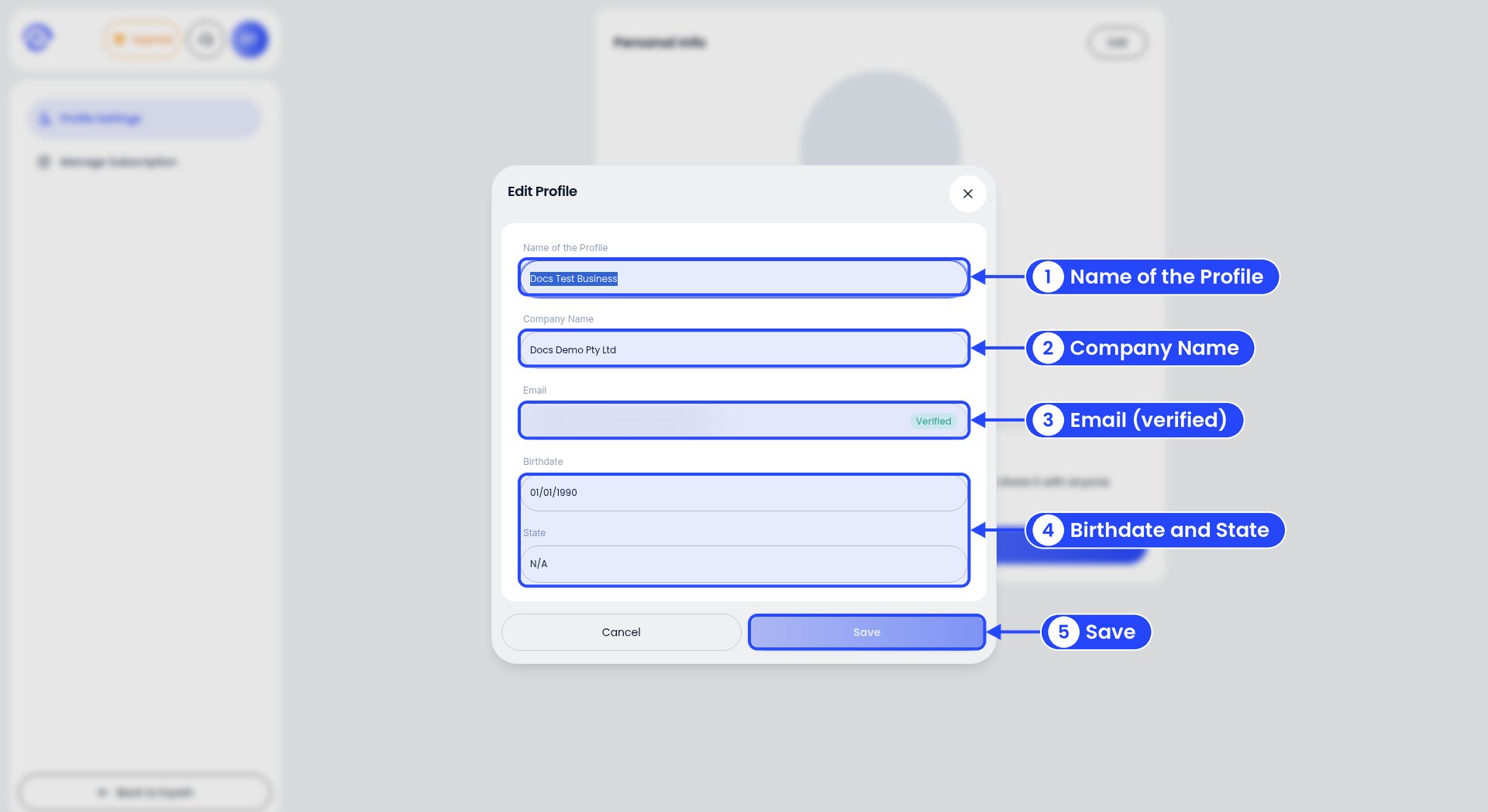
The Edit Profile window with callouts on Name of the Profile, Company Name, Email, Birthdate and State, and Save

The Edit Profile window

Click Edit on Personal Info. The Edit Profile window has Name of the Profile, Company Name, Email, Birthdate and State. A verified email shows a Verified badge. Make your changes, then click Save.

Change your password

1

Click Change

Under Change Password, click Change. Ezyiah emails you a one-time code (OTP) straight away. The email subject is “Your password OTP”, and the code works for 10 minutes. The Change Password window says “An OTP has been sent to your email. Please enter the 6-digit code to proceed.”
2

Enter the code
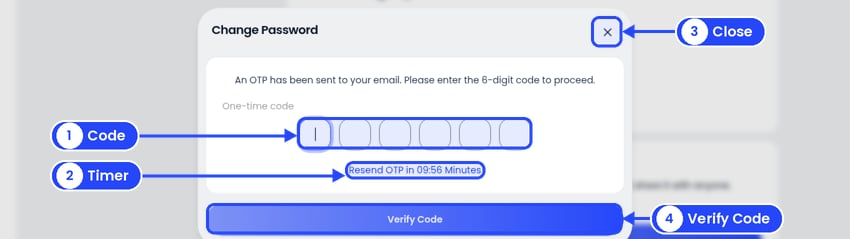
The Change Password window with callouts on the six code boxes, the Resend OTP timer, the X and Verify Code

Change Password: enter the code from your email

Type the 6-digit code into the six boxes, then click Verify Code. No email? The window shows Resend OTP in 10:00 Minutes. When the timer runs out, click Resend OTP.
3

Enter your new password

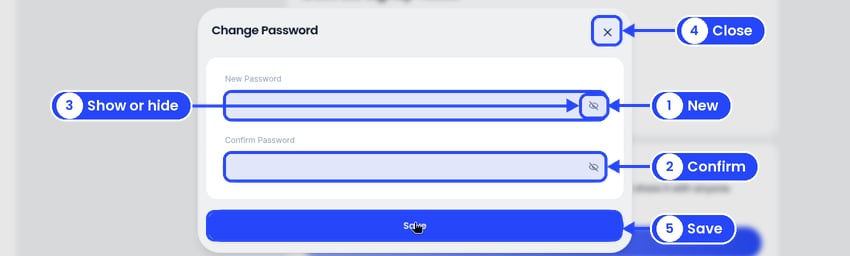
The Change Password window after Verify Code, with callouts on New Password, Confirm Password, the show or hide eye, the X and Save

Change Password: type your new password twice, then click Save

Type your new password under New Password and again under Confirm Password. Click the eye in a box to show or hide what you typed. Then click Save.
To stop without changing anything, click X at the top right of the window. There’s no Cancel button. Your business details (name, ABN, GST) aren’t in Settings. They’re in Company Info.