

Update your details
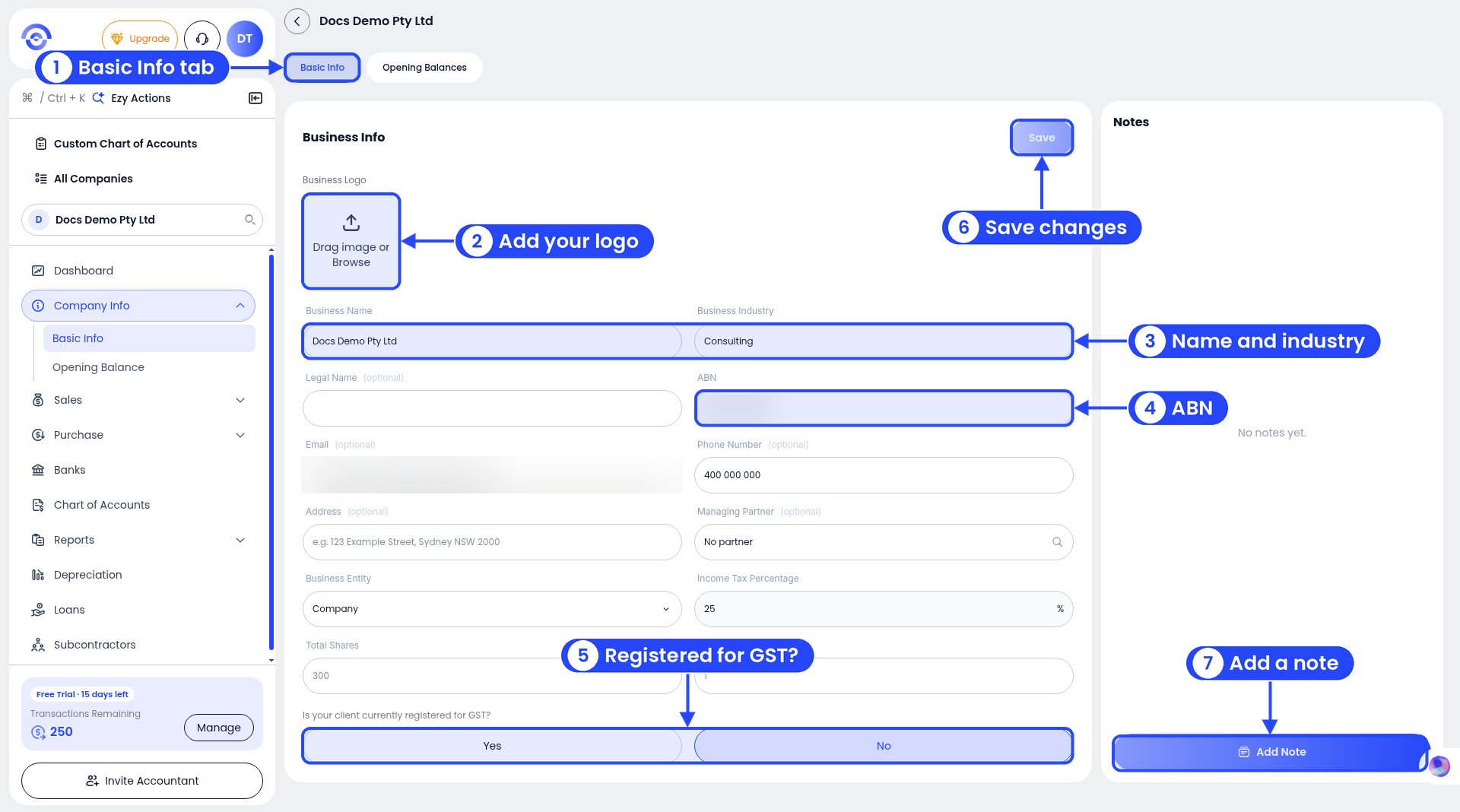
Basic Info. The step numbers match the callouts.
1
Open Basic Info
Click Company Info in the sidebar, then Basic Info.
2
Add your logo
Drag an image into Business Logo, or click Browse. Your logo can appear on your quotes and invoices.
3
Check your name and industry
Fill in Business Name and Business Industry. Legal Name is optional.
4
Check your ABN
Enter your 11-digit ABN. You can also add an email, phone number and address (all optional).
5
Set your GST status
Answer Is your client currently registered for GST? with Yes or No.
6
Save
Click Save at the top right of the Business Info card. It lights up once you’ve changed something.
7
Add a note (optional)
Use the Notes panel on the right, then click Add Note. It’s handy for things like “Changed to quarterly BAS from 1 Oct”.
Your business entity
You choose your Business Entity here: Company, Partnership, Sole Trader, Unit Trust or Discretionary Trust. Ezyiah builds your Balance Sheet for the entity type you pick, so make sure it’s right. If you work with an accountant, they may choose it for you. See Choosing the business entity.Opening balances
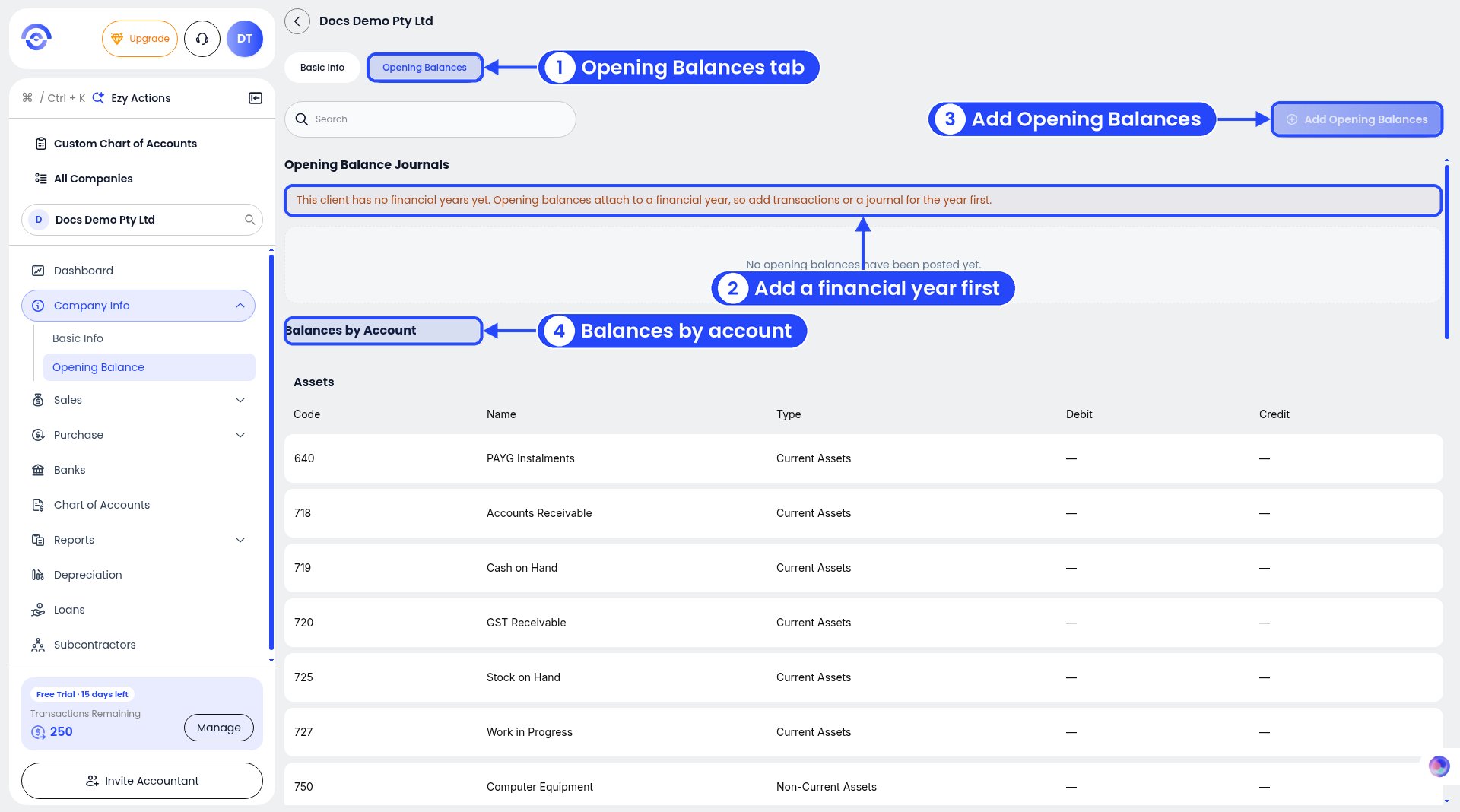
Opening Balances on a business with no financial year yet