Adding New Clients

Step 1: Initiate the Setup

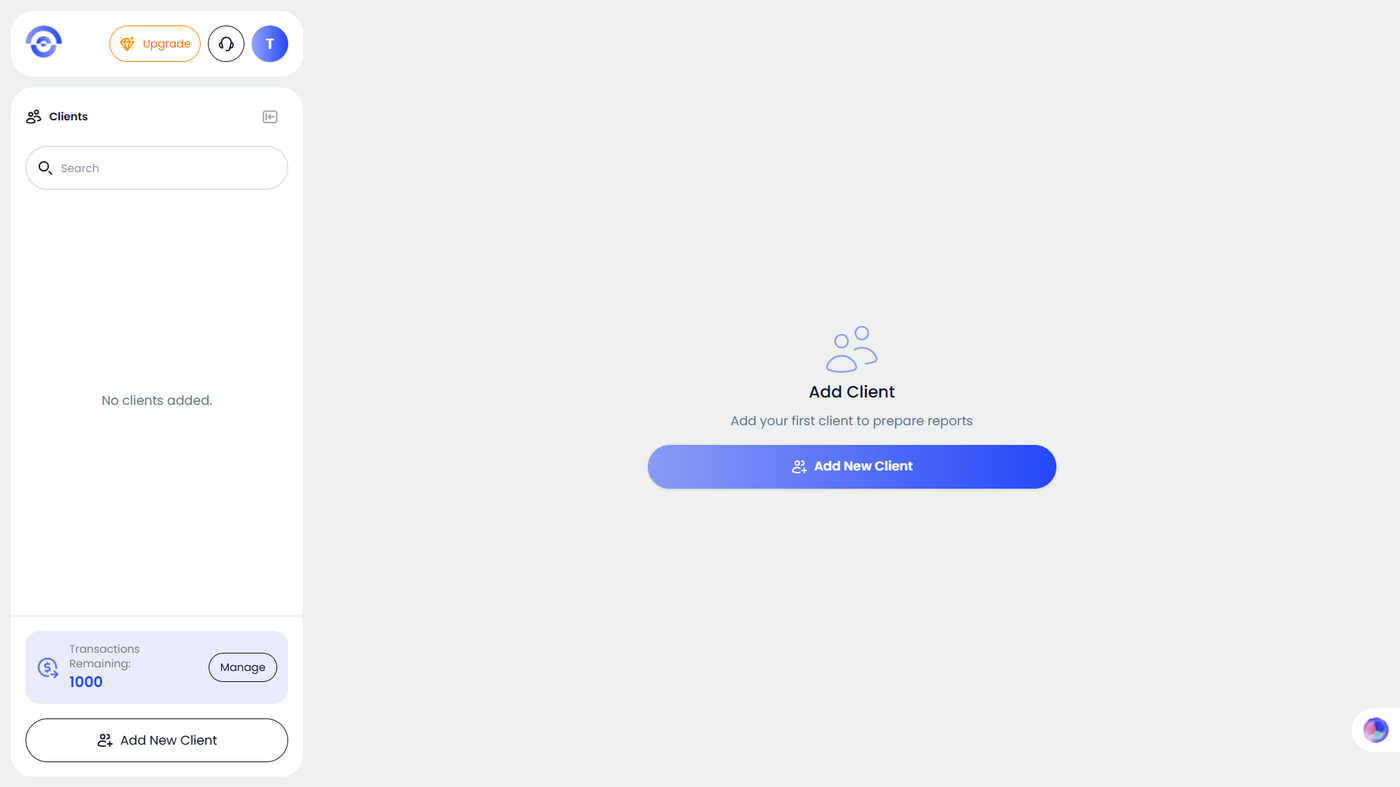
From your main dashboard, locate and click the + Add Client button. This will open the entry portal for a new business entity.

image.png

Step 2: Enter the Business Name

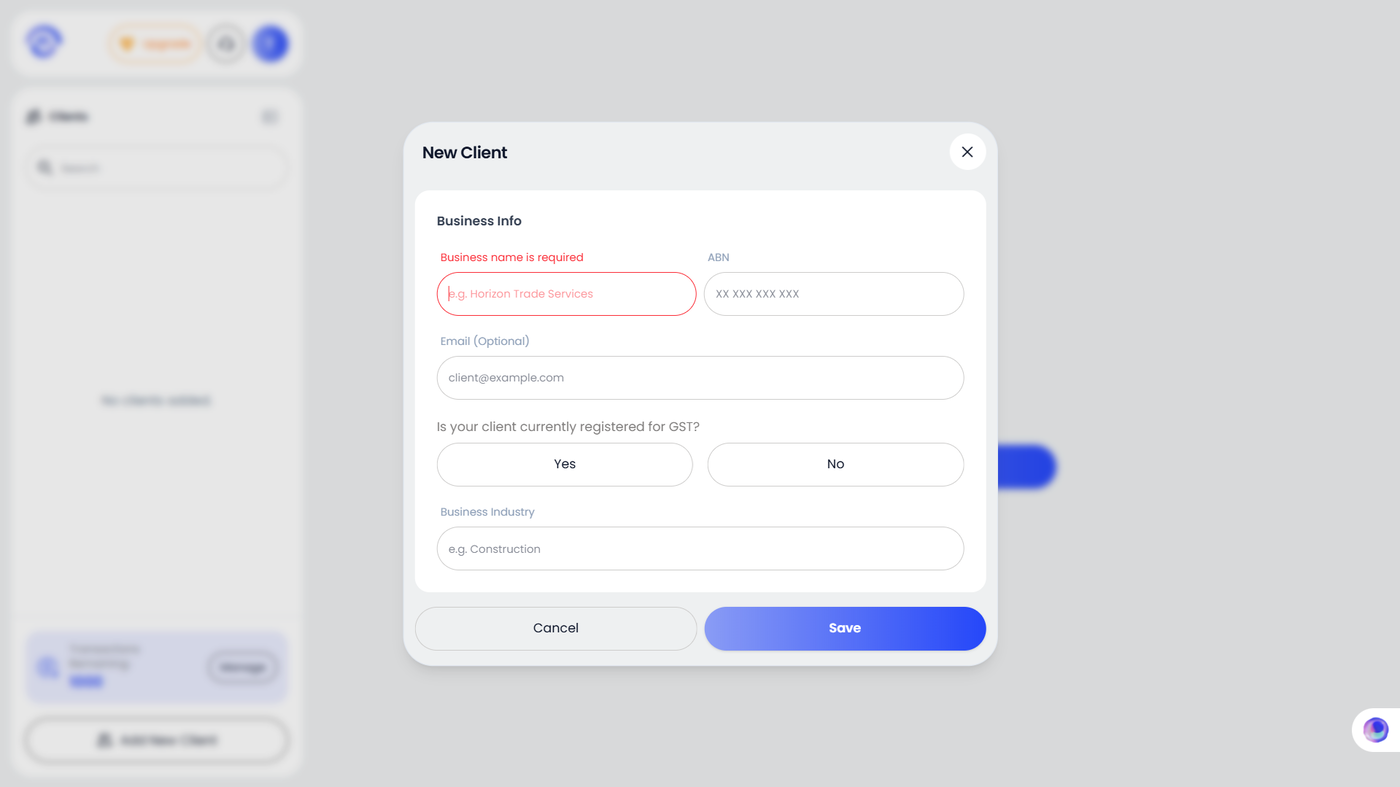
In the setup window, enter the official Business Name of the client. This name will be used to identify the client across your dashboard and will appear on the header of all generated reports.

Step 3: Verify ABN

Enter the client's 11-digit ABN. Ezyiah is designed to verify these details to ensure the entity name and record-keeping remain compliant with Australian standards.

Step 4: Define the Industry

Select the correct industry from the dropdown menu (e.g., Construction, Hospitality, or Retail).

Step 5: Set GST Status

Indicate the client’s tax status by answering the prompt: "Is your client registered for GST?".

  • Toggle Yes/No: This setting is crucial as it dictates how the AI calculates tax totals in the Audit Trail and BAS Summary.

Step 6: Finalize and Create

Once the Business Name is entered and the GST status is selected, click the Add button. The client is now successfully registered in your system and will appear as a selectable tile on your dashboard.

image.png

Managing & Archiving Profiles

  • Editing: Use the Settings icon within a client profile to update industry shifts or contact changes.

  • Deletion: When a client relationship concludes, you may delete the entity.

  • Caution: Always export historical data first, as this action permanently removes all records associated with that entity.


Was this article helpful?