Adding a Financal Year
3.1 Initiating Your Reporting: Adding a Financial Year
Before you can begin reconciling transactions or generating reports, you must establish the relevant financial year for your client. This acts as the "container" for all subsequent quarterly or monthly data imports.
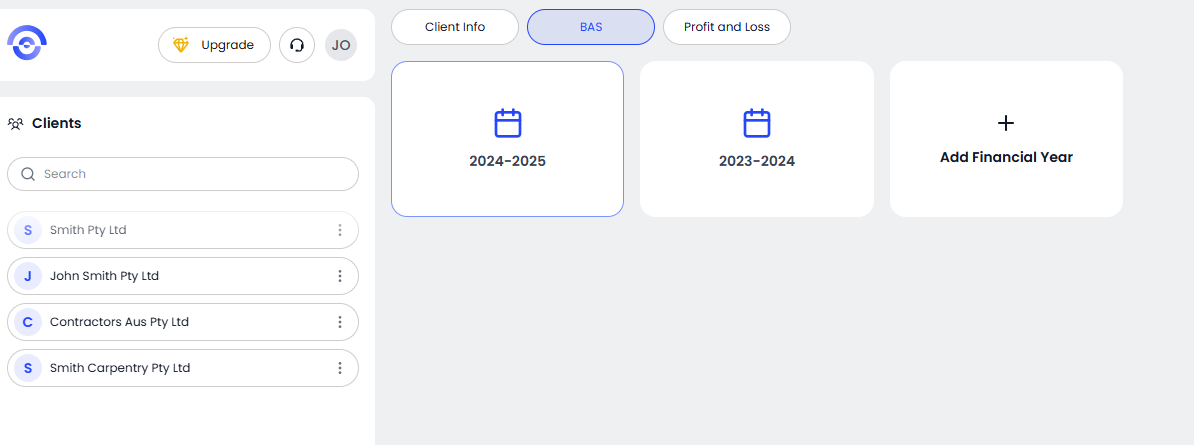
Step 1: Access the BAS Dashboard
Once you have selected a client from your main list, navigate to the BAS tab located in the top navigation bar. This view provides a bird's-eye view of all existing and upcoming reporting periods for that specific entity.
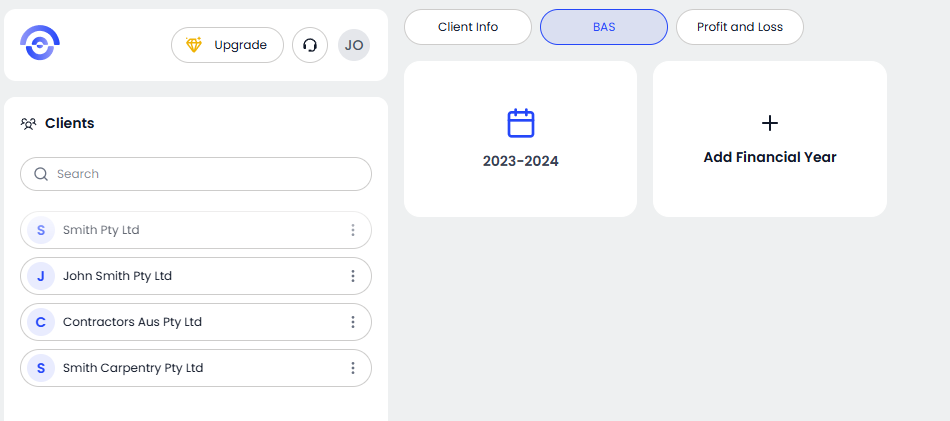
Step 2: Trigger the "Add Financial Year" Modal
To create a new reporting cycle, click on the + Add Financial Year tile. This will launch a focused input window, keeping your workflow clean and distraction-free.
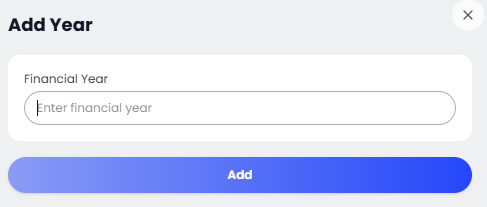
Step 3: Define the Year
In the "Add Year" popup, enter the relevant financial year (e.g., 2025-2026). Ezyiah uses this date range to align your upcoming bank imports with the correct ATO reporting windows.
Step 4: Finalize and Confirm
Review your entry for accuracy and click the Add button. The new financial year will immediately appear on your client’s BAS dashboard, ready for you to begin adding specific reporting periods and bank accounts.