Forgotten Password & Recovery
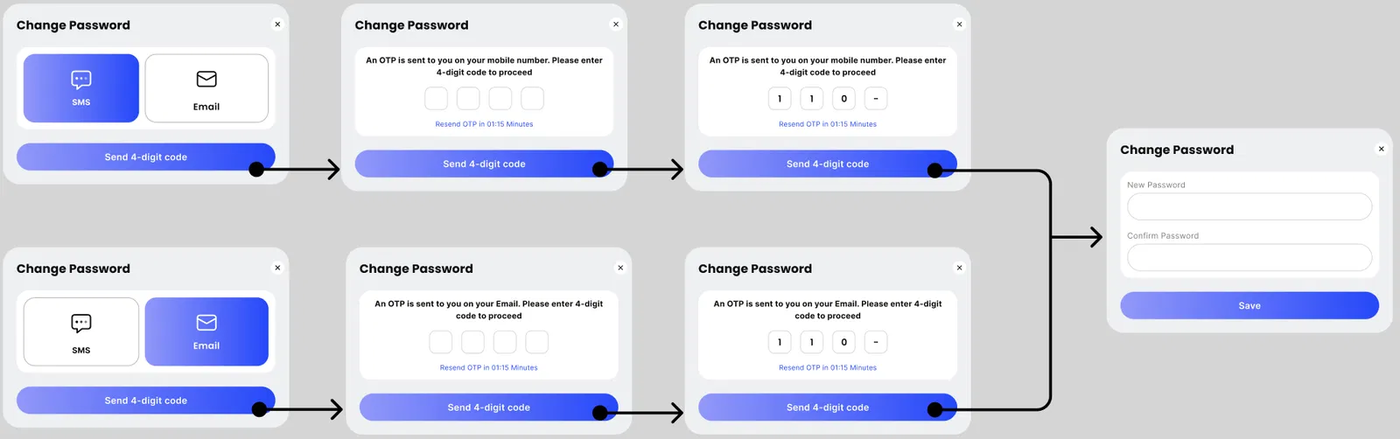
If you or a team member are locked out of the system, Ezyiah provides a streamlined recovery process to ensure minimal disruption to your workflow.
Step 1: Initiate the Reset
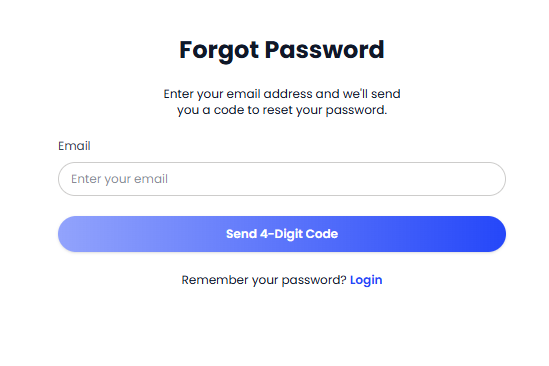
On the main login screen, look for the Forgot Password? link located just below the password input field. Click this to begin the recovery process.
Step 2: Verification Code
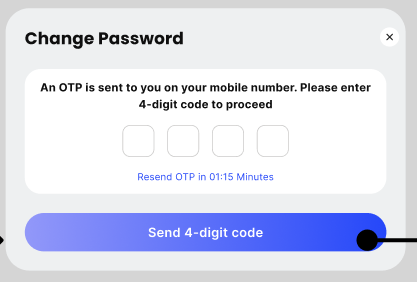
Enter your registered email address. Ezyiah will send a 6-digit verification code to your inbox. Once you receive it, enter the code into the verification boxes on the screen to prove your identity.
Step 3: Create a New Password
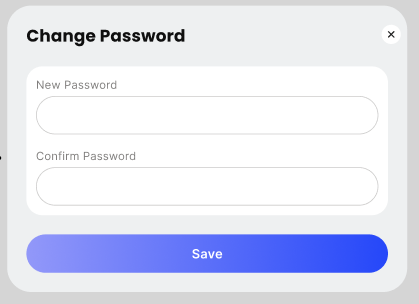
Once verified, you will be prompted to set a new password. Ensure it meets security requirements (using a mix of letters, numbers, and symbols). Type your new password into both the New Password and Confirm Password fields.
Step 4: Success & Login
Click Update Password. A green success banner will appear at the top of the screen confirming "Password changed successfully." You can now return to the login page and access your account with your new credentials.
Changing Your Password
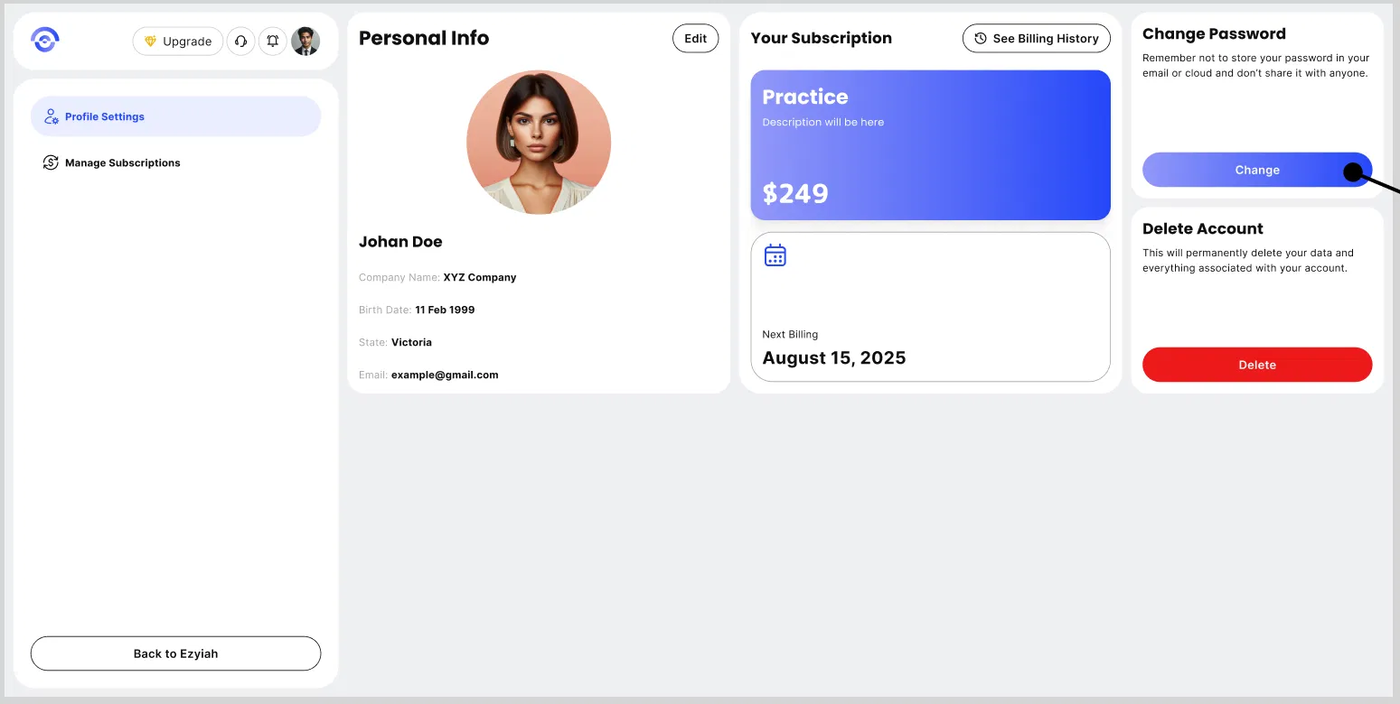
Step 1: Navigate to Security Settings
From your main dashboard, click on Settings in the sidebar, then select the Security tab from the top navigation menu.
Step 2: Enter Password Details
Locate the Change Password section. You will need to fill in three fields:
Enter OTP Sent to Mobile Number: Enter the OTP you are currently using to log in.
New Password: Enter your new, secure password.
Confirm Password: Re-enter the new password exactly as above to verify there are no typos.
Step 3: Save and Verify
Click the Update Password button (or the Save button) to apply the changes.
Once the change is processed, a green success banner will appear at the top of your screen confirming: "Password changed successfully."