Viewing Transactions
Transactions
The Transactions module allows you to view and generate reports for financial activity. Select your client from the sidebar.
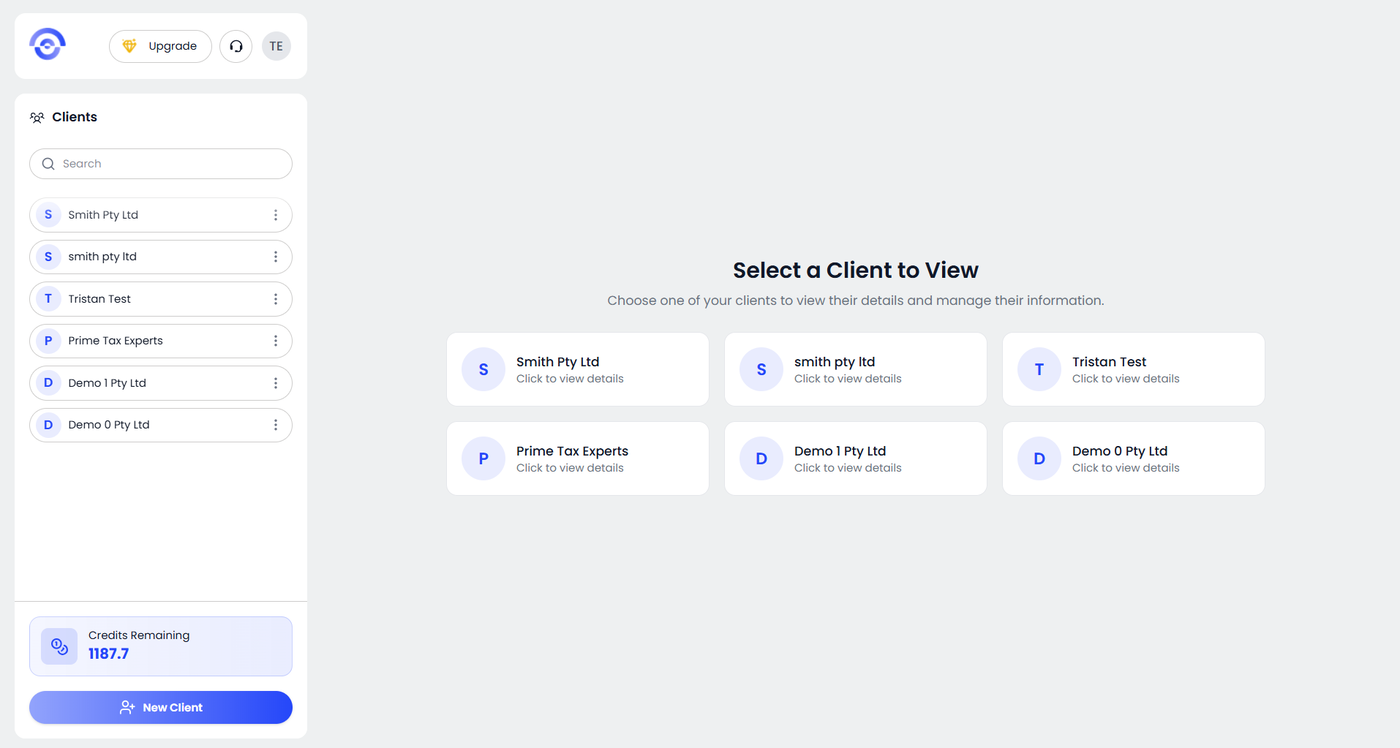
Step 1: Select a Client
From the main dashboard, you will see the Select a Client to View screen. Choose the client you want to manage by clicking on their card. You can also select the client from the sidebar list. Once selected, you will be taken to the client workspace.
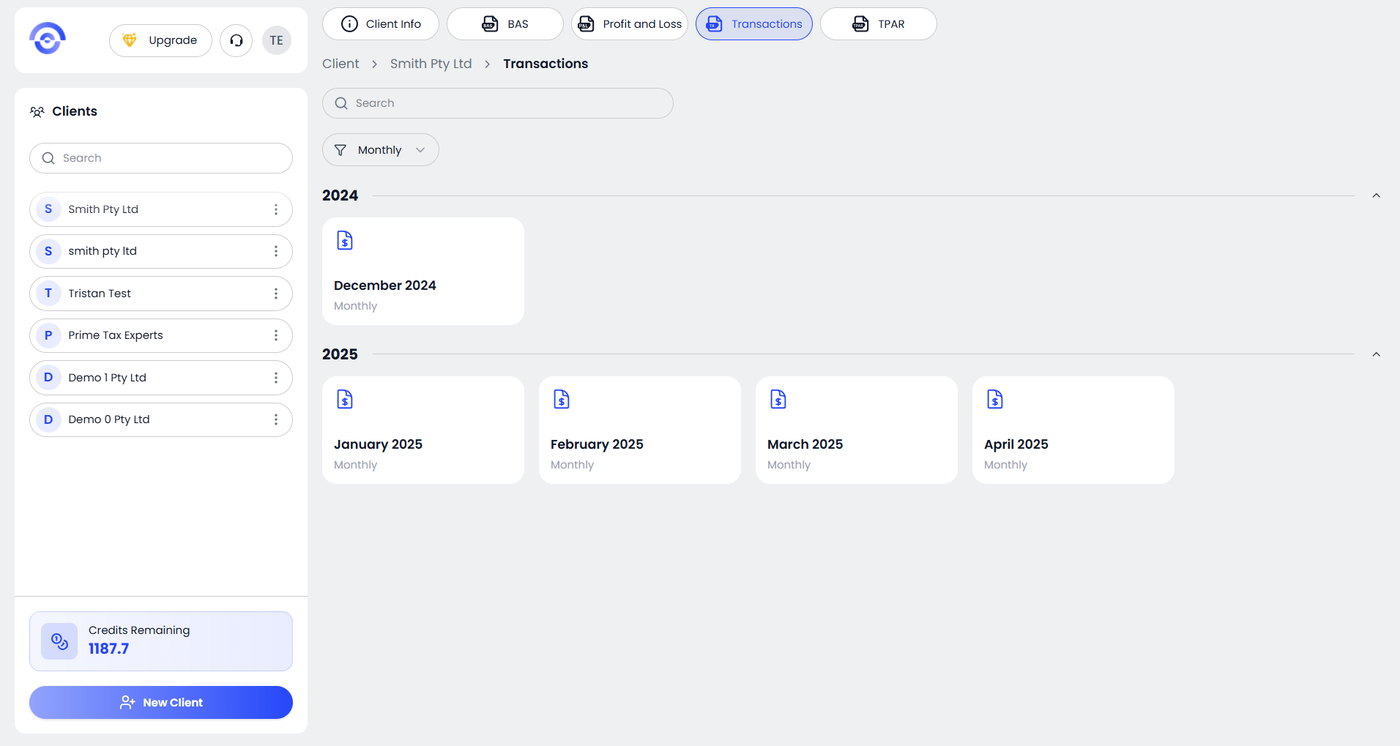
Step 2: Open Transactions and Select a Reporting Period
Click the Transactions tab in the top navigation bar. You will see transactions grouped by year. Each card represents a reporting period such as:
• January 2025
• February 2025
• March 2025
Use the filter dropdown if required. Click on the month you want to generate the report for. The system will open the Transactions Report for the selected period.
Step 3: Review and Download the Transactions Report
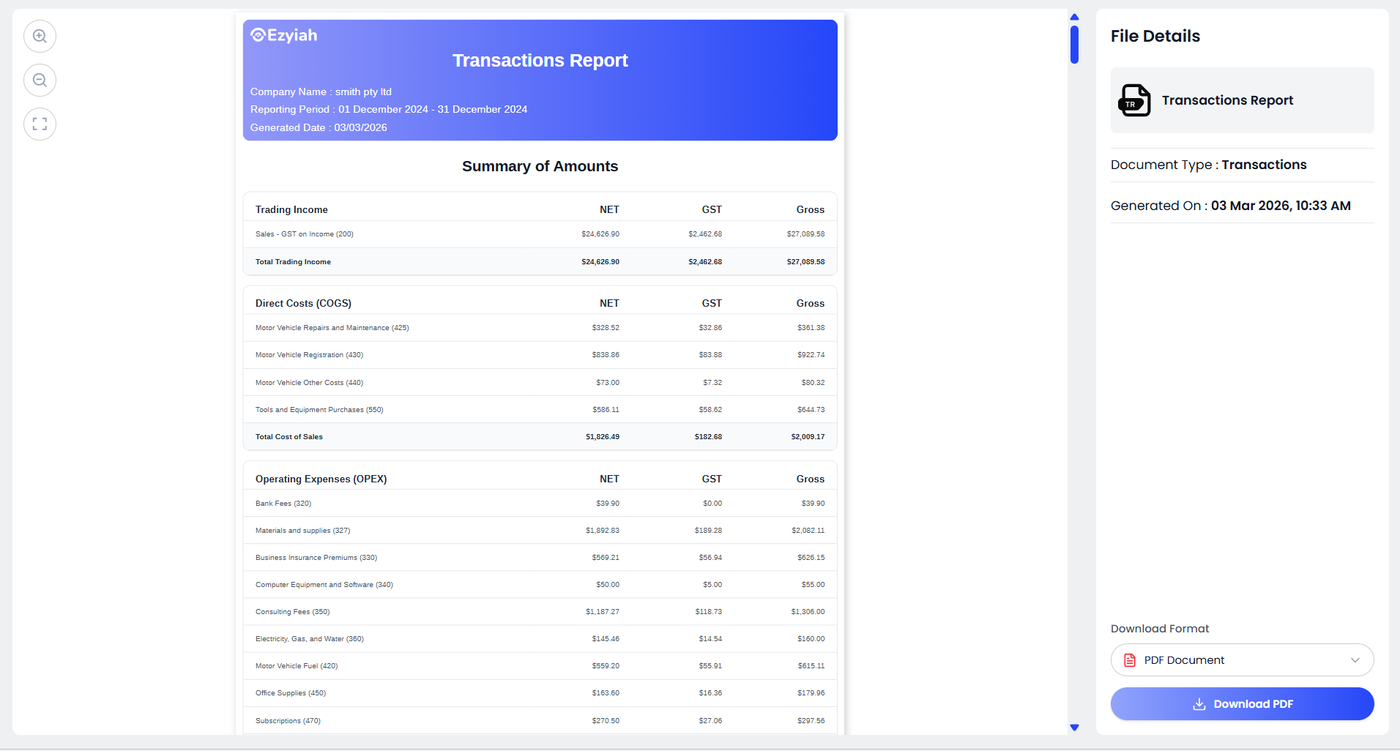
The report will display:
• Company Name
• Reporting Period
• Generated Date
Under Summary of Amounts, you will see:
• Trading Income
• Direct Costs (COGS)
• Operating Expenses (OPEX)
• Net Profit or Loss
Scroll down to review the Transaction Summary, which includes:
• Date
• Account
• Details
• Bank Name
• Net
• GST
• Gross
On the right side panel, confirm:
• Document Type shows Transactions
• Generated date and time are correct
Under Download Format, select the required format. Click Download PDF to save the report. The Transactions Report is now ready for record keeping or sharing.