

Troubleshooting CSV Imports
Using the Ezyiah CSV Template
If you encounter an error during upload or the AI cannot detect the columns in your bank statement, follow these steps to format your data manually.
Step 1: Download the Template
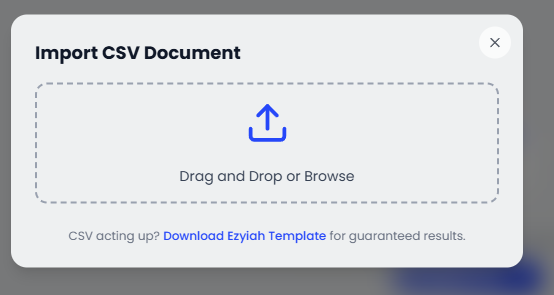
In the Document upload portal, look for the instruction text: "If you don't have a CSV file, you can download the template from here." Click the link to download our pre-formatted CSV file.
Step 2: Prepare Your Data
Open the downloaded template in Excel, Google Sheets, or Numbers. Transfer your transaction data into the corresponding columns:
Date: The date of the transaction.
Description: The payee or details of the spend/income.
Amount: The total value (ensure income is positive and expenses are negative, or follow the template headers).
Step 3: Re-upload the Formatted File
Once your data is saved in the Ezyiah template format:
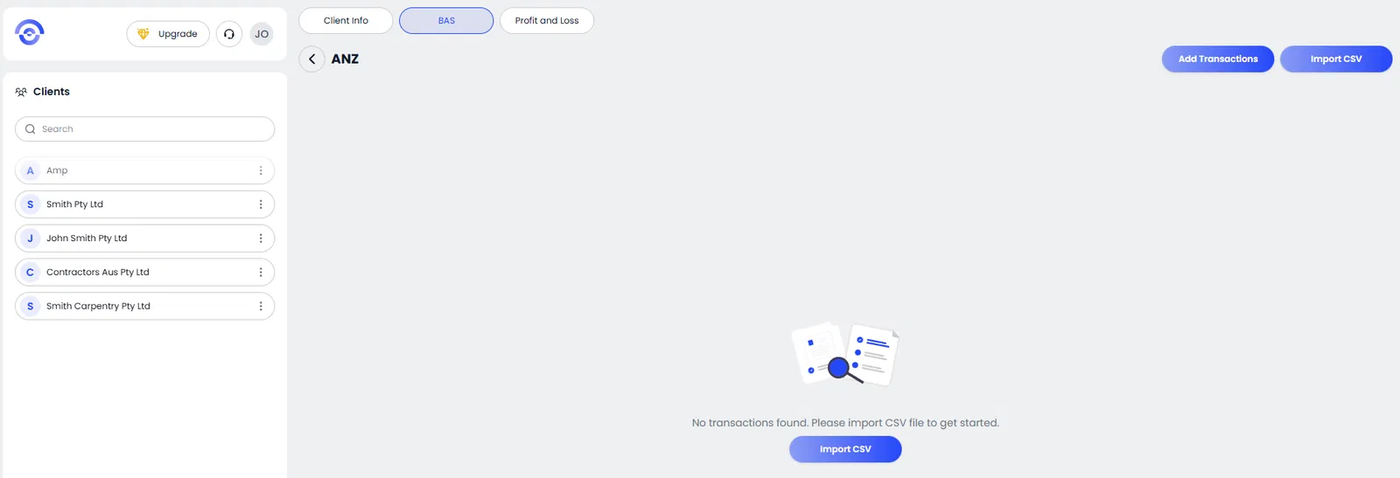
Return to the Document upload screen.
Drag and drop your saved template into the upload area.
The AI will now instantly recognize the data, allowing you to proceed to the Summary of Amounts.
Common Fixes for Upload Errors
File Format: Ensure the file is saved as a .csv and not an .xlsx or .pdf.
Headers: Do not change the header names in the Ezyiah template, as the AI looks for those specific terms to map the data.
Empty Rows: Remove any completely blank rows at the bottom of your spreadsheet before saving.