

Adding W1 and W2 (PAYG Withholding)
Step 1: Open BAS and Select the Financial Year
From the top navigation bar, click BAS. You will see the available financial years displayed as cards. Select the relevant financial year you want to prepare the BAS for. If the required financial year is not listed, click Add Financial Year and create it before proceeding.
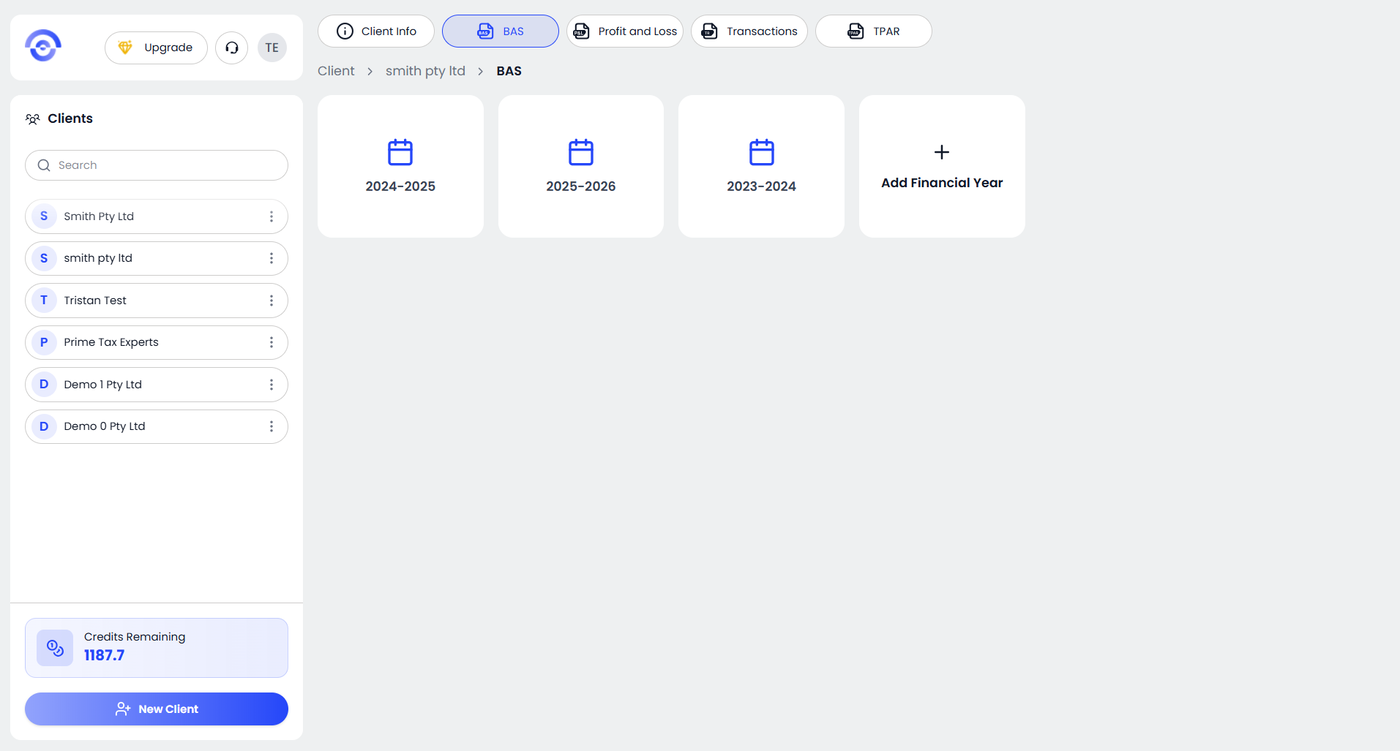
Step 2: Click Prepare BAS and Complete the BAS Questionnaire
After selecting the Financial Year, click Prepare BAS in the top right corner.
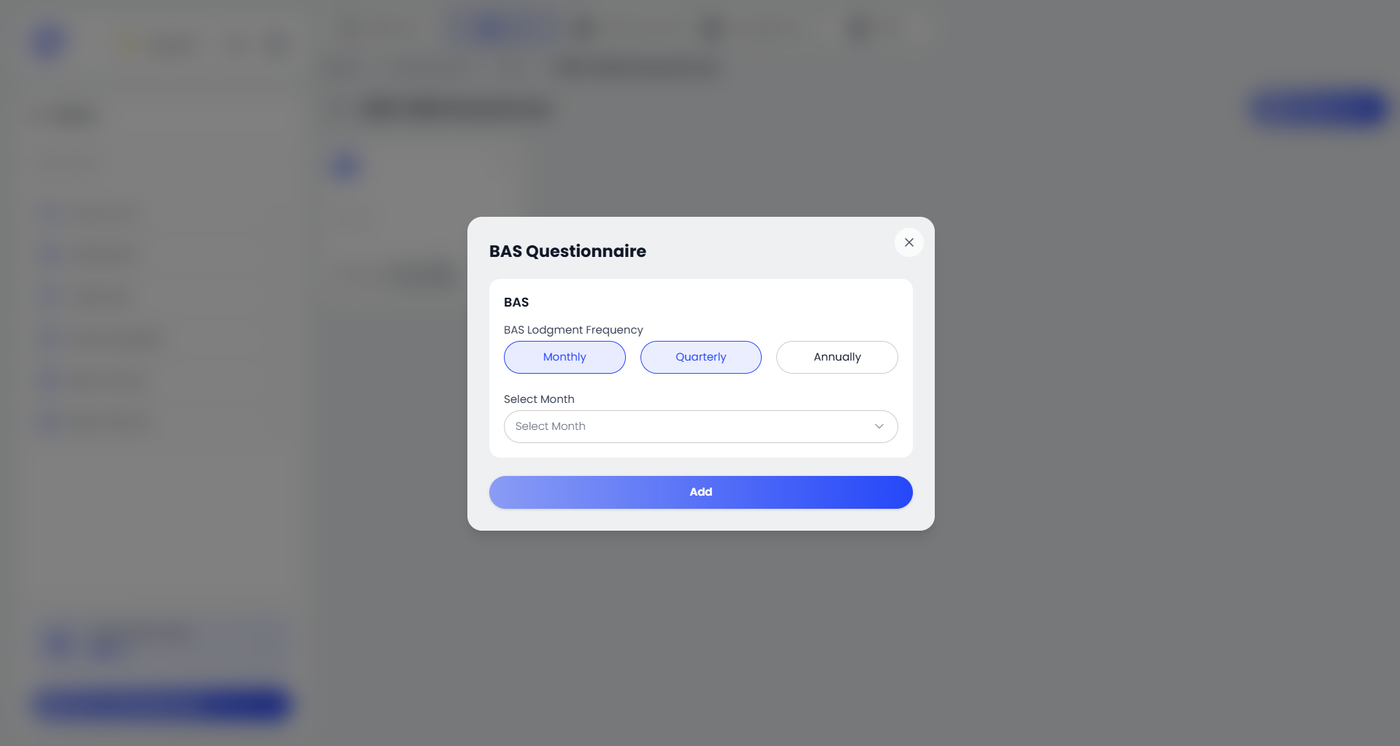
The BAS Questionnaire popup will appear.
Select the BAS Lodgement Frequency
• Monthly
• Quarterly
• AnnuallySelect the relevant Month or Reporting Period from the dropdown.
Click Add. The system will then generate and open the BAS report for the selected period.
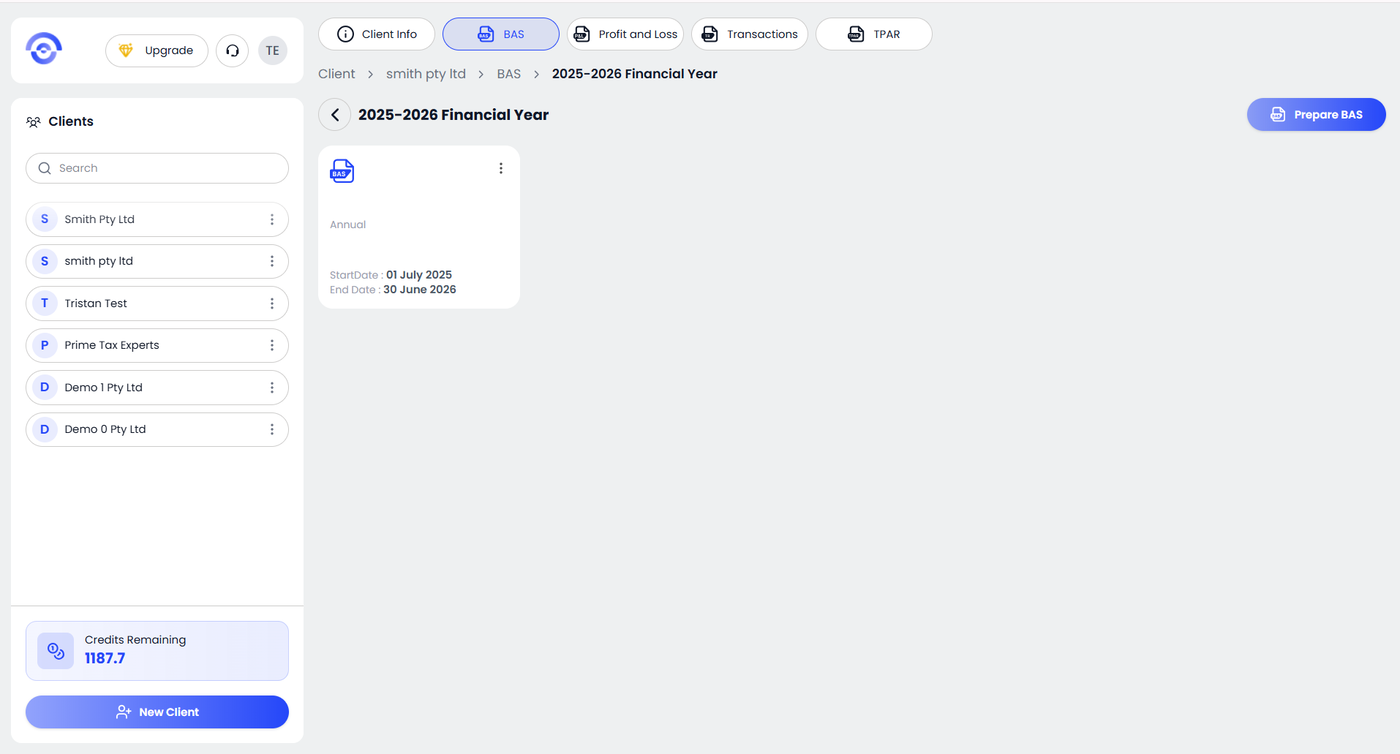
Step 3: Click Prepare Report and Confirm Declaration
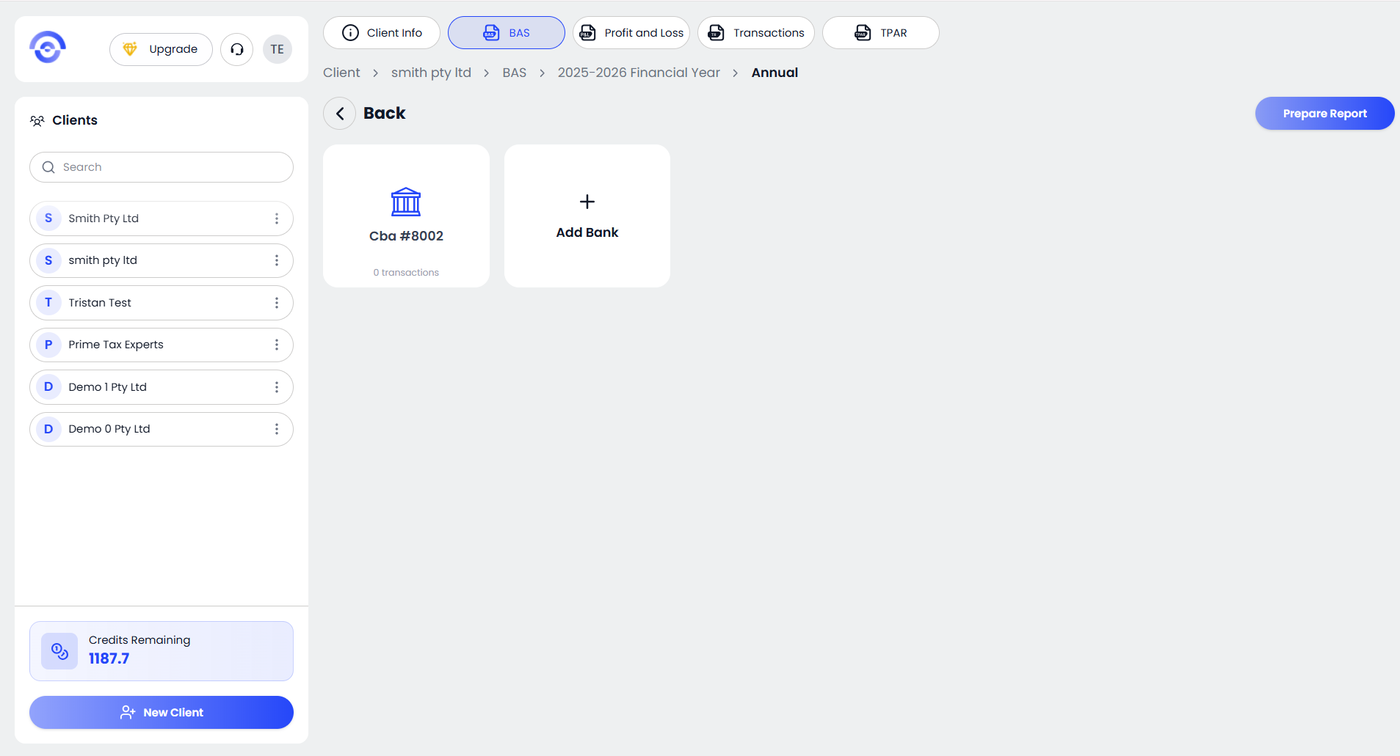
After opening the selected BAS period, review the available bank accounts. In the top right corner, click Prepare Report.
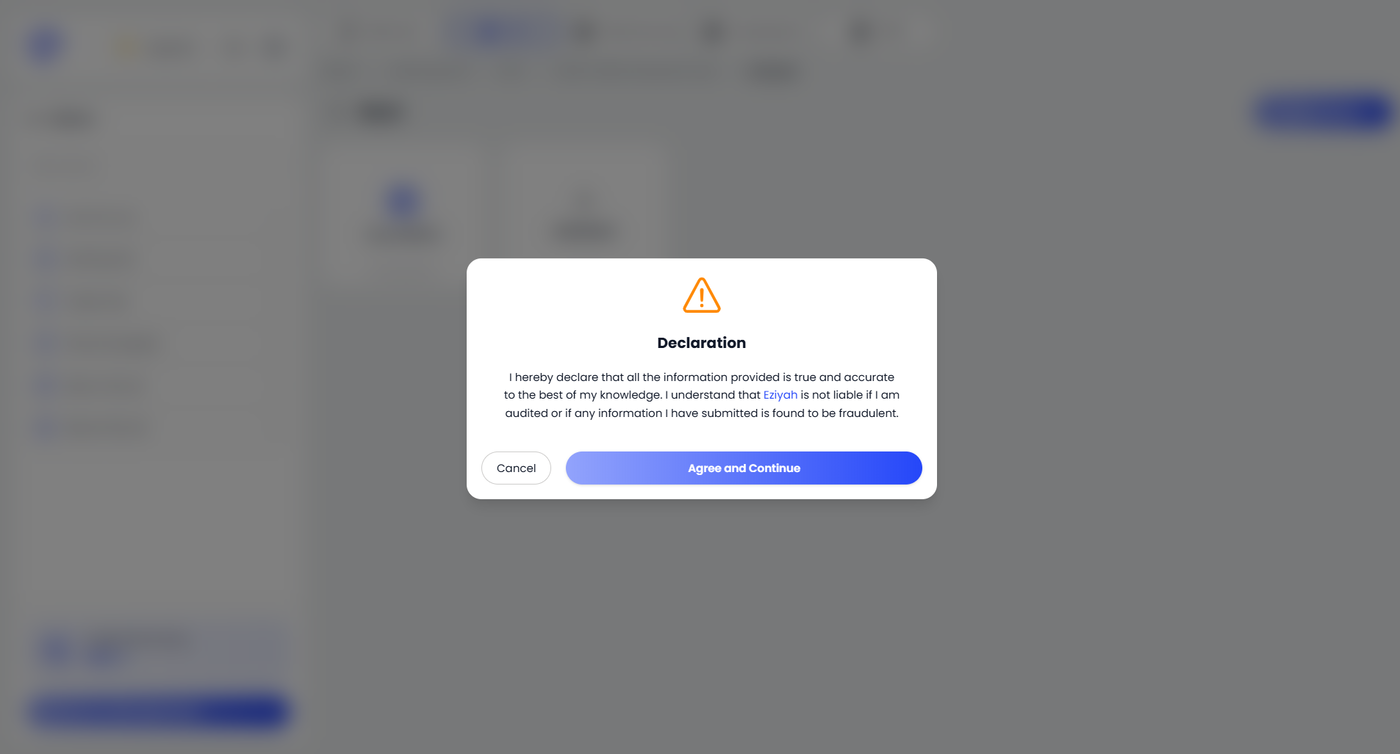
A Declaration popup will appear. Read the declaration carefully to confirm that all information provided is true and accurate.
Click Agree and Continue to proceed. The system will then generate the BAS report for the selected period.
Step 4: Enter W1 and W2 in BAS Adjustments
Once the BAS report is generated, go to the right-side panel labelled BAS Adjustments.
You will see:
• W1 – Total salary, wages and other payments
• W2 – Amount withheld from salaries/wages and other payments
Enter the required values:
W1 – Total Salary & Wages (Gross)
Enter the total gross wages paid to employees for the selected BAS period.
This must be before tax deductions.
W2 – PAYG Withheld
Enter the total PAYG tax withheld from employee wages for the same period.
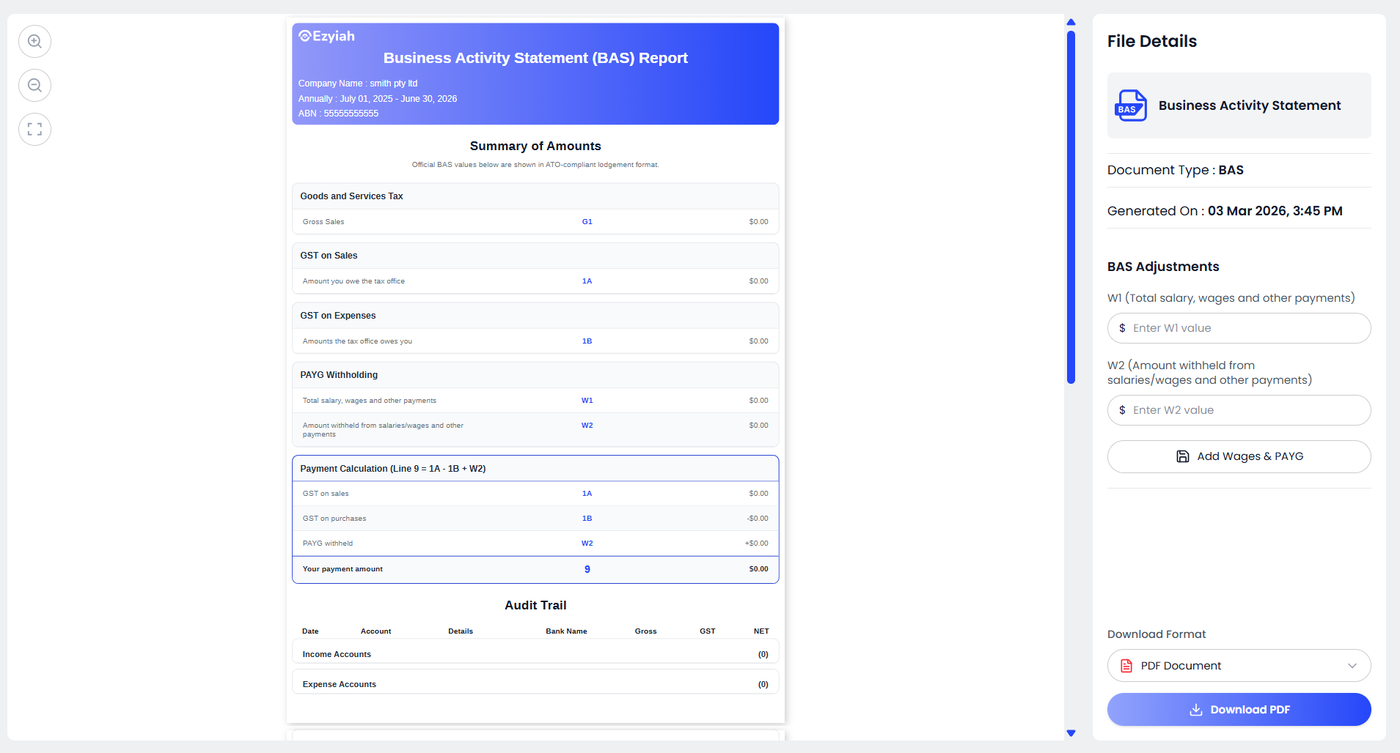
If preferred, click Add Wages & PAYG to enter both values together. Once entered, the system will automatically update the Payment Calculation section in the BAS report.