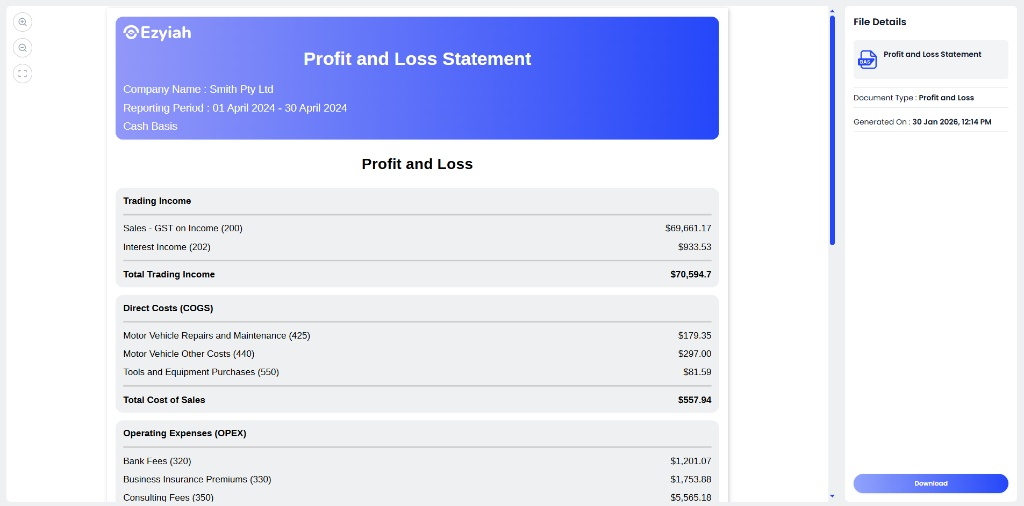
Profit & Loss Reporting
Generating Profit & Loss Reports
Once reconciliation is finalised, Ezyiah synthesises the data into a clean Profit and Loss Statement.
Once reconciliation is complete, navigate to the Reports tab.
Run Report: Select the desired date range.
Export Options: Generate as a PDF (ready for the client) or CSV/Excel (for further internal analysis).
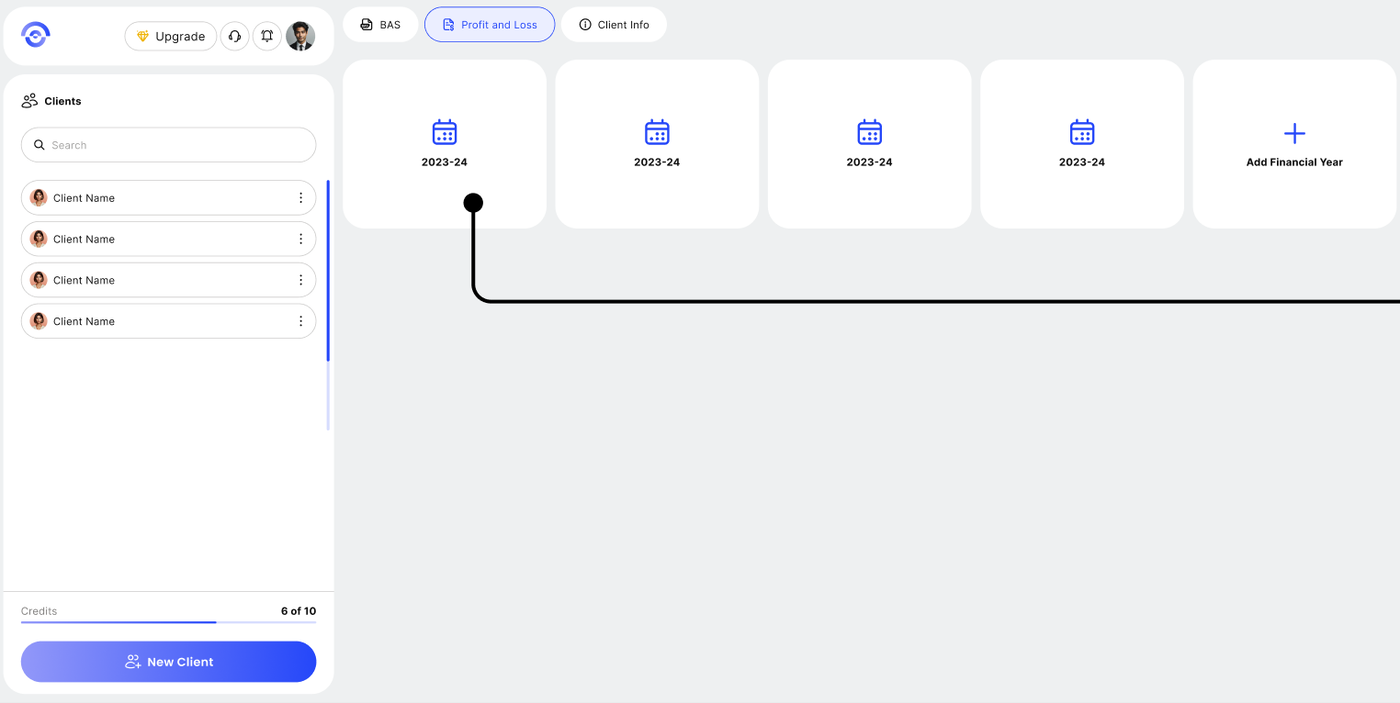
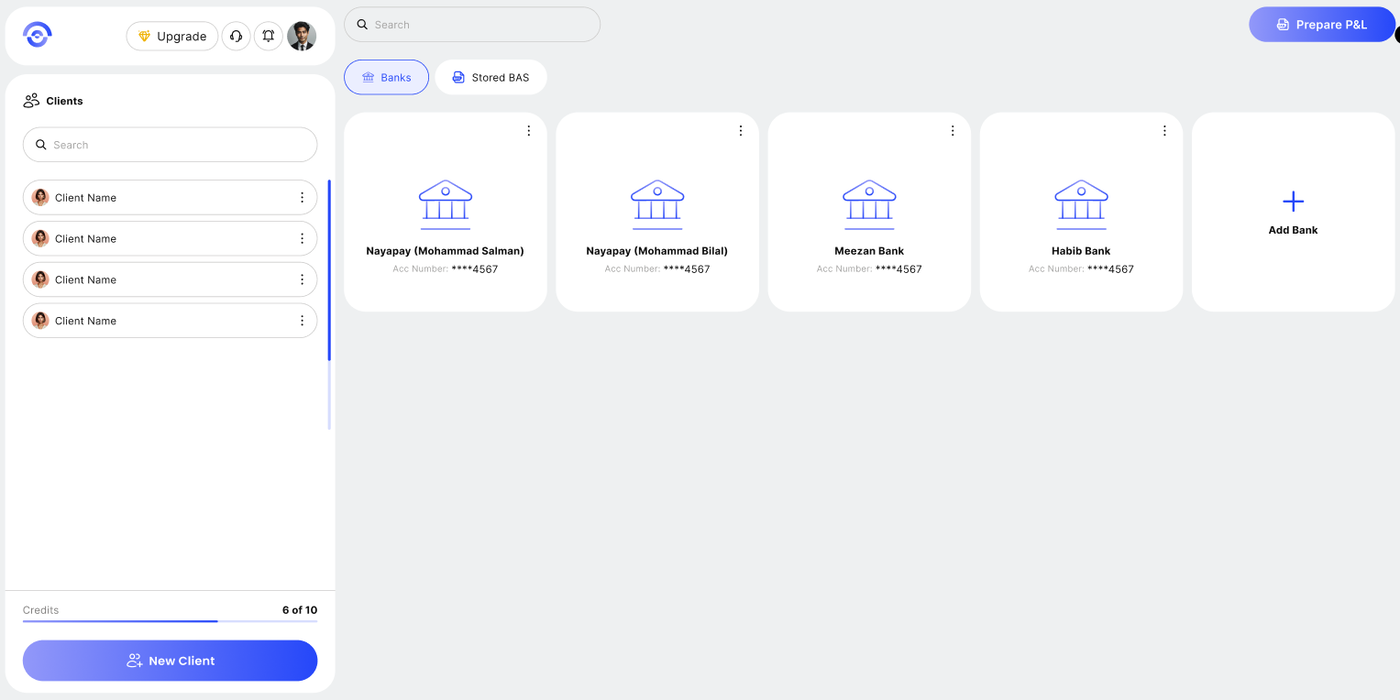
Step 1: Access the Profit and Loss Tab
From the client’s main navigation header, click on the Profit and Loss tab. This view is dedicated to summarizing income and expenses without the tax-heavy focus of the BAS view.
Step 2: Set Your Reporting Period
Use the date selection tool to define the window for your report. You can run a P&L for a single month, a specific quarter, or the entire financial year.
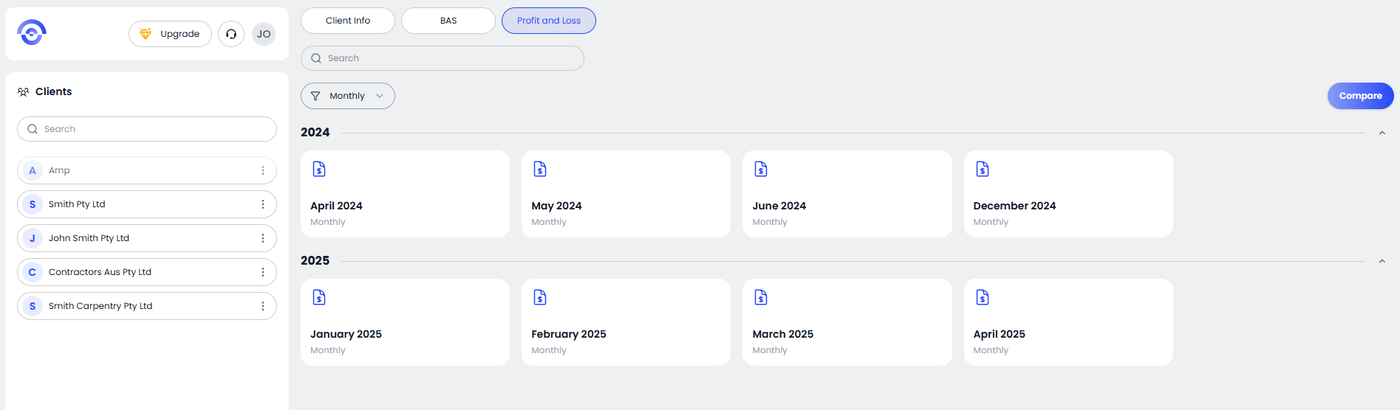
Step 3: Review, Categorize, and Export Your Branded PDF
Review the Income and Expense totals to ensure the categories synced correctly from your BAS Audit Trail. Once satisfied, click the Prepare Report button to generate a professional PDF. This final document automatically incorporates your Firm Logo and professional branding, creating a polished financial statement ready for immediate delivery to your client.