Auto-Sync TPAR with AI
AI Auto-Sync for TPAR
The AI Auto-Sync feature automatically detects subcontractors from transaction data. Click Auto-Sync with AI to scan transactions and identify subcontractors relevant to TPAR. The system will create subcontractor entries and link related transactions. You can review or edit the detected subcontractors, or add new ones manually if required.
Step 1: Open the TPAR Section
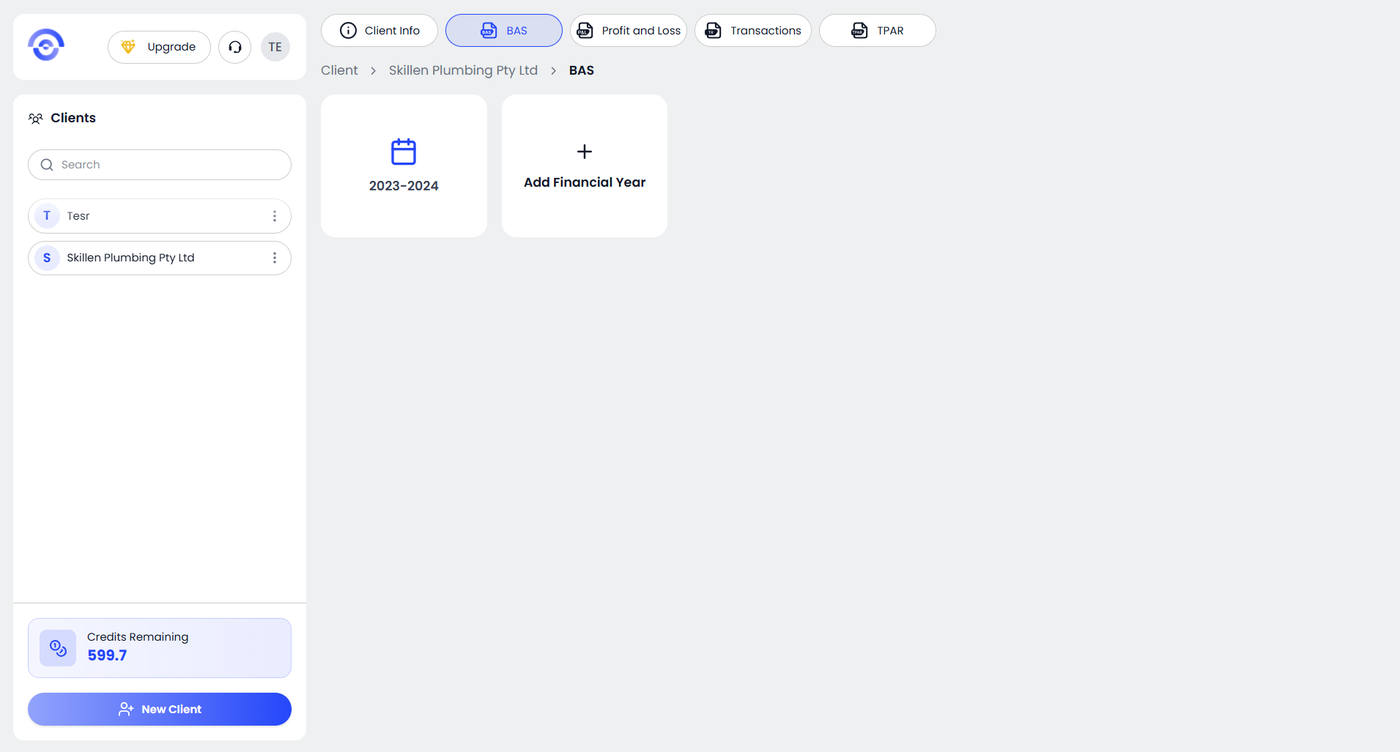
From the top navigation bar, click TPAR while you are on the client's BAS page. This will take you to the TPAR preparation section, where you can begin creating and managing the client’s Taxable Payments Annual Report.
Step 2: Add Subcontractors Using AI Auto-Sync
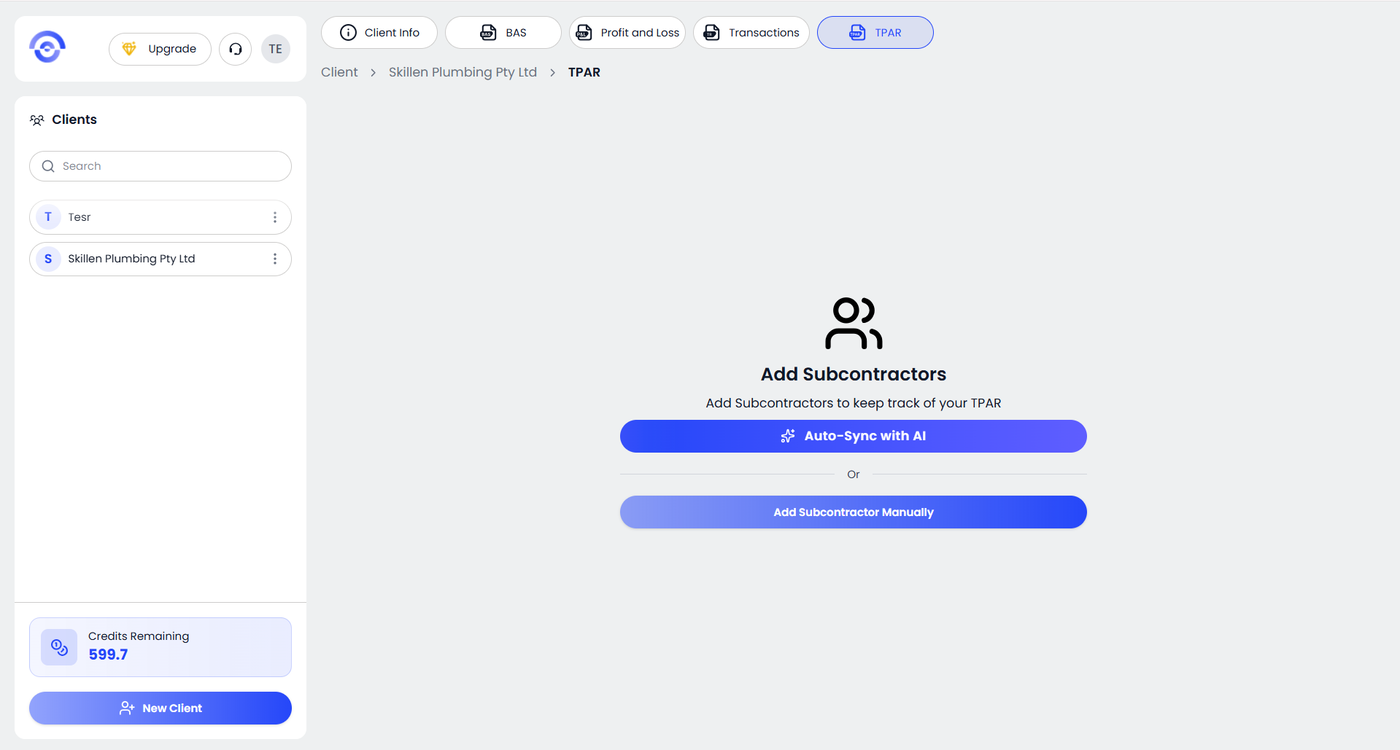
On the TPAR page, you will see the Add Subcontractors section.
Click Auto-Sync with AI to automatically detect and add subcontractors from the client’s transaction data. The AI will scan the records and identify subcontractors relevant to the TPAR report.
If you prefer, you can still click Add Subcontractor Manually to enter subcontractor details yourself.
Step 3: Review and Verify Subcontractors
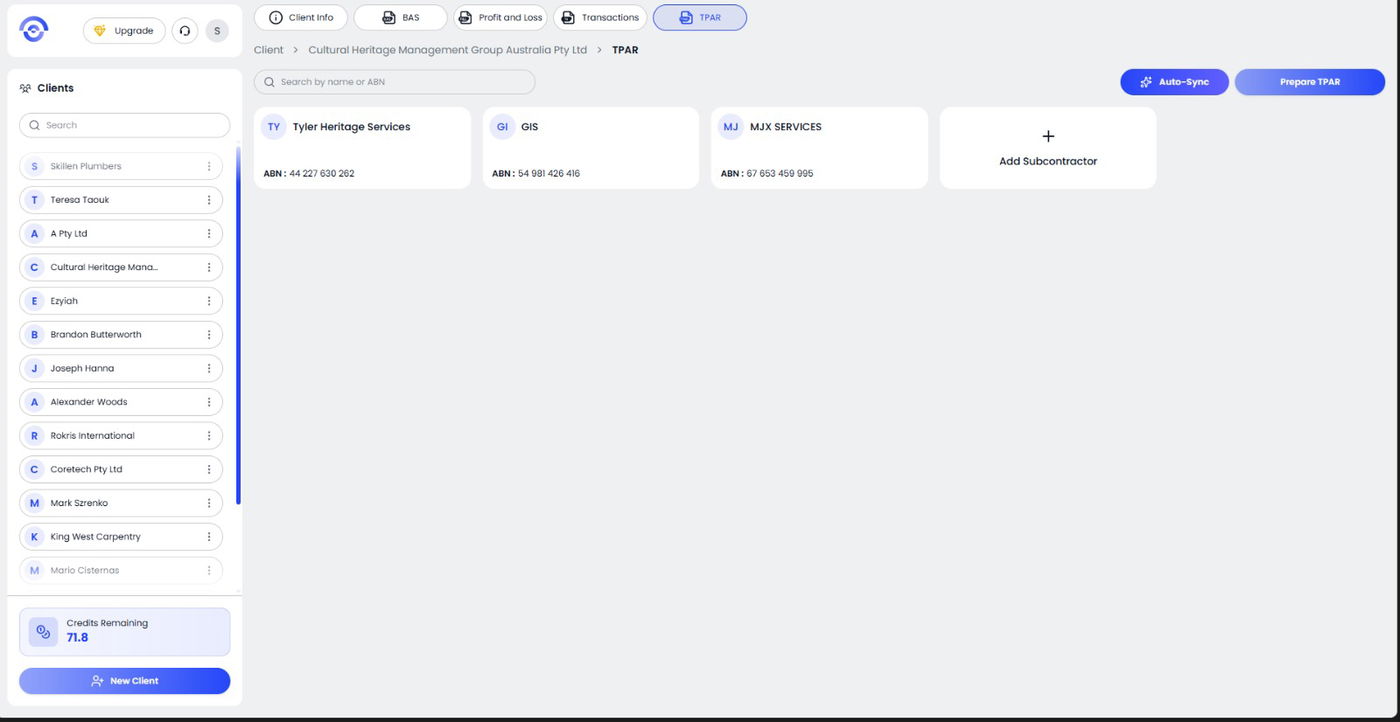
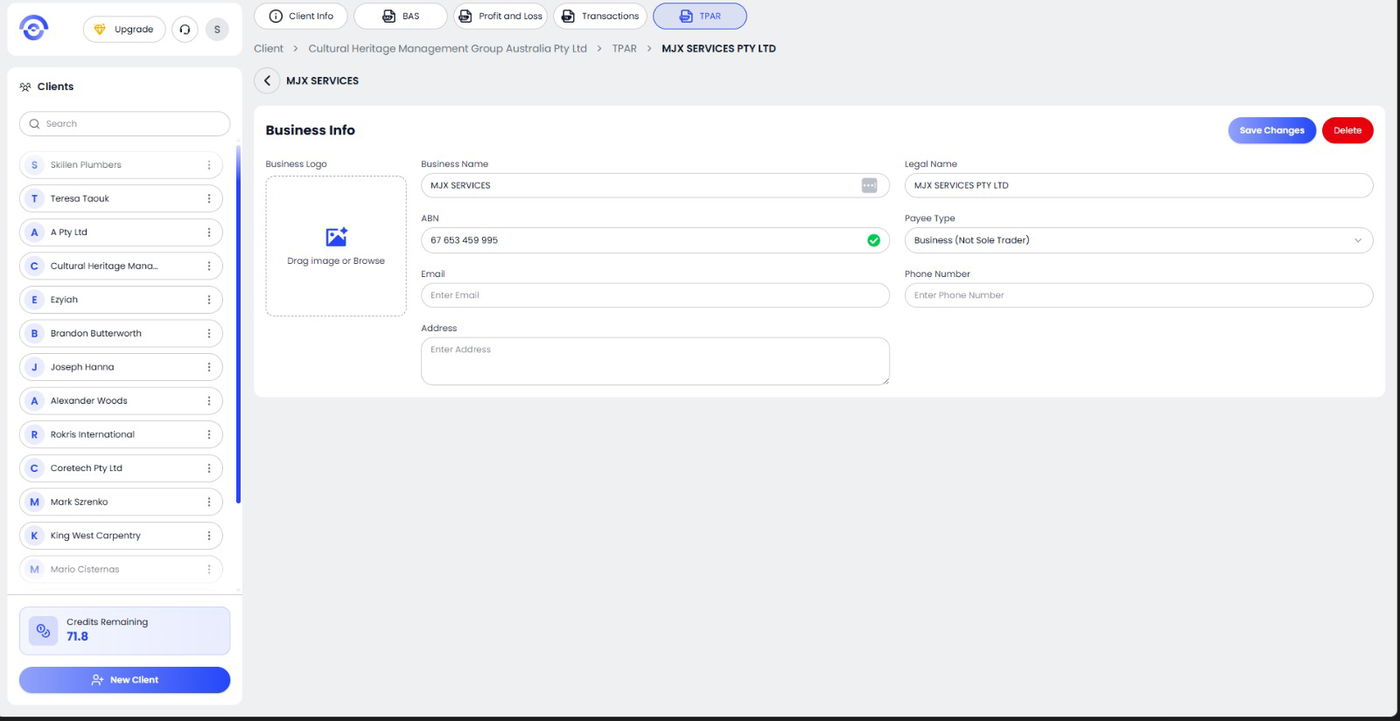
After the AI sync completes, detected subcontractors will appear as cards showing the Business Name and ABN. The system automatically verifies the ABN to ensure the details are valid for TPAR reporting.
Review the listed subcontractors.
If any details need correction, click on the subcontractor card to open the profile and edit the information. Once updated, click Save Changes to apply the updates.
Step 4: Prepare and Review Transactions
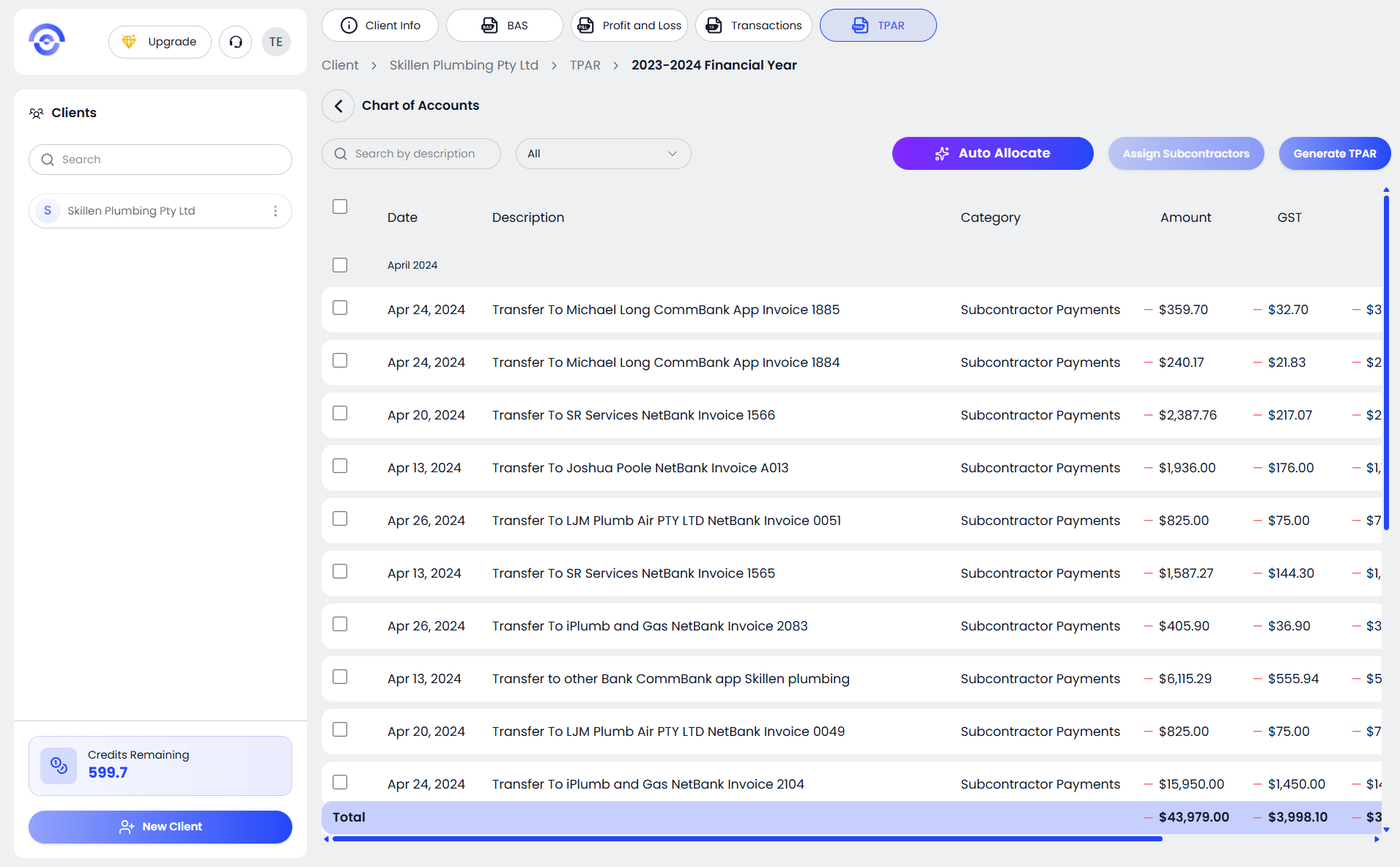
Click Prepare TPAR and select the financial year you want to generate the report for. The system will load all subcontractor payment transactions for the selected year. Review the transactions shown in the table. You can use Auto Allocate to automatically assign transactions to subcontractors or manually assign them if needed.
Step 4.1: Select Transactions to Assign a Subcontractor
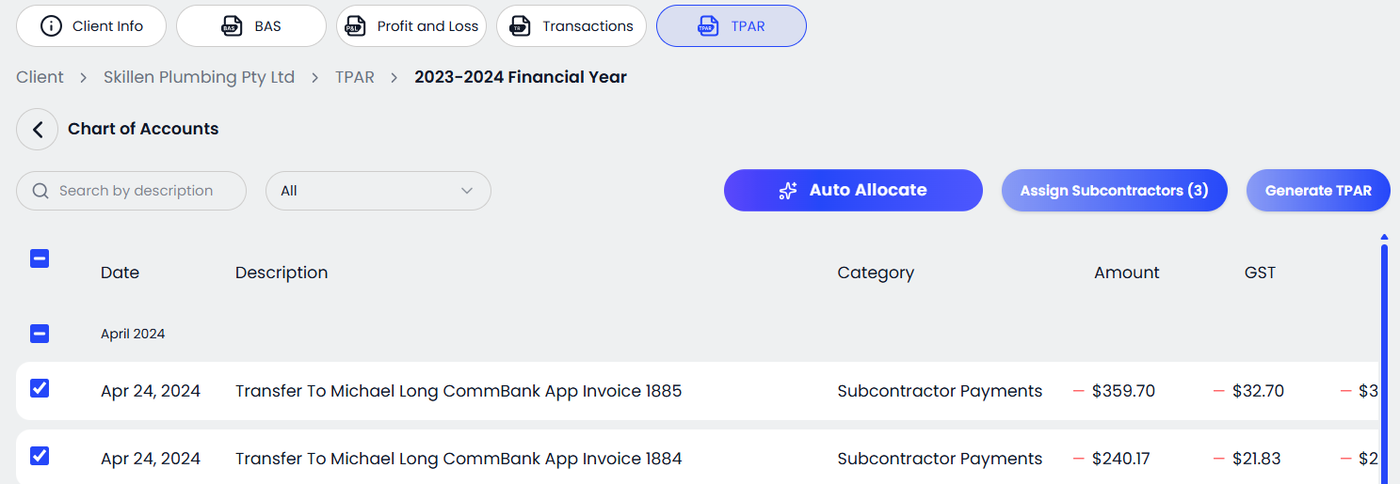
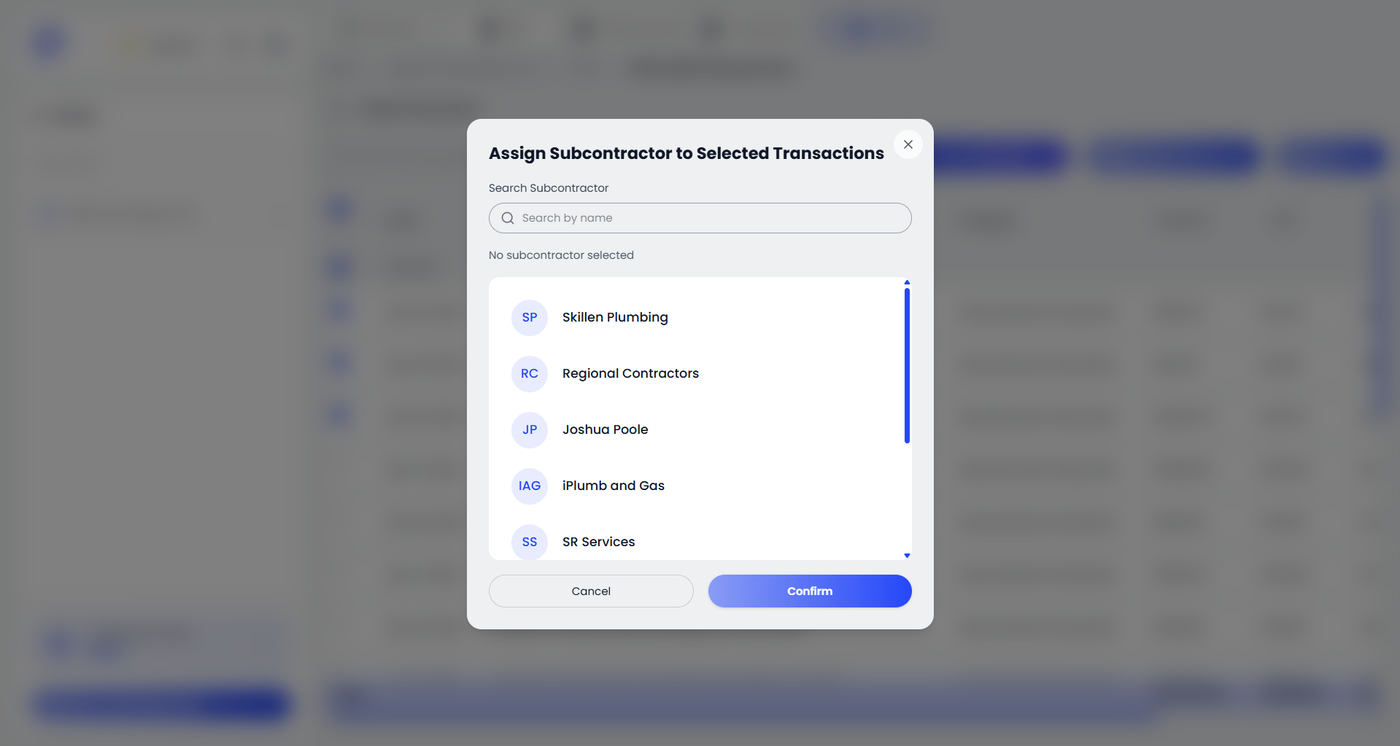
Tick the checkbox next to the transaction whose subcontractor needs to be assigned or changed. Selecting a transaction will activate the Assign Subcontractors button at the top. Click Assign Subcontractors to choose the correct subcontractor for the selected transactions.
Step 5: Generate and Export the TPAR
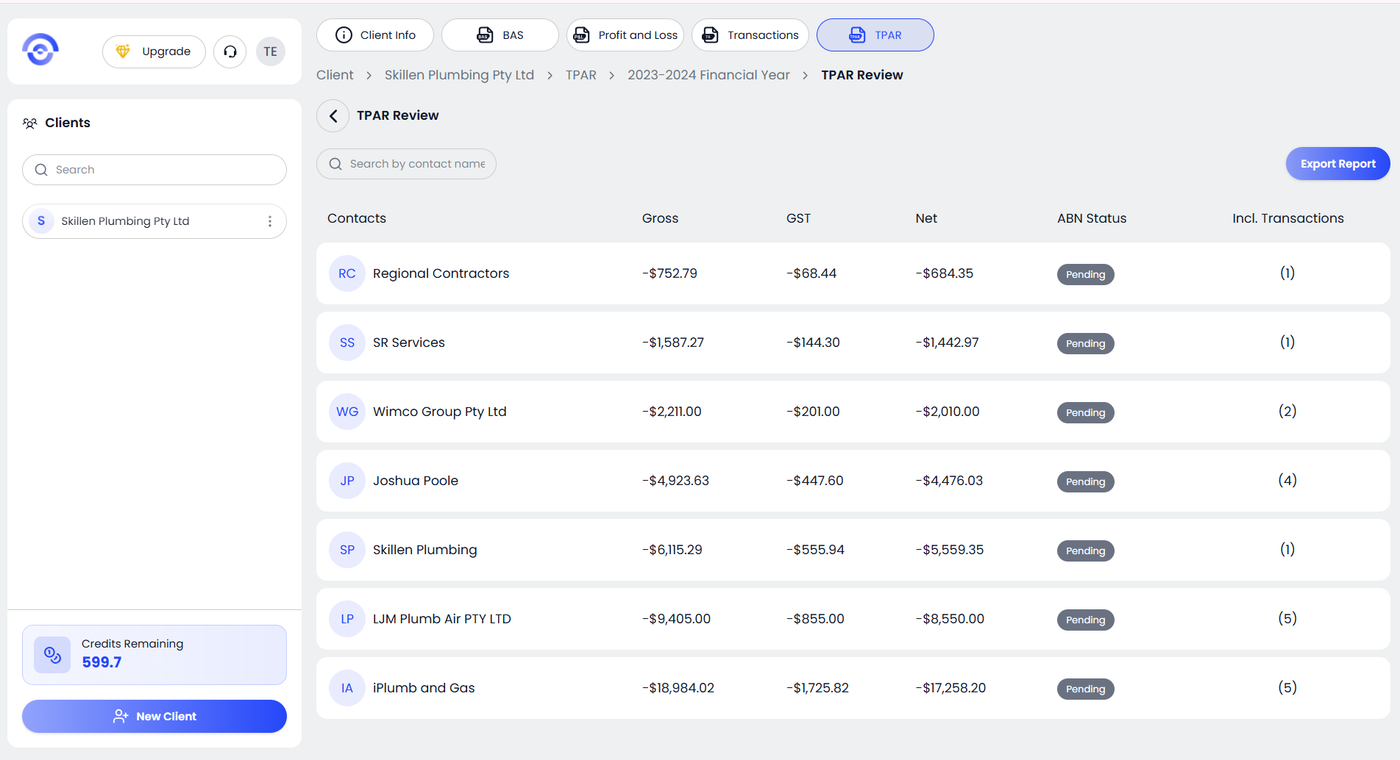
After reviewing and assigning all subcontractor transactions, click Generate TPAR. The system will compile the transactions and display the TPAR Review screen showing each subcontractor’s totals, including Gross, GST, and Net amounts. Review the details and verify the subcontractor information. Once confirmed, click Export Report to download the final TPAR report.