Split Transactions
Step 1: Access Chart of Accounts
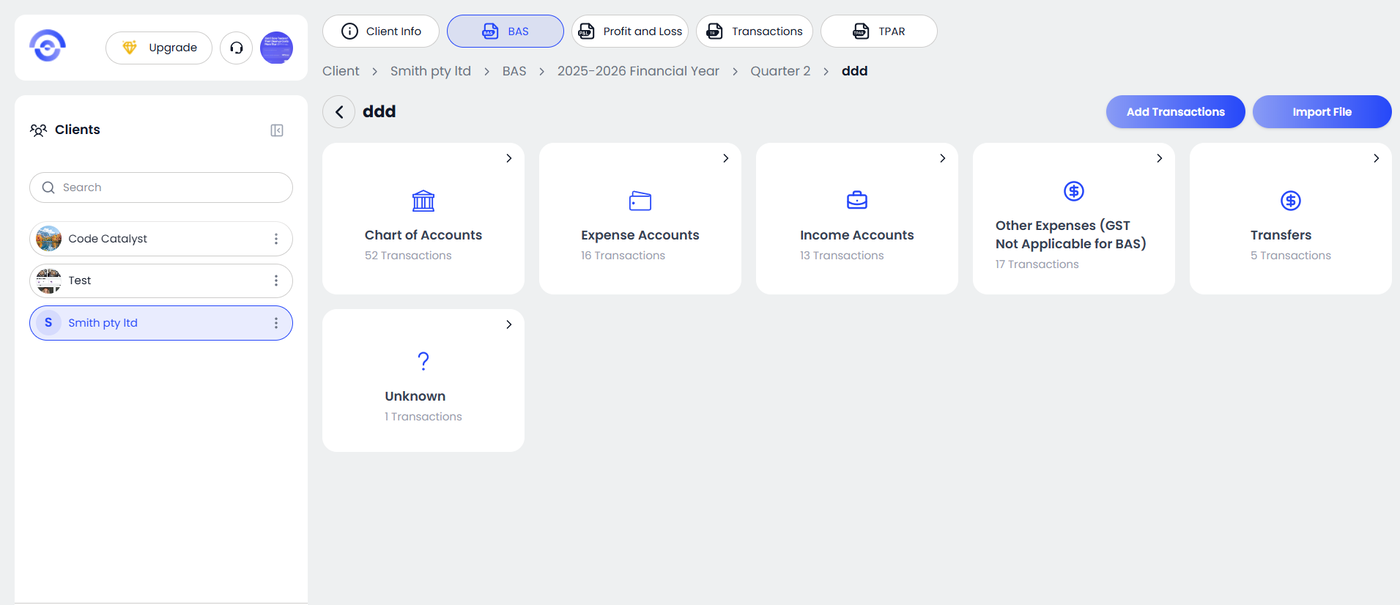
After adding the financial year, selecting the month, and uploading your CSV or PDF, you will be directed to this screen.
Click on Chart of Accounts to view and manage your transactions.
Step 2: Select Transaction to Split
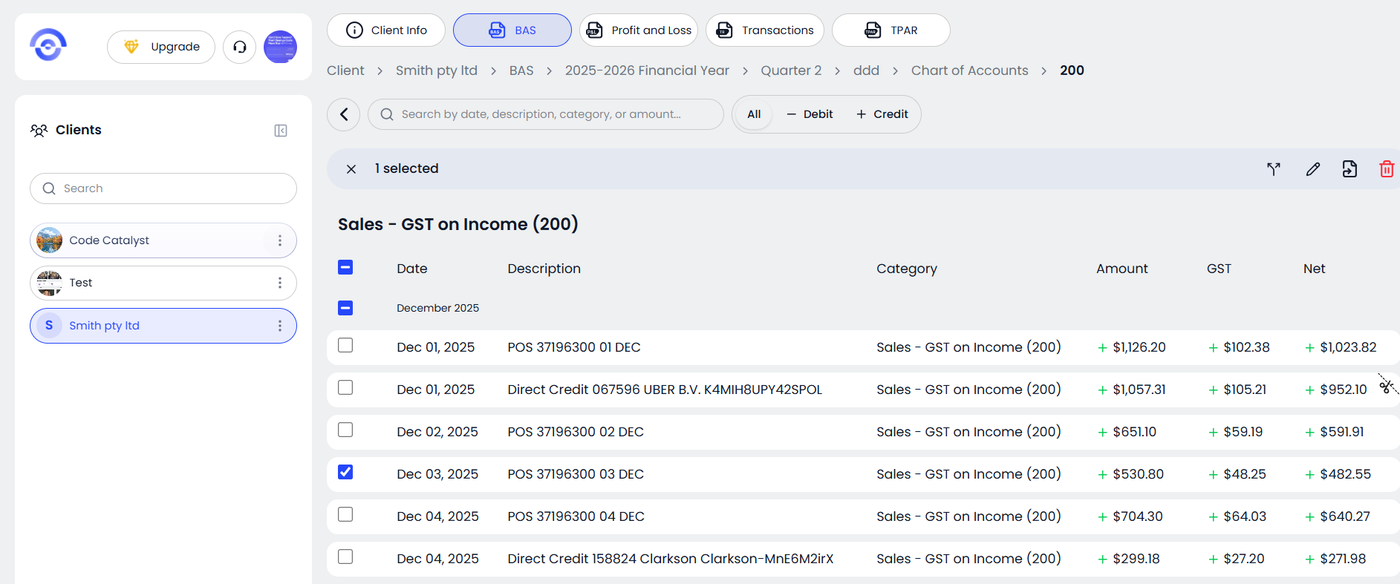
Locate the transaction you want to split from the list.
Tick the checkbox next to the transaction. This will activate the action options at the top. Click on the edit icon to proceed with splitting the selected transaction.
Step 3: Split the Transaction
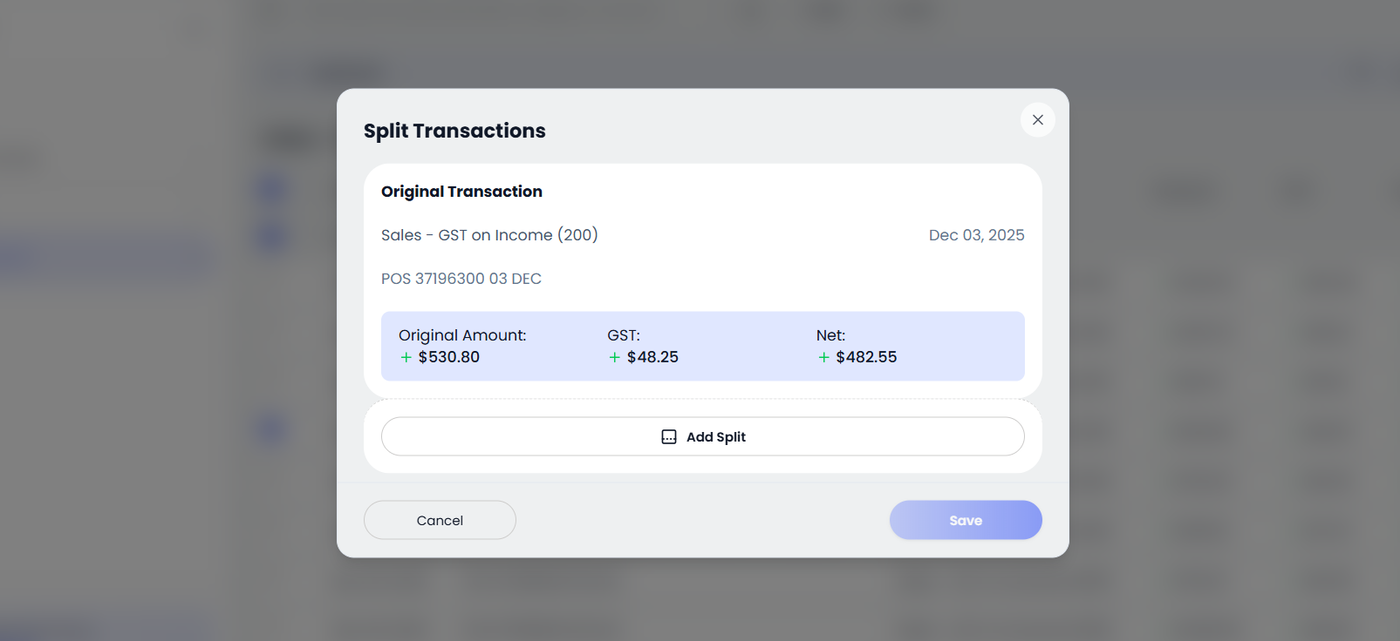
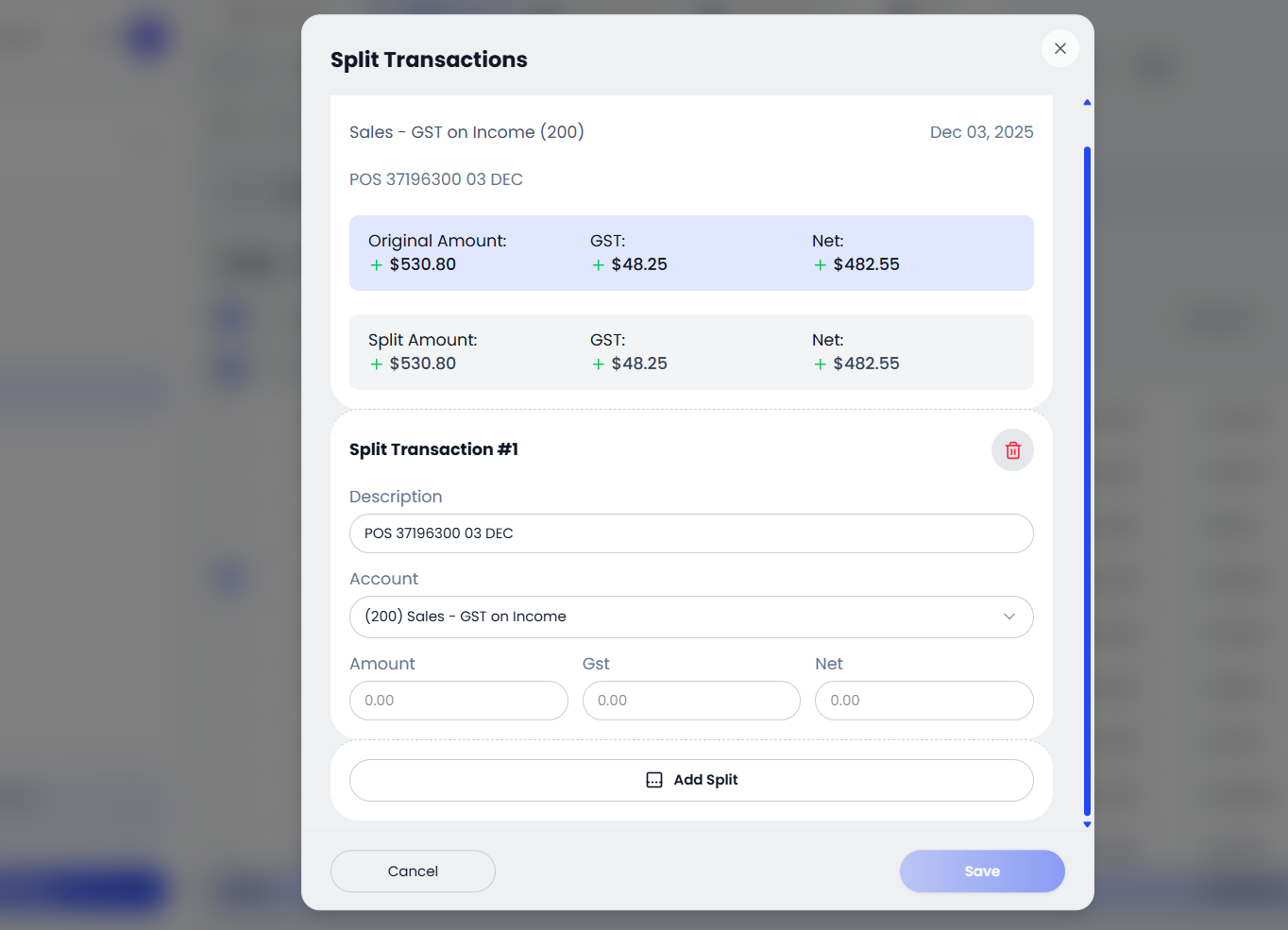
Click Add Split and the split transaction window will appear.
Enter the amount, GST, and net values for the split.
Select the appropriate account/category if needed.
You can add multiple splits. Ensure the total matches the original transaction, then click Save.
Step 4: View Split Transactions
Once saved, the transaction will be updated in the list.
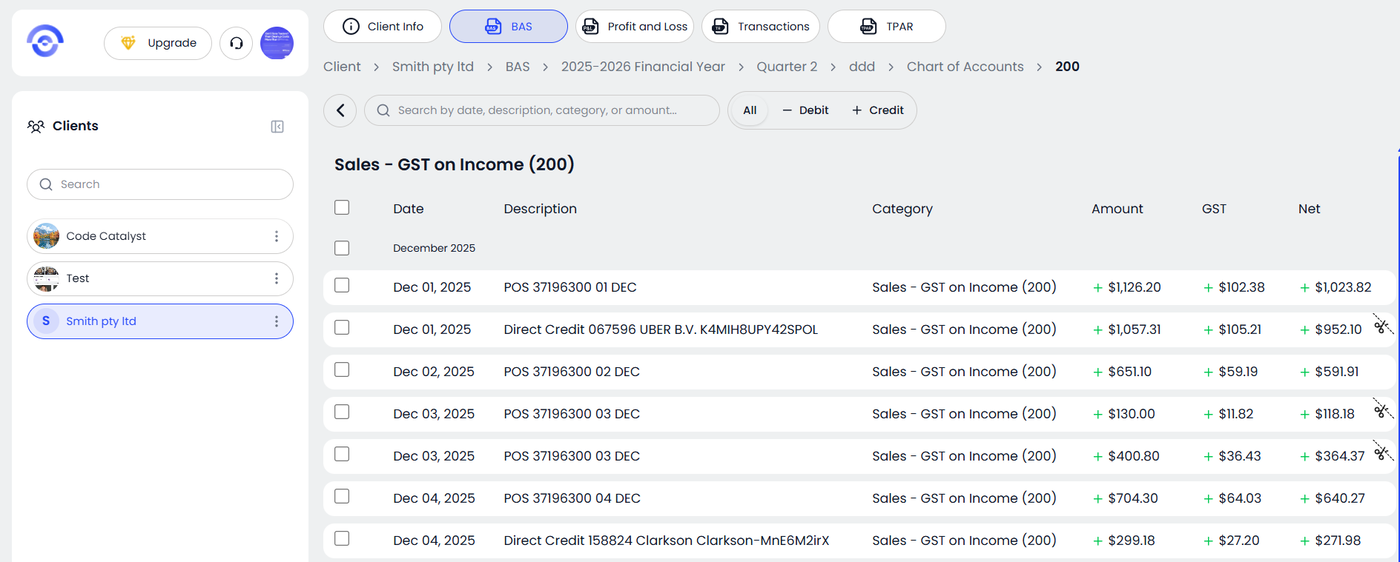
Split transactions are indicated with a split icon on the right.
You can click the transaction again to view or edit the splits if needed.