Preparing Your BAS Report
Ezyiah generates your Business Activity Statement directly from your reconciled transactions. Once your Chart of Accounts is reviewed, your BAS is ready to view and export.
Step 1 — Open the BAS Report
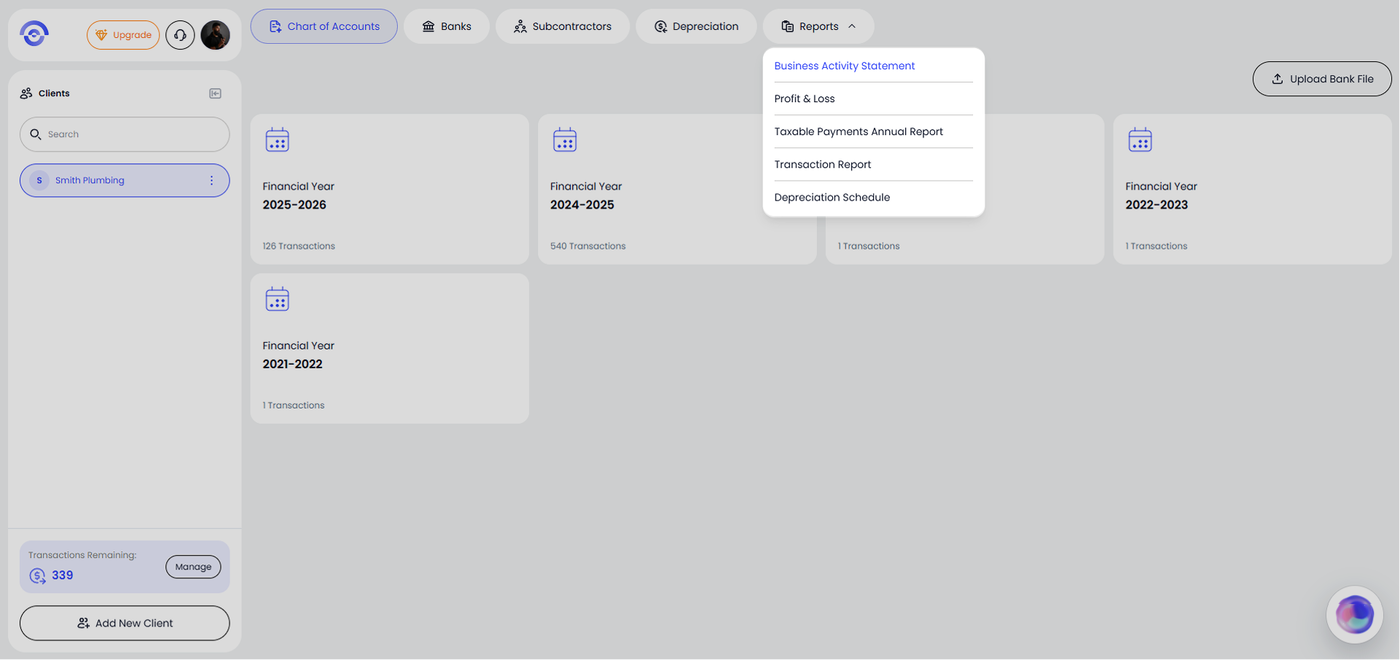
Click Reports in the top navigation bar. A dropdown appears with five report types. Click Business Activity Statement.
Step 2 — Select a Period
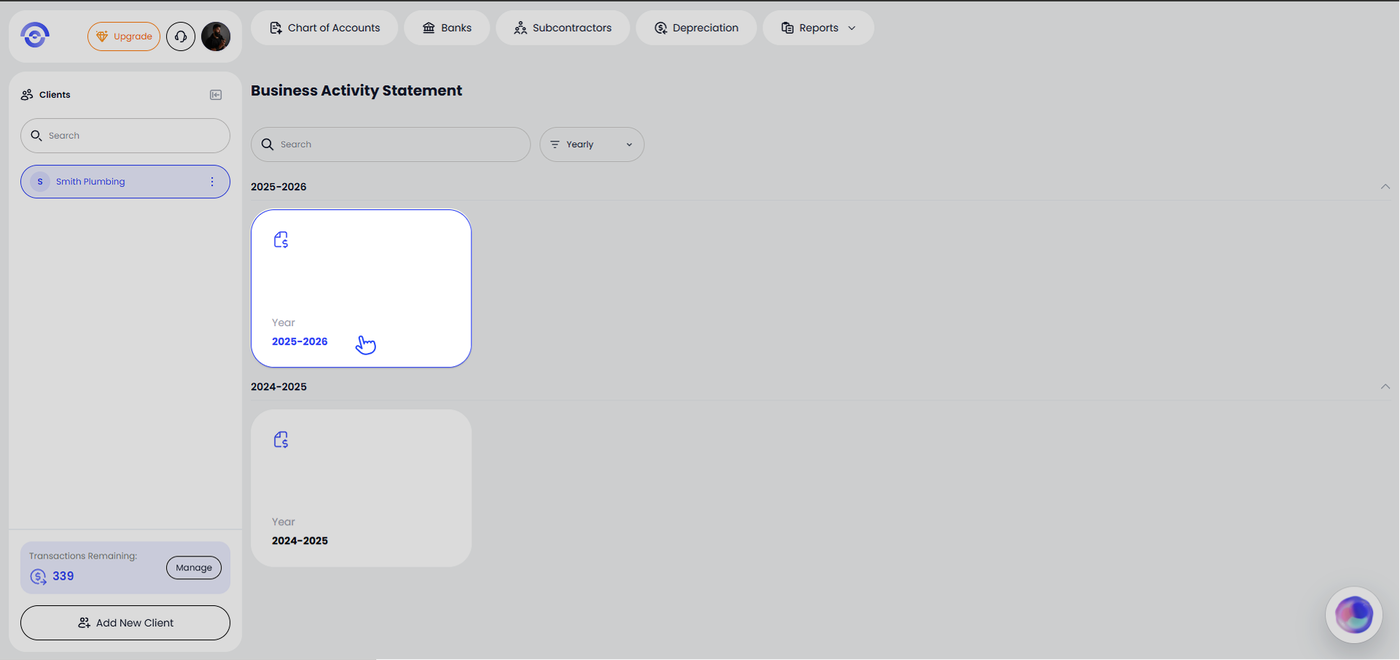
The Business Activity Statement screen shows all available financial years for this client. Use the Yearly / Quarterly / Monthly filter at the top right to change how periods are displayed, then click the card for the period you want to open.
Step 3 — Review the BAS
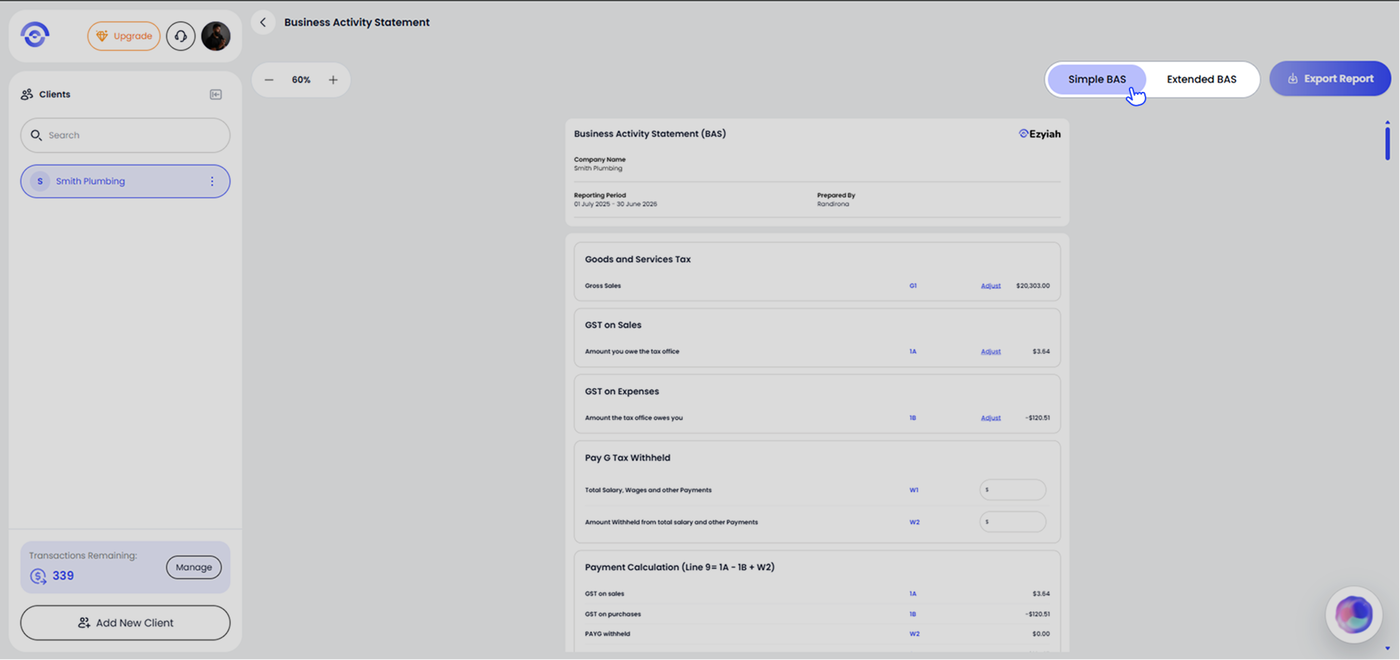
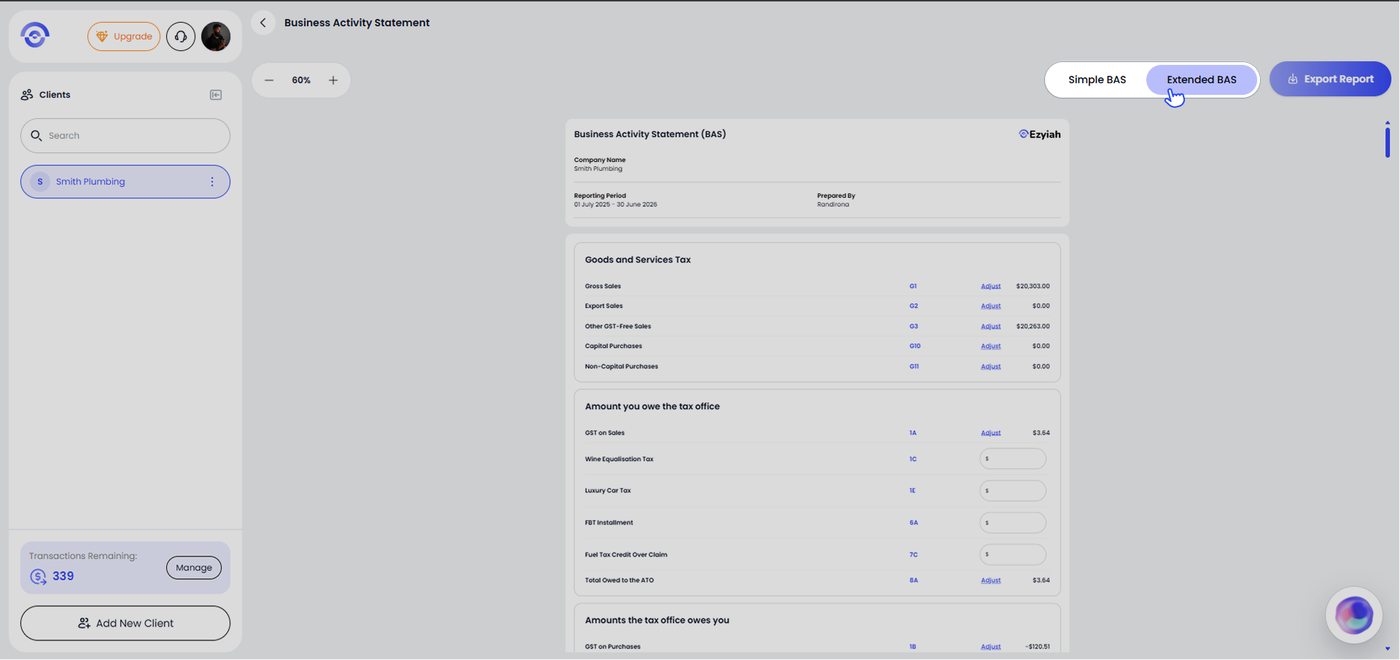
The BAS report opens with a preview of the full statement. At the top of the report you will see the company name, reporting period and the name of the person who prepared it.
The report is divided into sections covering Goods and Services Tax, GST on Sales, GST on Expenses, Pay G Tax Withheld and Payment Calculation. Each line item shows its ATO label code and calculated amount. Where a line is editable, an Adjust link appears next to it so you can enter a manual adjustment if needed.
Toggle between Simple BAS and Extended BAS using the buttons in the top right corner:
Simple BAS — shows the core GST fields (G1, 1A, 1B, W1, W2) used by most small businesses
Extended BAS — shows the full ATO form including Export Sales (G2), Other GST-Free Sales (G3), Capital Purchases (G10), Non-Capital Purchases (G11), Wine Equalisation Tax (1C), Luxury Car Tax (1E), FBT Instalment (6A), Fuel Tax Credit Over Claim (7C) and all totals
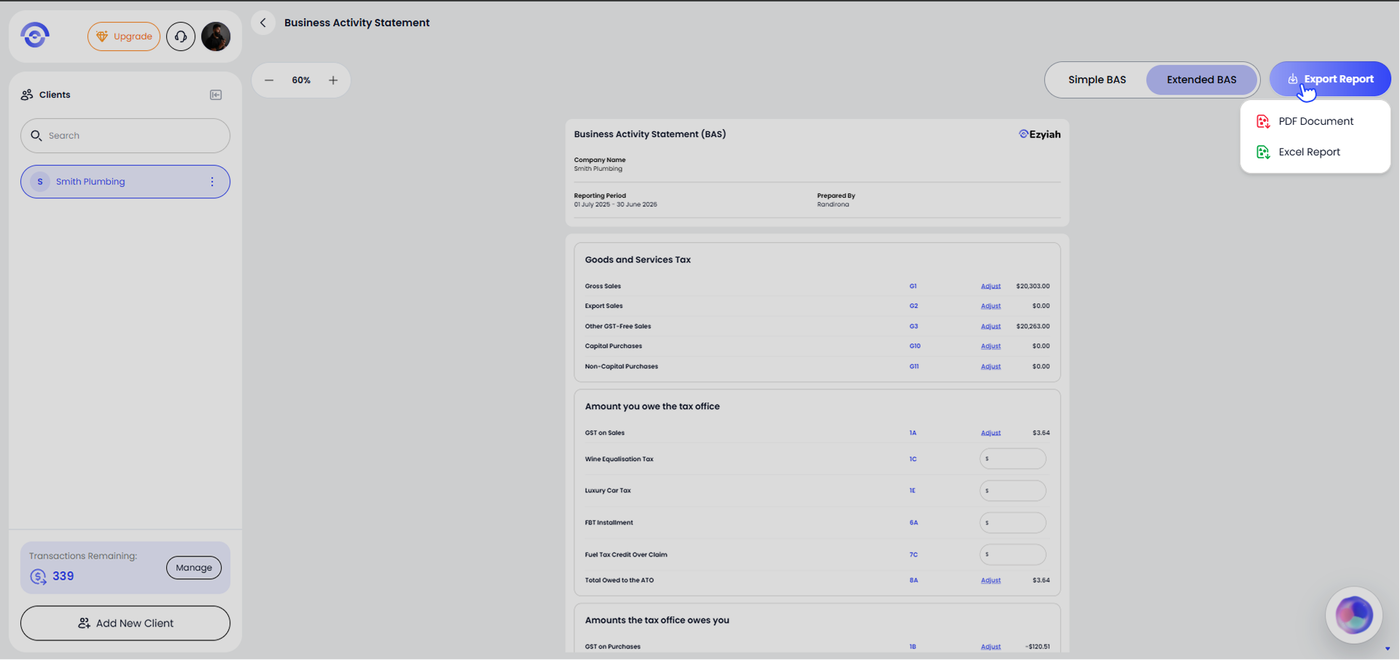
Step 4 — Export the Report
Click Export Report in the top right corner. Choose your preferred format:
PDF Document — downloads a formatted PDF ready to share or lodge
Excel Report — downloads an Excel file for further review or record keeping