Changing Your Password
You can change your Ezyiah password at any time from the Profile Settings page. The process uses a one-time code sent to your email address to verify it's you before allowing the change.
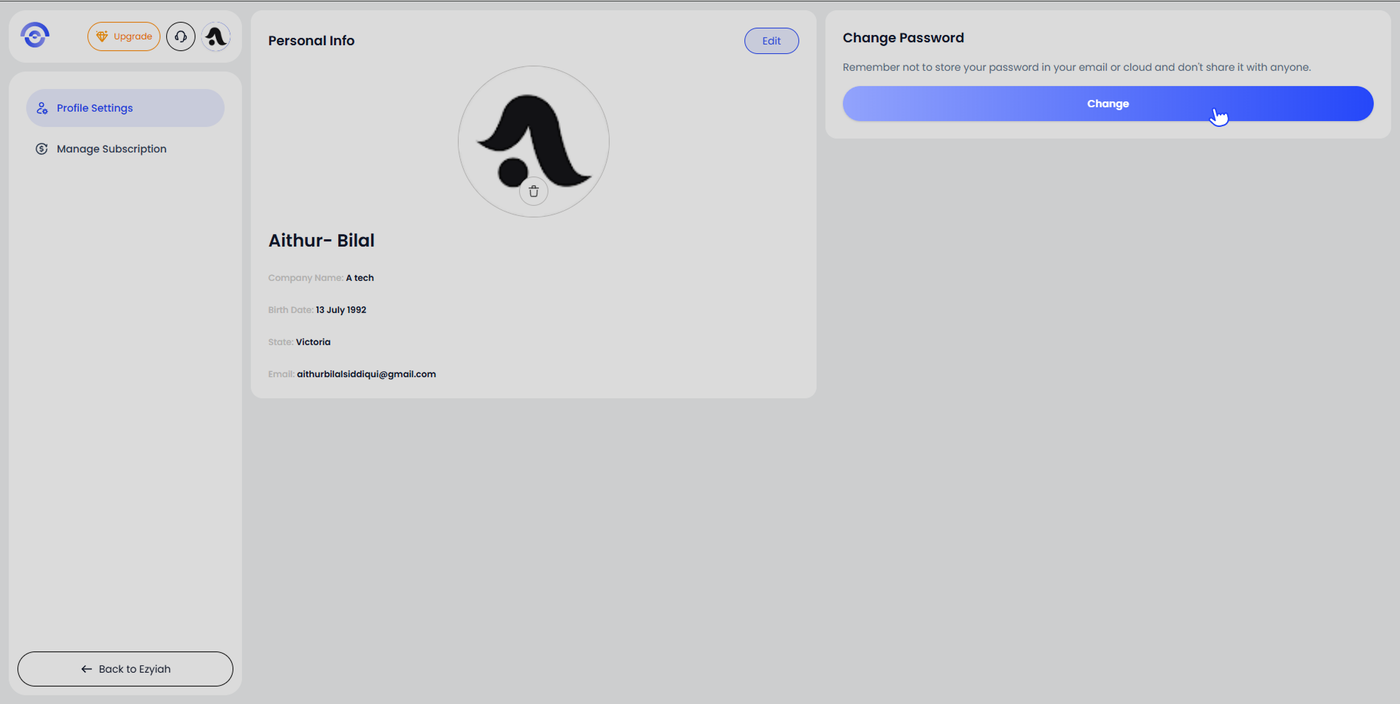
Step 1 — Click Change
From the Profile Settings page, click the Change button in the Change Password section on the right side of the screen.
Step 2 — Enter the OTP
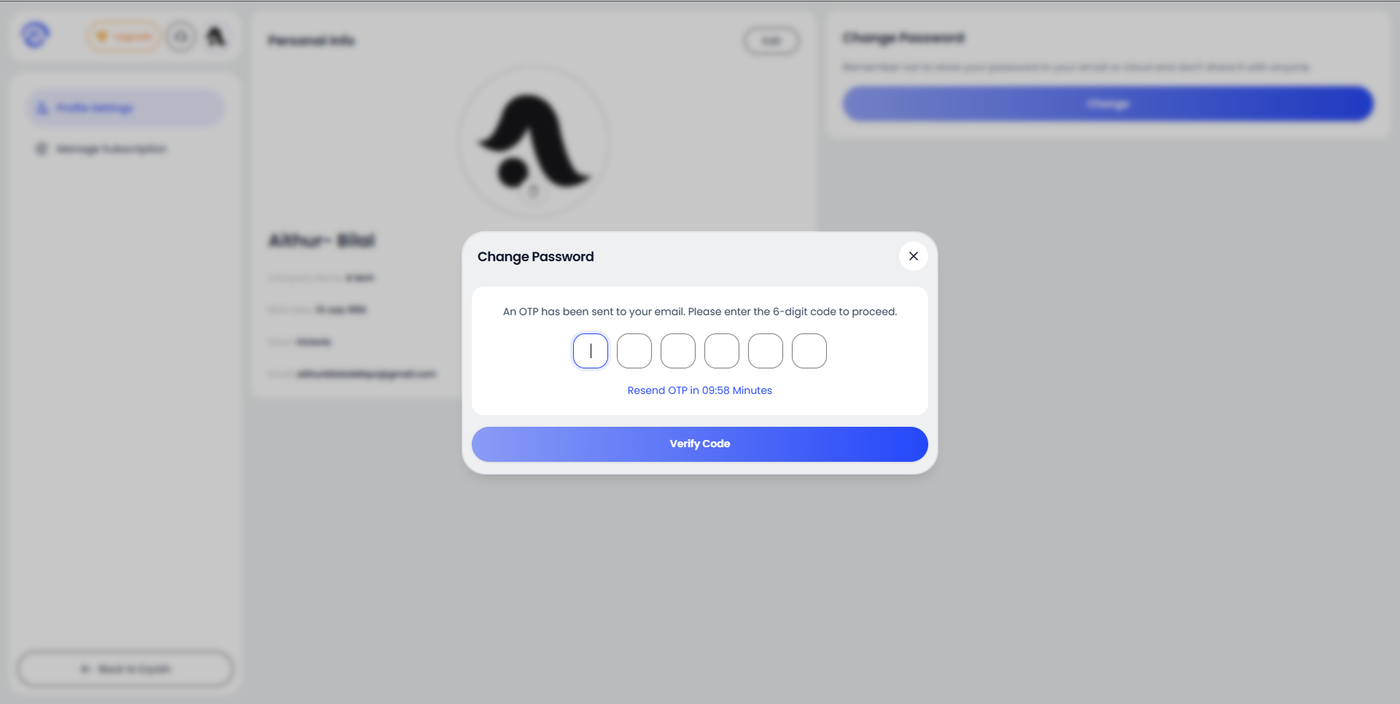
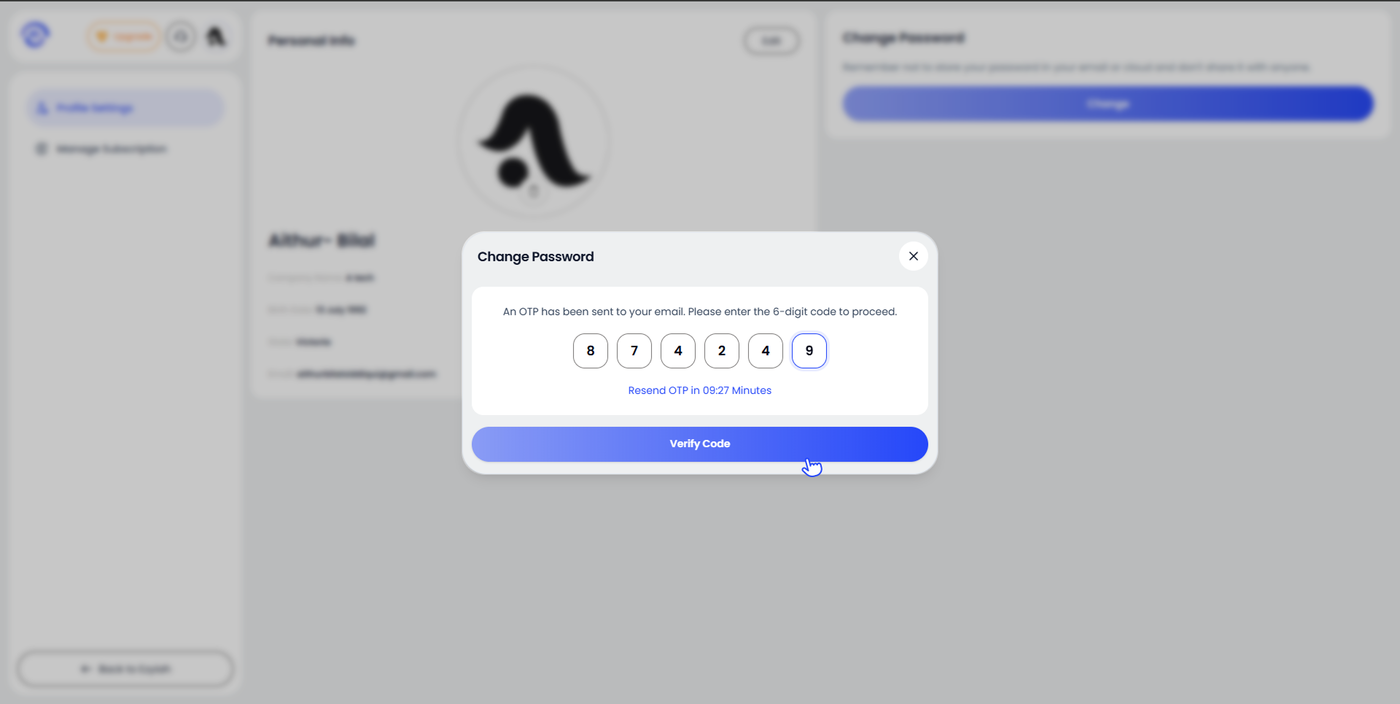
A Change Password modal opens. Ezyiah sends a 6-digit one-time code to your registered email address. Enter the code in the six boxes.
If you did not receive the code, wait for the timer to count down and click Resend OTP to request a new one.
Once all six digits are entered, click Verify Code.
Step 3 — Enter Your New Password
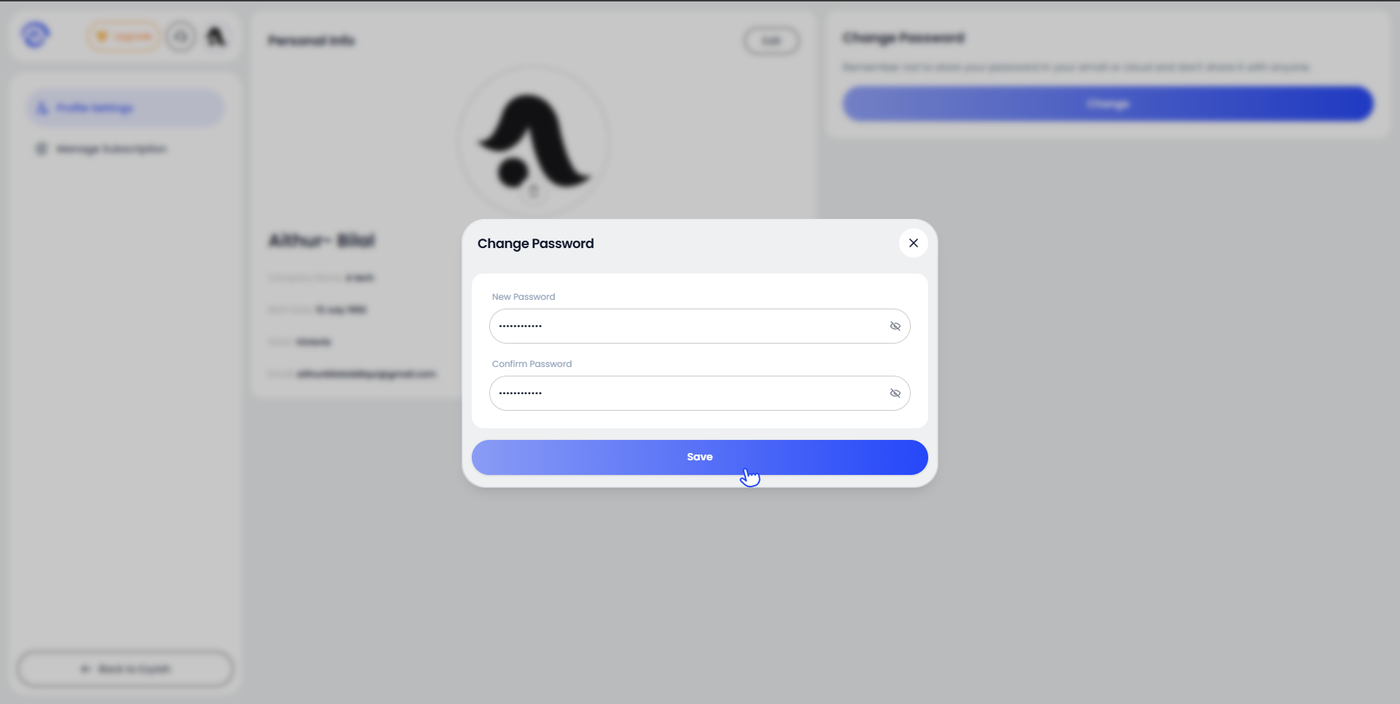
After the code is verified, the modal updates to show the Change Password form with two fields:
New Password — enter your new password
Confirm Password — re-enter the new password to confirm it matches
Click the eye icon on either field to show or hide the password as you type. When both fields match, click Save.