Profile Management
Your profile settings control your personal information, profile photo and password. Changes made here apply to your Ezyiah account across all clients.
Opening Settings
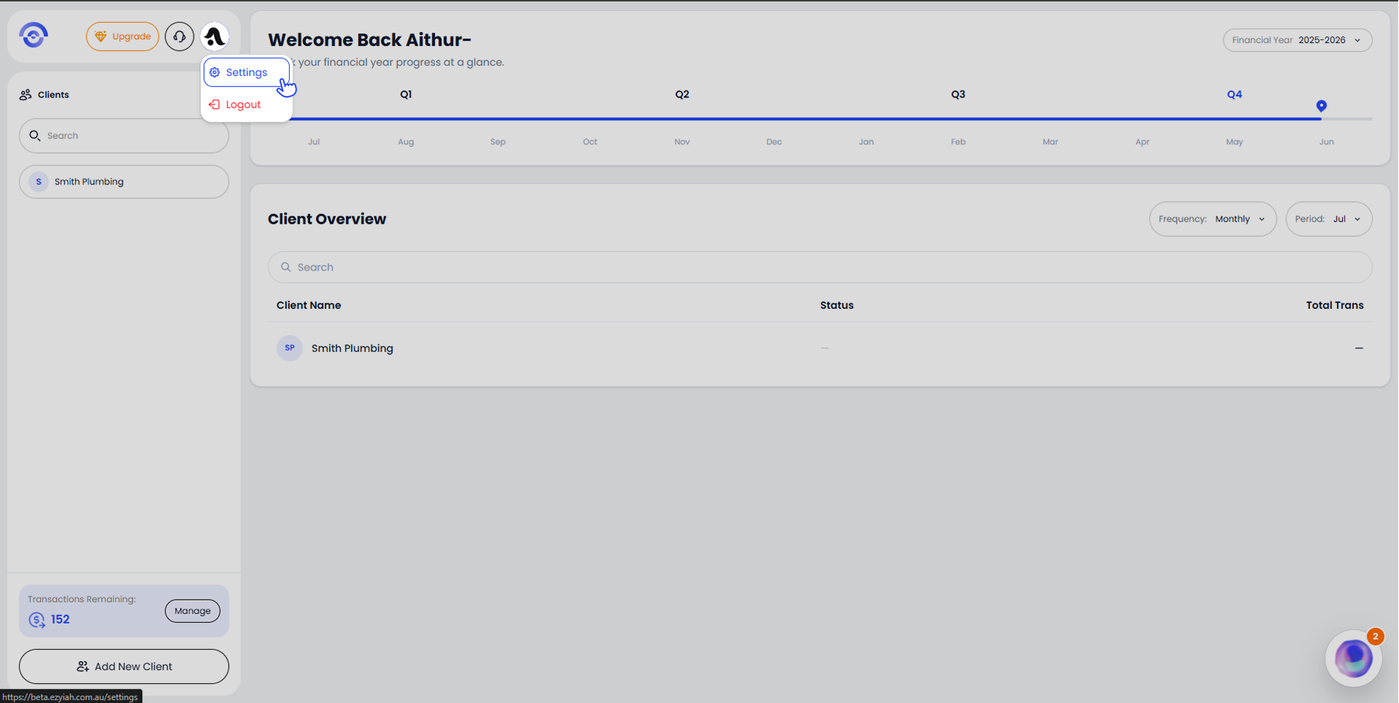
Click your profile avatar in the top right corner of the screen. A dropdown appears with two options. Click Settings.
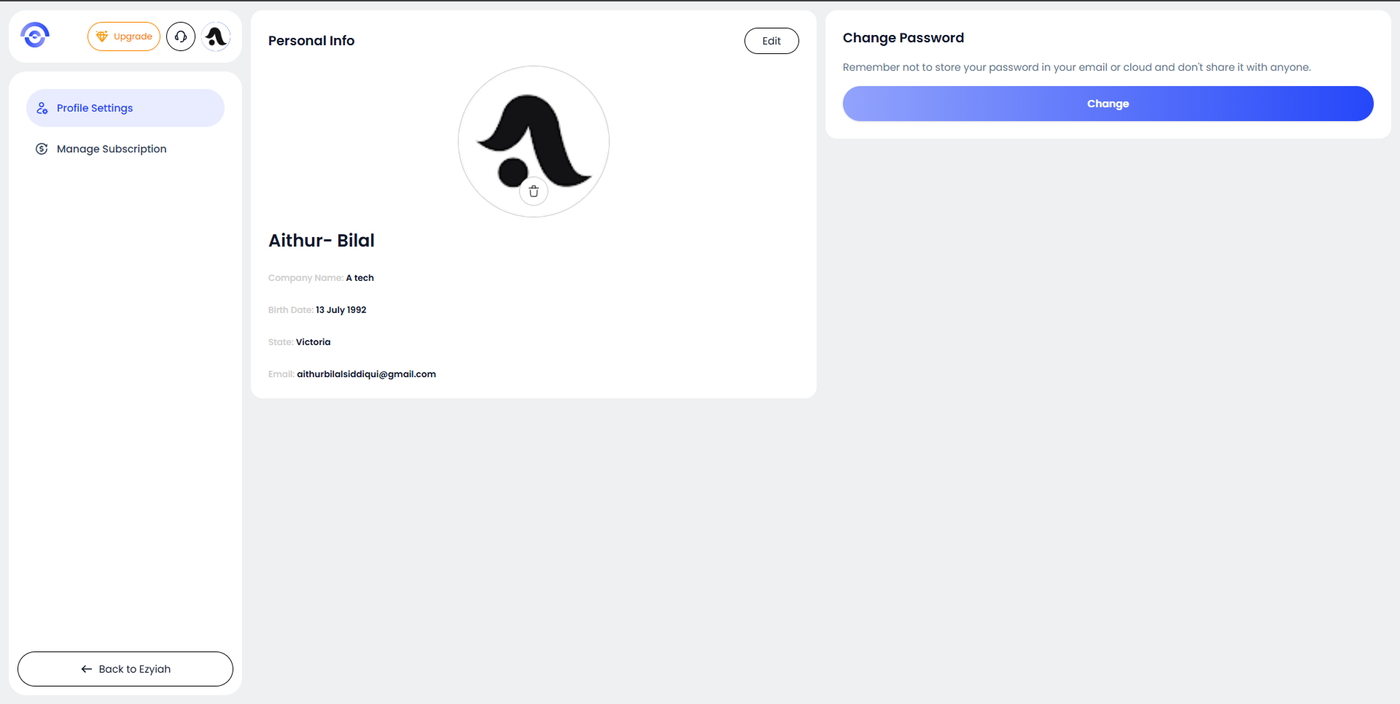
The Settings page opens with two sections in the left sidebar: Profile Settings and Manage Subscription. Profile Settings is selected by default.
Editing Your Profile Information
Click Edit in the top right corner of the Personal Info card.
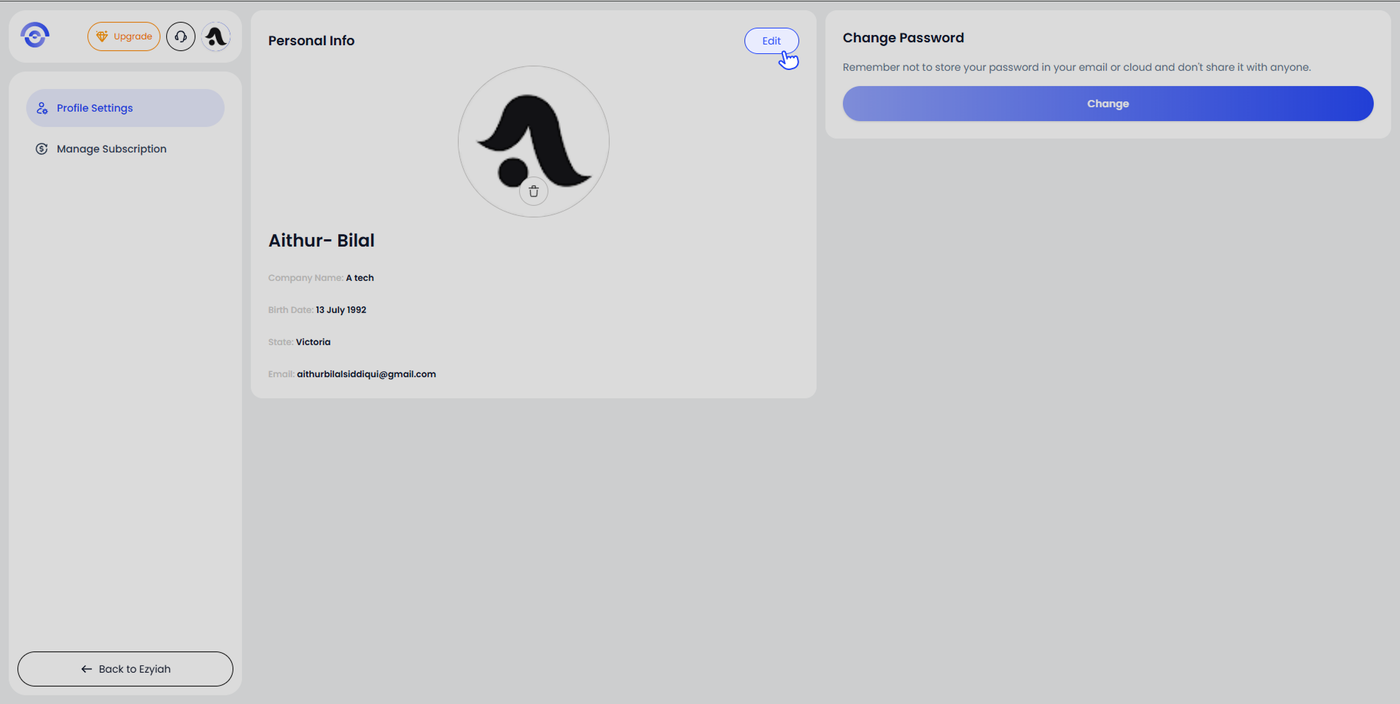
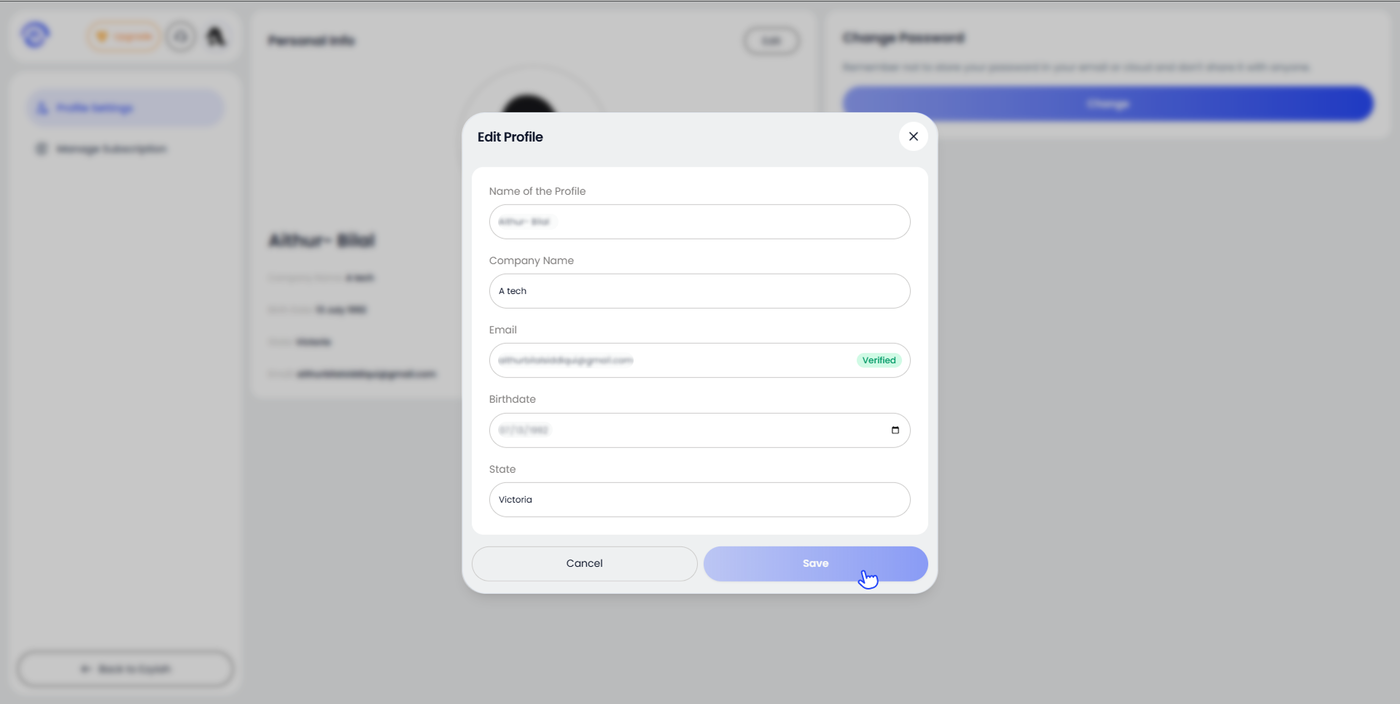
The Edit Profile modal opens with the following fields:
Name of the Profile — your display name
Company Name — your firm or company name
Email — your login email address (shown as Verified once confirmed)
Birthdate — your date of birth
State — your state or territory
Update the fields you want to change and click Save.
Updating Your Profile Photo
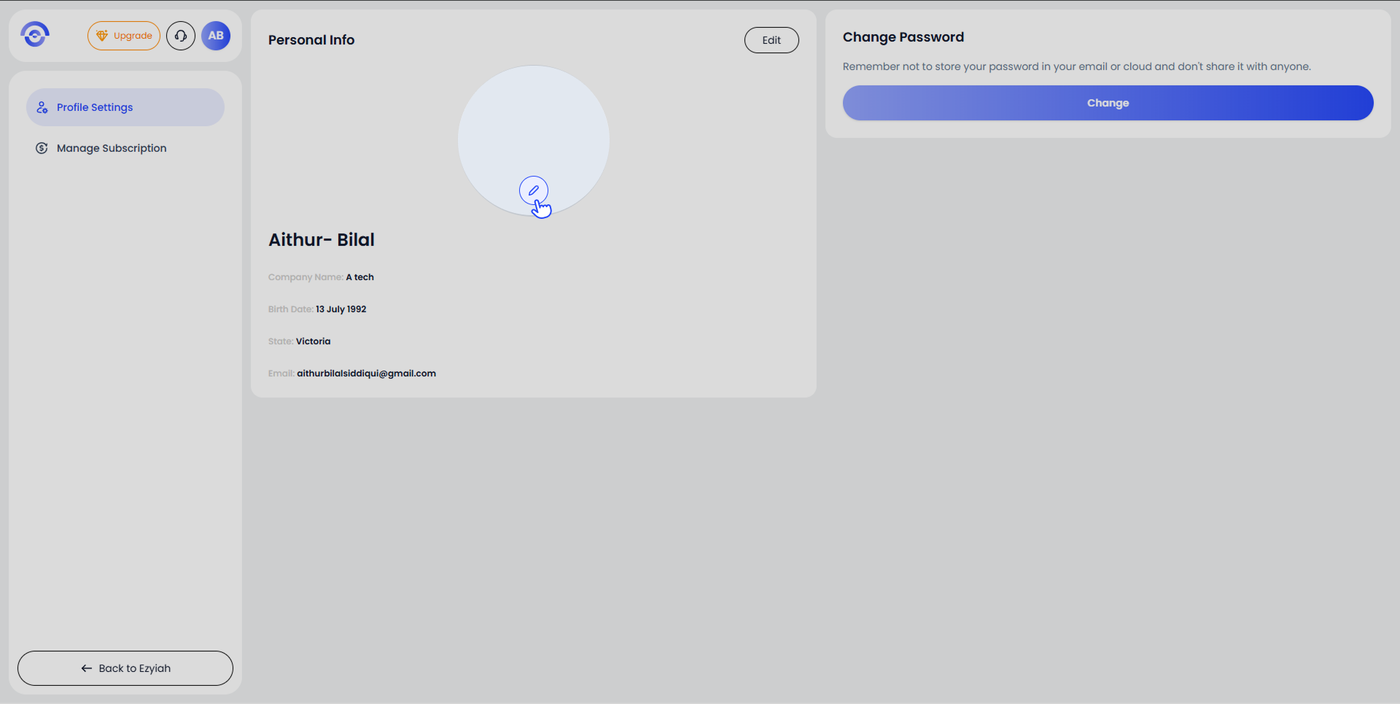
To add or replace a profile photo:
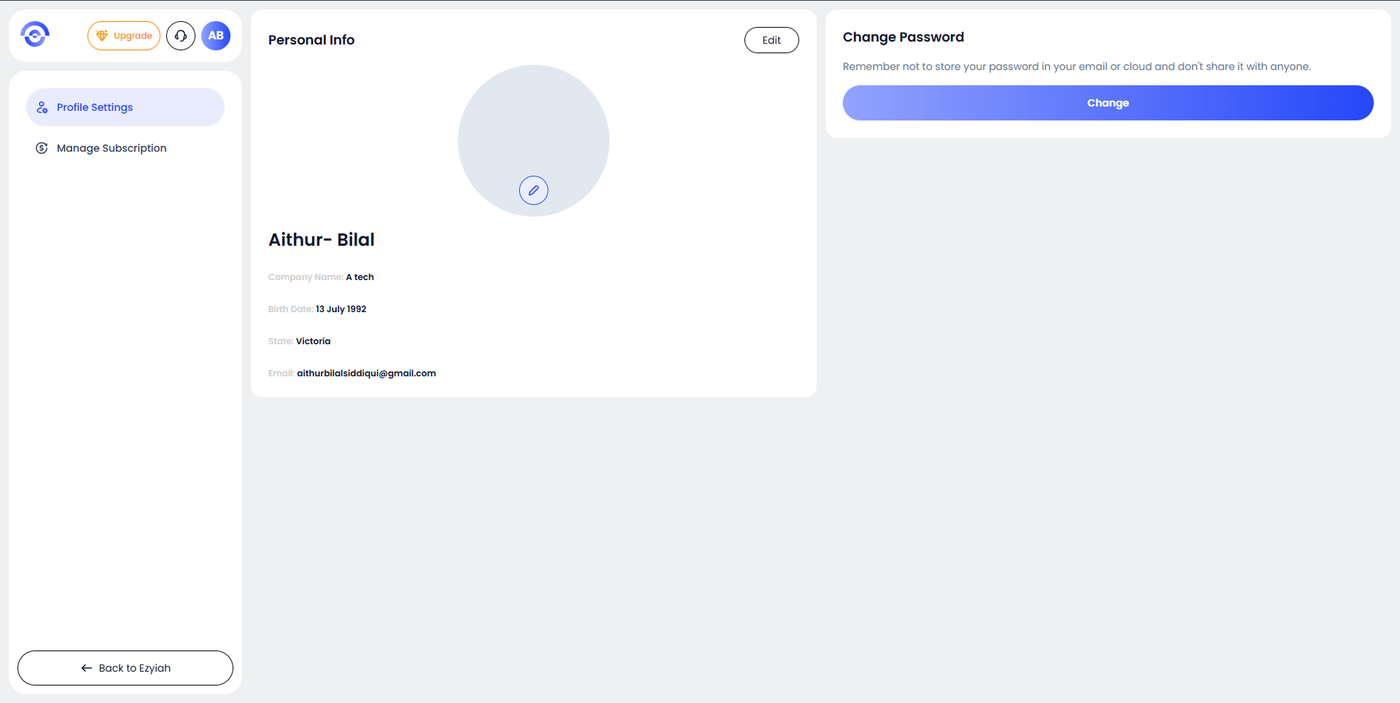
Hover over the profile photo circle. A pencil icon appears at the bottom of the circle. Click the pencil icon to open your file browser and select a photo to upload.
Once uploaded, your photo appears in the profile circle and in the top navigation avatar.
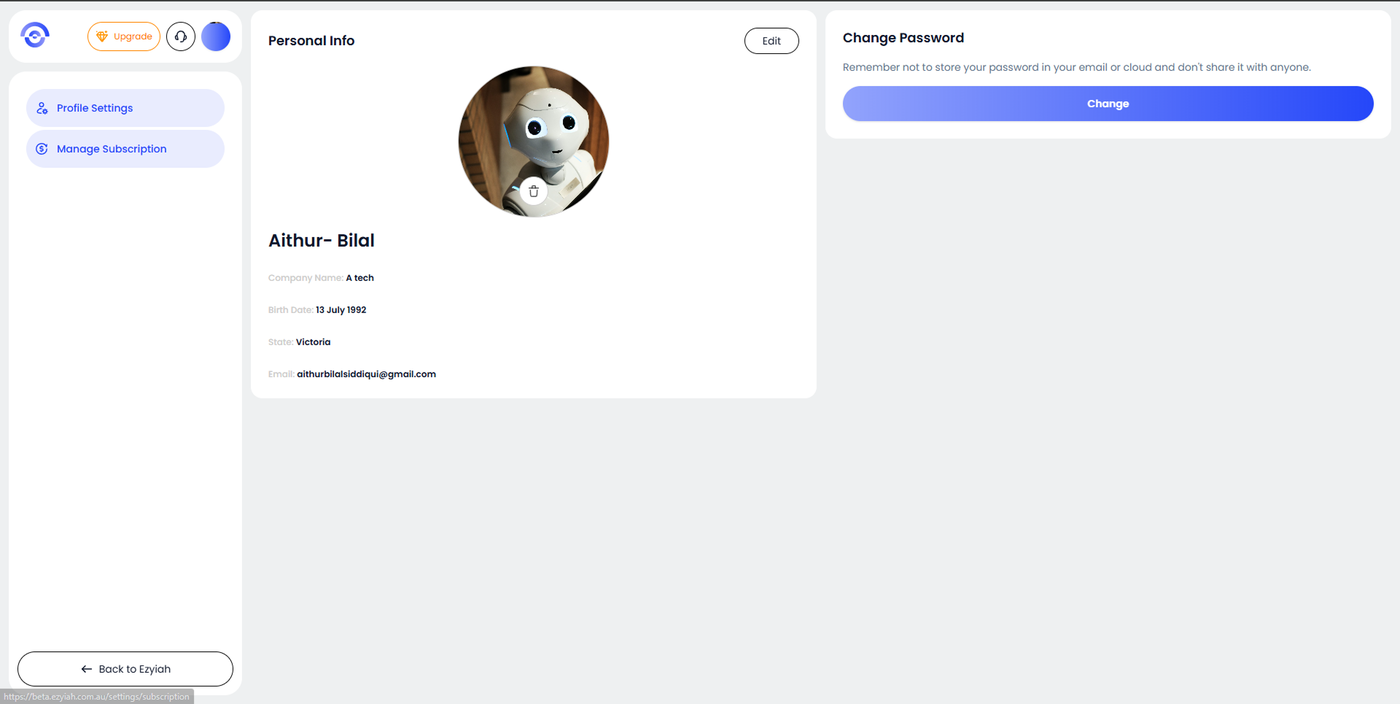
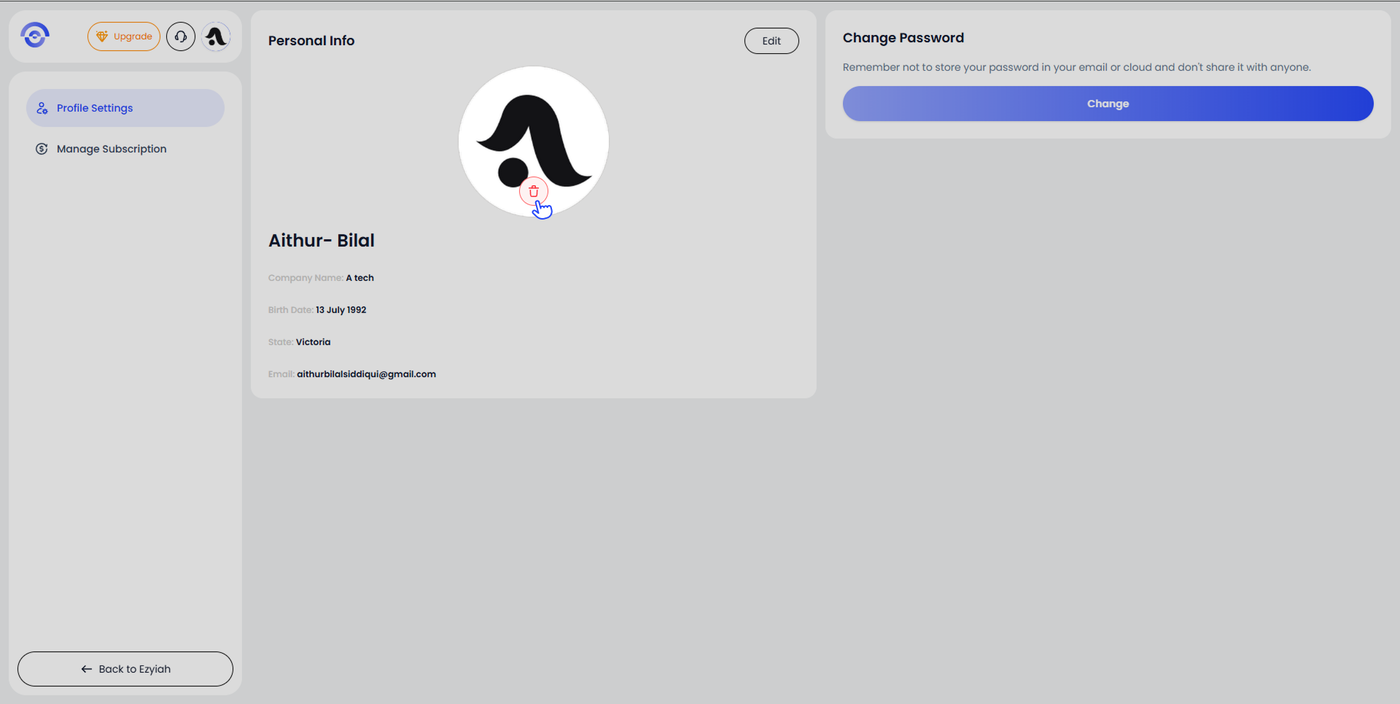
To remove your profile photo:
Hover over your profile photo. A red delete icon (🗑) appears at the bottom of the circle. Click it to remove the photo. Your avatar will revert to your initials.