Preparing Your Profit & Loss Report
Ezyiah generates your Profit & Loss report directly from your reconciled transactions. Once your Chart of Accounts is reviewed, the report is ready to view and export.
Step 1 — Open the Profit & Loss Report
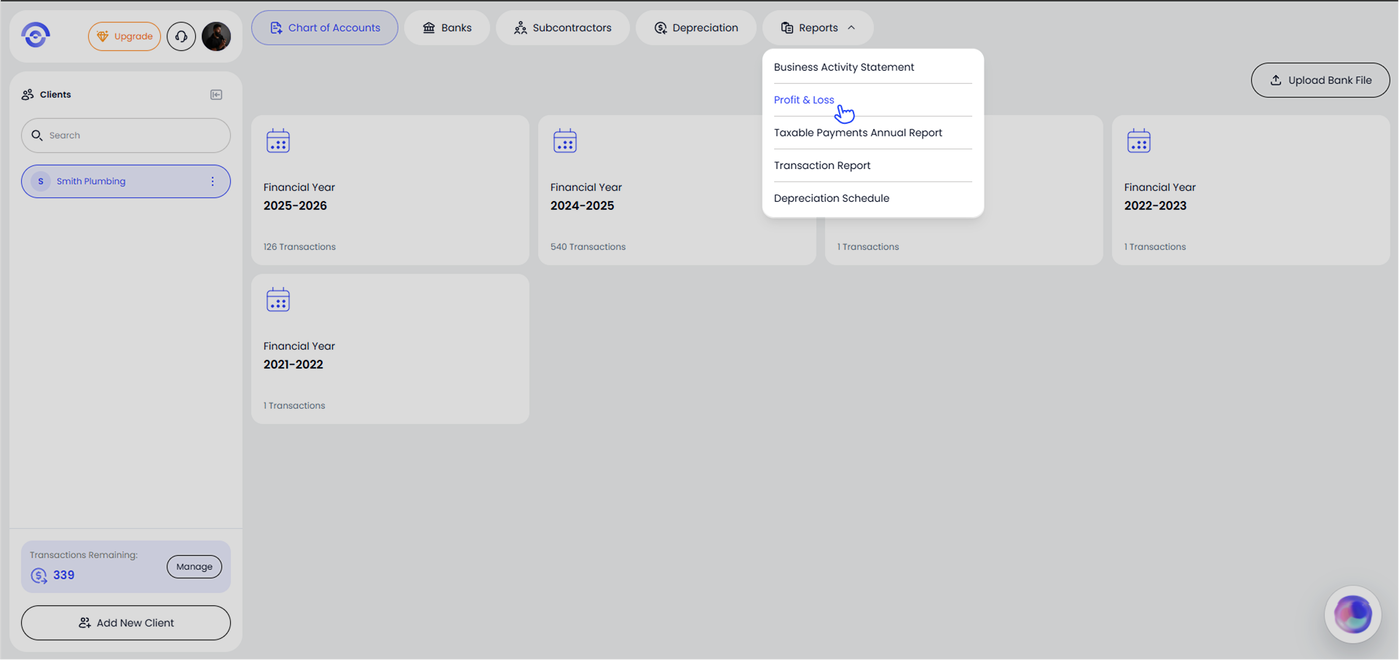
Click Reports in the top navigation bar. A dropdown appears with five report types. Click Profit & Loss.
Step 2 — Select a Period
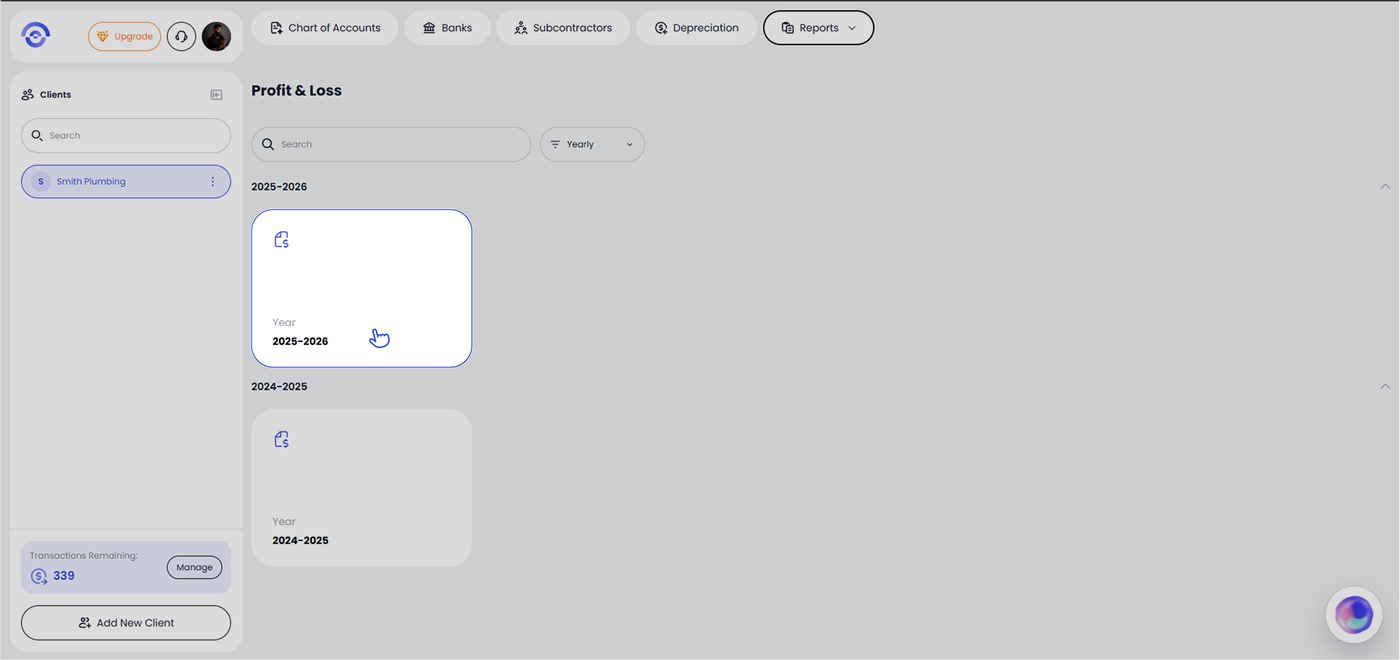
The Profit & Loss screen shows all available financial years for this client. Use the Yearly / Quarterly / Monthly filter at the top right to change how periods are displayed, then click the card for the period you want to open.
Step 3 — Review the Report
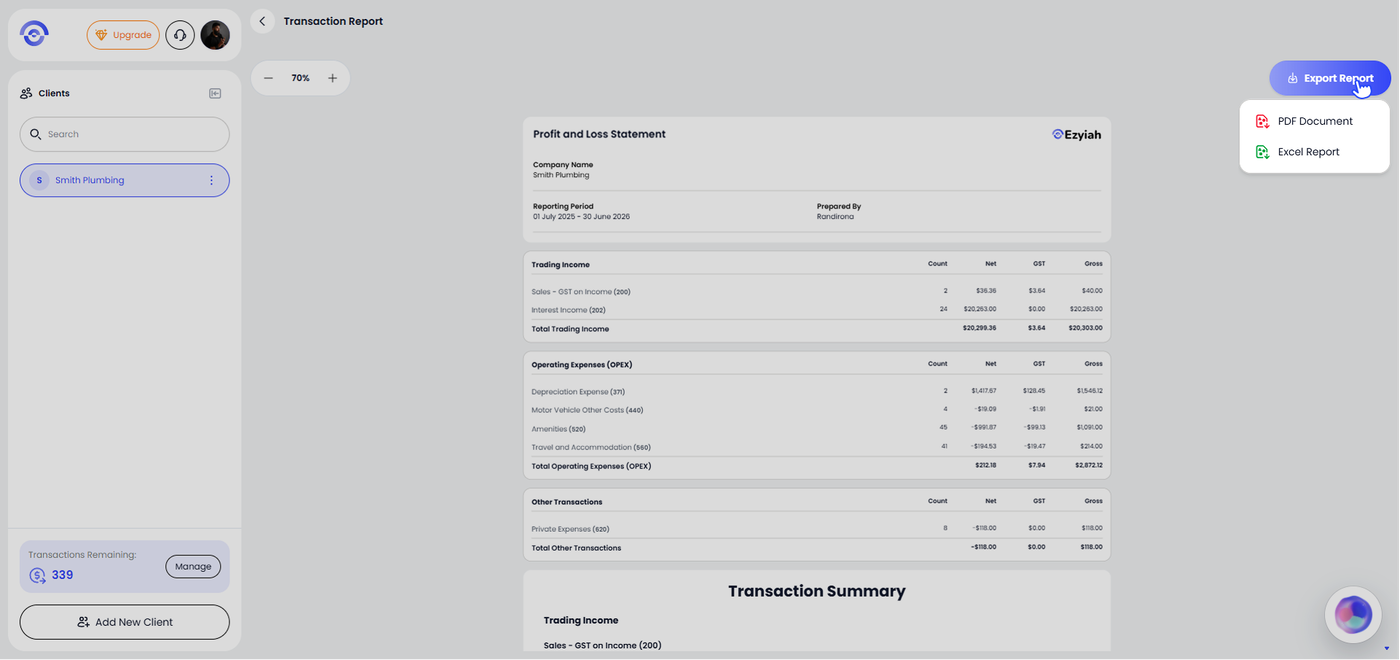
The Profit & Loss report opens showing the company name, reporting period and the name of the person who prepared it.
The report is divided into three sections:
Trading Income — all income accounts with transaction count, net amount, GST and gross amount broken down by account code
Operating Expenses (OPEX) — all expense accounts with the same breakdown, totalled at the bottom
Other Transactions — any transactions that sit outside trading income and operating expenses, such as private expense
Step 4 — Export the Report
Click Export Report in the top right corner. Choose your preferred format:
PDF Document — downloads a formatted PDF ready to share with the client or file
Excel Report — downloads an Excel file for further review or record keeping