

Once an account is your Cash at Bank, Select as Cash at Bank drops off its menu.
To bring in older transactions, open the account instead. Fetch Previous Data is a button on the account’s own page, not in the menu. See Bring in older transactions.
Disconnect a feed
Disconnecting stops new transactions coming in. The account and its transactions stay in Ezyiah. Use this if your client wants to pause access, or needs to reconnect.1
Open the menu
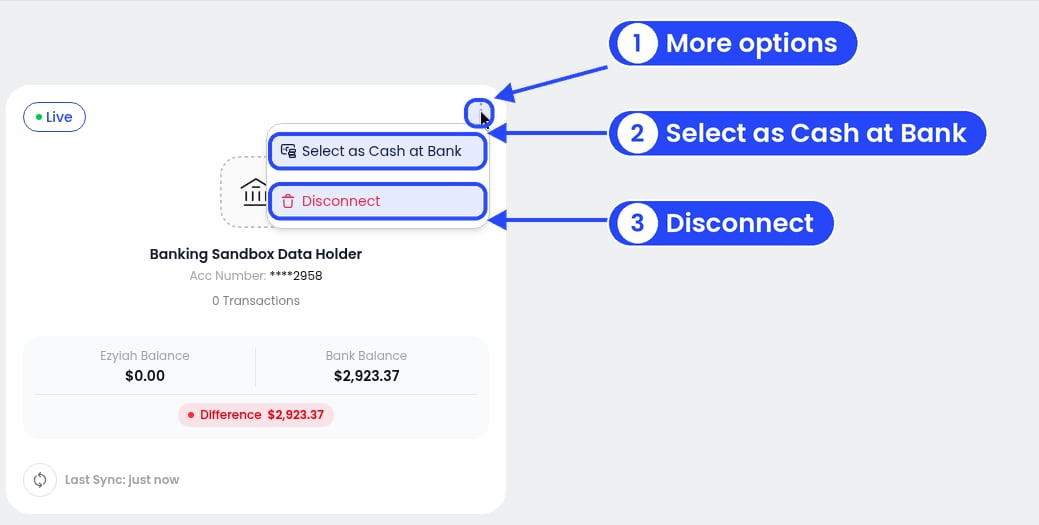
Step 1: the menu on a live feed
2
Confirm
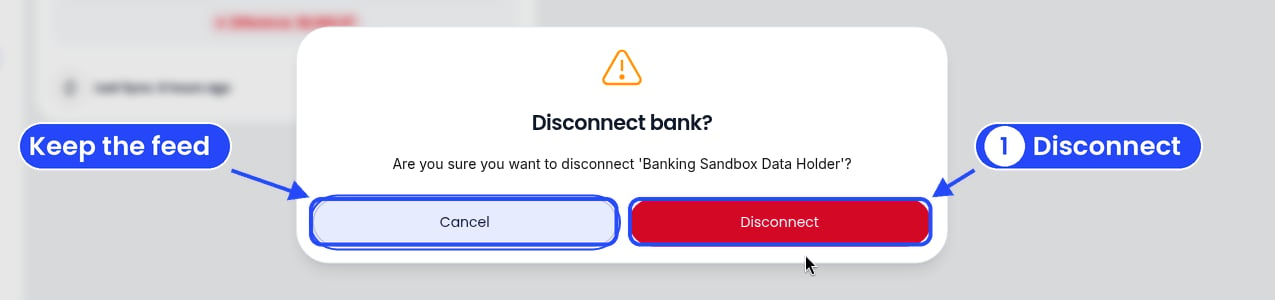
Step 2: click Disconnect to confirm
3
Check the badge
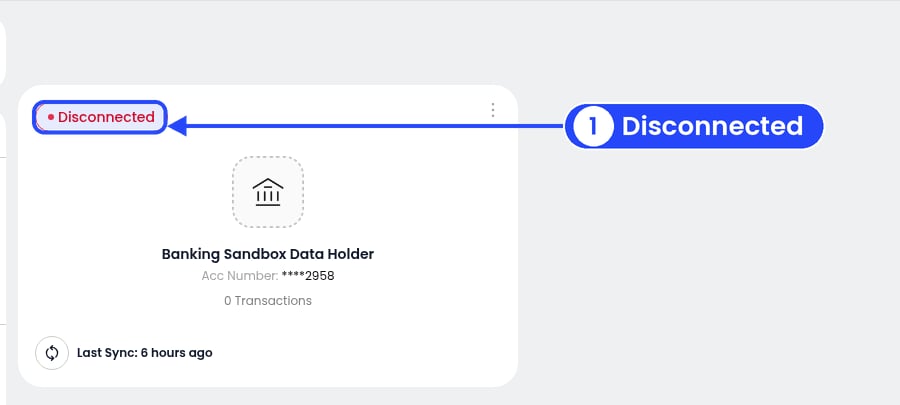
Step 3: the badge now says Disconnected
Delete a bank account
Deleting removes the account and all its transactions for good. You can’t undo it.You can only delete a disconnected account. Disconnect it first.
1
Open the menu
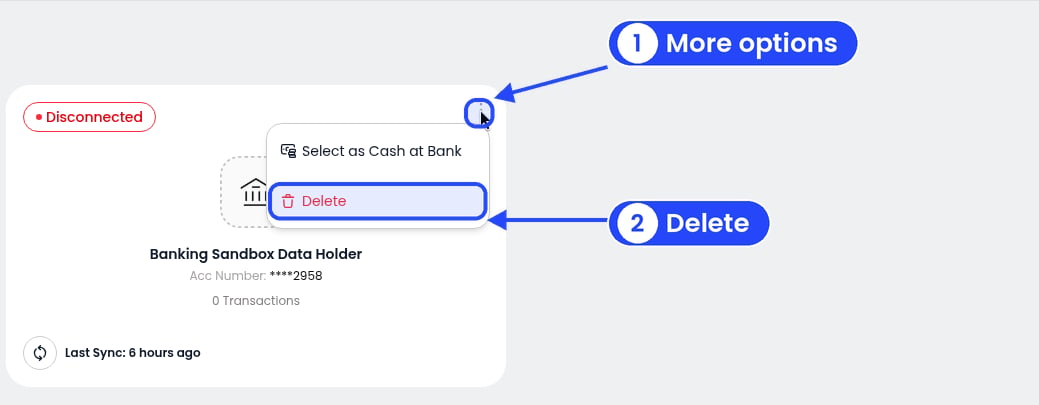
Step 1: on a disconnected account, the menu has Delete
2
Confirm
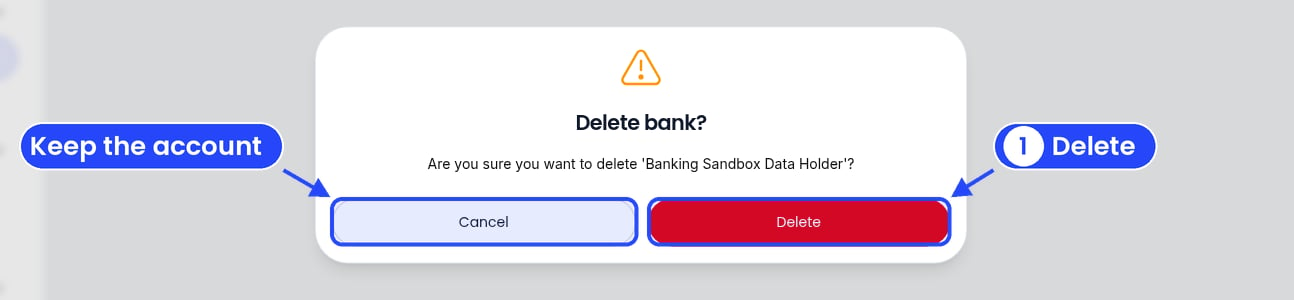
Step 2: click Delete to confirm
3
Check Banks
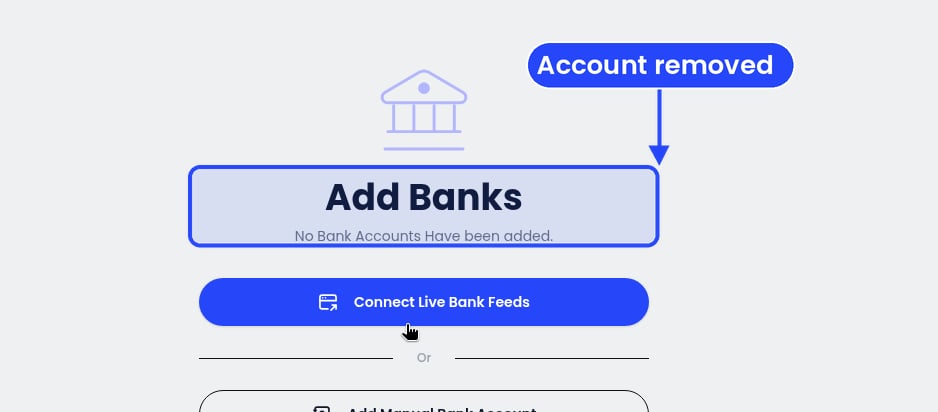
Step 3: the account is gone from Banks
Set an account as Cash at Bank
In the account’s menu, click Select as Cash at Bank. The account then shows on the client’s balance sheet as Cash at Bank (account code 701), with its balance. See Balance Sheet for more. On a manual account, Select as Cash at Bank applies straight away, with no confirm step. You’ll see “Bank set as cash at bank”, and the option then drops off that account’s menu.Manual accounts
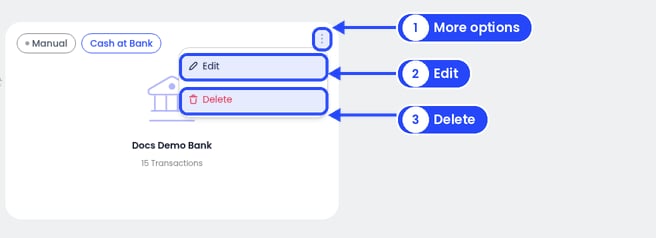
The menu on a bank account that's already your Cash at Bank
- Edit: the Edit Bank window opens. Change the Bank Name or Account Type, then click Save Changes. To leave without saving, click the X.
- Delete: Ezyiah asks “Delete bank?”. Click Delete to confirm.