The TPAR report adds up what was paid to each subcontractor. If a payment is linked to the wrong subcontractor, or to none, fix it from the report.

Step by step

1

Open the TPAR
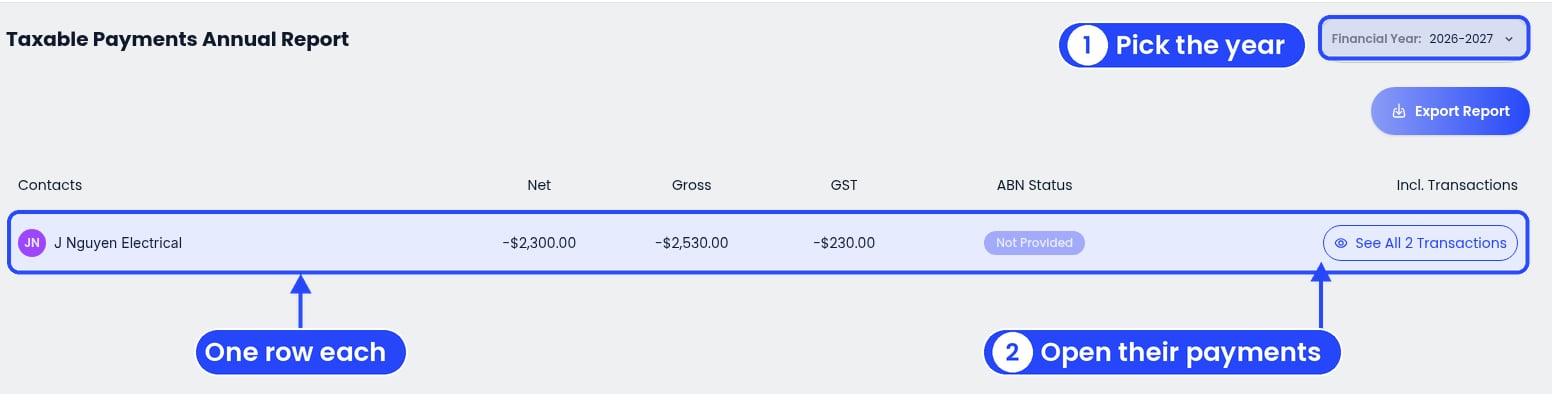
The Taxable Payments Annual Report with one row for a made-up subcontractor, J Nguyen Electrical, and callouts on the Financial Year menu and the See All 2 Transactions button

1 Pick the year, 2 open a subcontractor's payments

Open the client and click Reports, then Taxable Payments Annual Report. Pick the Financial Year at the top right. Each subcontractor has a row with their Net, Gross and GST totals and their ABN Status.
2

Open a subcontractor's transactions

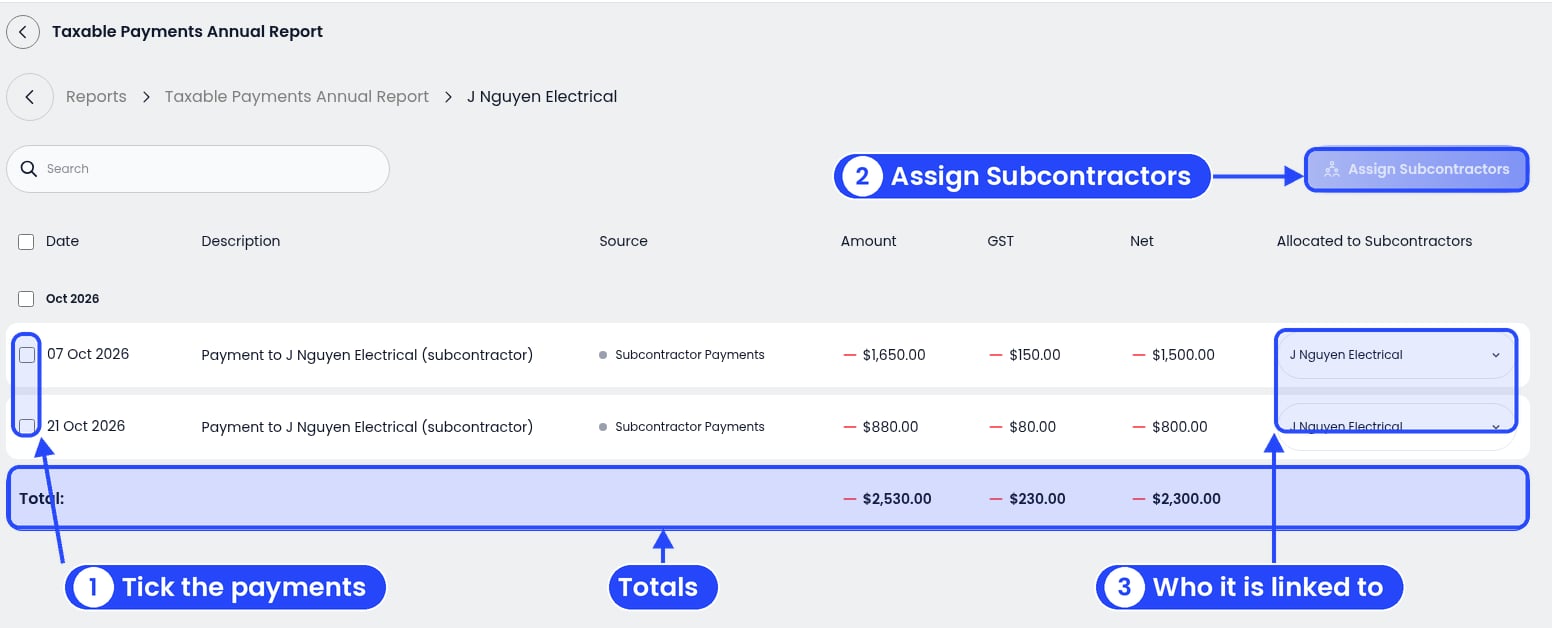
A made-up subcontractor's two payments in October 2026, with callouts on the tick boxes, the Assign Subcontractors button and the Allocated to Subcontractors column, and the Total row

1 Tick the payments, 2 Assign Subcontractors, 3 who each payment is linked to

On the subcontractor’s row, click See All N Transactions (N is the number of payments). You’ll see their payments grouped by month, with a Total row at the bottom. The table has these columns:
  • Date
  • Description
  • Source
  • Amount
  • GST
  • Net
  • Allocated to Subcontractors
3

Tick the payments

Tick the box on each payment you want to change (1 in the picture above). Tick the top box to pick them all.
4

Click Assign Subcontractors
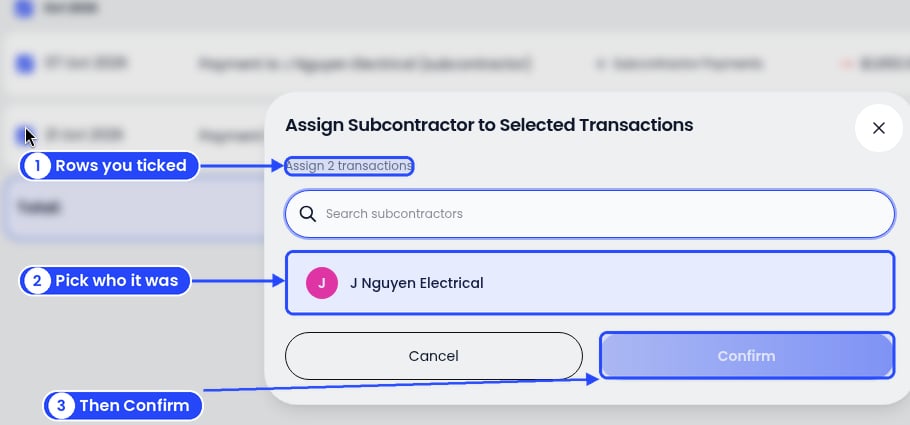
The Assign Subcontractor to Selected Transactions window saying Assign 2 transactions, with a search box, the subcontractor J Nguyen Electrical, and Cancel and Confirm buttons

1 How many you ticked, 2 pick the subcontractor, 3 click Confirm

Click Assign Subcontractors at the top right. The Assign Subcontractor to Selected Transactions window opens. It shows how many payments you ticked. Search for the subcontractor, click their name, then click Confirm.
5

Check the report

Back on the report, check the subcontractor’s totals again.
The subcontractor isn’t in the list? Add them first on the Subcontractors page. See Auto Sync Subcontractors.

Example

A builder paid J Nguyen Electrical twice in October. Open the TPAR, click See All 2 Transactions on J Nguyen Electrical’s row, and tick both payments. Click Assign Subcontractors, pick J Nguyen Electrical and click Confirm. Next: TPAR report.