

Step by step
1
Click Add Journal
In the Chart of Accounts, click Add Journal in the top right. The New Journal Entry form opens.
2
Fill in the details
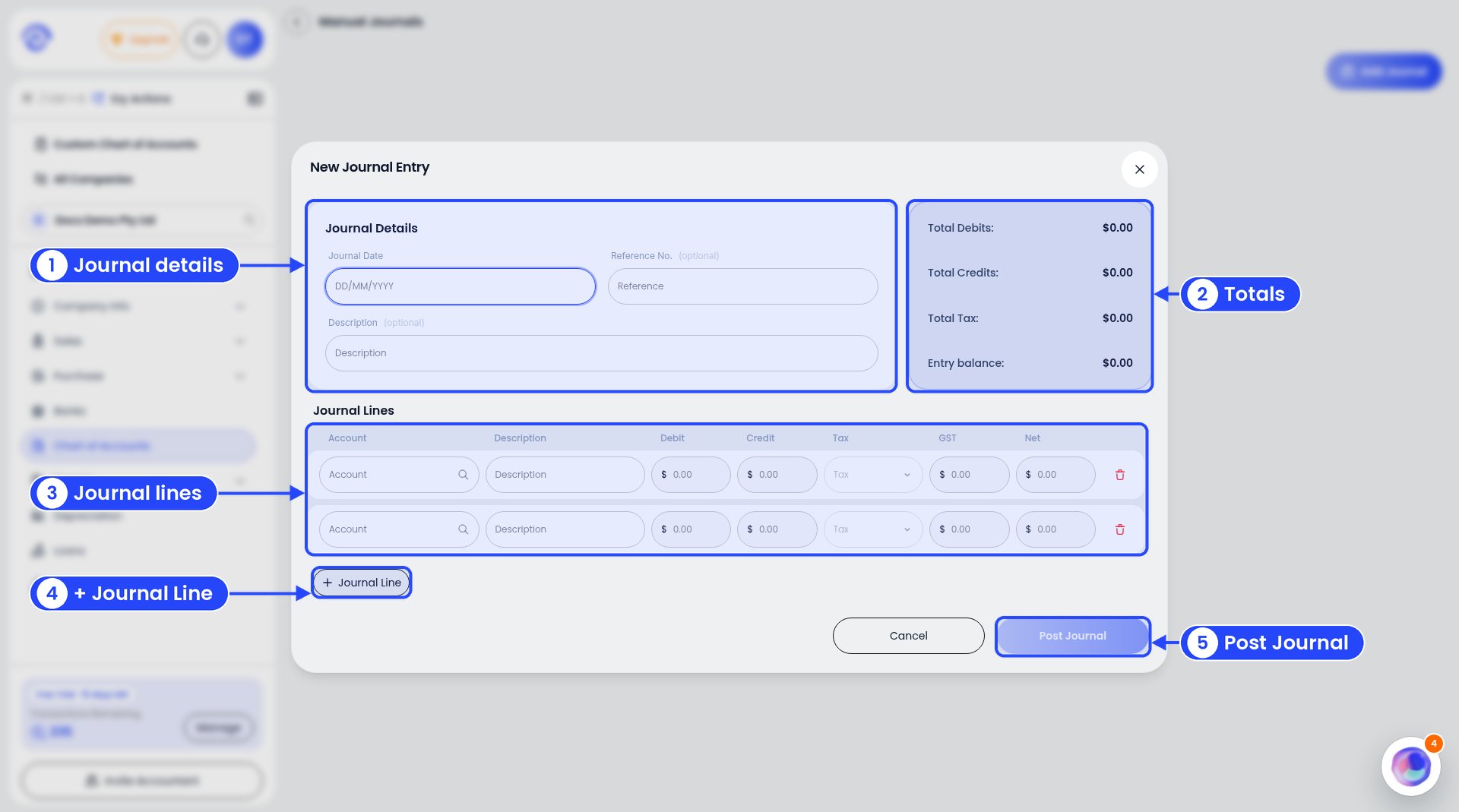
The New Journal Entry window
- Journal Date: the date, as DD/MM/YYYY.
- Reference No. (optional): an invoice or receipt number.
- Description (optional): what the journal is for.
3
Add the lines
For each line, pick an account and enter a debit or a credit, never both. Ezyiah works out the GST and Net. Click + Journal Line to add more lines.
4
Make it balance
The panel on the right shows Total Debits, Total Credits, Total Tax and Entry balance. The entry balance must be $0.00.
5
Click Post Journal
The journal is added to the Chart of Accounts and shows in your BAS, P&L and other reports.
Example
A client sold $550 of goods for cash (including $50 GST) and banked nothing. Record:
Ezyiah splits the $550 credit into $500 net and $50 GST, based on the account’s GST treatment.
Won’t balance? Check you haven’t put a debit and a credit on the same line. Also check each account’s GST treatment is what you expect.