

Add an asset
1
Open Depreciation
Open the client and click Depreciation in the sidebar.
- No assets yet? You’ll see No Assets Found. Click Add Your First Asset.
- Already have assets? Click Add Asset at the top of the list.
2
Name it, pick a category and enter the cost
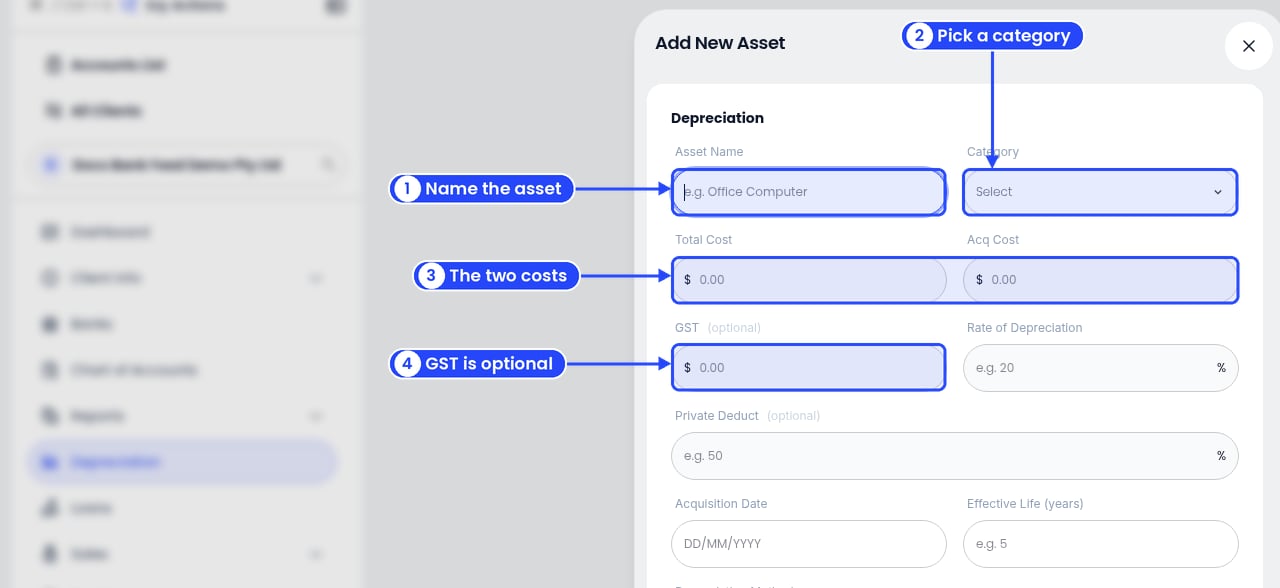
1 Name the asset, 2 pick a category, 3 enter the costs, 4 add GST if you want
- Asset Name: a name your team will know, for example “Office Computer”.
- Category: pick one of these:
- Computer Equipment
- Furniture & Fixtures
- Office Equipment & Machinery
- Tools & Equipment
- Motor Vehicles
- Plant & Equipment
- Other
- Total Cost and Acq Cost: the total paid, and the cost Ezyiah depreciates from.
- GST: optional.
3
Enter the rate, dates and method
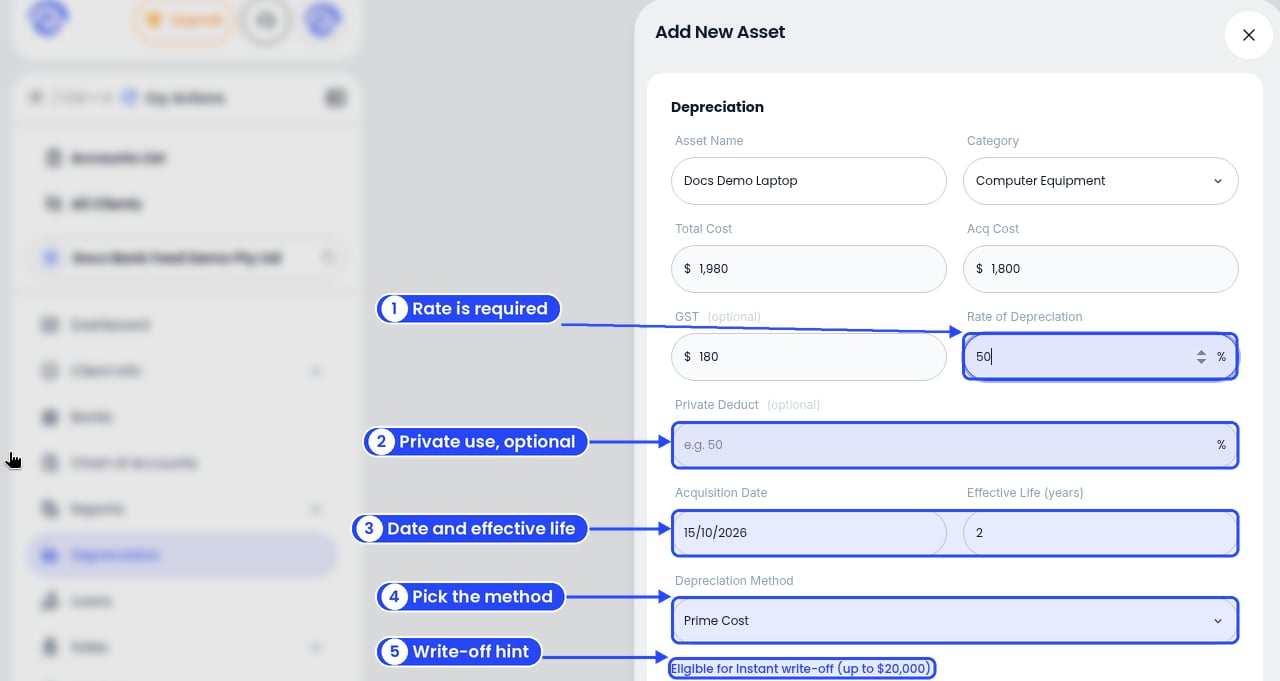
1 Rate, 2 private use, 3 dates, 4 method, 5 the write-off hint
- Rate of Depreciation: the yearly rate as a percentage. You must fill this in.
- Private Deduct: optional. If the client also uses the asset privately, enter that percentage. Leave it blank if it’s only used for the business.
- Acquisition Date (DD/MM/YYYY) and Effective Life (years).
- Depreciation Method: Diminishing Value, Prime Cost or Instant Write-off.
- When the asset may qualify, Ezyiah shows a write-off hint under the method.
4
Check GST and link the bank payment
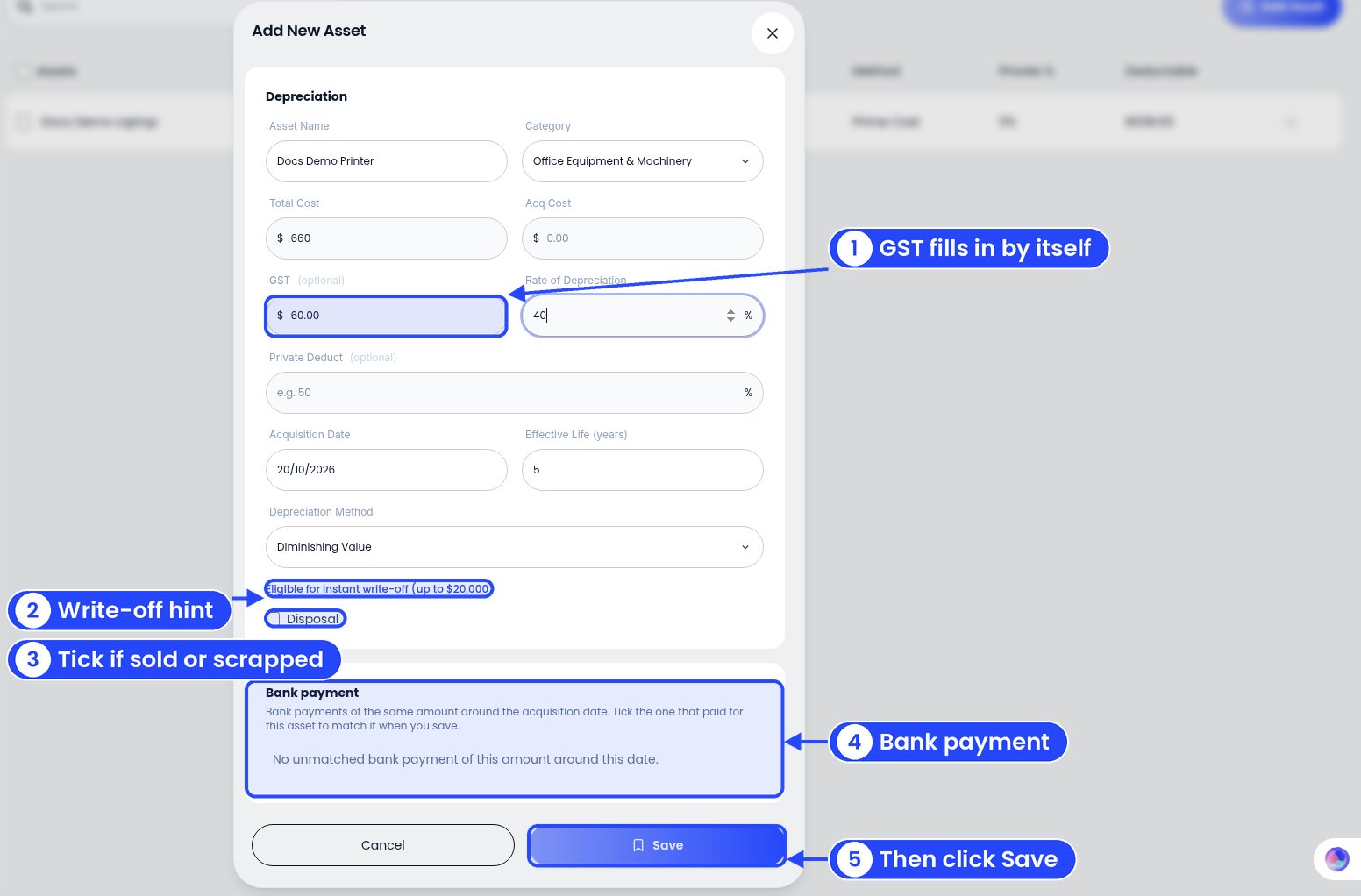
1 GST fills in by itself, 2 the write-off hint, 3 tick if sold or scrapped, 4 the bank payment, 5 then click Save
- GST: after you enter Total Cost, Ezyiah fills in the GST for you (for example $60.00 on $660). Change it if it’s wrong.
- If the asset may qualify, you’ll see Eligible for Instant write-off (up to $20,000) under the method.
- Leave Disposal unticked if the asset is still in use.
- Bank payment: once Total Cost and Acquisition Date are filled, Ezyiah lists bank payments of the same amount around that date. Tick the one that paid for this asset, and it’s matched when you save. If none fit, you’ll see No unmatched bank payment of this amount around this date.
5
If you sold or scrapped the asset
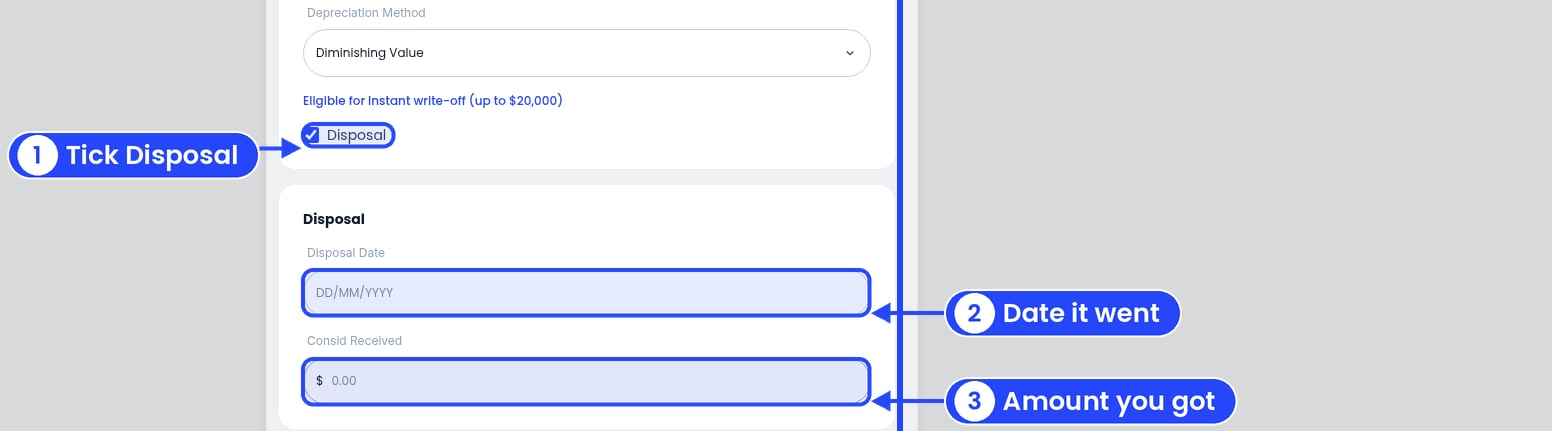
1 Tick Disposal, 2 the date it went, 3 the amount you got
- Tick Disposal.
- Enter the Disposal Date.
- Enter what you got for it in Consid Received.
6
Save
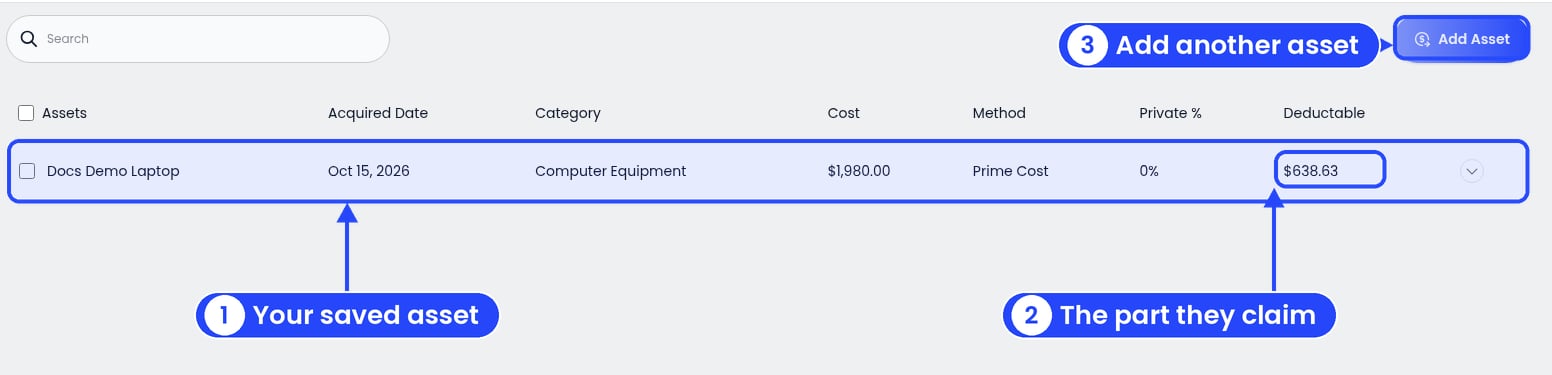
1 Your saved asset, 2 the part the client can claim, 3 add another asset
The asset list
Each asset has a row with these columns (see the picture in the Save step above):- Assets: the asset’s name
- Acquired Date
- Category
- Cost
- Method
- Private %
- Deductable: the part the client can claim
Ezyiah does the maths. Before you lodge, check the effective life, method and any write-off against the ATO rules for that year.
On a business account
1
Open Depreciation and add an asset
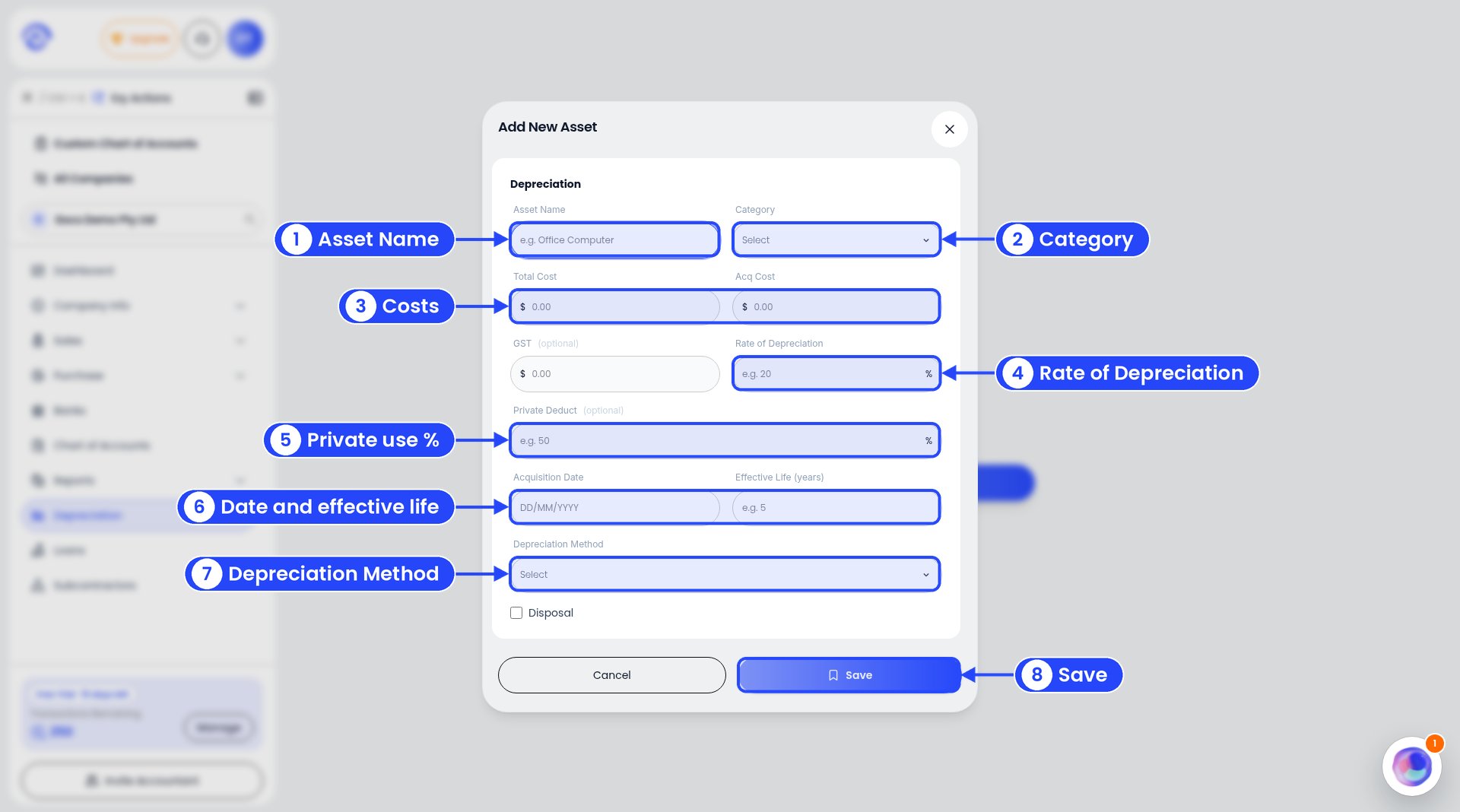
The Add New Asset window on a business account
Not sure which rate, method or effective life to use? Ask your accountant. They review and approve them before your depreciation schedule is final.