

1
Open Reports
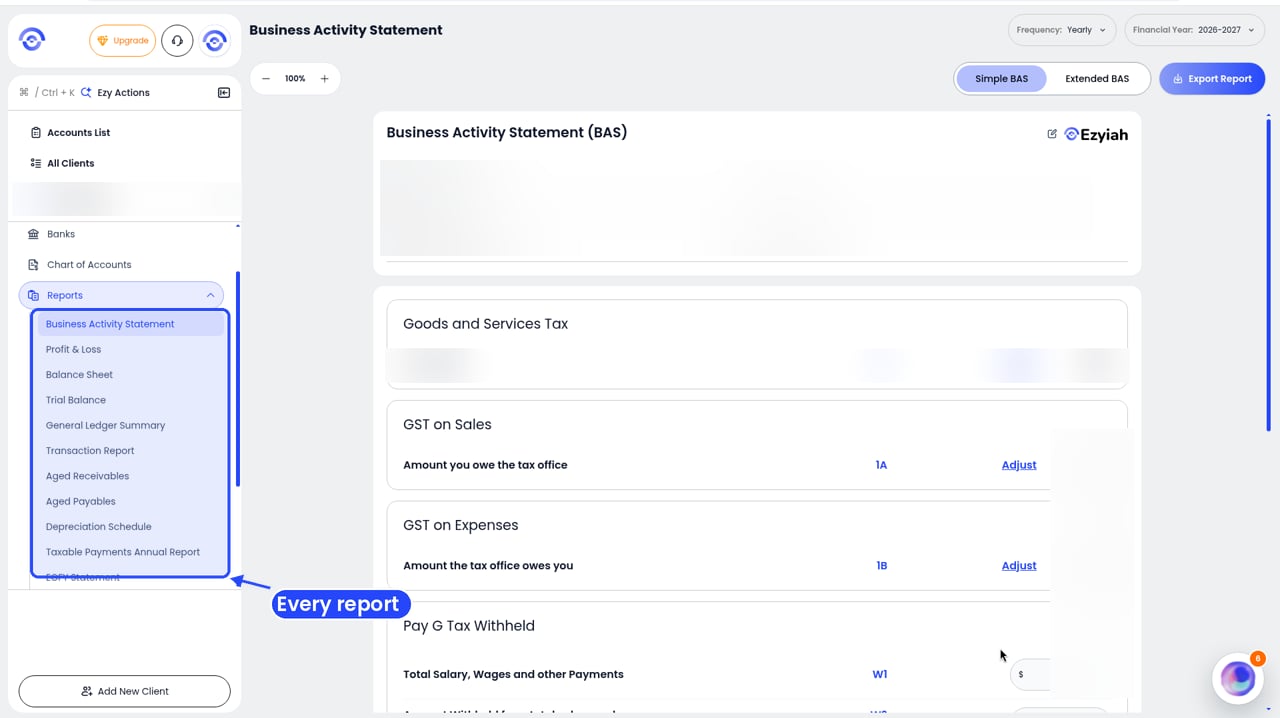
Step 1: Reports in the client's sidebar
2
Click Taxable Payments Annual Report
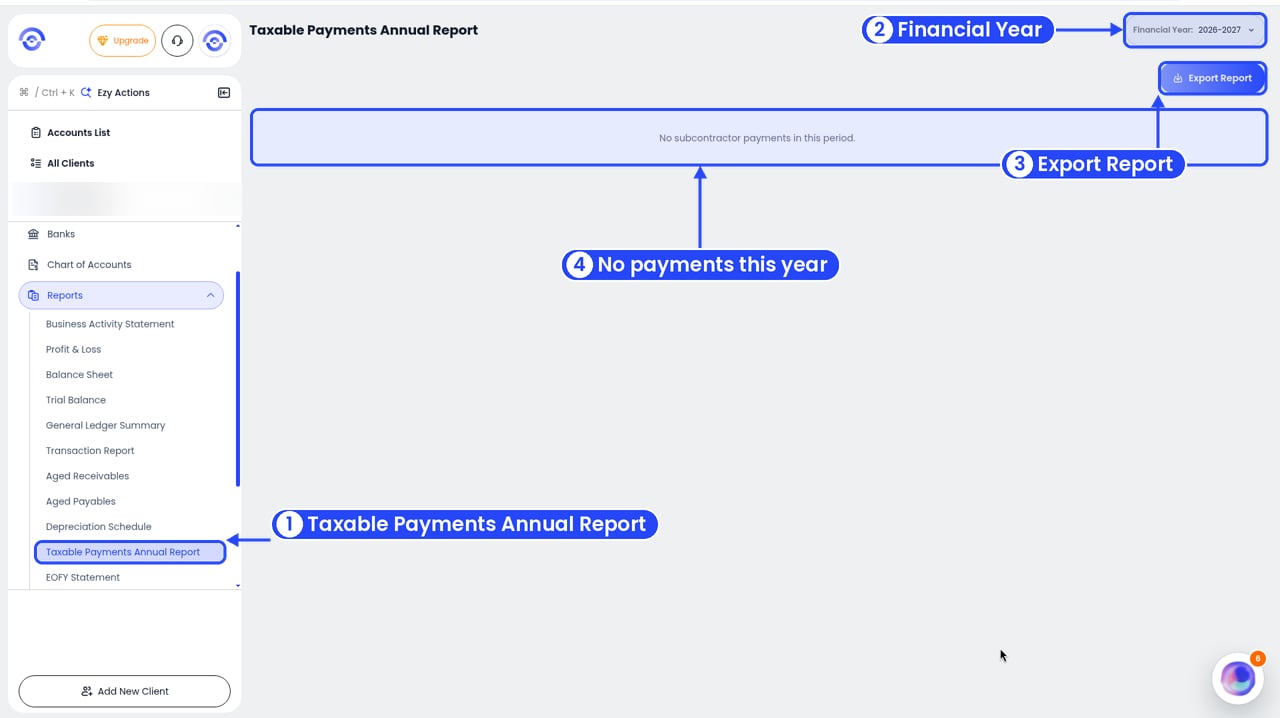
The TPAR for a year with no subcontractor payments
3
Pick the year
Use Financial Year in the top right.
4
Export it
Click Export Report in the top right to download it.
Seeing “No subcontractor payments in this period.”? There are no subcontractors or matched payments for that year yet. Do Auto Sync Subcontractors first, and check the client’s payments are in Subcontractor Payments.
Read the report
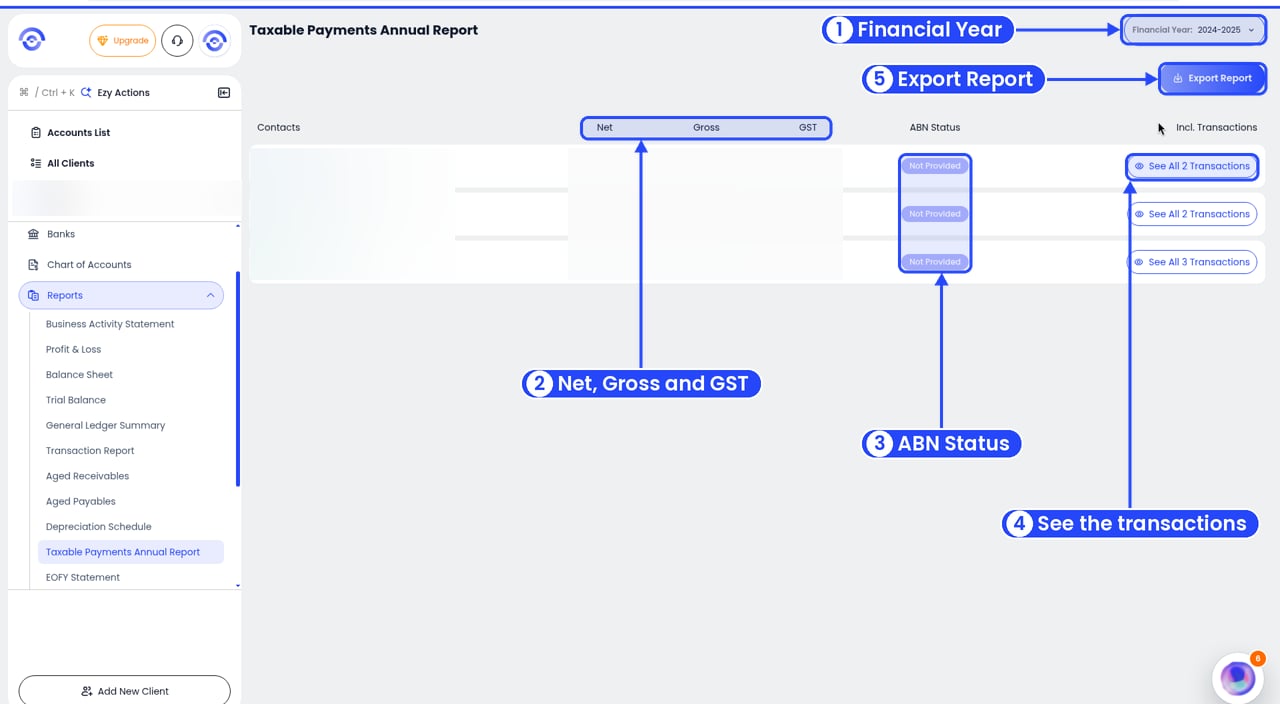
The TPAR with subcontractor payments
- Contacts: the subcontractor’s name.
- Net, Gross and GST: what you paid them that year.
- ABN Status: whether you have their ABN. Not Provided means you don’t have it yet.
- Incl. Transactions: click See All N Transactions to see the payments behind the figures. From there you can tick payments and click Assign Subcontractors to fix who they belong to. See Assigning payments to subcontractors.