

How Ezyiah counts GST
Ezyiah prepares the BAS on a cash basis, from the client’s reconciled transactions. To see which transactions are behind a figure, check the Audit Report under the figures.Run the report
1
Open Reports
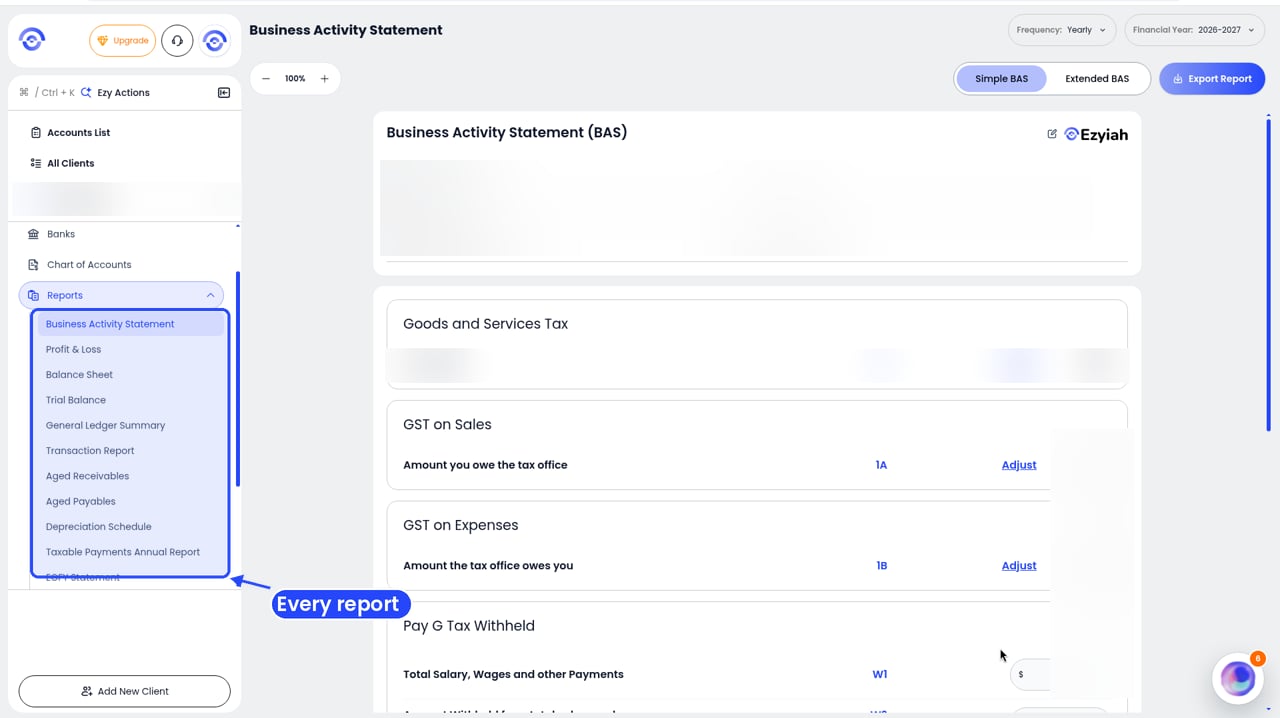
Step 1: Reports in the client's sidebar
2
Click Business Activity Statement
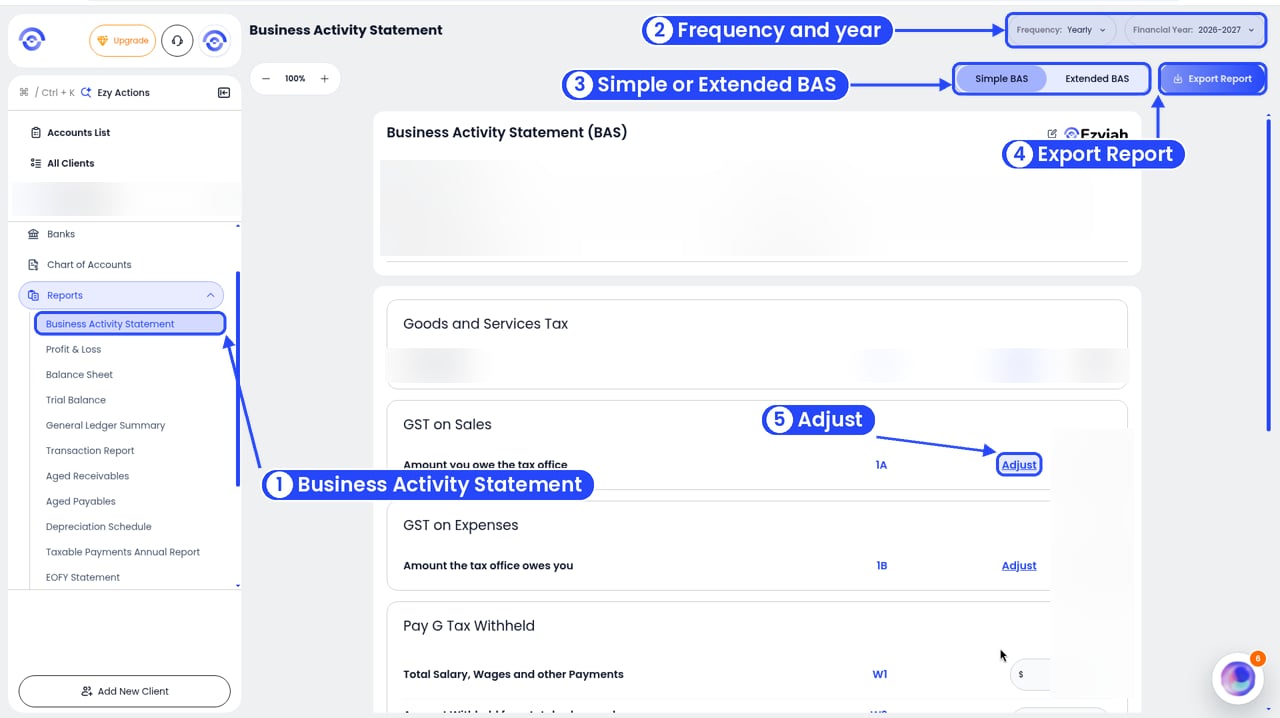
The BAS report
3
Pick the period
Use Frequency (for example quarterly or monthly) and Financial Year in the top right.
4
Simple or Extended
Use the Simple BAS / Extended BAS switch above the report. Simple shows the main GST and PAYG figures. Extended shows more detail.
Read the report
The top shows the Company Name, Reporting Period and Prepared By. The figures use the same ATO labels you see on the BAS form:
The GST figures (G1, 1A and 1B) each have an Adjust link, so you can correct them before you finalise. You type the W1 and W2 amounts into the boxes.
Extended BAS
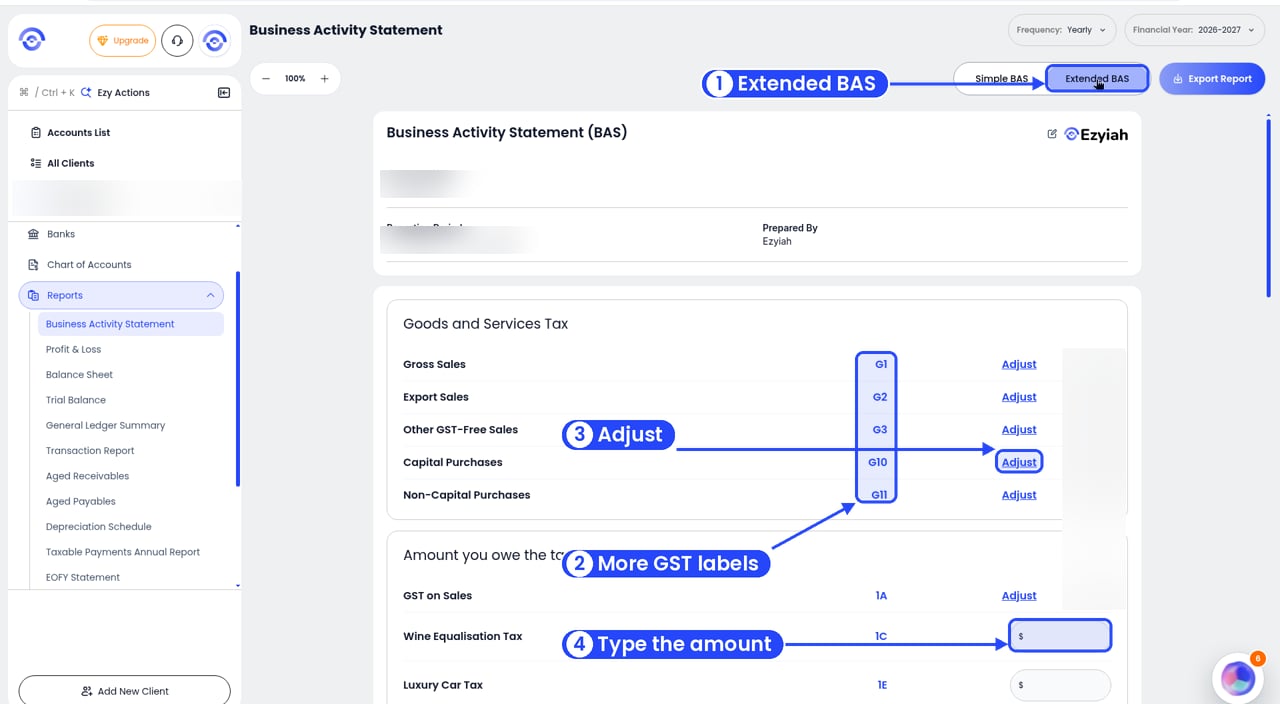
Extended BAS: more GST labels
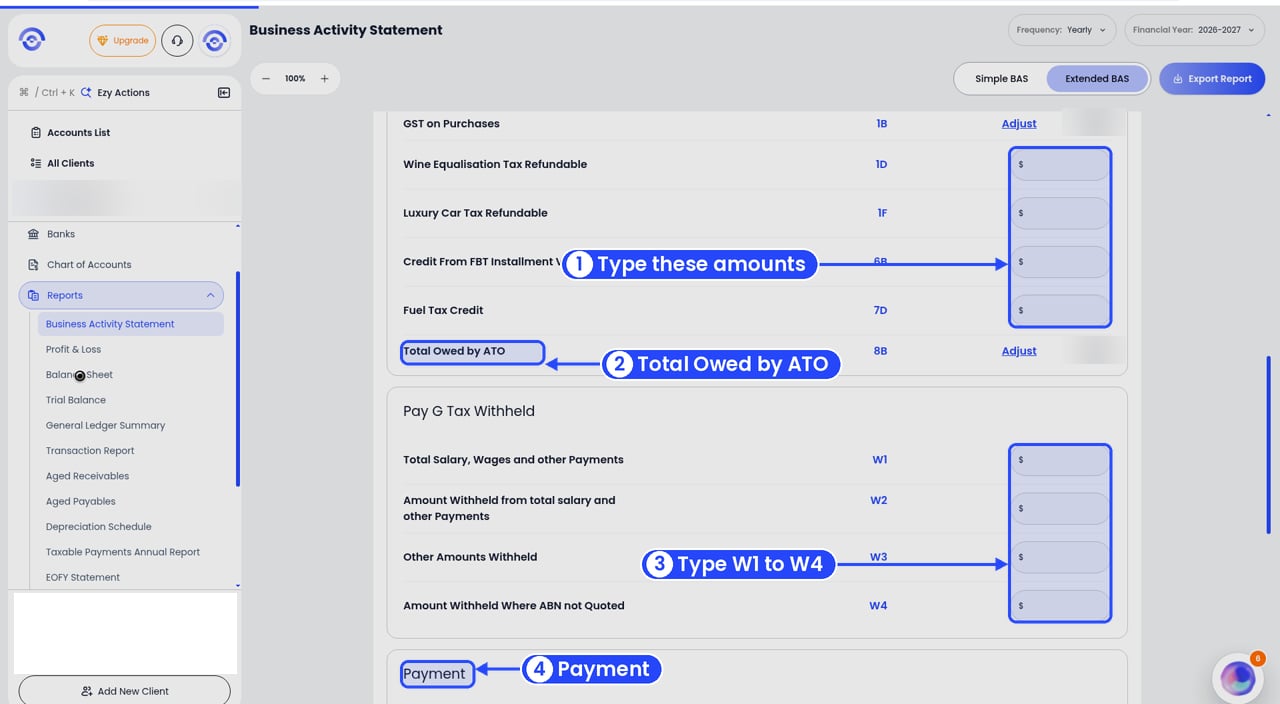
Extended BAS: amounts the ATO owes you, and PAYG
Ezyiah works out the G labels, 1A, 1B and 8B from the transactions, and each has an Adjust link. Type any amounts for 1C, 1D, 1E, 1F, 6B, 7D and W1 to W4 into their boxes. The Payment section comes after PAYG.
How a transaction lands on the BAS depends on its account. When you create a custom account, you pick its GST Treatment. For an expense account that’s GST, GST Free or BAS Excluded. Expenses in Other Expense (GST Not Applicable for BAS) don’t go on the BAS at all.
Adjust a figure
1
Click Adjust
Click Adjust next to the figure. A window opens with the label in its title, for example Adjustment G1.
2
Add a reason and amount
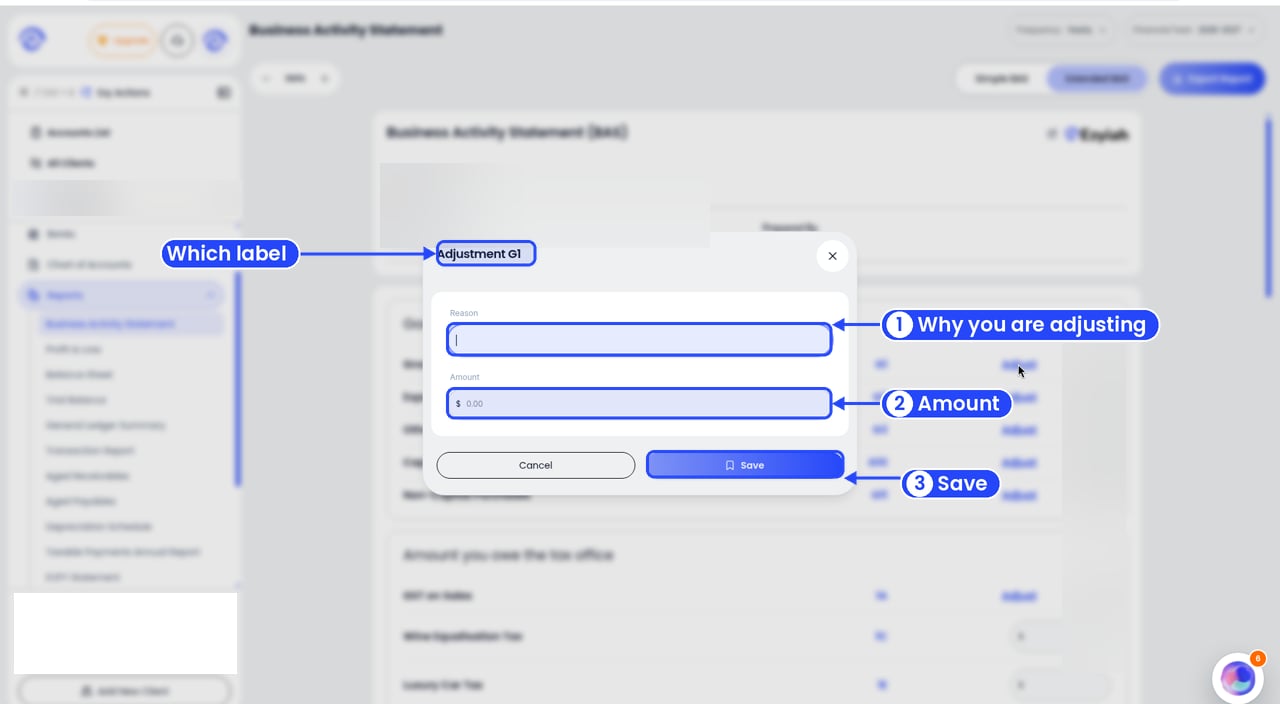
Add a reason and amount, then click Save
3
Click Save
Click Save. Changed your mind? Click Cancel.
- Payment Calculation: what’s owed for the period.
- Audit Report: the transactions behind the figures, for example the Income Accounts table with Date, Account, Details, Bank Name, Amount, GST and Net.
Example
For the September 2026 quarter, a café takes $55,000 in sales including GST, and spends $22,000 on supplies including GST. Assuming all sales and purchases are taxable:
The café has no staff, so there’s nothing at W1 or W2.
Ezyiah prepares the BAS. You check and approve it before it’s lodged.