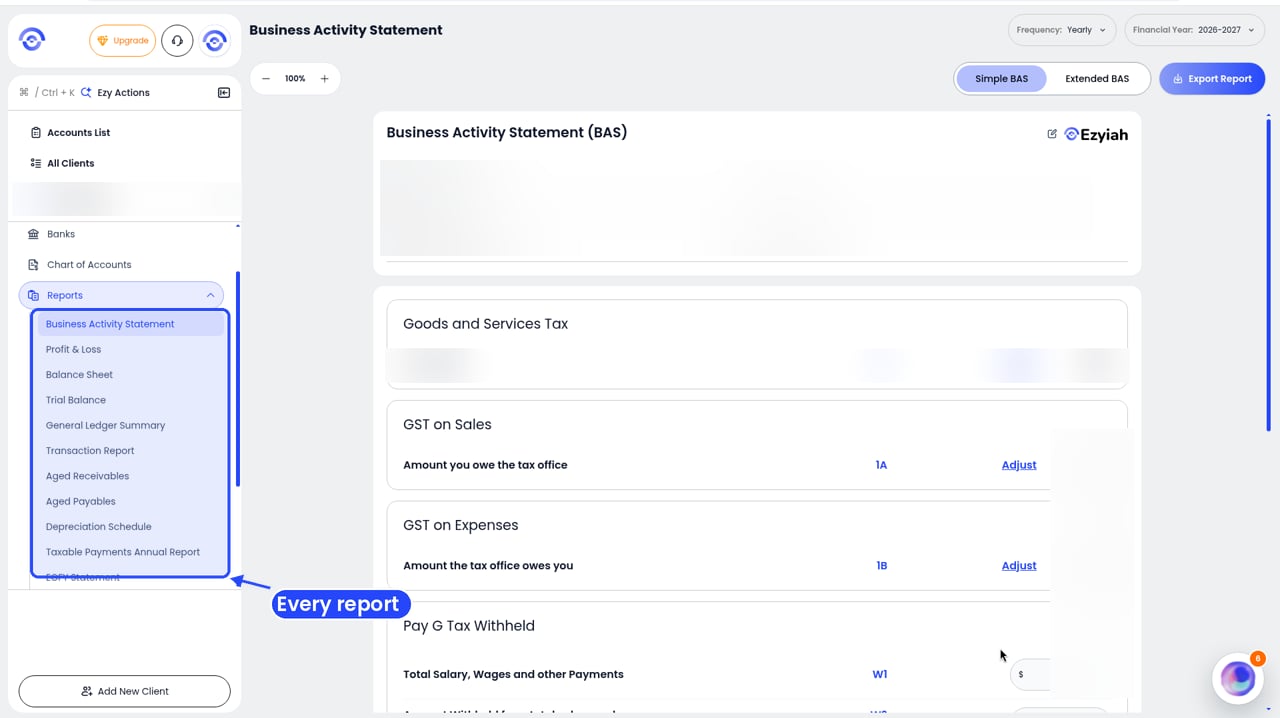
Ezyiah builds reports straight from the reconciled transactions. You don’t need to set anything up. To find them, open the client and click Reports in the sidebar. Business owners click Reports in their own sidebar and see the same 11 reports: BAS, Profit & Loss, Balance Sheet, Trial Balance, General Ledger Summary, Transaction Report, Aged Receivables, Aged Payables, Depreciation Schedule, TPAR and EOFY Statement.
The client sidebar with Reports open, listing every report from Business Activity Statement to EOFY Statement

The Reports list in a client's file

Check the Chart of Accounts first. The reports are only as good as the coding behind them.

Things every report has

  • Company Name, Reporting Period and Prepared By at the top.
  • Financial Year, and on most reports Frequency, in the top right.
  • Zoom buttons in the top left.
  • On some reports, Compare with and Sort by in the top right too.
  • Export Report in the top right. Pick PDF Document or Excel Report.
Ezyiah prepares the reports. Your accountant reviews and approves them before anything is lodged.

If a report is empty

With no transactions yet, a report shows “No Reports Found” and “No files were uploaded to generate this report”. Click Upload Bank Statements or Connect Live Bank Feeds to get started.
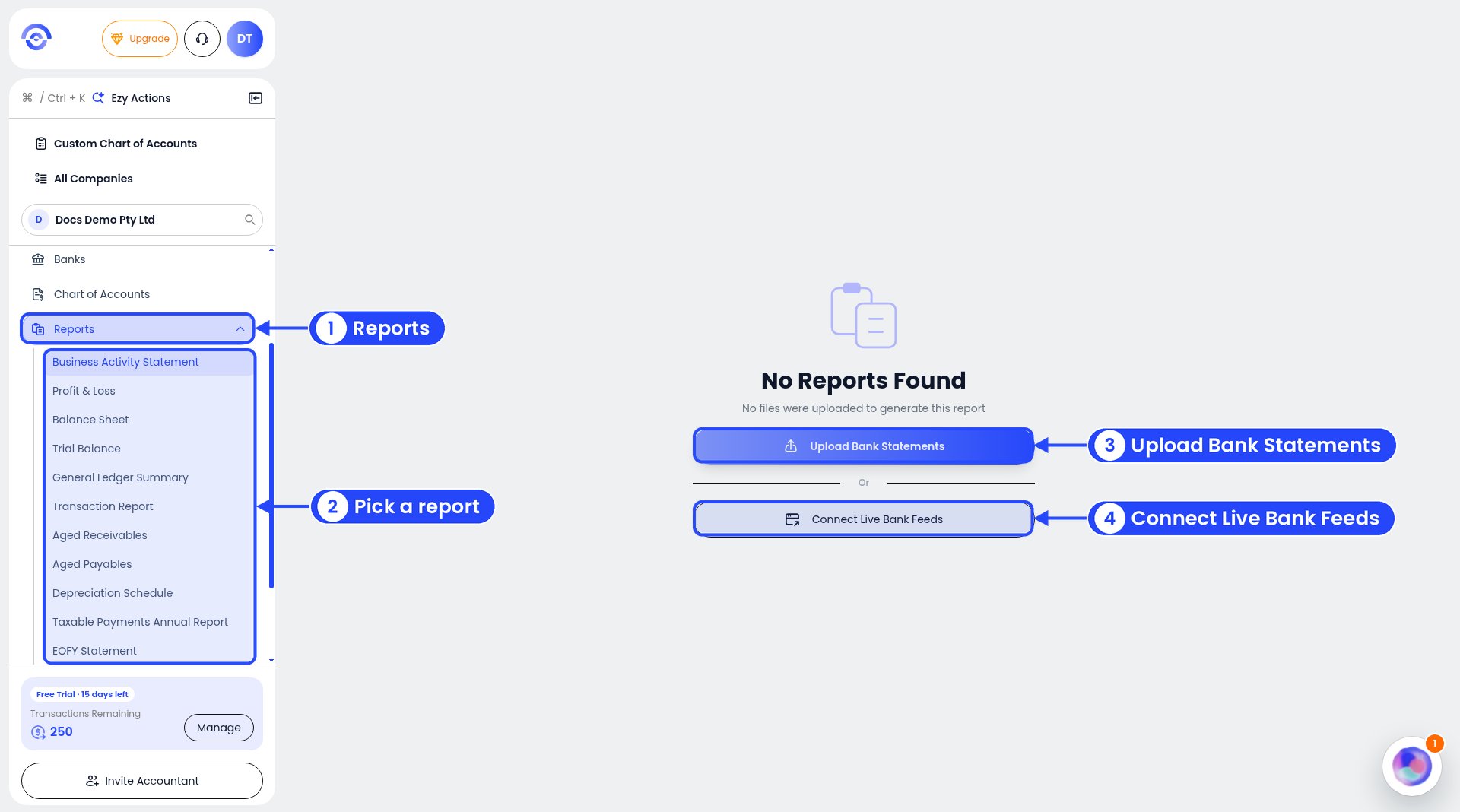
The Reports menu open in the sidebar listing 11 reports, with the No Reports Found message and callouts on Upload Bank Statements and Connect Live Bank Feeds

The Reports list on a business account, before any transactions