

Find it
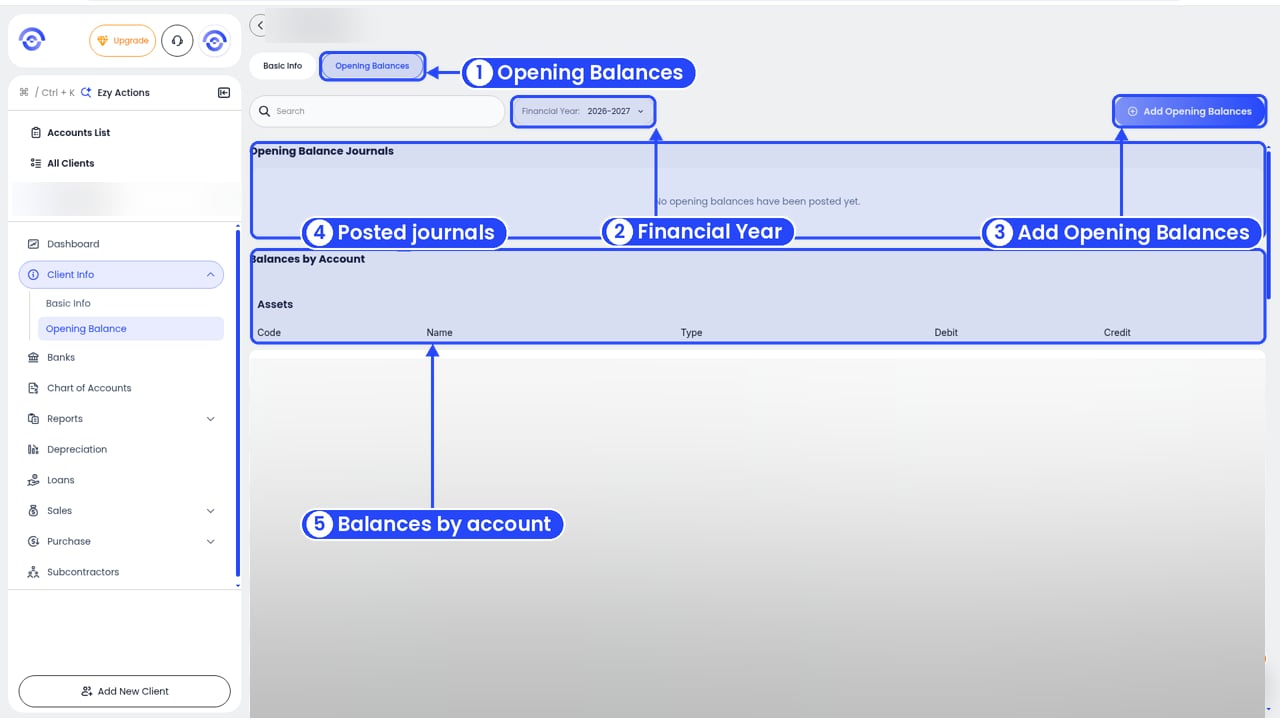
The Opening Balances tab
- Opening Balance Journals: journals already posted.
- Balances by Account: every account, grouped under headings like Assets and Liabilities, with Debit and Credit columns.
On a new client with no financial year yet, a yellow banner says “This client has no financial years yet…” and Add Opening Balances is greyed out. Add transactions or a journal for the year first.
Add the opening balances
1
Click Add Opening Balances
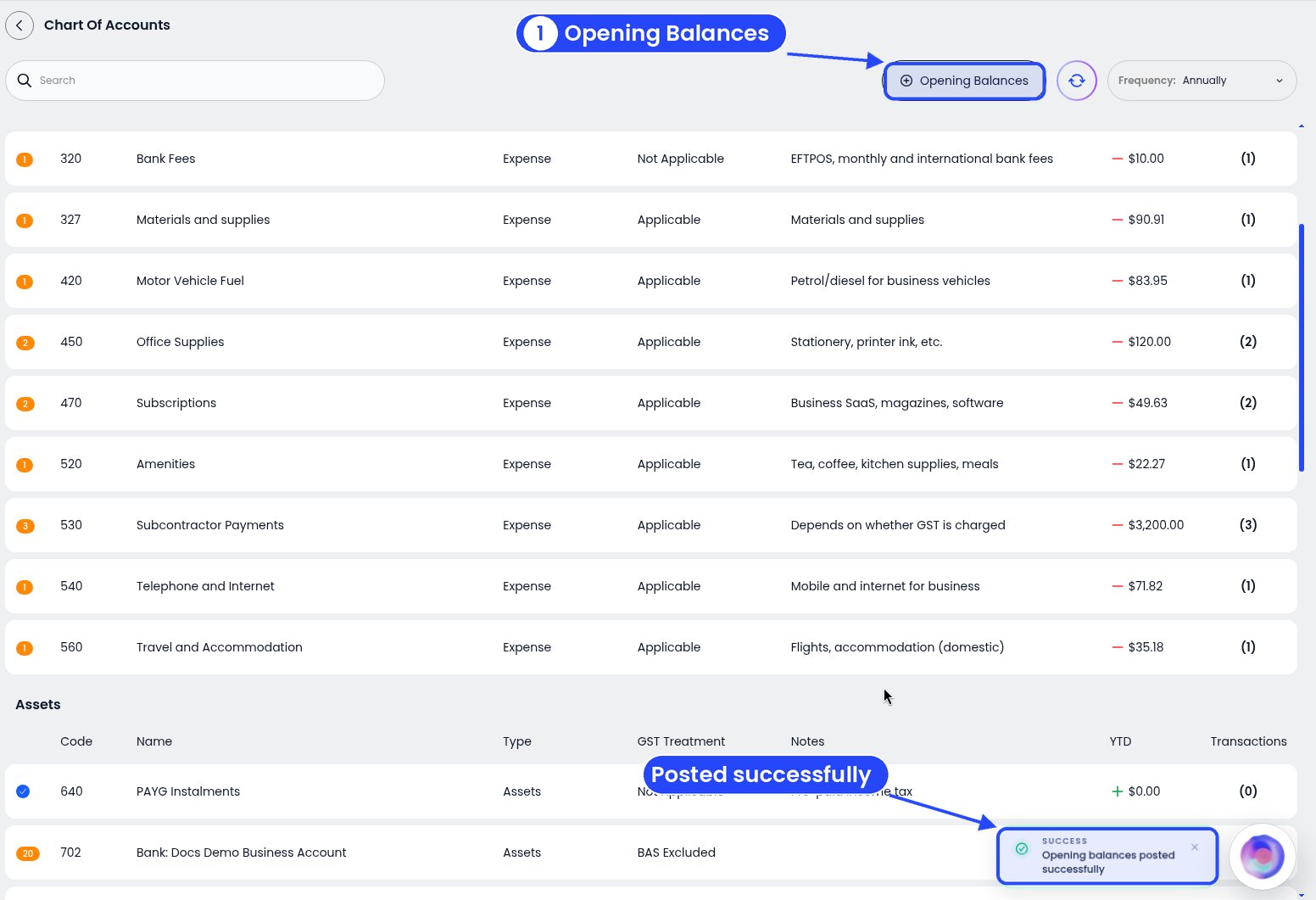
You can also start from the client's Chart of Accounts
2
Check the year
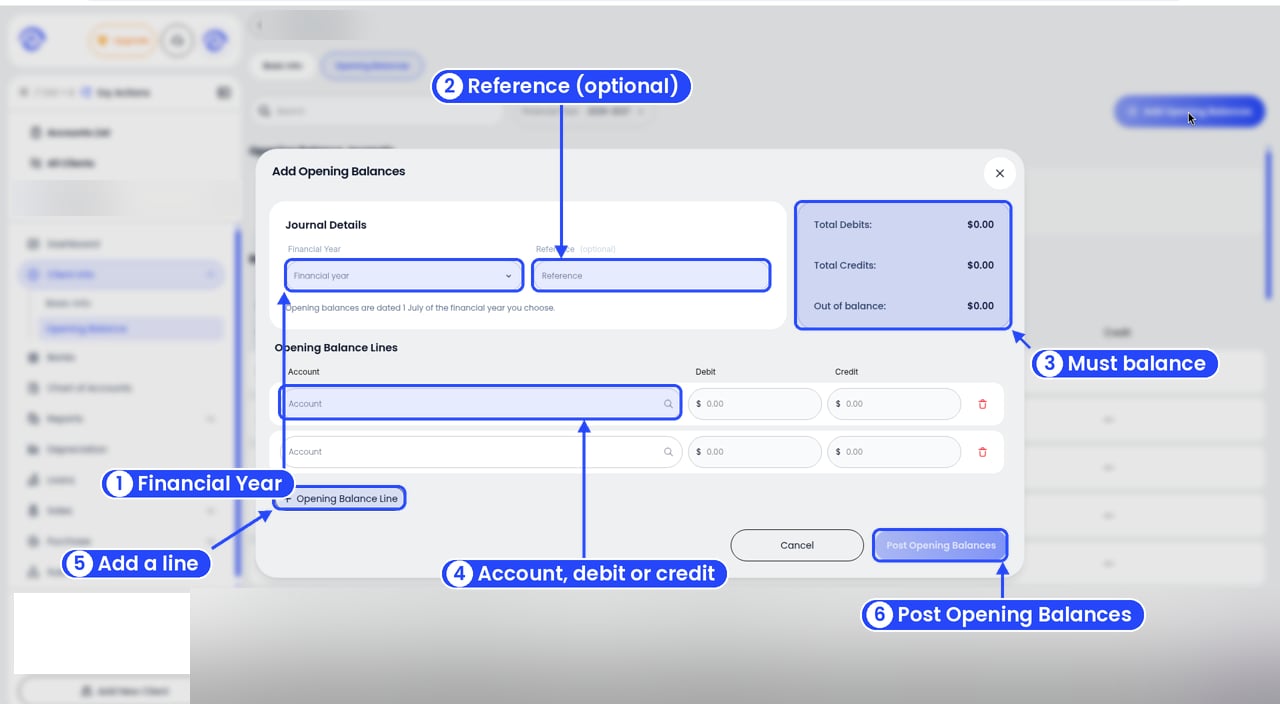
The Add Opening Balances window
3
Add a line for each account
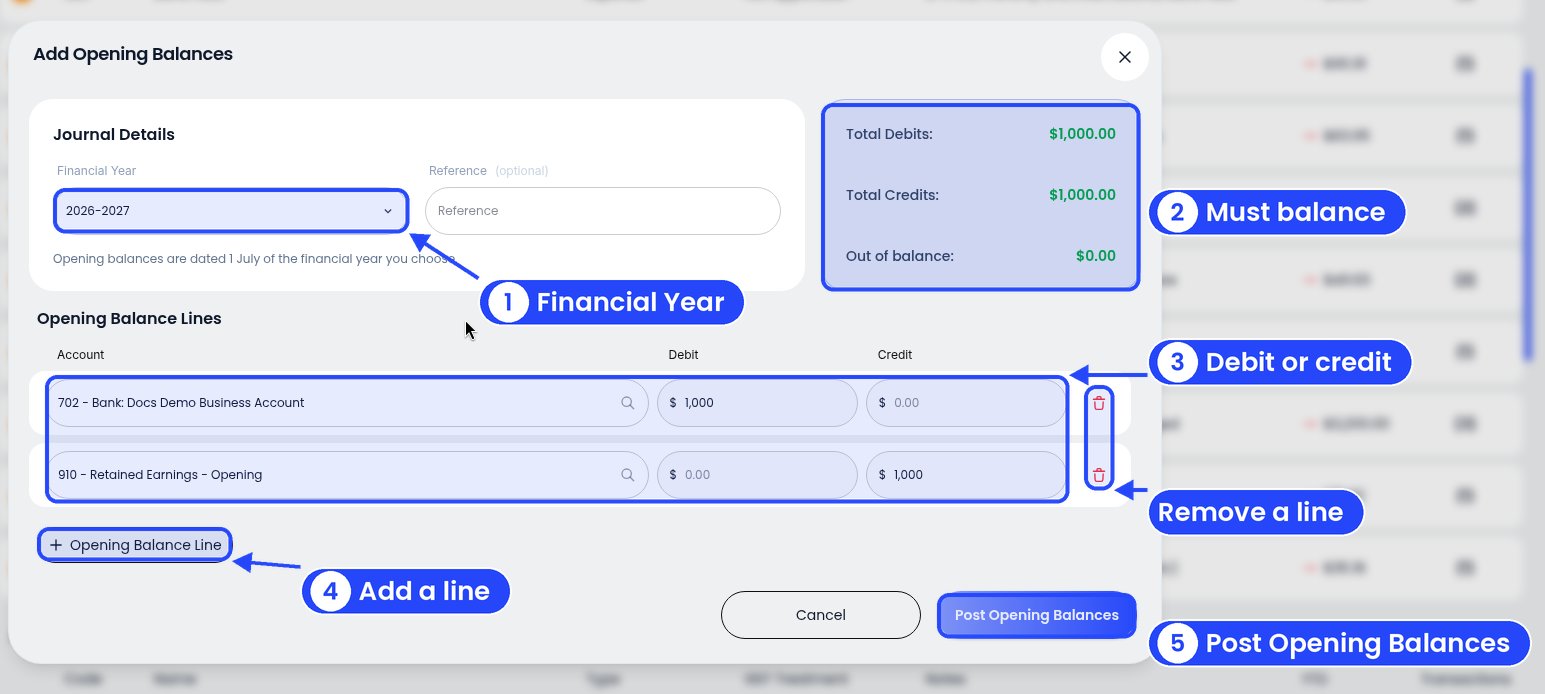
A balanced opening balance journal
4
Make it balance
The panel on the right shows Total Debits, Total Credits and Out of balance. Out of balance must be $0.00.
5
Click Post Opening Balances
You’ll see “Opening balances posted successfully”. The journal shows under Opening Balance Journals. Click it to see each line. Balances by Account updates straight away.
Example
A director lent the company $20,000 and it’s sitting in the bank on 1 July 2025.
The cash is an asset. The loan is a liability, because the company has to pay the director back.
If your lines need an equity line to balance, the account depends on the entity type. A company uses retained earnings, a sole trader owner’s capital and a partnership partner capital. The Equity section of the Chart of Accounts includes 902 Share Capital and 910 Retained Earnings - Opening. For example, a company starting 2026-2027 with $1,000 in the bank debits the bank account $1,000 and credits 910 Retained Earnings - Opening $1,000 (see the picture above). See Choosing the business entity.
Change or delete posted opening balances
From the bank account
1
Click the pencil in the footer
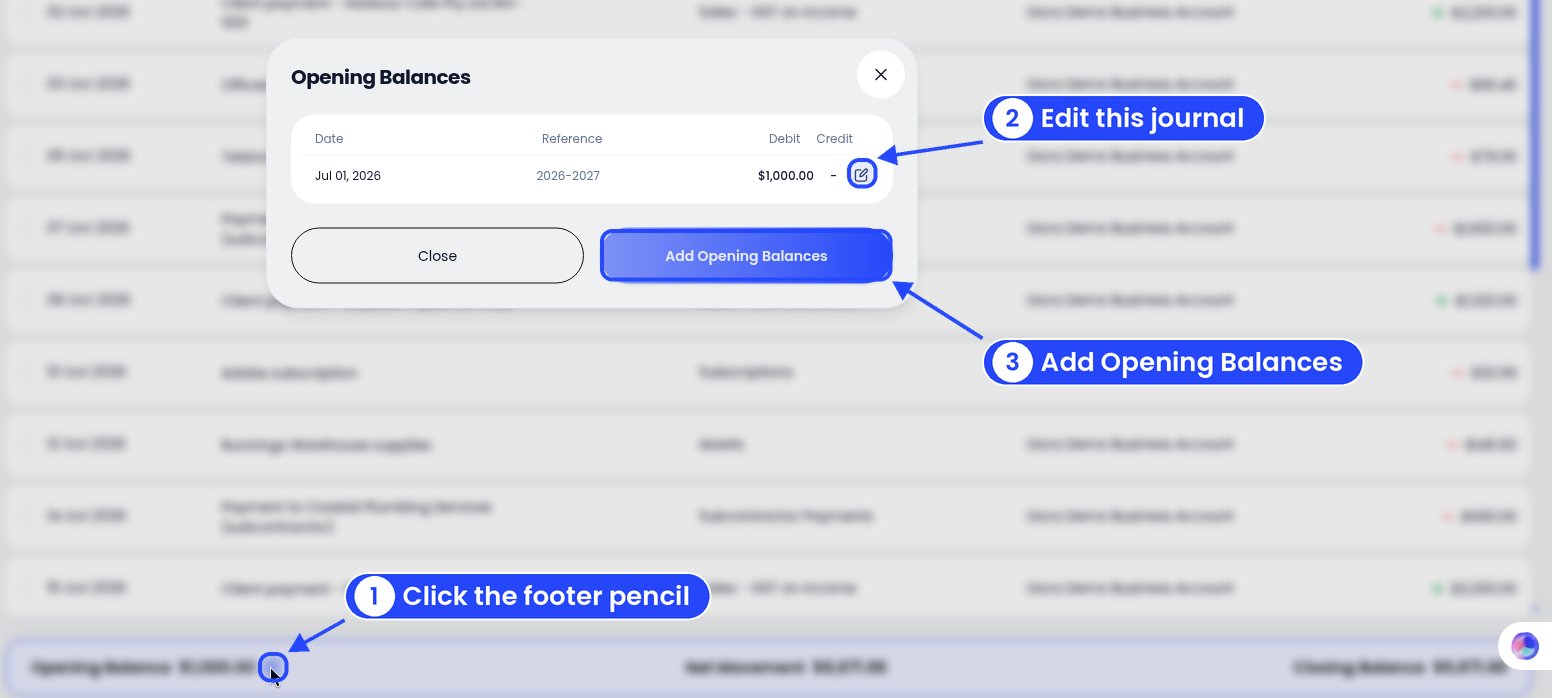
The Opening Balances list, from the bank account's footer
2
Click the pencil on the row
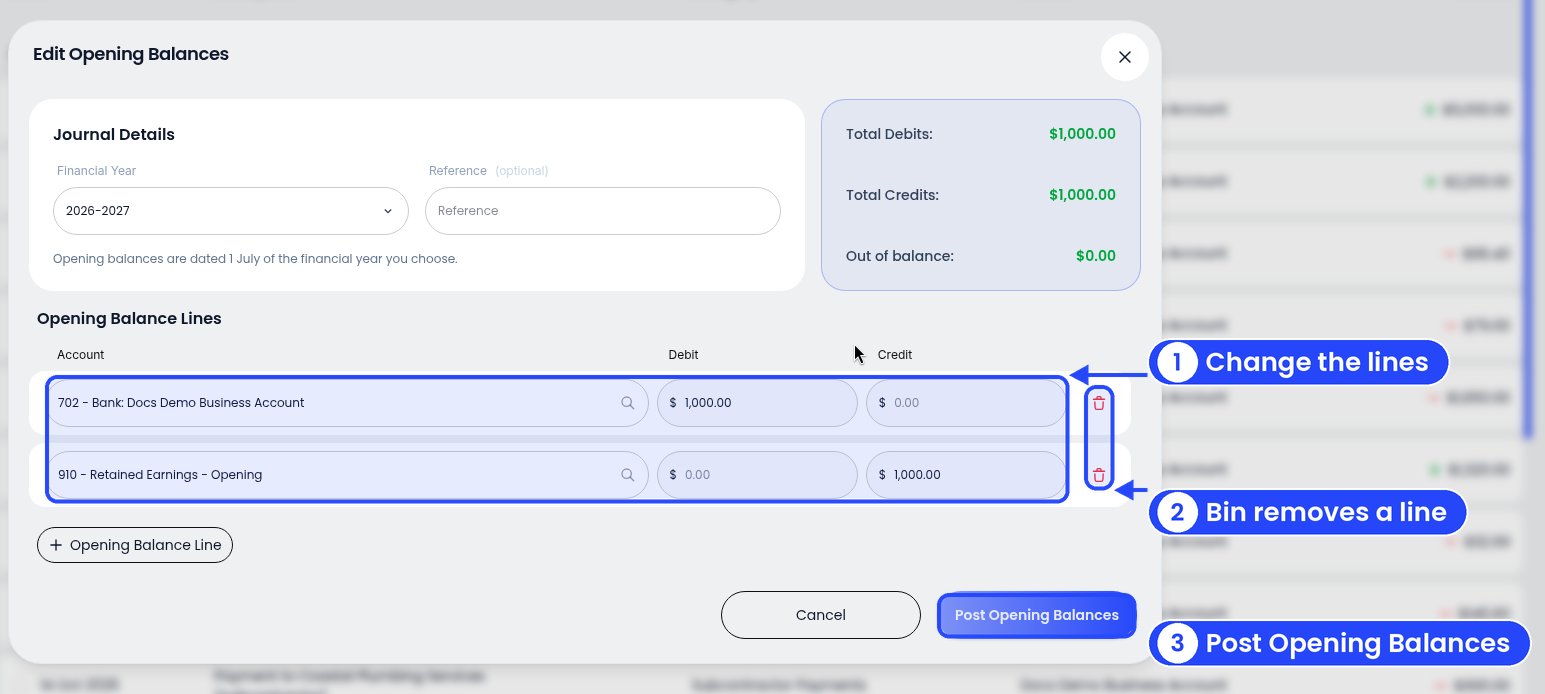
Edit Opening Balances
3
Click Post Opening Balances
Make sure Out of balance is still $0.00, then click Post Opening Balances. Changed your mind? Click Cancel.
From Opening Balance Journals
Tick the journal under Opening Balance Journals. A bar appears at the bottom with Edit and Delete.- Edit opens Edit Opening Balances. Change the lines and click Post Opening Balances.
- Delete asks “Delete opening balances?”. It permanently deletes the journal’s lines and can’t be undone.
Moving from another system or behind on the books? See Catching up on old transactions.